
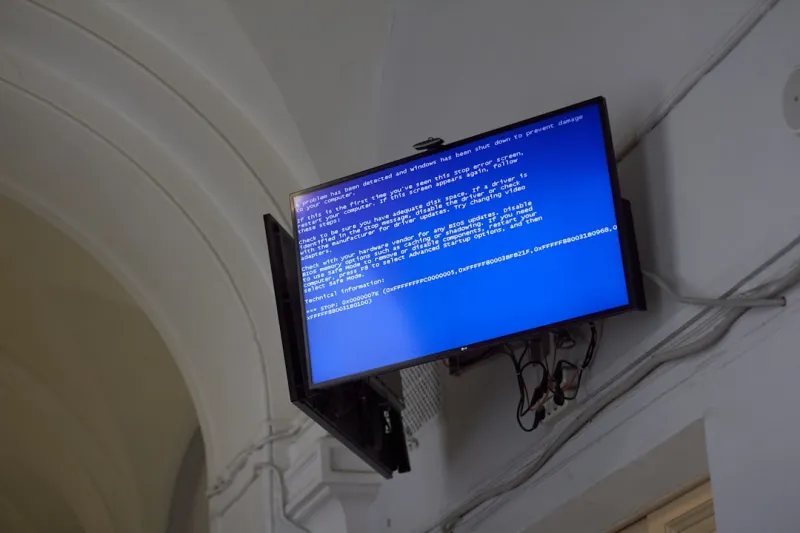
When the dreaded blue screen flickers to life, it feels like an uninvited guest crashing your productivity party. As a power‑user who’s spent countless nights staring at those cryptic error codes, I’ve learned to treat the BSOD not as a punishment but as a diagnostic breadcrumb trail. The first thing to note is the exact timestamp and the alphanumeric stop code – those are the clues you’ll need later. In my experience, the most common culprits are recent driver updates, rogue memory modules, or a misbehaving piece of software that finally decides to throw a tantrum. By keeping a simple log of changes—whether you swapped a GPU, installed a new Windows feature, or even tweaked a BIOS setting—you create a timeline that makes back‑tracking a breeze. Remember, the blue screen is essentially Windows shouting, “Something went wrong, and here’s a hint.” Embrace that hint, and you’ll transition from panic to proactive troubleshooting faster than you can reboot. For a deeper philosophical take, check out Why Power Users Treat Blue Screens as a Tool, Not a Terror and see why many of us treat it as a useful, albeit noisy, ally.
When Hardware Whispers: RAM and Video Card Culprits
Hardware failures are the silent assassins behind many blue screens, especially when you’re pushing the limits of overclocking or running memory‑intensive workloads. Faulty RAM modules often manifest as the infamous 0x0000001A or 0x0000007B stop codes, while a stressed video card can trigger 0x00000116 errors that look like a simple glitch but actually point to driver‑hardware mismatches. My go‑to strategy is a two‑step sanity check: first, run a quick MemTest86 session to isolate any bad memory cells, and second, swap the GPU into a known‑good slot or test with a secondary card. If the BSOD disappears, you’ve pinpointed the hardware offender. It’s also worth noting that modern DDR5 kits, while blazing fast, can be temperamental when paired with older motherboards that lack proper voltage regulation. Keeping firmware updated and ensuring that BIOS settings match the manufacturer’s recommendations can save you hours of cryptic debugging later. For a comprehensive guide on memory diagnostics, you might want to read Diagnosing and Fixing RAM Issues: A Power‑User’s Playbook for.
Software Slip‑Ups: Drivers, Updates, and the Modern OS
Even the most stable hardware can be tripped up by a rogue driver or an ill‑timed Windows update. In 2026, Microsoft’s rapid release cadence means you’re often a few weeks behind the latest patch cycle, which can create a perfect storm of incompatibilities. When a blue screen appears after a recent update, my first instinct is to roll back the offending driver via Device Manager or use the built‑in “Go back to previous build” option within the Recovery environment. Keep a local repository of critical drivers—especially for your chipset, network adapters, and graphics card—so you can reinstall them quickly if Windows decides to replace them with a buggy version. Additionally, third‑party software like virtualization tools or aggressive antivirus suites can inject kernel‑level components that destabilize the system. Disabling or uninstalling these utilities temporarily can often isolate the problem. The key is to maintain a disciplined update strategy: test major patches on a secondary machine or a virtual sandbox before deploying them to your primary workstation.
The Power‑User’s First Response Checklist
Every seasoned tech enthusiast should have a rapid‑response checklist that can be executed the moment a blue screen erupts. I keep a digital notepad (or a physical sticky‑note, if you’re old‑school) with the following steps: 1) Note the stop code and any file names displayed. 2) Press Shift + F10 to launch the command prompt from the recovery screen and run whoami to confirm you’re operating under admin rights. 3) Execute wmic recoveros set DebugInfoType = 2 to ensure full memory dumps are being captured for later analysis. 4) Use eventvwr.msc after reboot to scan the System log for critical errors leading up to the crash. 5) If the system is unbootable, create a bootable USB with Windows 2026 recovery tools and run sfc /scannow and DISM /Online /Cleanup‑Image /RestoreHealth. By following this systematic approach, you eliminate guesswork and create a reliable data trail. For those who crave an even deeper dive, the playbook Mastering Blue Screens: A Power‑User’s Playbook for Rapid Recovery outlines each step with screenshots and command‑line nuances.
Leveraging Built‑In Diagnostics in Windows 2026
Windows 2026 ships with a suite of diagnostic utilities that most casual users never discover, yet they’re invaluable for blue‑screen forensics. The “Windows Memory Diagnostic” tool can be launched directly from the boot menu, offering a quick sanity check on RAM without needing third‑party software. Similarly, the “Device Manager” now includes a “Driver Verifier” option that can stress‑test drivers in a controlled environment, forcing them to reveal hidden bugs before they cause a system‑wide crash. I also rely heavily on “Performance Monitor” to capture real‑time counters for CPU temperature, power consumption, and disk latency, which can be saved as a .blg file for post‑mortem analysis. Don’t overlook the “Reliability Monitor” under Control Panel → Security and Maintenance; it provides a chronological view of critical events, including BSODs, with clickable links to detailed reports. By integrating these native tools into your troubleshooting workflow, you reduce dependency on external utilities and keep your diagnostic chain tight and secure.
When to Dive Deeper: Analyzing Dump Files
If the superficial checks don’t reveal the offender, it’s time to crack open the memory dump files that Windows creates after a crash. By default, Windows 2026 saves a “small memory dump” (typically 256 KB) in the %SystemRoot%\\Minidump folder, which contains enough information to identify the failing driver. For more complex issues, a “full dump” provides a complete snapshot of system memory, but it requires ample disk space. Using the free Debugging Tools for Windows (WinDbg) or the newer “Windows Debugger” integrated into Visual Studio, you can load the .dmp file and run the !analyze -v command to get a verbose breakdown. Look for the “MODULE_NAME” and “IMAGE_NAME” fields—they point directly to the driver or kernel component at fault. In my own investigations, the most surprising culprit has often been a third‑party virtualization driver masquerading as a legitimate service. Once identified, a simple driver update or uninstall resolves the issue. For an in‑depth tutorial on dump analysis, refer to Decoding the Blue Screen: A Power‑User’s Guide to Rapid Recovery, which walks you through the process step by step.
The Role of Malware in Blue Screen Chaos
Malware isn’t just a data‑theft menace; it can also wreak havoc at the kernel level, leading to unpredictable blue screens. Modern ransomware families, for instance, sometimes inject malicious code into critical system drivers to gain persistence, and this tampering often triggers stop codes like 0x00000139 (KERNEL_SECURITY_CHECK_FAILURE). As a power‑user, I maintain a layered defense strategy: a reputable on‑access scanner for real‑time protection, coupled with periodic offline scans using a bootable anti‑malware environment. Moreover, I enable “Secure Boot” in the BIOS, which prevents unsigned drivers from loading during boot. Regularly auditing scheduled tasks and startup entries via “Autoruns” can also expose hidden malicious services before they cause a crash. Remember, a blue screen that appears after you visited a sketchy website or downloaded an unverified executable is a red flag that something more sinister may be at play. Proactive malware hygiene not only protects your data but also stabilizes your system’s core.
Proactive Prevention: Future‑Proofing Your Machine
While you can never eliminate every possible failure, a forward‑looking maintenance plan can dramatically reduce blue‑screen frequency. Start by keeping your firmware—BIOS, SSD controller, and peripheral firmware—up to date; manufacturers often release patches that address subtle timing issues that manifest as stop codes under heavy load. Next, adopt a “driver hygiene” schedule: quarterly review of all installed drivers, rolling back any that haven’t received updates in the past year. Investing in high‑quality power delivery components, such as a reliable 80+ Gold PSU and motherboard VRM cooling, mitigates voltage spikes that can destabilize both RAM and GPUs. Finally, consider a hybrid storage strategy: an NVMe drive for the OS and critical applications, paired with a larger SATA SSD for data. This reduces I/O bottlenecks that sometimes trigger IRQL_NOT_LESS_OR_EQUAL errors during intensive file operations. By combining hardware vigilance with disciplined software updates, you turn your rig into a resilient workstation that greets the blue screen with a calm, analytical mind.
Turning the BSOD Into a Learning Tool
Every blue screen is an opportunity to deepen your technical expertise. I keep a personal “Crash Log” in a markdown file stored on my cloud drive, where I jot down the stop code, recent system changes, and the resolution steps I took. Over time, patterns emerge—perhaps a specific Wi‑Fi driver consistently fails after a Windows feature update, or a particular brand of DDR5 sticks refuses to operate at 5600 MT/s without errors. These insights inform future purchase decisions and help you build a knowledge base that benefits not only you but also your community. Share your findings on forums, contribute to knowledge bases, or write a blog post like this one. By treating the BSOD as a diagnostic ally rather than an enemy, you empower yourself to troubleshoot faster, reduce downtime, and even mentor other power users. The next time the screen turns blue, remember: you’re not stuck—you’re simply handed a puzzle waiting to be solved.
A Quick Reference Playbook
To wrap things up, here’s a concise checklist you can pin to your workstation:
- Record stop code and timestamp.
- Run Memory Diagnostic and swap RAM if needed.
- Verify GPU drivers and test with a secondary card.
- Roll back recent Windows updates or driver installations.
- Capture and analyze dump files with WinDbg.
- Scan for malware and enforce Secure Boot.
- Update firmware and maintain driver hygiene.
- Log the incident for future reference.
Armed with this playbook, you’ll transition from panic mode to systematic recovery in seconds, keeping your productivity humming even when Windows throws a tantrum.




