When I first cracked open Windows 11 back in the early 2020s, I was fascinated by how the OS could be both a polished consumer experience and a deep well of power‑user tricks. Fast forward to 2026, and that duality is more pronounced than ever. The key to staying ahead isn’t just installing the latest updates—it’s about mastering the hidden levers that turn a regular PC into a productivity beast. In this post, I’m pulling back the curtain on the most effective Windows tips I use daily, from AI‑enhanced shortcuts to rock‑solid security habits. If you’ve ever felt limited by the default settings, read on; you’ll discover how a few tweaks can shave seconds off every task and give you confidence that your machine is truly under your command.
Unlock Insider Settings Without the Hassle
One of the most rewarding Windows secrets is the “Insider” mode that grants early access to experimental features. Most users shy away from it, fearing instability, but in 2026 the Insider channel has matured into a reliable testing ground for productivity boosters. By navigating to Settings → Windows Insider Program and opting into the “Dev Channel,” you can enable features like the new snap layouts and advanced window management before they hit the mainstream build. This not only gives you a smoother multitasking experience but also lets you experiment with upcoming AI integrations that Microsoft is rolling out. For a step‑by‑step guide, check out Unlock Windows 11: Insider Tips Every Power User Needs and see how a few clicks can dramatically expand your workflow capabilities.
Power‑User Shortcuts That Cut the Fat
While most of us rely on the classic Win + E or Alt + Tab, Windows 11 hides a treasure trove of keyboard shortcuts that can streamline everything from file navigation to virtual desktop control. For instance, Win + Ctrl + D instantly creates a new virtual desktop, while Win + Shift + ←/→ moves the active window across screens without touching the mouse. Pair these with the new “Quick Settings” panel (Win + A) and you can toggle Wi‑Fi, Bluetooth, and night light in seconds. I also recommend customizing your power plan via Control Panel → Power Options to favor high‑performance mode during heavy tasks, then switch to balanced for everyday browsing. These tweaks are part of the broader set of changes outlined in Essential 2026 Updates Every Power User Must Master, which ensures your system stays lean, responsive, and ready for the next big task.
Leverage AI‑Driven Copilot for Everyday Tasks
Windows 11’s integration of Copilot has moved beyond simple chat assistance; it now acts as an on‑demand command center that can automate repetitive actions. Imagine needing to rename a batch of files, extract a zip archive, and then share the results via OneDrive—all without opening three separate apps. By invoking Copilot with Win + C, you can type natural‑language commands like “Rename all screenshots from last week to ‘Project_X_’ plus a sequential number,” and the AI will execute the PowerShell script behind the scenes. This level of AI assistance reduces mouse clicks and eliminates context switching, which is a massive time‑saver for power users juggling multiple projects. The possibilities expand further when you combine Copilot with Windows Terminal shortcuts, allowing you to script complex workflows that run at the press of a button. For a deeper dive into harnessing AI across your PC, explore Unleashing AI Computing Power: A Power‑User’s Playbook.
Turn Blue Screens Into Diagnostic Goldmines
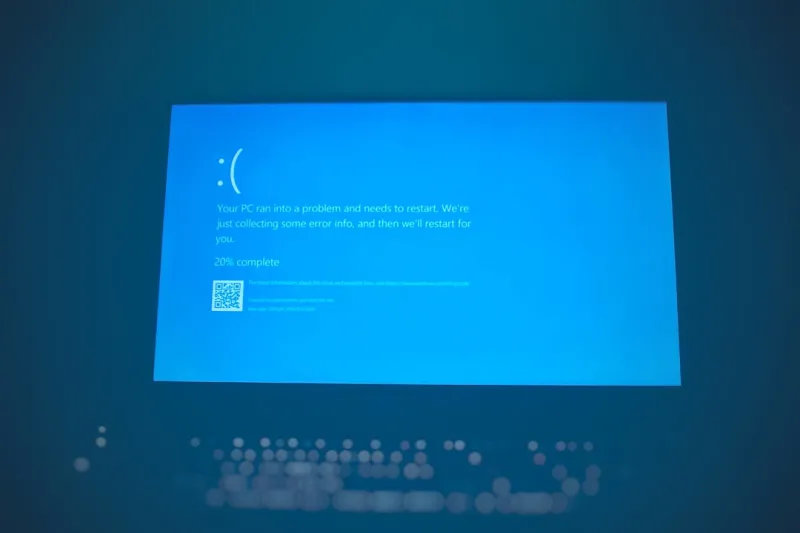
We all dread the dreaded Blue Screen of Death (BSOD), but seasoned power users view it as a valuable diagnostic signal rather than a catastrophe. In 2026, Windows includes a refined “Bug Check Analyzer” that logs detailed error codes, memory dump locations, and even suggests probable culprits based on recent driver installations. When a BSOD occurs, press Shift + F10 on the error screen to open a command prompt, then type wmic recoveros get DebugInfoType to confirm that full memory dumps are being captured. Next, use the built‑in Windows Debugger (WinDbg) to open the dump file and search for the “MODULE_NAME” that caused the crash. By systematically documenting each incident, you can spot patterns—perhaps a particular graphics driver or a third‑party antivirus—before they cripple your workflow. This mindset is detailed in Why Every Blue Screen Is a Hidden Power‑User Opportunity, turning frustration into actionable insight.
Secure Your Data with Modern Encryption Techniques
Data security is non‑negotiable for power users, especially when handling sensitive client files or proprietary code. Windows 11 now ships with BitLocker enhancements that support hardware‑based TPM 2.0 encryption and cloud‑linked recovery keys. To enable the strongest protection, go to Settings → Privacy & Security → Device encryption and toggle on BitLocker. Choose the “AES‑256 with Diffuser” option for the highest resilience against brute‑force attacks. Additionally, enable the “Network Unlock” feature if you frequently boot devices in a secure corporate environment, allowing seamless decryption over a trusted network. For a more granular approach, consider encrypting individual folders with the built‑in EFS (Encrypting File System), which integrates with your Microsoft account for key management. Detailed strategies and best practices are covered in Encrypt Like a Power User: Modern Strategies for Unbreakable Data Protection, ensuring that even a lost laptop won’t expose your critical data.
Supercharge Microsoft Office with AI‑Driven Workflows
Microsoft Office has become an AI playground, and as a Windows power user, you can tap into these features to automate repetitive document tasks. In Word, the “Editor” pane now offers context‑aware suggestions that go beyond grammar, proposing structural changes based on the document’s purpose. Excel’s “Data Types” can pull live market data directly into cells, while the new “Analyze Data” button leverages Copilot to generate charts and pivot tables from raw datasets with a single click. To embed these capabilities into your daily routine, create custom Quick Access Toolbar shortcuts for the AI actions you use most, and assign keyboard shortcuts via File → Options → Customize Ribbon. By integrating these AI‑enhanced tools, you’ll shave minutes off each report, leaving more time for strategic thinking. For a comprehensive guide, see Unlock the Full Potential of Microsoft Office with AI‑Driven Power‑User Strategies.
Monitor System Health Like a Pro
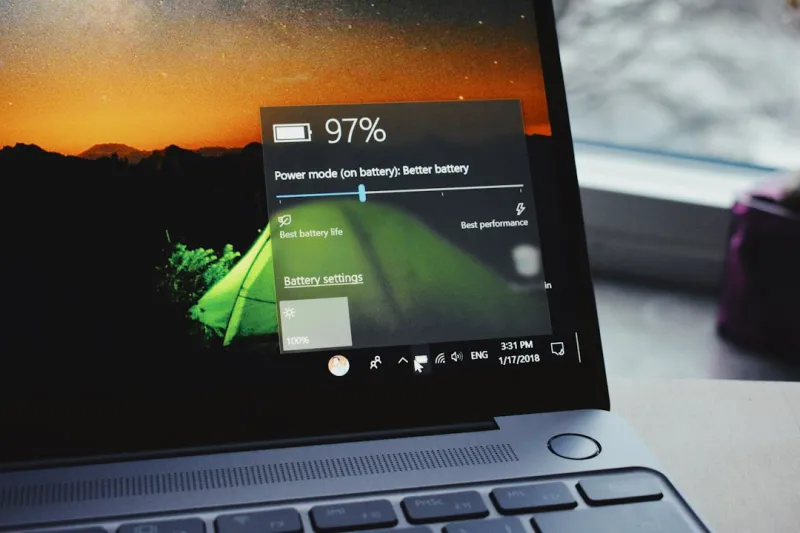
Beyond software tweaks, a true Windows power user keeps a vigilant eye on hardware health to prevent performance bottlenecks before they manifest. The built‑in Task Manager now includes a “Performance” tab that offers real‑time GPU, CPU, and memory usage graphs, along with a “Power usage” meter that reveals which apps are draining battery life on laptops. Pair this with the open‑source tool “HWInfo” for granular sensor data—track temperature spikes, fan speeds, and voltage fluctuations that could hint at impending hardware failure. Regularly review the “Reliability Monitor” (type “Reliability Monitor” into the Start menu) to spot trends in driver crashes or application hangs. By correlating these logs with the system events captured during a BSOD, you can proactively replace a failing SSD or adjust cooling profiles, ensuring your machine stays at peak efficiency.
Wrap‑Up: Turn Windows Into Your Personal Command Center
Mastering Windows in 2026 is less about memorizing every hidden setting and more about cultivating a mindset that treats the OS as an extensible platform. By embracing Insider features, leveraging AI assistants, treating errors as learning opportunities, and fortifying your data with modern encryption, you transform a standard PC into a finely tuned command center. Remember, the most powerful tool in your arsenal is curiosity—keep exploring, test new shortcuts, and stay updated with the latest power‑user guides. When you combine these practices, you’ll not only boost productivity but also gain the confidence that your Windows environment is optimized for whatever challenges 2026 throws your way.