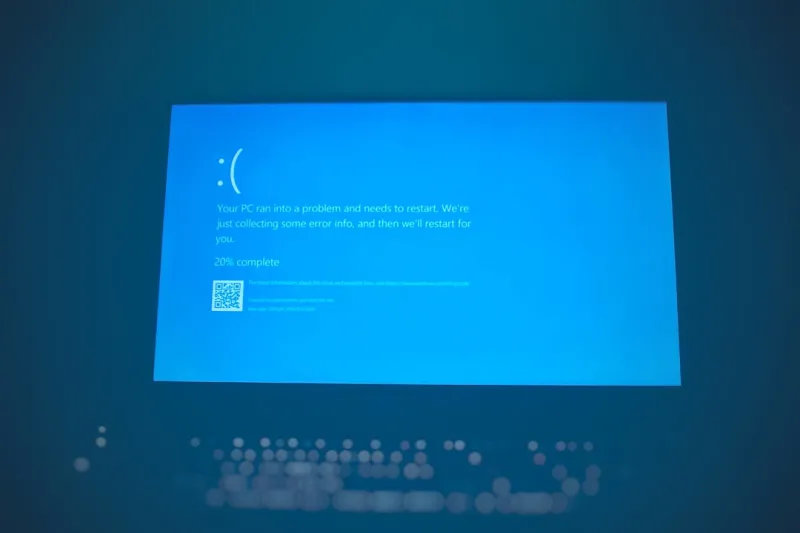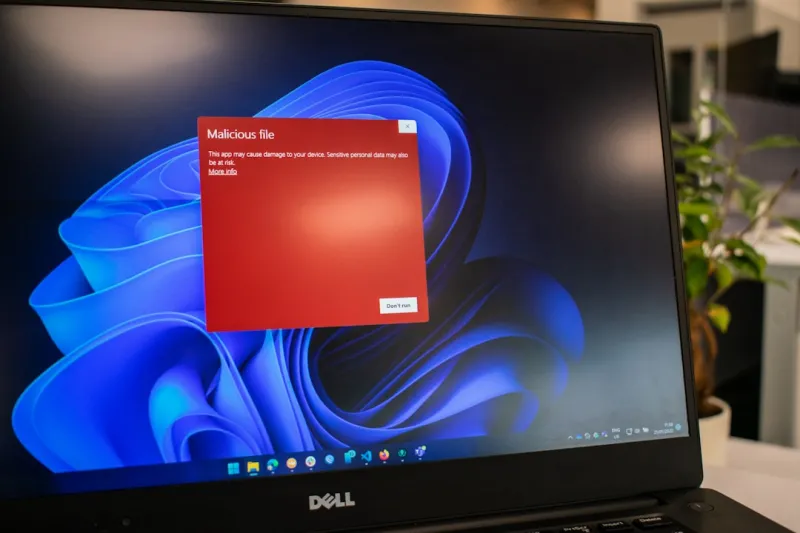
Few things are more frustrating than sitting down to use your computer and suddenly having everything stop responding.
The mouse won't move. A program becomes unresponsive. You click a button and nothing happens. Sometimes the computer starts working again after a few seconds. Other times, the entire system freezes and you have to restart it.
If this happens occasionally, it may not be a major concern. But if your computer keeps freezing, there is usually an underlying problem that needs attention.
A freezing computer can be caused by insufficient memory, failing storage, overheating, software problems, outdated drivers, malware, or aging hardware. Finding the cause is important, particularly if you use the computer for work or have important files stored on it.
Why Does My Computer Keep Freezing?
There isn't one single reason a computer freezes. Several different hardware and software problems can produce similar symptoms.
Here are some of the most common causes.
1. Your Computer May Not Have Enough RAM
RAM, or random access memory, is used by your computer to handle programs and tasks while they are running.
If your computer doesn't have enough RAM for what you're doing, performance can slow dramatically. You may notice freezing when you have numerous browser tabs open or are running several programs at the same time.
For example, you might have email, a web browser, Microsoft Word, a video call, and other applications running simultaneously.
Adding or upgrading RAM may help if insufficient memory is contributing to the problem.
2. Your Hard Drive or SSD Could Be Failing
Storage problems can cause more than slow performance.
A failing hard drive or SSD can cause programs to stop responding, files to take a long time to open, and Windows to become unstable.
Watch for warning signs such as:
• Files taking unusually long to open
• Frequent crashes or freezes
• Error messages
• Missing or corrupted files
• Extremely slow computer performance
• Unusual noises from an older hard drive
If you suspect your storage drive is failing, back up important files as soon as possible.
If the computer contains important family photographs, business documents, financial records, or other irreplaceable information, don't wait until the computer stops working completely before thinking about your backup.
3. Your Computer May Be Overheating
Computers generate heat and rely on fans and airflow to keep internal components operating at appropriate temperatures.
Dust buildup, blocked vents, a failing fan, poor airflow, or another cooling problem can contribute to overheating.
You may notice that:
• The computer becomes unusually hot
• Fans run loudly
• Performance gets worse during demanding tasks
• Programs freeze or close unexpectedly
• The computer shuts down or restarts
Make sure air vents aren't blocked and that the computer has adequate airflow.
If overheating continues, the cooling system may need to be inspected and cleaned.
4. Too Many Programs May Be Running
Sometimes the computer isn't broken. It may simply have too much running at once.
Many programs automatically start when Windows starts. Over time, you may accumulate applications that run in the background even though you rarely use them.
These programs can consume memory and processor resources.
Reviewing your startup programs and removing unnecessary software can sometimes improve performance.
However, be careful about disabling programs if you aren't sure what they do. Some background services are important to Windows or your computer's hardware.
5. Windows or a Driver Could Be Causing the Problem
Windows updates and device drivers can affect system stability.
A damaged, outdated, or incompatible driver can sometimes result in freezing, crashes, or other unusual behaviour.
Graphics drivers are one example.
If your computer tends to freeze when watching videos, playing games, or using graphics-intensive programs, a driver or graphics-related problem could be worth investigating.
Keeping Windows and important device drivers properly maintained can help prevent software-related problems.
6. Malware Could Be Affecting Your Computer
Malware can consume system resources, interfere with programs, change settings, and cause unusual computer behaviour.
If your computer has suddenly become slow or unstable, look for other warning signs such as:
• Unexpected pop-ups
• Browser redirects
• Unfamiliar programs
• Strange browser extensions
• Unusual security warnings
• Changes to your browser settings
These symptoms don't automatically mean you have a virus.
There are many reasons a computer can become slow or freeze.
However, if something doesn't seem right, checking for malware is worthwhile.
7. Your Computer May Be Getting Older
Older computers can develop several problems at the same time.
A computer that worked perfectly several years ago may struggle with newer software and more demanding applications. At the same time, components such as storage drives, cooling fans, and batteries can wear out.
That doesn't necessarily mean you need to buy a new computer.
Depending on the age and condition of the machine, an upgrade or repair may extend its useful life.
Replacing an older hard drive with an SSD, adding RAM, cleaning the cooling system, or correcting a software problem can sometimes make a significant difference.
What Should You Do When Your Computer Freezes?
When your computer becomes temporarily unresponsive, give it a moment before immediately forcing it to shut down.
If it starts responding again, save your work and try to identify what caused the problem.
Ask yourself:
• What program was I using when it happened?
• Did I have many browser tabs open?
• Was the computer unusually hot?
• Did I recently install software?
• Did I recently connect new hardware?
• Does the problem happen repeatedly?
• Does it happen with one particular program?
• Have I backed up my important files recently?
Keeping track of when the freezing occurs can provide useful clues.
Don't Ignore Repeated Freezing
An occasional program becoming unresponsive isn't necessarily a major problem.
Repeated full-system freezes are different.
If your computer regularly locks up, crashes, restarts, or becomes increasingly slow, it's worth finding out why rather than simply restarting it every time.
Repeated freezing can sometimes be an early warning of a hardware problem, particularly if the computer is also showing other symptoms.
And if your important files aren't backed up, now is a good time to address that.
Should You Repair or Replace the Computer?
A freezing computer doesn't automatically mean it's time for a new one.
The right answer depends on what is actually causing the problem.
A relatively newer computer may only need a software cleanup, driver correction, malware removal, or hardware repair.
An older computer may benefit from additional RAM or an SSD upgrade.
In other cases, the cost of repairing an aging machine may make replacement more practical.
That's why diagnosing the problem first is important.
You don't want to spend money replacing a computer if a relatively simple repair could solve the problem.
When Should You Get Professional Help?
If you've tried basic troubleshooting and your computer continues to freeze, it may be time to have it properly diagnosed.
A technician can check the computer's:
• RAM and memory usage
• Hard drive or SSD health
• Operating system
• Temperatures and cooling
• Drivers
• Startup programs
• Malware and unwanted software
• Hardware components
• Error logs and system behaviour
A proper diagnosis can help determine whether the computer needs a repair, upgrade, cleanup, or replacement.
Comp Doc Computers Can Help
At Comp Doc Computers, we help home users and small businesses troubleshoot computer problems and figure out what is actually wrong.
If your computer keeps freezing, we can help identify whether the problem is related to hardware, software, storage, memory, malware, overheating, or another issue.
Depending on what we find, the solution may be a repair or upgrade rather than replacing the entire computer.
We can also help with computer tune-ups, virus and spyware removal, hardware and software upgrades, backups, and data recovery.
Need help with a computer that keeps freezing? Visit compdoccomputers.com to arrange a free phone consultation.
Sometimes the best solution isn't buying a new computer.
Let's find out what's actually causing the problem first.