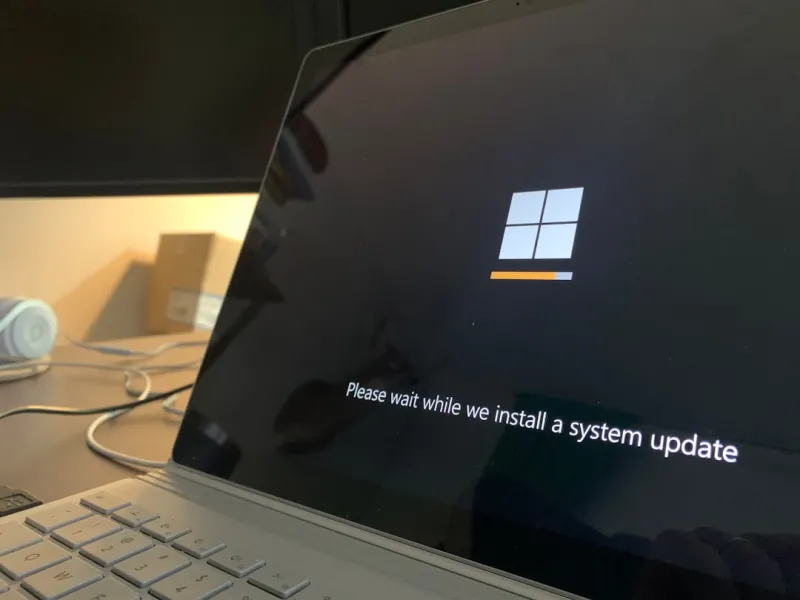
When I first boot up a fresh Windows 11 install in 2026, the update notification that pops up is more than a polite reminder—it’s a strategic crossroads. As a longtime power‑user, I’ve learned to treat each cumulative update as a piece of a larger puzzle, one that can either tighten security, unlock hidden performance gains, or, if mishandled, throw a perfectly tuned workstation into chaos. My workflow revolves around a delicate balance: I’m eager for the newest security patches, yet I’m equally wary of regressions that could break custom scripts, virtualization layers, or the niche hardware I rely on for development and content creation. In this post, I’ll walk you through my battle‑tested approach to Windows updates in 2026, sharing the tactics that keep my rigs humming, my data safe, and my productivity at peak levels. Expect a mix of practical step‑by‑step guidance, deep‑dive diagnostics, and a few insider shortcuts that most mainstream guides overlook.
Why 2026 Updates Demand a New Playbook
Microsoft’s update cadence in 2026 has evolved from the predictable “Patch Tuesday” rhythm of the early 2020s into a more dynamic, feature‑driven release model. While the core security patches still arrive on the first Tuesday of each month, Microsoft now intersperses optional feature updates every six weeks, each packed with AI‑enhanced utilities, deeper integration with Azure services, and revamped driver frameworks. This shift means power‑users can no longer afford a one‑size‑fits‑all strategy; the stakes are higher, and the variables are more complex. For instance, the latest optional update introduced a revamped Windows Subsystem for Linux (WSL) that leverages hardware‑accelerated virtualization, but it also rewrites several kernel‑level APIs that my custom monitoring tools depend on. Ignoring such changes can lead to silent failures that only surface under heavy load. Conversely, embracing them without proper testing can break long‑standing automation pipelines. Understanding this new landscape is the first step toward a disciplined, tactical approach that keeps you in the driver’s seat rather than reacting to surprise rollbacks.
Building a Controlled Update Pipeline
The cornerstone of my strategy is a controlled, staged rollout that mirrors the principles outlined in The Power‑User’s Essential 2026 Update Playbook. I start by creating a dedicated “update sandbox” VM that mirrors my primary workstation’s hardware profile, including GPU, SSD, and peripheral configurations. This sandbox receives every new cumulative and optional update first, allowing me to run a battery of regression tests—ranging from benchmark suites like Geekbench to real‑world workloads such as Docker container orchestration and Visual Studio builds. Only after the sandbox clears all checkpoints do I push the update to a secondary “pre‑prod” machine that hosts critical services like local DNS resolvers and Git repositories. Finally, with confidence that the update is stable, I schedule a maintenance window for my main workstation, ensuring that any potential fallout can be rolled back within minutes using System Restore points and the built‑in Windows Recovery Environment. This three‑tiered approach not only shields my day‑to‑day productivity but also gives me a data‑driven basis for deciding whether an update is truly worth adopting.
Driver Compatibility: The Silent Deal‑Breaker
One of the most treacherous pitfalls of Windows updates in 2026 is the unexpected driver overhaul that often accompanies feature updates. Modern hardware manufacturers now ship drivers that are tightly coupled with specific Windows builds, leveraging the new Universal Driver Model (UDM) to deliver better power management and low‑latency I/O. However, a mismatched driver can wreak havoc on high‑performance GPUs, NVMe SSDs, or even specialized networking adapters I use for low‑latency trading simulations. To stay ahead, I rely heavily on the guidelines from Mastering Windows Updates in 2026: A Power‑User’s Tactical Guide, which recommends pre‑emptively downloading the latest WHQL‑certified drivers from vendor portals and staging them in a local repository. I then use PowerShell scripts to compare driver versions before and after an update, automatically rolling back any that trigger a mismatch in the device manager’s status codes. This proactive driver management ensures that my high‑end workstation never experiences the dreaded “device not started” error after a seemingly innocuous update.
Group Policies and WSUS: Fine‑Tuning the Update Engine
For those of us who manage multiple machines—whether in a home lab or a small boutique consultancy—leveraging Group Policy Objects (GPOs) and Windows Server Update Services (WSUS) is non‑negotiable. In 2026, Microsoft has expanded the granularity of policy settings, allowing administrators to control not just the timing of updates but also the specific feature packs that are deployed. I’ve built a lightweight WSUS server that mirrors the Microsoft update catalog but filters out optional feature updates unless they pass my internal test suite. Using GPOs, I enforce “Automatic Updates – Notify for download and notify for install” on my primary machines while allowing “Automatic Updates – Auto download and schedule the install” on secondary devices that aren’t mission‑critical. This tiered policy model is explained in depth in Operating Systems Unleashed: Power‑User Strategies for, and it gives me the flexibility to keep security patches flowing without sacrificing the stability of my core development environment.
Security Implications: Staying Ahead of the Threat Landscape
Every Windows update carries a dual purpose: patch vulnerabilities and, increasingly, introduce new attack surfaces. In 2026, the integration of AI‑driven telemetry means that Microsoft can push micro‑updates that address zero‑day exploits within hours of discovery. While this rapid response is a boon for security, it also means that power‑users must be vigilant about the broader implications of each patch. The hidden war between power‑users and modern malware has never been more intense, as highlighted in The Hidden War: How Power Users Can Outsmart Modern Malware. I mitigate this risk by enabling Windows Defender Exploit Guard, configuring Controlled Folder Access, and, importantly, isolating my most sensitive workloads in Hyper‑V containers that can be quickly spun down if an update introduces a new vulnerability. Regularly reviewing the CVE details in the Microsoft Security Response Center (MSRC) database before applying cumulative updates allows me to prioritize patches that address exploits targeting the exact software stack I rely on.
Performance Tuning After the Update
Even the most well‑planned update can leave a subtle performance footprint—extra services, altered registry keys, or residual files that bloat the system. After each successful update, I run a systematic performance audit, beginning with a deep dive into the Windows Event Viewer for any lingering warnings. Next, I employ the techniques from Master RAM Troubleshooting: Power‑User Strategies for to validate that memory allocation patterns remain optimal, especially for workloads that rely heavily on in‑memory databases. I also use the built‑in Windows Performance Analyzer (WPA) to compare pre‑ and post‑update CPU and I/O metrics, looking for spikes that could indicate a driver regression or a misbehaving service. Finally, I clean up the WinSxS folder with DISM and prune unnecessary scheduled tasks that were added by optional feature updates. This meticulous post‑update housekeeping ensures my machine retains the razor‑thin latency and high throughput required for tasks like 8K video rendering and real‑time code compilation.
Automation and Future‑Proofing Your Update Strategy
Looking ahead, the best defense against update‑related disruption is automation. I’ve built a PowerShell‑based pipeline that pulls the latest update metadata from Microsoft’s Update Catalog API, cross‑references it with my internal test results, and then pushes approved updates to my WSUS server on a nightly schedule. This pipeline also integrates with my CI/CD system, triggering a fresh build of my custom PowerShell modules whenever a new update passes all validation stages. By version‑controlling my update policies in a Git repository, I can roll back to a previous state with a single commit revert if an update unexpectedly breaks a critical workflow. This approach not only saves countless hours of manual intervention but also future‑proofs my environment against the increasing cadence of feature releases. Embracing such automation, paired with the disciplined testing framework described earlier, transforms Windows updates from a source of anxiety into a predictable, even advantageous, part of the power‑user’s toolkit.