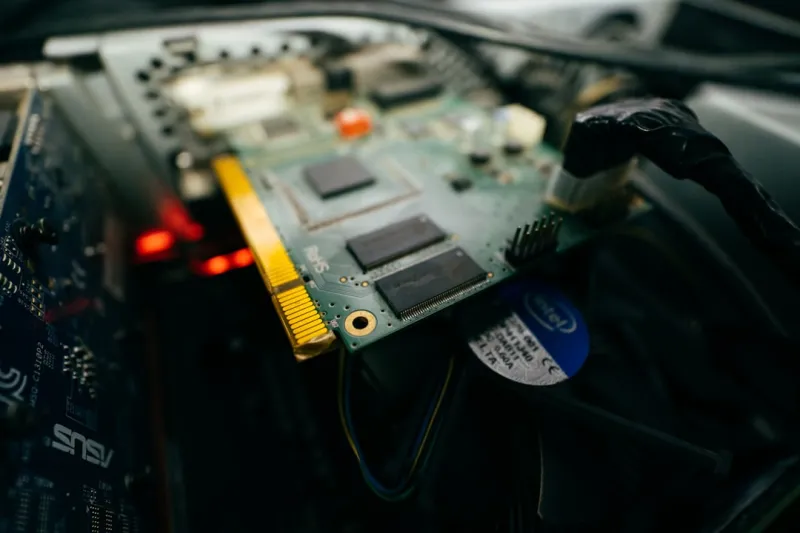
When your screen flickers, artifacts appear, or the system crashes into a blue screen, the culprit is often the video card. As a longtime power‑user and self‑described “GPU whisperer,” I’ve spent countless evenings coaxing every silicon heartbeat from my rigs, and I’ve learned that troubleshooting video cards is part art, part science. In 2026, the landscape is more diverse than ever: RTX 6000‑series monsters sit beside compact, low‑power Xe‑HD graphics, each with its own quirks. This guide walks you through a systematic approach, starting with the simplest checks and climbing up to deep‑level debugging, so you can quickly isolate the problem, avoid costly component swaps, and keep your machine humming at peak performance. Whether you’re building a workstation for 8K video editing or a battle‑ready rig for the latest ray‑traced titles, the principles below will save you time and frustration.
Identify the Symptom and Isolate the Variable
The first step is to clearly define what you’re seeing. Is the display black after boot, or does it drop to a low resolution mid‑session? Are you hearing coil whine, or is the fan stuck at full speed? Documenting these details helps you match symptoms to common failure modes. For example, a sudden loss of signal often points to a loose PCIe connector, while intermittent stuttering can be a sign of thermal throttling or driver corruption. I always start by swapping the display cable and testing the monitor on another device; this eliminates the simplest point of failure. Next, use the built‑in Windows “Device Manager” to check if the GPU appears with a warning triangle—an immediate red flag that the OS is detecting a problem at the software level. By narrowing the variable set early, you prevent you from chasing phantom ghosts across the system.
Driver Hygiene: The Unsung Hero of Stability
Even the most robust silicon can be crippled by outdated or mismatched drivers. In 2026, NVIDIA, AMD, and Intel push quarterly driver releases that add support for new games, fix security holes, and refine power management. I recommend using a clean‑install approach: uninstall the current driver with a tool like DDU (Display Driver Uninstaller) in safe mode, then download the latest “Game Ready” or “Studio” driver directly from the vendor’s site. Never rely on Windows Update to handle GPU drivers—the automated process often lags behind and can re‑introduce legacy bugs. If you’re a power‑user who frequently jumps between professional workloads and high‑FPS gaming, consider maintaining two driver branches and switching with a simple script. For those still unsure about the right GPU for their needs, check out How to Choose the Perfect GPU for Power Users for a deep‑dive on matching performance to workload.
Hardware Diagnostics: From POST to Stress Tests
Once you’ve cleared the software layer, it’s time to interrogate the hardware itself. Start with the POST (Power‑On Self‑Test) beep codes—most modern motherboards emit a distinct pattern when a GPU fails to initialize. If the system boots but the GPU isn’t detected, reseat the card, ensuring the PCIe latch clicks firmly into place. After confirming physical connections, run a GPU stress test like FurMark or OCCT while monitoring temperatures with HWInfo. A sudden crash during a short 5‑minute stress run often signals a defective VRM or solder joint, whereas gradual temperature climb followed by throttling points to inadequate cooling. Don’t forget to test the GPU in another known‑good system; this cross‑check can definitively prove whether the card or the host platform is at fault.
BIOS/UEFI Settings: The Hidden Levers
Modern motherboards expose a suite of GPU‑related settings hidden deep in the BIOS/UEFI. In 2026, many UEFI interfaces now allow you to toggle “Above 4G Decoding,” set PCIe link speed (Gen5, Gen4, etc.), and even allocate dedicated memory for integrated graphics. If you’re running a multi‑GPU configuration, ensure that “PEG” (PCI Express Graphics) is set as the primary display adapter. Some power‑users also disable “Fast Boot” to give the GPU extra initialization time, a small tweak that can resolve elusive boot‑loop issues. Finally, verify that the BIOS version matches the motherboard’s support matrix for your GPU generation; a firmware update may be required to unlock full compatibility, especially with the newest RTX 6000‑series cards that use PCIe 5.0.
Power Delivery: PSU Capacity and Cabling
A GPU’s power draw can be a silent saboteur if the PSU (Power Supply Unit) is undersized or if the cables are loosely seated. Modern high‑end cards can pull 350 watts or more under load, and a marginal PSU will manifest as random reboots, driver timeouts, or the dreaded “GPU driver failed to load” error. Use a wattage calculator—many reputable tech sites provide updated charts for 2026 GPUs—to confirm your PSU meets the recommended headroom (typically 20% above peak draw). Check that the 8‑pin and 6‑pin connectors are fully engaged, and consider using modular cables with firm latching mechanisms. If you suspect voltage sag, a cheap USB‑C power meter can give you a quick read of the rail voltages while running a stress test. Remember, a healthy power supply is the foundation of a stable graphics pipeline.
Thermal Management and Performance Throttling
Heat is the enemy of every silicon heart, and video cards are no exception. In 2026, many GPUs feature sophisticated fan curves and even liquid‑cooling solutions that require periodic maintenance. Start by cleaning dust from the heatsink fins and fan blades—accumulated grime can reduce airflow by up to 30%, leading to rapid temperature spikes. Verify that the fan profile in the vendor’s control panel (e.g., NVIDIA Control Panel or AMD Radeon Software) matches your usage scenario; a “Quiet” setting may be fine for office work but will cause throttling under gaming loads. Use GPU temperature thresholds—typically 85 °C for most modern cards—as a trigger for manual fan speed adjustments. If you’re running a custom water loop, inspect the coolant level, check for leaks, and confirm the pump is operating at the rated RPM. Overheating not only throttles performance but can permanently degrade the GPU’s silicon over time.
OS Compatibility and Update Interplay
Operating system updates can inadvertently break GPU functionality, especially when new kernel patches modify driver interfaces. In 2026, Microsoft’s semi‑annual Windows 11 updates often include graphics stack revisions that demand the latest driver releases. Before applying a major OS update, I always create a system restore point and review the changelog for any known GPU conflicts. For those who prefer a more controlled environment, the Mastering Windows Updates in 2026: A Power‑User’s Tactical Playbook offers a step‑by‑step guide on deferring updates and selectively installing critical patches. Linux users should also pay attention to kernel versions; a newer kernel may require a firmware update for the GPU, which can be addressed through the distribution’s package manager. Keeping the OS, drivers, and firmware in sync is a cornerstone of a trouble‑free graphics experience.
Advanced Debugging Tools: From Logs to Telemetry
When the obvious checks fail, dive into the deeper diagnostics that power‑users love. Windows Event Viewer logs can reveal driver timeouts, memory allocation failures, or DPC (Deferred Procedure Call) overruns tied to the GPU. Tools like GPU-Z provide real‑time telemetry on clock speeds, memory bandwidth, and power draw—useful for spotting anomalies such as a GPU stuck at a low core clock despite low temperatures. For NVIDIA cards, the Nsight suite lets you capture frame‑level performance data, while AMD’s Radeon™ Pro Software includes a “Performance Overlay” for similar insights. If you suspect a hardware fault, the built‑in “PCI Express Diagnostic” in the BIOS can run a quick lane‑error test, reporting any CRC mismatches that may point to a faulty connector or motherboard trace. Armed with this data, you can make a compelling case to the vendor’s RMA department, speeding up the replacement process.
Preventive Maintenance and Future‑Proofing
Finally, think of your video card as a long‑term investment. Regular preventive maintenance—cleaning dust, updating drivers, and monitoring temperatures—can extend the life of a high‑end GPU by years. When planning upgrades, consider a PSU with ample headroom, a case with optimal airflow, and a motherboard that supports the latest PCIe standards; this future‑proofing reduces the risk of bottlenecks when you eventually upgrade to the next generation. For those who love to tinker, building a modular test bench lets you swap GPUs without disturbing the rest of the system, making diagnostics faster and less stressful. By combining disciplined upkeep with the systematic troubleshooting steps outlined above, you’ll spend less time troubleshooting and more time enjoying the buttery‑smooth visuals that modern graphics cards can deliver.