
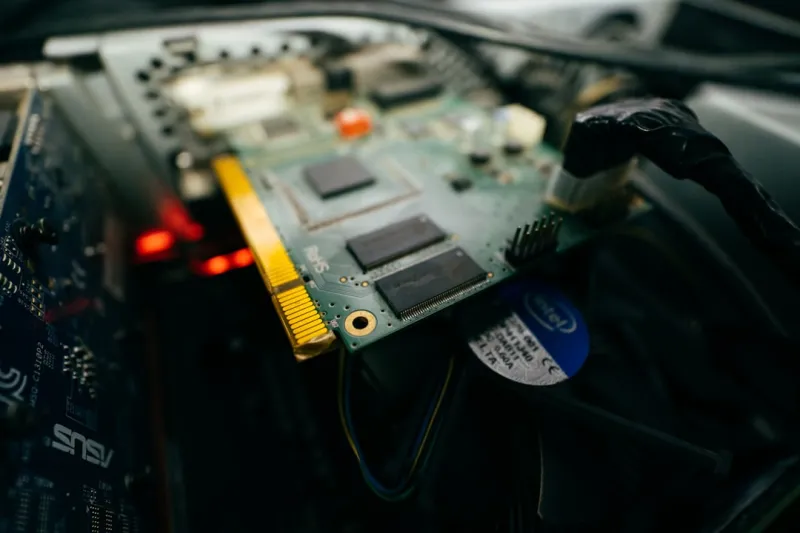
When my RTX 4090 started flickering during a high‑frame‑rate session in 2026, I realized the issue wasn’t just a hiccup—it was a symptom of deeper system dynamics that many power users overlook. As someone who lives at the intersection of gaming, AI workloads, and content creation, I’ve learned that a video card’s health is a barometer for the entire rig. In this post I’ll walk you through the systematic approach I use to diagnose and resolve the most common GPU headaches, from driver conflicts to thermal throttling, while also sharing the tools I trust to keep performance razor‑sharp. The goal isn’t just to get the lights back on; it’s to understand the why, so you can prevent future meltdowns and extract every ounce of horsepower from your silicon. Expect a blend of hands‑on diagnostics, BIOS tweaks, and a dash of the latest industry trends that are reshaping how we think about graphics processing today.
Establishing a Baseline: The First 10 Minutes of Diagnosis
Before you start pulling screws or reinstalling drivers, I always set a clear baseline. Open a monitoring suite like MSI Afterburner or HWInfo64, and capture core clock, memory clock, voltage, fan curves, and temperature under idle and load conditions. In my experience, a sudden deviation of more than 5 % from the manufacturer’s spec points to either a software bottleneck or a hardware anomaly. Document the numbers, then run a stress test with The Ultimate PC Upgrade Playbook for Power Users to see if the card sustains peak performance. If temperatures skyrocket above 85 °C within minutes, you’re likely dealing with insufficient cooling or a compromised heatsink paste. Conversely, if clock speeds dip without a temperature trigger, investigate power delivery and driver integrity. Establishing this data‑driven foundation saves hours of blind troubleshooting and gives you concrete metrics to compare after each tweak.
Driver Dilemmas and Software Interference
Drivers are the lingua franca between the OS and the GPU, and in 2026 the rapid rollout of AI‑accelerated features has made them more volatile than ever. A clean install is often the fastest cure: use DDU (Display Driver Uninstaller) in safe mode, wipe the previous stack, then pull the latest WHQL driver from NVIDIA or AMD’s website. I’ve also found that certain third‑party overlays—Discord, OBS, and even some anti‑cheat modules—can inject code that corrupts the driver’s memory space, resulting in artifacting or sudden crashes. To isolate the culprit, disable all non‑essential background apps and re‑run your benchmark. If stability returns, re‑introduce each program one by one. For those who love the cutting edge, consider the “Game Ready” drivers that are optimized for the newest titles, but always keep a fallback version handy. Remember, a driver rollback isn’t a failure; it’s a strategic move that can keep your workflow humming while you wait for a hotfix.
Power Delivery: The Unsung Hero of GPU Stability
Modern GPUs draw upwards of 350 W under load, and a weak or aging power supply can manifest as random resets or black screens. I always start by checking the PSU’s wattage rating against the card’s TDP, plus a 20 % safety margin for other components. Next, examine the PCIe power connectors: any loose pins or discoloration can cause intermittent power loss. If you suspect voltage sag, a quick test with a USB‑C power meter on the GPU’s auxiliary connectors can reveal drops below 12 V. In many cases, swapping to a higher‑efficiency 80 PLUS Gold PSU resolves the issue without further tinkering. For enthusiasts running multiple GPUs or overclocked setups, consider modular PSUs with dedicated rails to ensure clean, stable power across the board. Proper power hygiene not only prevents crashes but also extends the lifespan of your graphics card.
Thermal Management: Beyond the Stock Cooler
Even the most robust stock coolers can be outpaced by the thermal demands of AI rendering and 4K gaming in 2026. First, inspect the GPU’s heatsink for dust buildup; a simple can of compressed air can restore airflow dramatically. If temperatures remain high, I recommend repasting the GPU with a high‑performance thermal compound such as Thermal Grizzly Kryonaut. While you’re in there, check that the fan curve isn’t stuck in a low‑RPM profile—custom curves in Afterburner can keep the GPU cool during intense workloads. For the truly ambitious, an aftermarket liquid cooler can shave 10–15 °C off peak temps, but ensure the case has adequate clearance and airflow. Don’t forget the chassis: positive pressure with strategically placed intake fans helps draw cool air over the GPU’s radiator, while exhaust fans prevent hot air from stagnating. A well‑ventilated case often does more for thermals than any GPU‑specific upgrade.
BIOS Tweaks and Firmware Updates
The GPU BIOS is a hidden layer of optimization that many overlook. Manufacturers occasionally release firmware updates that improve memory compatibility, fix known bugs, or unlock higher boost clocks. Before flashing, verify that the update matches your exact card model and VRAM configuration—using the wrong BIOS can brick the GPU. In my toolkit, I keep a backup of the original BIOS using GPU-Z, just in case. Once updated, you can fine‑tune power limits and clock offsets via the BIOS or through software tools like NVIDIA Inspector. A modest power limit increase of 5–10 % can yield a noticeable performance bump without sacrificing stability, provided you monitor temperatures closely. Remember, BIOS changes are permanent until you reflash, so proceed with caution and always test after each modification.
Diagnosing Hardware Faults with Stress Tests
When software tweaks fail, it’s time to stress the hardware itself. Tools like FurMark, Unigine Heaven, and 3DMark Pro push the GPU to its absolute limits, exposing latent defects such as failing memory chips or broken solder joints. Run a 15‑minute stress test while monitoring for artifacting—those shimmering squares or colored lines that appear on screen are classic signs of VRAM issues. If the card crashes consistently at a specific temperature threshold, you might be facing a defective voltage regulator module (VRM). In such cases, the only reliable fix is a RMA or replacement, especially if the card is still under warranty. For out‑of‑warranty units, a professional re‑balling service can sometimes resurrect a dead GPU, but weigh the cost against buying a newer model that benefits from the latest architecture improvements.
Integrating the Fixes: A Holistic Maintenance Routine
After you’ve isolated the root cause, the final step is to integrate the solution into a sustainable maintenance plan. Schedule quarterly cleaning of dust filters, semi‑annual thermal paste re‑application, and monthly driver health checks. Keep a log of temperatures, clock speeds, and any anomalies you encounter; this data becomes invaluable when future issues arise. I also like to cross‑reference my findings with the broader trends discussed in Power‑User Blueprint: Mastering 2026 Computer Hardware Trends, ensuring my rig stays aligned with the evolving ecosystem of AI acceleration and ray tracing. By treating your GPU like a living component—regularly fed with clean power, fresh thermal paste, and up‑to‑date firmware—you’ll not only dodge the dreaded “blue screen of death” but also squeeze out every frame of performance your investment promises.
Future‑Proofing: Preparing for the Next Generation of GPUs
The GPU landscape is accelerating faster than ever, with 2026 introducing chips that blend traditional rasterization with dedicated AI tensor cores. To stay ahead, consider a modular approach: choose a case with ample space for larger coolers, select a PSU that can handle the next‑gen power draw, and keep your driver suite on a rolling release schedule. Investing in high‑quality cables and connectors now will save you from compatibility headaches when you upgrade to a 600 W+ card next year. Moreover, keep an eye on emerging standards like PCIe 5.0 and HDMI 2.1b, as they will unlock higher bandwidth for future titles and professional workloads. By building a robust foundation today, you’ll ensure that your troubleshooting efforts pay dividends long after the current GPU generation fades.




