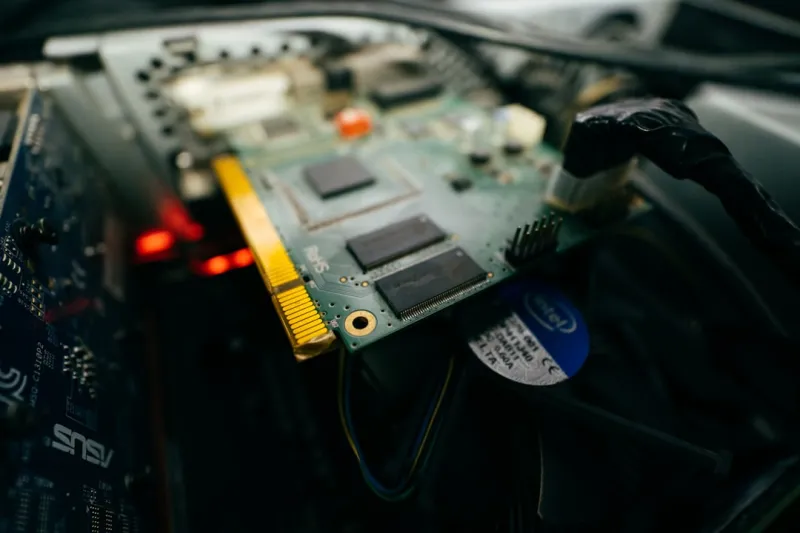
When my RTX 4090 started spewing neon‑green squares during a 4K session in 2026, I knew I was staring at a classic video‑card conundrum. As a longtime power‑user, I’ve learned that every glitch is a breadcrumb leading to a deeper system truth. Whether you’re a competitive streamer, a VR architect, or a hobbyist tinkering with ray‑traced demos, the video card is the heart of your visual experience. In this guide, I’ll walk you through the diagnostic dance I’ve refined over a decade—starting from the obvious visual artifacts and ending with the nuanced firmware quirks that only a seasoned enthusiast notices. Buckle up, because the path to a stable GPU in 2026 is as much about mindset as it is about hardware.
Spotting the Symptoms: Artifacts, Crashes, and Silent Failures
Before you pop open your case, catalog the exact behavior. Are you seeing shimmering textures, checkerboard patterns, or sudden black screens? Does the driver reset itself with a “Display driver stopped responding” message, or does Windows simply reboot? Pay attention to whether the issue surfaces only under heavy loads—like when you enable DLSS 3 or push frame rates above 144 Hz—or whether it appears even at the desktop. These nuances help you differentiate a thermal throttling problem from a deeper firmware bug. In my experience, the most misleading symptom is a “smooth” performance that suddenly drops into stutter after a Windows update. That often points to a driver–OS incompatibility rather than a hardware defect. Documenting these details saves you hours of blind trial‑and‑error later on.
Power Delivery: The Unsung Hero of GPU Stability
Even the most robust GPUs can falter if they’re not receiving clean, adequate power. Start by confirming that your PSU meets the wattage recommendation—most high‑end cards in 2026 demand 450 W or more on their own rails. Check the 8‑pin and 6‑pin connectors for any signs of wear, scorching, or loose seating. A common oversight is using splitters that dilute voltage; I’ve seen the same issue cause intermittent artifacts that disappear once the cables are swapped for dedicated lines. If you have a modular PSU, reseat each cable to eliminate any hidden resistance. Don’t forget to inspect the power delivery on the motherboard’s PCIe slot; a bent or dirty pin can introduce just enough instability to corrupt the GPU’s communication with the CPU. A quick multimeter test can reveal voltage drops that are otherwise invisible.
Driver Hygiene: When to Cleanse and When to Update
Drivers are the software glue that binds the GPU to the operating system, and in 2026 they’ve become more complex than ever. A clean install using Display Driver Uninstaller (DDU) is often the first line of defense after a mysterious crash. Once you’ve purged the old stack, download the latest WHQL driver from the vendor’s site—not the “Game Ready” beta unless you’re chasing the newest feature set. Keep an eye on the critical tech shifts that influence driver behavior, such as the transition to the new DirectX 13.2 API. If a fresh driver still leaves you with artifacts, consider rolling back to the previous stable version; newer isn’t always better, especially if the release notes mention known issues with specific GPUs or motherboard chipsets.
BIOS/UEFI Settings: Aligning Firmware with Modern GPUs
The BIOS is more than a boot menu; it governs how your GPU interfaces with the rest of the system. Ensure that the PCIe slot is set to “Auto” or explicitly to the highest supported generation—most 2026 cards thrive on PCIe 5.0 x16 bandwidth. Disable any legacy “Legacy USB” or “CSM” settings that force the system into compatibility mode, as these can throttle GPU performance. Some motherboards expose a “GPU Power Boost” option that allows the card to draw extra power beyond its base spec; enable this if you’re comfortable with the thermal headroom. While you’re in the firmware, verify that your RAM is running at its rated speed, because mismatched memory timings can cause subtle frame‑timing glitches that masquerade as GPU faults. A quick flash to the latest BIOS version often resolves obscure compatibility bugs.
Thermal Management: Keeping the GPU Cool Under Pressure
Heat is the silent assassin of graphics performance. In 2026, GPU manufacturers have introduced hybrid cooling solutions—liquid‑metal cores combined with vapor‑chamber fans—but the fundamentals remain the same. Begin by checking that the fans spin freely and that the fan curves in your GPU’s control panel are set appropriately for your workload. If you’ve been reusing thermal paste from a previous build, consider replacing it with a high‑conductivity compound; the thermal interface can degrade after just a few years under constant load. Also, verify that your case airflow isn’t obstructed by dust filters or cable clutter. A well‑ventilated chassis with positive pressure helps expel hot air and draws cooler ambient air across the GPU’s heatsink. Monitoring tools that log temperature spikes can pinpoint the exact moment when thermal throttling kicks in, guiding you to adjust fan speeds or improve case ventilation.
VRAM Integrity: When Memory Becomes the Bottleneck
Video memory failures can masquerade as driver crashes or visual glitches. Modern GPUs pack GDDR6X or even GDDR7 modules, and while they’re reliable, they’re not immune to defects. Run a VRAM stress test—such as a dedicated GPU memory checker—to see if errors appear under sustained load. If you notice corruption only when certain textures load, you might be dealing with a faulty memory chip. Cross‑reference this with your system’s RAM health; a faulty system RAM can cause data corruption that propagates to the GPU. For a deeper dive, check out the RAM playbook that walks you through memory diagnostics. Replacing the GPU is often the last resort; many manufacturers will RMA a card that fails VRAM tests within the warranty window.
Software Interplay: Games, OS Updates, and Background Processes
Even the most stable hardware can be destabilized by rogue software. Before you blame the GPU, audit the applications running in the background. Antivirus scans, cryptocurrency miners, or even a misconfigured screen recorder can hog GPU resources and cause driver resets. Keep Windows updated, but be cautious with optional feature updates that sometimes rewrite display drivers. Use the “Graphics Settings” panel in Windows to assign high‑performance GPU usage to demanding titles, and disable “Hardware‑accelerated GPU scheduling” if you notice jitter—some users find the opposite effect. Lastly, verify that your game’s configuration matches the GPU’s capabilities; forcing ultra‑high textures on a 6 GB card can lead to out‑of‑memory errors that appear as black screens.
When to RMA: Recognizing the Point of No Return
After exhausting power checks, driver clean‑ups, BIOS tweaks, and thermal adjustments, you may still be facing persistent issues. At this stage, it’s time to consider an RMA. Document every step you’ve taken—screenshots of error logs, temperature graphs, and stress test results—because manufacturers often request detailed diagnostics before approving a return. Check the warranty period; many 2026 GPUs come with a three‑year coverage, but some premium models extend to five years. If your card is still under warranty, contact support and provide the evidence you gathered. In the meantime, you can fall back to an integrated graphics solution or an older spare GPU to keep your workflow moving. Remember, an RMA isn’t a failure on your part—it’s a built‑in safety net for hardware that simply can’t meet the rigorous demands of modern workloads.
Future‑Proofing Your Build: Choosing the Next‑Gen GPU Wisely
Looking ahead, the GPU landscape in 2026 is shifting toward AI‑accelerated rendering and real‑time ray tracing at 8K resolution. When selecting your next card, prioritize models that support the latest OpenGL, Vulkan, and DirectX standards, as well as sufficient VRAM headroom—12 GB is becoming the new baseline for high‑end gaming. Consider the power envelope; a more efficient architecture can save you from upgrading the PSU later. Also, evaluate the cooling solution—modular liquid cooling kits are now mainstream and can extend the lifespan of a high‑performance GPU. Pairing the right card with a motherboard that offers robust power phases, as discussed in Why Motherboards Are the Unsung Heroes, ensures that you won’t encounter bottlenecks down the line. By approaching your next purchase with a power‑user’s strategic lens, you’ll sidestep many of the troubleshooting pitfalls that plagued earlier generations.