
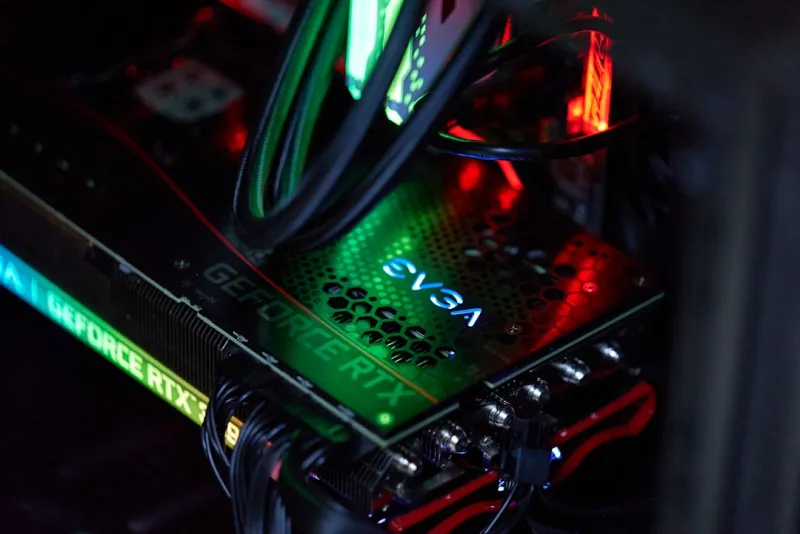
If you’ve ever stared at a frozen frame, a flickering horizon, or that dreaded “Display driver stopped responding and has recovered” message, you know the feeling of a video card throwing a tantrum. As a longtime power‑user, I’ve learned that a GPU misbehaving is rarely an isolated incident; it’s usually the symptom of a deeper ecosystem imbalance. In 2026, with AI‑accelerated workloads and ray‑tracing becoming baseline expectations, the margin for error has shrunk dramatically. The modern GPU is a sophisticated dance of silicon, firmware, power delivery, and software, and any misstep can cascade into crashes, artifact‑laden games, or even system‑wide instability. This article walks you through the diagnostic process I rely on, the tools that have earned my trust, and the proactive upgrades that keep my workstation ready for the next wave of visual computing.
When the GPU Refuses to Cooperate: Recognizing the Warning Signs
First, you need to become fluent in the language your graphics card speaks. In 2026, the most common warning signs include sudden resolution drops, driver resets that happen mid‑render, and the dreaded “GPU temperature spikes to 100 °C and then powers down.” These events are often preceded by subtle clues: a brief stutter when launching a new application, a modest dip in frame rates that recovers after a minute, or a soft click from the power connector that you might dismiss as normal. Pay special attention to the Windows Event Viewer; look for entries under “Display” or “Kernel‑Power” that timestamp around the glitch. A pattern of driver crashes interleaved with occasional BSODs is a red flag that the problem may be multi‑faceted—hardware, firmware, or software. Documenting the exact circumstances—what app was running, the resolution, and whether you were using any overlay tools—creates a reproducible baseline that will save you hours when you start digging deeper.
Diagnosing the Silent Culprit: A Step‑by‑Step Approach
The first line of defense is to eliminate the low‑hanging fruit. Begin by confirming that you’re running the latest stable driver from the GPU manufacturer; the 2026 driver rolls often include fixes for AI inference pipelines that older releases simply can’t handle. If you’ve recently upgraded your operating system or installed a new AI toolkit, consider rolling back to a known‑good driver version to rule out incompatibility. Next, validate your power supply. Modern high‑end cards can draw upwards of 350 W under load, and a marginal PSU will manifest as intermittent resets. Use a multimeter or a power‑monitoring dongle to verify that the 12 V rail remains steady during stress tests. Thermal paste degradation is another silent offender—if your GPU’s cooler was installed more than two years ago, re‑apply a high‑performance paste and reseat the cooler to ensure optimal heat transfer.
Once the basics are covered, it’s time to probe the software stack. Conflicts between background utilities—like overlay recorders, GPU‑accelerated browsers, or even certain antivirus real‑time scanners—can corrupt driver memory. A quick way to isolate these issues is to perform a clean boot, disabling all non‑essential startup services, and then run a demanding benchmark such as 3DMark Time Spy or an AI inference workload. If stability returns, re‑enable services one by one until the offender reveals itself. For many power users, the root cause turns out to be a rogue RAM module that corrupts the GPU’s shared memory pool. I’ve written extensively on that topic; you might find Diagnosing and Fixing RAM Issues Before They Crash Your Workflow a valuable companion when you suspect memory‑related glitches.
Using Built‑In and Third‑Party Diagnostic Tools
Tools matter as much as technique. GPU‑Z remains the go‑to for real‑time clock and voltage monitoring, while MSI Afterburner’s on‑screen display can catch spikes that you’d otherwise miss. For a deeper dive, NVIDIA’s Nsight Systems and AMD’s Radeon Pro Software Suite provide frame‑by‑frame analysis of driver calls, allowing you to pinpoint the exact API that triggered a fault. In 2026, many developers also lean on the open‑source Vulkan Validation Layers, which can surface subtle misbehaviors in the graphics pipeline that traditional DirectX tools overlook. Run a full‑suite stress test—like Unigine Heaven at 4K with ultra settings—while capturing logs. If the system survives a 30‑minute run without a driver reset, you’ve likely cleared the major suspects. However, remember that a successful stress test doesn’t guarantee future stability; it merely tells you that the current configuration can handle sustained load.
Firmware, BIOS, and the Motherboard: The Unsung Trio
The GPU does not live in isolation; it communicates constantly with the motherboard’s BIOS/UEFI and the system firmware. An outdated BIOS can misinterpret the PCIe 5.0 link training, causing the card to negotiate a lower bandwidth mode that looks like performance throttling. Check your motherboard manufacturer’s website for the latest BIOS revision; many 2026 releases include explicit fixes for newer RTX 5000‑series and Radeon RX 9000‑series cards. While you’re there, verify that the PCIe slot is set to “Auto” or “Gen 5” mode—some boards default to Gen 3 for legacy compatibility, which can cripple the bandwidth of a modern GPU. Additionally, enable the “Above 4 G decoding” option; this allows the system to allocate the necessary address space for cards with large VRAM footprints, a common stumbling block for 24 GB and 48 GB GPUs.
Another subtle firmware nuance is the GPU’s own VBIOS. Some manufacturers push micro‑code updates that address specific stability issues, especially those tied to AI‑accelerated tensor cores. Tools like TechPowerUp’s GPU BIOS Flash Utility let you inspect the current version and compare it against the vendor’s release notes. Flashing the VBIOS is not for the faint‑hearted, but when you’re chasing the last ounce of performance for a deep‑learning model, it can be the difference between a smooth training run and a crash that corrupts weeks of work. Always back up the existing VBIOS before flashing, and keep a known‑good driver version handy to roll back if necessary.
Future‑Proofing Your Video Card: Upgrade Strategies That Pay Off
Even the most diligent troubleshooting won’t protect you from the inevitable march of technology. In 2026, the line between a “gaming” GPU and a “compute” GPU is blurring, and power users need a roadmap that accommodates both. One of the most effective strategies is to adopt a modular approach: pair a high‑end GPU with a motherboard that supports PCIe bifurcation, allowing you to run multiple smaller accelerators for specialized AI workloads. This way, you can offload ray‑tracing to the primary card while delegating tensor operations to a dedicated AI card. For those still on a single‑GPU path, consider a card with a robust cooling solution and a VRAM buffer that exceeds your current needs—think 24 GB or more—so you’re not forced to upgrade again when models grow in size. I often reference the insights from Future‑Proof Your PC: Upgrade Strategies Power Users Swear By when planning my next build; it outlines a tiered upgrade path that aligns budget with performance milestones.
Don’t overlook the software side of future‑proofing. Keeping your driver stack, OS, and AI libraries up to date ensures you can leverage new GPU features the moment they land. In 2026, Windows 11 continues to be the power‑user’s playground, with native support for DirectStorage and hardware‑accelerated video encoding that can offload tasks from the CPU. Regularly audit your system with tools like DXDiag and the Windows “Graphics Settings” panel to confirm that the OS recognizes the full capabilities of your card—sometimes a simple toggle from “Power‑saving” to “Maximum performance” yields measurable gains.
AI Workloads, PCIe 5.0, and the Road Ahead
AI workloads are the fastest‑growing demand on GPUs, and they stress different subsystems than traditional rasterization. Tensor cores thrive on high‑throughput memory access, so any bottleneck in PCIe bandwidth can throttle model inference speed. If you’re running large language models or real‑time video upscaling, make sure your system is truly leveraging PCIe 5.0 x16 lanes. Use a tool like “GPU-Z – Advanced” to verify the negotiated link speed; anything below “Gen 5 x16” indicates a configuration issue that may be as simple as a BIOS setting or as complex as a faulty motherboard trace. Looking forward, the industry is already teasing PCIe 6.0, but the cost‑to‑benefit ratio for most power users still favors mastering PCIe 5.0 today. Align your GPU choice with a motherboard that guarantees a clean 5.0 pathway, and you’ll be positioned to adopt next‑gen accelerators without a complete platform overhaul.
Checklist: From Symptom to Solution
Before you close this article and dive back into your workflow, here’s a concise checklist that encapsulates the troubleshooting journey:
- Document the exact symptoms, timestamps, and running applications.
- Update to the latest stable GPU driver; consider a clean install.
- Validate PSU health and ensure adequate power headroom.
- Reapply thermal paste and reseat the cooler if temperatures exceed 85 °C.
- Perform a clean boot to isolate software conflicts.
- Run memory diagnostics; reference Diagnosing and Fixing RAM Issues Before They Crash Your Workflow for detailed steps.
- Check BIOS/UEFI for PCIe 5.0 settings, Above 4 G decoding, and update firmware.
- Inspect and, if necessary, flash the GPU VBIOS following vendor guidelines.
- Run a sustained stress test with tools like 3DMark or Unigine Heaven.
- Plan for future upgrades using insights from Future‑Proof Your PC: Upgrade Strategies Power Users Swear By.
By methodically working through these steps, you’ll not only resolve the current hiccup but also fortify your rig against the inevitable challenges of tomorrow’s graphics‑intensive workloads. Remember, troubleshooting is as much an art as a science—trust your observations, stay patient, and let the data guide your next move.




