When I first cracked open a fresh Windows 12 install this spring, I felt that same electric buzz you get after assembling a new rig. It’s a mix of curiosity, a dash of trepidation, and a relentless urge to squeeze every ounce of performance out of the OS. In 2026, Windows isn’t just a platform; it’s a living, breathing ecosystem that rewards power‑users who know where the hidden levers are. Over the past year I’ve been tweaking, profiling, and documenting the tiniest shortcuts that turn a decent workstation into a hyper‑responsive workstation. In this post I’m sharing the most actionable Windows tips that have saved me hours, reduced friction, and—most importantly—kept my workflow humming even as the OS rolls out new features every month.
Start Menu and Taskbar: The Front‑Line of Efficiency
Most folks treat the Start menu like a static list of apps, but in Windows 12 you can sculpt it into a launchpad that mirrors your daily rhythm. Begin by pinning your most‑used utilities to the “Pinned” section, then right‑click and choose “Resize” to give them a larger tile for instant visual cueing. Dive into Settings → Personalization → Start and toggle “Show most used apps” off—this stops the menu from auto‑reordering and keeps your layout consistent. For the taskbar, enable “Combine when taskbar is full” and drag your favorite Power‑User tools (like PowerShell ISE, Sysinternals Suite, or your favorite VM client) to the far right, reserving the left side for essential windows. Want a deeper dive into the nuances of Windows 12? Check out Unlocking the Full Potential of Windows 12 for Power Users for a full walkthrough.
Mastering Windows Updates in 2026
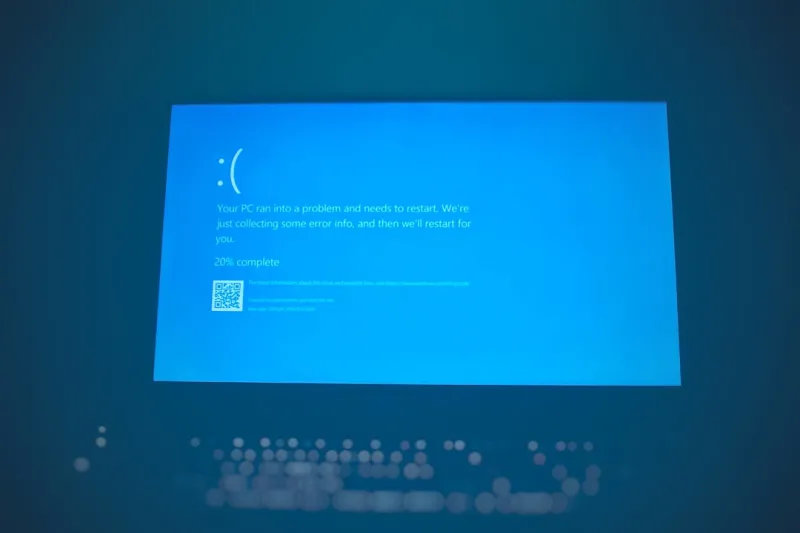
Windows Updates have become a double‑edged sword: they patch security holes, yet they can also stall a finely tuned system. My strategy is to adopt a “maintenance window” mindset. First, set the update schedule to a low‑traffic time—typically 2 a.m. to 4 a.m.—via Settings → Windows Update → Advanced options. Then, enable “Pause updates for 35 days” whenever you’re in the middle of a critical project; this prevents surprise reboots. Use the “View update history” pane to spot any recurring driver rollbacks; if a particular KB keeps causing BSODs, roll it back and blacklist it via the Group Policy Editor (gpedit.msc). Finally, leverage the new “Optional updates” tab to cherry‑pick feature updates that actually benefit your workflow, ignoring the rest. For a step‑by‑step guide, see my Mastering Windows Updates in 2026: A Power‑User’s Tactical Playbook.
Security Settings: Harden Without Hindering
Security is non‑negotiable, but a blanket‑on‑everything approach can cripple productivity. Start by turning on Windows Hello for biometric login; it’s faster than typing and adds a hardware‑based factor. Next, head to Windows Security → Virus & threat protection and enable “Controlled folder access” only for directories that house sensitive data—this blocks ransomware from sneaking in while leaving your dev folders free to edit. For network‑level protection, configure the built‑in firewall to allow “Outbound” traffic for trusted apps only, a setting you can script via PowerShell for repeatable deployment across machines. If you need a deeper dive into securing modern tech, the Power‑User Playbook: Securing Your Tech in the Age of Sophisticated Threats covers advanced hardening techniques.
File Explorer Hacks for Lightning‑Fast Navigation
File Explorer is often overlooked, yet a few tweaks can slash the time you spend hunting for files. First, enable the “Details pane” (Alt+P) and dock it to the right; it provides a quick glance at metadata without opening a file. Then, create custom libraries for project assets—Documents, Images, Code—and pin them to the navigation pane for one‑click access. Use the new “Quick Access” shortcuts to pin frequently accessed folders, but be selective; too many entries slow down loading. Finally, enable the hidden “Show hidden files, folders, and drives” option, then create a hidden “Archive” folder on each drive to stash old versions. This habit keeps the primary view clutter‑free while preserving a safety net for accidental deletions.
Virtual Desktops & Snap Layouts: Multipurpose Real Estate
Windows 12’s virtual desktop engine has matured into a true workspace manager. I maintain three dedicated desktops: “Dev”, “Creative”, and “Ops”. Switch between them with Win+Ctrl+Left/Right, and you’ll instantly see a clean slate tailored to the task at hand. Pair this with Snap Layouts—drag a window to the screen edges to automatically snap it into a pre‑defined grid. For coding, I snap my IDE to the left half and the terminal to the right, while a browser tab stays pinned to the bottom for quick reference. The new “Snap Groups” remember these arrangements, so you can restore a full workspace with a single click from the taskbar’s group icon. This workflow reduces context‑switching fatigue and keeps you laser‑focused on the job.
PowerShell Automation: The Secret Sauce for Repetitive Tasks
If you’ve ever manually cleared the Temp folder or refreshed the DNS cache, you know the pain of repetitive clicks. PowerShell can automate those chores with a one‑liner. For example, Remove-Item -Path $env:TEMP\* -Recurse -Force wipes the temp directory, while ipconfig /flushdns is just Clear-DnsClientCache in PowerShell. I’ve built a personal script called MorningBoost.ps1 that runs at login, clearing caches, disabling unnecessary startup services, and launching my preferred apps in the right virtual desktop. Store the script in a secure folder, then add a scheduled task that triggers at “Log on”. Over time, these tiny automations compound into significant time savings—often an extra half hour each day.
Storage Strategy: SSDs, NVMe, and Tiered Backups
The storage landscape in 2026 offers a bewildering array of options, but a simple tiered approach keeps costs low and performance high. Primary work files live on a PCIe 4.0 NVMe drive—its sub‑millisecond latency means your IDE, Photoshop, and VMs launch instantly. Archive data, like raw video footage or old builds, reside on a SATA‑III SSD; it’s slower but still far quicker than a spinning disk and far cheaper per gigabyte. Finally, schedule weekly snapshots to an external HDD using Windows’ built‑in “File History” feature, ensuring you have a recoverable point‑in‑time copy. If you want to explore drive selection in depth, the article Mastering Hard Drive Choices for Power Users walks through the trade‑offs and pricing trends.
Wrapping Up: Make Windows Work for You, Not the Other Way Around
Every power‑user’s journey is a series of incremental tweaks that add up to a massive productivity boost. The tips above—customizing the Start menu, mastering updates, tightening security, streamlining file access, leveraging virtual desktops, automating with PowerShell, and adopting a tiered storage plan—are the building blocks of a frictionless Windows experience in 2026. I encourage you to pick one area, experiment, and share your results in the comments. The Windows ecosystem evolves quickly, but with a disciplined, curiosity‑driven mindset you’ll stay ahead of the curve and keep your machine humming like a well‑tuned engine.