Why Windows Still Rules the Everyday Workspace
When I first booted a Windows machine back in the early 2000s, I never imagined I’d still be writing about its quirks and breakthroughs five decades later. Fast‑forward to 2026, and Windows remains the backbone for everything from home offices to enterprise data farms. What keeps me coming back isn’t just the familiar Start menu; it’s the endless rabbit hole of tweaks that let me squeeze more performance, security, and convenience out of a system that many take for granted. In this post I’ll share the most practical, often‑overlooked tips that have saved me countless hours—and a few headaches—along the way. Think of it as a roadmap for anyone who loves the platform but feels stuck in the default settings. Whether you’re a seasoned power user or just someone who’s tired of Windows “making things harder than they need to be,” these insights will help you reclaim control and boost productivity without needing a degree in computer science.
Supercharge Your Power Settings for Lightning‑Fast Performance
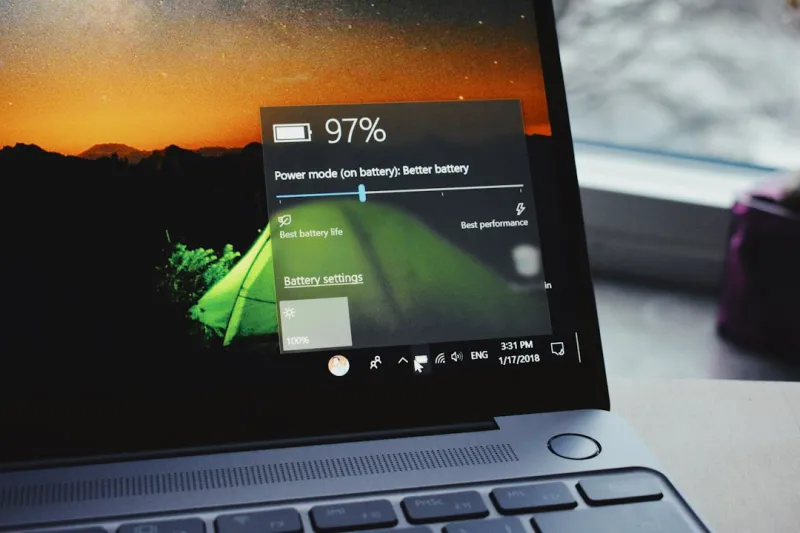
One of the first places I dive when a PC feels sluggish is the power plan. By default, Windows leans toward a balanced mode that favors battery life over raw speed—perfect for laptops but a bottleneck on desktops. Head over to Settings → System → Power & battery and switch to the “High performance” plan, or even better, create a custom plan that disables sleep timers and sets the minimum processor state to 100 %. This alone can shave seconds off boot times and make demanding apps feel snappier. If you’re on a laptop, consider a “Best performance” profile that only activates when you’re plugged in, preserving battery when you need it most. Pair this with the Unlock the Windows Tips Power Users Swear By guide to fine‑tune CPU throttling and GPU scheduling for that extra edge in gaming or video editing.
Master Virtual Desktops and Keyboard Shortcuts
Virtual desktops are a hidden productivity goldmine that most Windows users never fully exploit. Instead of juggling dozens of open windows on a single screen, press Win + Tab to launch the Task View, then click “New desktop” at the top. Assign each desktop a purpose—one for email, another for design work, and a third for research. Quickly switch between them with Win + Ctrl + Left/Right Arrow. Combine this with custom keyboard shortcuts for frequently used apps: right‑click an app shortcut, select “Properties,” and add a shortcut key in the “Shortcut” tab. For instance, set Ctrl + Alt + C to launch your favorite code editor instantly. These habits not only declutter your screen but also train your brain to compartmentalize tasks, dramatically reducing the time wasted hunting for the right window.
File Explorer Hacks That Make Navigation Seamless
File Explorer is more than a simple folder browser; it’s a powerful tool that, when tweaked, can become a one‑stop shop for file management. Start by enabling the hidden navigation pane: go to View → Navigation pane → Show all folders. This gives you quick access to libraries, drives, and network locations without extra clicks. Next, turn on the “Preview pane” (Alt + P) to glance at documents, images, or PDFs without opening them—ideal for quickly sifting through large batches of files. For power users, the Unlock Hidden Windows Tricks Every Power User Should Know article dives deeper into customizing the Quick Access bar and using the “Group by” feature to sort files by type, date, or custom tags. Finally, pin frequently accessed folders to the Quick Access list for instant reach, and you’ll find yourself navigating the file system with the fluidity of a seasoned pro.
Take Control of Privacy and Telemetry Settings
Windows 10 and 11 introduced a suite of telemetry options that, while helpful for Microsoft, can feel intrusive. To reclaim your privacy, head to Settings → Privacy & security → Diagnostics & feedback. Switch from “Full” to “Basic” to limit the data sent back to Microsoft, and toggle off personalized ads if you don’t want your browsing habits used for marketing. Additionally, disable location tracking unless you specifically need it for apps like Maps. For a deeper dive, use the built‑in “Diagnostic Data Viewer” (available via the Windows Store) to see exactly what information is being transmitted. By tightening these settings, you’ll not only protect your personal data but also free up system resources that were previously dedicated to background data collection—resulting in a smoother, more responsive experience.
Leverage Windows Terminal and PowerShell for Automation
If you’ve ever felt limited by the classic Command Prompt, it’s time to upgrade to Windows Terminal. This modern, tabbed interface supports multiple shells—PowerShell, Command Prompt, Azure Cloud Shell, and even Linux distributions via WSL. Customize its appearance with JSON profiles, set up custom key bindings, and split panes for side‑by‑side command execution. PowerShell, in particular, shines when you automate repetitive tasks. For example, you can script a nightly cleanup of temporary files using Remove-Item $env:TEMP\* -Recurse -Force, or batch rename a series of images with a one‑liner. The community-driven Why Encryption Matters to Every Power User article outlines how to integrate secure scripts into your workflow, ensuring that automation doesn’t compromise data integrity. Mastering these tools turns your PC into a productivity powerhouse, slashing manual effort dramatically.
Stay Ahead of Windows Updates and Driver Issues
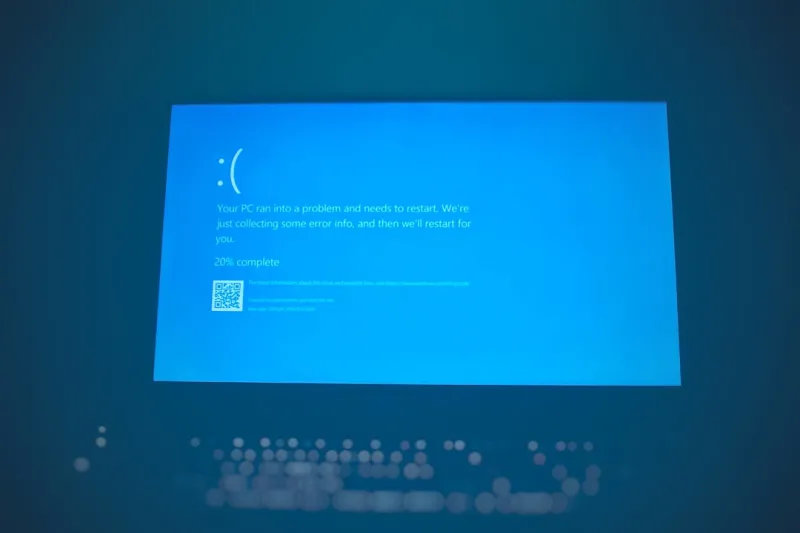
Windows Update is notorious for breaking things at the worst possible moment, but you can tame it with a proactive approach. First, set your active hours in Settings → Windows Update → Change active hours to prevent automatic restarts during work. Then, enable “Pause updates for 7 days” whenever you’re on a critical deadline. For driver stability, use the Device Manager to manually select the “Roll back driver” option if a new version causes instability. If you’re troubleshooting a recurring freeze, the Why Does My Computer Keep Freezing? Common Causes and Fixes guide offers a step‑by‑step checklist—including checking for corrupted system files with sfc /scannow and verifying BIOS settings. By staying vigilant, you’ll avoid the dreaded “blue screen of death” and keep your system humming along smoothly.
Boost Security with Windows Defender and Controlled Folder Access
Windows Defender has evolved into a robust, AI‑driven security suite that rivals many third‑party solutions. Ensure real‑time protection is always on, and schedule quick scans during idle hours via Settings → Windows Security → Virus & threat protection. For an extra layer, enable “Controlled folder access” to protect sensitive directories—like Documents and Pictures—from ransomware. This feature blocks unauthorized apps from making changes, and you can whitelist trusted programs such as Photoshop or your favorite IDE. Pair this with “Exploit protection” settings to mitigate zero‑day attacks, and you’ll have a fortified environment without sacrificing performance. Remember to keep your security definitions up to date; they refresh automatically, but a manual check can ensure you’re shielded against the latest threats.
Streamline Backup and Cloud Sync with File History and OneDrive
Data loss is a nightmare no power user wants to experience, yet many still rely on ad‑hoc backups. Windows File History offers an easy, continuous backup solution: enable it in Settings → Update & Security → Backup and point it to an external drive or a network share. It automatically saves versions of your files every hour, allowing you to roll back to previous states with a single click. For cloud redundancy, OneDrive integrates seamlessly into File Explorer—just drag and drop files into the OneDrive folder, and they sync across all your devices. Combine these two methods for a hybrid approach: local fast‑recovery via File History and off‑site protection via OneDrive. Regularly verify that your backup drives are healthy and that OneDrive isn’t hitting storage limits, and you’ll rest easy knowing your work is safe.
Wrap‑Up: Keep Exploring, Keep Optimizing
Windows is a living platform, constantly updated with new features and hidden gems. The tips I’ve shared today are just the tip of the iceberg—think of them as a launchpad for deeper exploration. Dive into the community forums, test out experimental builds in the Windows Insider Program, and don’t be afraid to tweak settings you once thought were untouchable. As you become more comfortable with these tweaks, you’ll discover how each adjustment compounds to create a faster, more secure, and genuinely personalized computing experience. And when you’re ready for the next level, revisit the Unlock the Windows Tips Power Users Swear By article for advanced scripts, registry hacks, and performance profiling tools that can turn any Windows machine into a true powerhouse.