When I first cracked open Windows 11 back in 2024, I thought I’d seen every shortcut, every hidden setting, every tweak a power‑user could possibly need. Fast‑forward to 2026, and Microsoft has layered AI‑driven utilities, tighter security, and a more modular architecture that rewards the curious. In this post, I’m pulling together the most effective, under‑the‑radar Windows tips that keep my workflow razor‑sharp and my system humming like a well‑tuned engine. Whether you’re juggling multiple VMs, automating daily chores with PowerShell, or simply hunting for that one hidden toggle that saves minutes each day, you’ll find actionable steps that you can implement right now. My goal is to give you the confidence to explore Windows’ deeper veins without fear of breaking things—because a true power‑user knows how to back up, test, and roll back changes like a pro.
Unleash the Hidden Power of Windows 11
Most users skim the Settings app and miss the goldmine of performance‑boosting options tucked away under “System → Advanced display” and “Privacy → Diagnostics & feedback”. One of my favorite secrets is the “Hardware‑accelerated GPU scheduling” toggle, which offloads rendering tasks to the GPU, reducing CPU overhead and smoothing out high‑frame‑rate workloads. Another gem is the “Focus assist” schedule, which can be fine‑tuned to silence notifications only during your peak productivity windows. For those who love to dig deeper, the Unlock Windows 11’s Hidden Power: Pro Tips for the Modern Power User guide walks you through the registry edits and Group Policy tweaks that unlock hidden power‑profiles, allowing you to prioritize foreground apps and reclaim system memory that Windows otherwise hoards for background tasks.
AI‑Driven Office Workflows Inside Windows
Microsoft’s AI integration isn’t limited to Copilot in Word; it’s woven into the very fabric of Windows, enabling context‑aware suggestions across the OS. By enabling “Windows Copilot” in the taskbar, you can issue natural‑language commands like “Create a weekly report from my latest sales data” and watch Power Automate spin up a flow that pulls data from Excel, formats a PowerPoint deck, and emails it to your team—all without opening a single app. The synergy between Windows and Office reaches its apex when you pair this with the Unlock the Full Power of Microsoft Office with AI‑Driven Workflows article, which details how to set up custom shortcuts, embed AI prompts in Outlook rules, and harness the new “Data Types” feature to turn static tables into live, updatable datasets. The result? Hours saved each week and a workflow that feels as fluid as a conversation.
Registry Tweaks for Lightning‑Fast Responsiveness
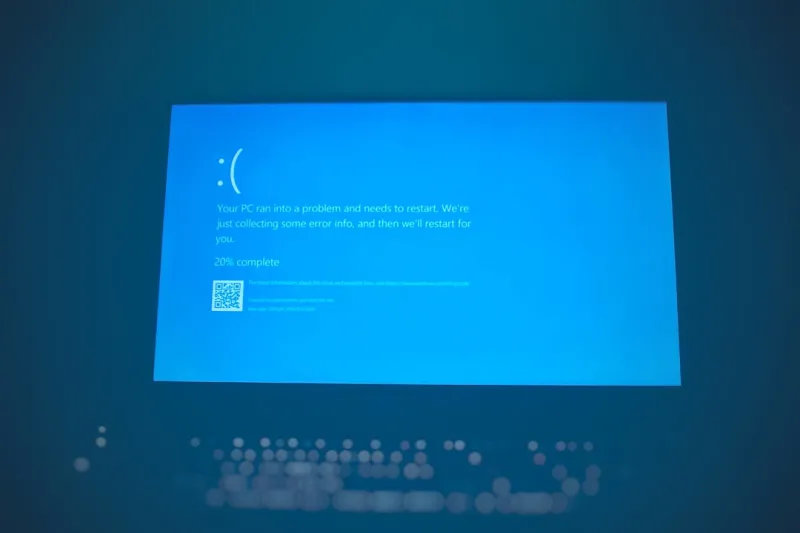
While the Settings UI provides a safe sandbox for casual tweaks, the Windows Registry remains the ultimate playground for those who crave granular control. One of the most impactful edits is disabling the “Auto‑restart” on system failure—this not only gives you a clear view of any Blue Screen errors (perfect for troubleshooting) but also prevents unexpected reboots during long‑running tasks. Another hidden tweak is increasing the “MenuShowDelay” value to 0, which eliminates the slight pause you feel when opening right‑click menus. For those worried about stability, always export the key before modifying it, and consider using a system restore point as a safety net. Combining these edits with a regular cleanup of the “Prefetch” folder can shave precious milliseconds off boot times, making the difference between a sluggish startup and a near‑instantaneous launch of your daily suite.
PowerShell: Automate Like a Ninja
PowerShell is the Swiss Army knife of Windows automation, and in 2026 its integration with AI has reached a new level. By installing the “Microsoft.PowerShell.SecretManagement” module, you can securely store credentials and retrieve them in scripts without ever exposing plaintext passwords. Pair this with the new “AI‑Assist” cmdlet, which can generate script snippets based on natural‑language prompts—type “Create a scheduled task that backs up Documents every night at 2 AM” and watch PowerShell write the entire script for you. For deeper security insight, check out the Power Users’ Playbook: Defending Against AI‑Driven Threats, which explains how to audit scripts for potential vulnerabilities and leverage built‑in code‑signing to ensure only trusted modules run on your machine.
Virtualization and WSL2: One Machine, Many Worlds
Windows Subsystem for Linux (WSL2) has become the go‑to environment for developers who need a Linux kernel without dual‑booting. In 2026, the integration is tighter than ever: you can now launch a full‑stack Docker environment inside WSL2 with GPU passthrough, enabling AI model training directly from your Windows desktop. To maximize performance, allocate a dedicated 4 GB of RAM to WSL2 via the .wslconfig file and enable “localhostForwarding” to seamlessly interact with Windows apps. For those who need to test software across multiple Windows builds, Hyper‑V’s “Virtual Machine Generation 2” offers fast snapshot capabilities, letting you spin up a clean Windows 11 image, apply your custom tweaks, and revert with a single click. This layered virtualization strategy ensures you can experiment without risking your primary workstation.
Fortify Your System with Modern Security Features
Security in Windows has evolved beyond passwords and firewalls. Windows Hello now supports facial recognition with infrared cameras that are resistant to spoofing, while the new “Dynamic Lock” can automatically lock your PC when your paired Bluetooth device (like a phone) moves out of range. BitLocker, once a niche feature, now offers “Hardware‑based encryption” that leverages TPM 2.0 chips for near‑instantaneous drive locking. To ensure you’re getting the most out of these tools, enable “Device security” → “Core isolation” → “Memory integrity”, which runs critical system processes in an isolated hypervisor. Regularly run “Windows Security” → “Virus & threat protection” → “Threat & vulnerability management” to stay ahead of emerging threats, and consider adding a third‑party EDR solution for layered defense.
Smart Backup Strategies: File History Meets OneDrive
Data loss is the ultimate nightmare for any power‑user, but Windows offers a layered backup approach that can be fine‑tuned to your workflow. File History now supports versioned backups to external USB‑C drives, and you can schedule incremental snapshots as often as every 10 minutes. For cloud redundancy, OneDrive’s “Known Folder Move” lets you sync Desktop, Documents, and Pictures in real‑time, preserving the exact folder structure across devices. Combine these by setting File History to back up to a locally attached SSD for rapid restores, while OneDrive handles off‑site protection. Don’t forget to enable the “Storage Sense” feature to automatically purge older versions after 30 days, keeping your drive lean without sacrificing safety. A disciplined backup routine ensures you can recover from accidental deletions, ransomware attacks, or hardware failures with minimal downtime.
Final Thoughts: Turn Windows Into Your Personal Command Center
Mastering Windows isn’t about memorizing every obscure setting; it’s about building a mindset that treats the OS as a living platform you can shape to your needs. By leveraging hidden performance toggles, AI‑enhanced Office workflows, PowerShell automation, and robust security layers, you’ll transform a standard PC into a high‑efficiency command center. Remember to document each change, keep a restore point handy, and periodically revisit your configurations as Windows continues to evolve throughout 2026 and beyond. The more you experiment, the more you’ll discover—so dive in, tweak boldly, and let Windows work for you, not the other way around.