When I first cracked open a fresh Windows 11 installation back in 2022, I thought the OS was just a sleek surface for everyday tasks. Fast‑forward to 2026, and I’ve learned that Windows hides a toolbox of power‑user features that most casual users never see. From the revamped Settings hierarchy to the deep integration of AI‑driven copilots, the modern Windows experience rewards those willing to dig beneath the default configurations. In this post, I’ll walk you through the practical tweaks that let you extract raw performance, boost reliability, and turn every hiccup into a learning opportunity. Think of it as a roadmap from “just getting by” to “mastering the OS on my own terms,” all while keeping your workflow smooth and your system secure.
Understanding Windows 11’s Hidden Power
Windows 11’s visual overhaul isn’t just about aesthetics; it’s a gateway to a more modular, scriptable environment. The new PowerShell 7+ engine runs side‑by‑side with the legacy console, giving you access to cross‑platform cmdlets and a richer set of debugging tools. By default, many power‑user shortcuts—like the hidden “Quick Link” menu (Win + X) and the “Windows Terminal” preview—are tucked away, but enabling them can shave seconds off daily routines. I recommend pinning Windows Terminal to the taskbar and customizing its profile JSON to launch your favorite shells (PowerShell, Command Prompt, Ubuntu WSL) with a single click. Additionally, the “Focus Sessions” feature now integrates with Microsoft Teams and Outlook, allowing you to block distractions programmatically via the Set-ProcessMitigation cmdlet. When you combine these tweaks with the built‑in “Storage Sense” automation, you’ll notice a tangible lift in system responsiveness, especially on mid‑range hardware that still struggles with bloat.
Turn the Blue Screen Into a Diagnostic Ally
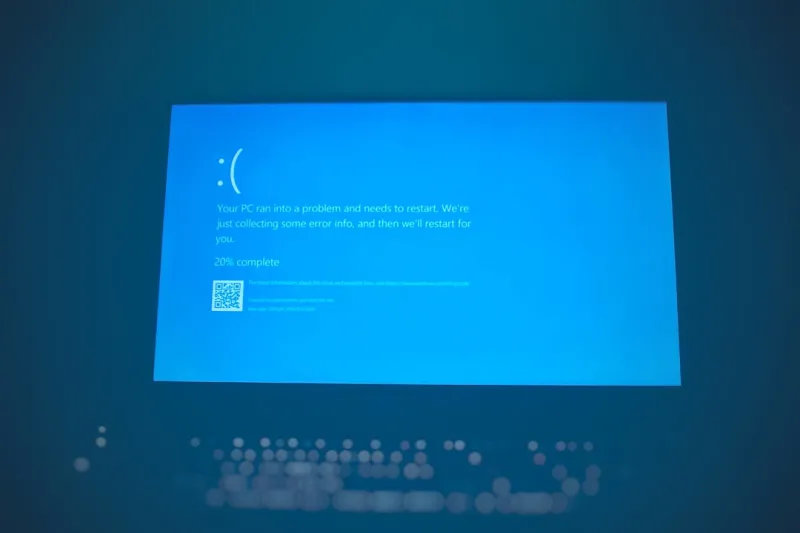
Most users dread the dreaded Blue Screen of Death (BSOD), but I’ve turned it into a power‑user advantage by treating each crash as a data point. The new Windows Kernel Dump Analyzer lets you capture a lightweight minidump automatically, which you can then feed into the WinDbg preview or even upload to a custom PowerShell script that parses the error code and cross‑references known issues. If you’re curious about the deeper mechanics, check out Turning the Blue Screen Into a Power‑User Advantage for a step‑by‑step guide on automating this process. By enabling “Automatic Memory Dump” under System Properties and configuring the “Debugging Tools for Windows” path, you’ll never be left guessing after a crash. The key is to treat the BSOD as a proactive diagnostic tool, not a failure; each crash can reveal driver mismatches, firmware bugs, or even subtle hardware degradation before they become catastrophic.
Beyond the dump analysis, you can script a recovery routine that reboots into a clean environment, clears temporary caches, and runs a quick sfc /scannow health check. Pair this with a scheduled task that logs the system’s uptime, memory usage, and recent driver updates into a CSV file. Over time, you’ll build a timeline of stability that helps you pinpoint when a new Windows update or third‑party driver introduced instability. This data‑driven approach not only minimizes downtime but also empowers you to make informed decisions about rolling back or patching problematic components. Remember, the goal isn’t to avoid the blue screen altogether—it's to harness the information it provides to keep your machine humming.
Future‑Proof Your System with Smart Upgrades
Hardware evolves fast, but a strategic upgrade path can keep a Windows PC relevant well into the next OS generation. In 2026, DDR5‑6000 and PCIe 5.0 SSDs are no longer niche; they’re the sweet spot for performance‑hungry power users. However, blindly splurging on the latest components can be wasteful. My approach starts with a baseline performance audit using winsat and the built‑in “Performance Monitor” counters to identify bottlenecks. If the CPU is already hitting its thermal ceiling, a cooler with better heat‑pipe design and a high‑efficiency power supply will yield more real‑world gains than a marginally faster GPU. For storage, I recommend a modest 2 TB NVMe drive paired with a secondary SATA SSD for archival data; this hybrid setup maximizes speed while keeping costs manageable.
When you’re ready to invest, dive into Future‑Proof PC Upgrades: Power‑User Strategies for 2026 Performance for a deep dive on component compatibility and future‑proofing tactics. One often‑overlooked upgrade is the motherboard’s support for USB 4.0 and Thunderbolt 4, which future‑proofs peripheral connectivity and enables ultra‑fast external storage—a boon for video editors and data scientists alike. Don’t forget to enable “Fast Startup” and configure the BIOS for “AHCI” mode to squeeze the most out of your SSDs. By aligning your upgrades with the OS’s evolving feature set, you’ll maintain a smooth, responsive experience even as Windows rolls out new AI‑enhanced capabilities.
Secure Your Windows Environment Against AI‑Driven Threats
Security in 2026 is no longer about blocking traditional malware; it’s about anticipating AI‑crafted phishing campaigns and deep‑fake social engineering attacks. Microsoft Defender now incorporates generative AI to flag anomalous behavior, but power users can augment this with custom detection rules in the Windows Defender Security Center. By exporting the event logs to a PowerShell script that leverages Azure Sentinel’s machine‑learning models, you can create a feedback loop that learns from each attempted breach. For those who want a hands‑on guide, see Power Users’ Playbook: Defending Against AI‑Driven Threats for actionable steps.
The first line of defense is hardening the Windows Credential Guard and enabling “Virtualization‑Based Security” (VBS) across all user accounts. Combine this with “Windows Hello for Business” to replace passwords with biometric factors that are resistant to AI‑generated credential stuffing. Next, enforce “Controlled Folder Access” for critical directories like Documents and Downloads, ensuring only trusted apps can write to them. Finally, schedule a weekly PowerShell job that runs Get-MpThreatDetection and cross‑references the results with a community‑sourced threat intel feed. This proactive posture keeps you ahead of AI‑powered threats that adapt faster than traditional signature‑based solutions.
Putting It All Together: A Power‑User Routine
All the tips above are powerful on their own, but the true magic happens when you weave them into a daily routine. Start each morning by launching a custom PowerShell profile that checks for pending Windows updates, verifies the health of your SSD via Get-PhysicalDisk, and prints a concise summary of system temperature and memory usage. If any thresholds are crossed, the script can automatically trigger a safe reboot into a diagnostic mode you pre‑configured. Throughout the day, keep the “Focus Sessions” active to minimize interruptions, and let the integrated AI copilots suggest shortcuts based on your clipboard history. At the end of the week, run the automated BSOD dump analyzer to ensure no hidden driver issues have crept in, and review the security log aggregation to confirm no AI‑driven anomalies slipped through. By treating your Windows machine as a living system—monitoring, updating, and iterating—you’ll enjoy a level of performance and resilience that most users only dream of. Remember, the goal isn’t just to use Windows; it’s to command it.