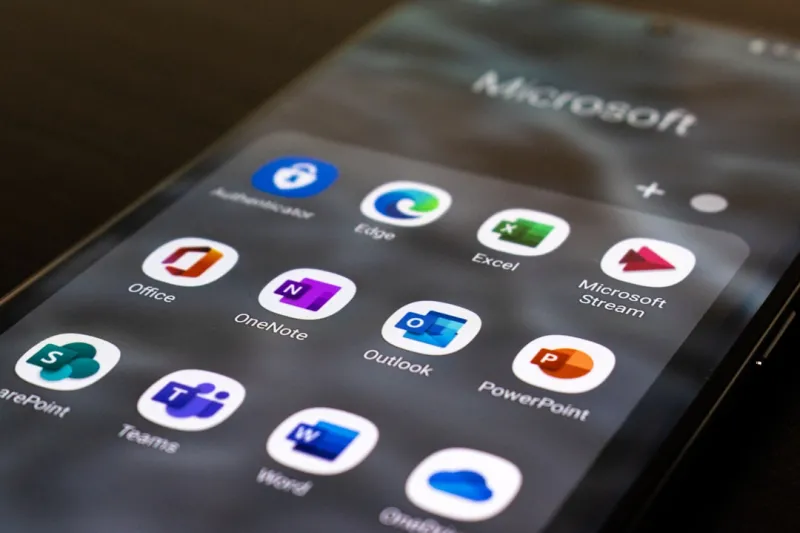
When you think about Microsoft Office in 2026, the first image that pops into most power users’ heads is not the classic ribbon or the static templates of yesteryear, but a living, breathing ecosystem powered by AI. As someone who has spent years dissecting every new feature Microsoft rolls out, I can say with confidence that the platform has finally crossed the threshold from a productivity suite into a strategic partner. This transformation is driven by deep learning models that sit behind the scenes, turning mundane tasks into automated workflows and turning raw data into actionable insights without you lifting a finger. In this post, I’ll walk you through the most compelling ways to harness this AI‑driven engine, why it matters for your day‑to‑day workflow, and how to future‑proof your Office skill set for the next wave of updates.
AI Copilot: Your New Office Companion
The crown jewel of Microsoft’s AI push is Copilot, a conversational assistant that lives inside Word, Excel, PowerPoint, and even Teams. Unlike a simple macro, Copilot can understand natural language prompts, generate drafts, suggest visualizations, and even rewrite entire sections of a document to match a specified tone. Imagine typing “Create a 10‑slide deck on quarterly sales trends with a modern design and embed the latest KPI charts,” and watching the deck materialize in seconds. The real power, however, lies in its iterative nature—you can ask follow‑up questions, request data‑driven refinements, or ask it to “highlight the top three risk factors” and get a concise bullet list instantly. For power users, this means the ability to shift from manual data manipulation to higher‑order analysis, freeing up mental bandwidth for strategic decision‑making.
AI‑Driven Workflows that Save Hours
Automation in Office has moved far beyond simple Power Automate flows. By leveraging the new AI‑driven workflow engine, you can set up conditional logic that reacts to the content of a document, not just its metadata. For example, an Excel sheet can monitor incoming sales data, automatically flag anomalies, and then draft an email in Outlook with a pre‑filled summary and suggested actions. In Word, you can create a template that pulls real‑time data from a SharePoint list, updates charts, and then sends the final version for approval with a single click. These dynamic, content‑aware flows cut down repetitive tasks by up to 60 %, and they’re all built with a visual interface that respects the power‑user’s need for transparency and control.
Secure Collaboration Without Compromise
Security often feels like a trade‑off against convenience, but Microsoft’s latest encryption and compliance integrations prove otherwise. With the Power‑User’s Guide to Mastering Encryption as a reference, you can enable end‑to‑end encryption for Teams chats, enforce sensitivity labels in Word, and set granular permissions on Excel workbooks stored in OneDrive. The key is to adopt the “Zero Trust” mindset: every file, every user, and every device is verified before access is granted. Leveraging Azure Information Protection, you can tag documents with policies that automatically apply protection based on content type—no manual steps required. This approach not only shields your data from external threats but also ensures internal compliance, especially in regulated industries where audit trails are non‑negotiable.
Collaboration That Feels Like Real‑Time Brainstorming
One of the most underrated upgrades in Office 2026 is the enhanced real‑time co‑authoring experience. In Word and PowerPoint, you now see a live “thought bubble” that displays a teammate’s cursor movement, comments, and even their AI‑generated suggestions. This visual cue reduces the “who‑did‑what” confusion that plagued earlier versions of co‑authoring. Teams now integrates directly with Office files, allowing you to edit a spreadsheet while on a video call without leaving the meeting window. For power users who juggle multiple projects, this seamless integration eliminates context switching, accelerates decision loops, and keeps every stakeholder on the same page—literally.
Integrating Office with Windows 11’s New Features
Windows 11’s latest insider builds bring a set of productivity hooks that make Office feel native to the OS. The new “Snap Layouts” let you dock Word, Excel, and Teams side‑by‑side with a single keystroke, while “Voice Access” lets you dictate complex spreadsheet formulas without touching the keyboard. By unlocking these hidden capabilities—see the Insider Tips for Windows 11—you can create a desktop environment where Office applications flow together like a single, unified workspace. This synergy not only speeds up task completion but also reduces the cognitive load of managing multiple windows, a boon for anyone who lives in a multi‑monitor setup.
Staying Ahead with Essential 2026 Updates
Microsoft rolls out feature drops on a quarterly cadence, and each one carries a mix of UI tweaks, security patches, and AI enhancements. Missing these updates can leave you stuck with outdated shortcuts and sub‑optimal performance. The Essential 2026 Updates guide is a concise checklist that helps you audit your Office suite, verify that the latest Copilot capabilities are enabled, and confirm that your compliance policies are up to date. By setting a monthly reminder to run through this checklist, you ensure that you’re always leveraging the newest productivity boosters—whether it’s a smarter chart recommendation in Excel or an improved translation engine in Word.
Power‑User Tips for Maximizing Efficiency
Below are three quick‑hit tactics that have transformed my own workflow and that I recommend to anyone looking to squeeze every ounce of performance from Office. First, use custom keyboard shortcuts for Copilot prompts; you can assign a simple “Ctrl + Shift + C” to open the Copilot pane in any app, turning AI assistance into a single‑stroke action. Second, adopt “Dynamic Arrays” in Excel to replace legacy formulas—functions like FILTER, SORT, and UNIQUE let you manipulate data sets in real time without complex nested IF statements. Third, embed Power Query scripts directly into your PowerPoint decks; this lets you refresh charts on the fly during a presentation, turning static slides into interactive data stories. Implementing these habits can shave minutes off routine tasks, which adds up to hours over the course of a week.
The Road Ahead: What’s Next for Office?
Looking forward, Microsoft’s roadmap hints at deeper integration with the Microsoft Graph, enabling context‑aware suggestions that span across Outlook, Teams, and even third‑party apps like Slack. Expect to see AI‑generated meeting agendas that pull data from your calendar, project plans that auto‑adjust based on real‑time resource availability, and more immersive AR experiences embedded directly in PowerPoint. As a power user, staying curious and experimenting with these beta features will keep you at the cutting edge. Keep an eye on the Insider Program, join the community forums, and don’t shy away from providing feedback—your insights help shape the tools you rely on every day.
In summary, Microsoft Office in 2026 is no longer just a collection of desktop apps; it’s an intelligent, secure, and deeply integrated productivity hub. By mastering Copilot, leveraging AI‑driven workflows, and staying vigilant about updates, you can transform the way you work and lead your organization into a new era of efficiency. Ready to take the next step? Dive into the linked resources, experiment with the tips above, and watch your daily output soar.