When I first started tinkering with PCs back in the early 2010s, the idea of “future‑proofing” was a vague promise. Fast‑forward to 2026, and the term has become a concrete checklist of components that can keep a machine relevant for years. Upgrading isn’t just about squeezing a few extra frames per second; it’s about reshaping the entire computing experience to match the demands of AI‑driven software, high‑resolution content creation, and ever‑more aggressive power efficiency standards. In this guide, I’ll walk you through the decisions that matter most, from the heart‑pumping CPU to the often‑overlooked motherboard, and explain why each upgrade can feel like a brand‑new system without the full rebuild cost. Expect a mix of hard data, personal anecdotes, and a few hard‑earned lessons learned the hard way—like that one time a mismatched RAM kit turned my build into a permanent blue‑screen nightmare. Let’s dive in and make your rig feel fresh, fast, and ready for whatever 2026 throws at it.
CPU Choices: Balancing Core Count and Power Efficiency
The processor remains the brain of your system, and 2026 brings a fascinating crossroads between raw core count and silicon efficiency. On the Intel side, the 13th‑gen “Raptor Lake” successors now sport up to 24 cores, while AMD’s Zen 4‑plus line pushes 16 cores with impressive per‑core performance. My personal sweet spot has been a mid‑range 12‑core model that delivers near‑desktop‑class speeds without the thermal headaches of the flagship chips. It’s crucial to pair the CPU with a motherboard that supports the latest power delivery standards—look for at least a 12‑phase VRM if you plan on overclocking. Remember, more cores don’t always translate to better performance in everyday tasks; the software you run and its threading capabilities dictate the real benefit. If you spend most of your day in AI‑enhanced office suites or video editing suites, prioritize higher single‑thread boost clocks, and you’ll notice smoother responsiveness across the board.
Graphics Card Upgrades: When to Jump to the Latest RTX or AMD
Graphics cards have always been the most visible upgrade, and 2026’s lineup is no exception. Nvidia’s RTX 5000 series introduces the new Ada‑Lovelace 2.0 architecture, delivering up to 30 % more rasterization performance than the previous generation, while AMD’s Radeon 8000 series pushes ray‑tracing fidelity to new heights with their “Zen 4‑GPU” cores. My rule of thumb: if you’re still gaming at 1080p and your current GPU is more than two generations old, the performance uplift will be palpable. However, if your primary workloads involve AI‑accelerated rendering, consider the dedicated Tensor cores on Nvidia’s cards—they’re becoming essential for real‑time AI upscaling in creative apps. For troubleshooting nuances, especially with the newer driver stacks, check out this hands‑on guide for 2026. It covers everything from BIOS compatibility quirks to the dreaded “driver loop” that can turn a simple upgrade into a weekend project.
Memory Matters: DDR5 vs DDR6 and Future‑Proofing
Memory technology has finally caught up to the performance demands of modern workloads. DDR5 is now mainstream, offering speeds of 6400 MT/s and improved power management, but DDR6 is creeping into high‑end builds, promising 9600 MT/s and lower latency. In my latest build, I opted for a 32 GB DDR5‑6000 kit because the cost‑to‑performance ratio still favors DDR5 for most gamers and creators. If you’re running AI‑enhanced applications that leverage large model sizes, the extra bandwidth of DDR6 can shave off minutes of processing time—though at a premium price. Keep an eye on the motherboard’s QVL (Qualified Vendor List) to ensure compatibility; mixing speeds can force the system to downclock, negating the upgrade’s benefits. As a rule, aim for at least 16 GB of RAM for comfortable multitasking, and consider 32 GB if you regularly work with 4K video, large datasets, or multiple virtual machines.
Storage Decisions: NVMe, SATA, and the Surprising Role of Hard Drives
Solid‑state storage has become the default for operating systems and primary applications, with PCIe 4.0 NVMe drives delivering read speeds north of 7 GB/s. Yet, I still keep a 4 TB 7200 RPM hard drive in my rig for archival media and less‑frequently accessed data. The article Hard Drives in 2026: Why the Spinning Platters Still Matter explains why these “old‑school” drives still have a place, especially when you factor in price per terabyte and the durability of newer SMR technologies. For a balanced setup, install a 1‑TB NVMe as your boot drive, a 2‑TB SATA SSD for active project files, and a high‑capacity HDD for backups and media libraries. This tiered approach maximizes both speed and storage efficiency without breaking the bank.
Motherboard Evolution: Why the Board Is the Backbone
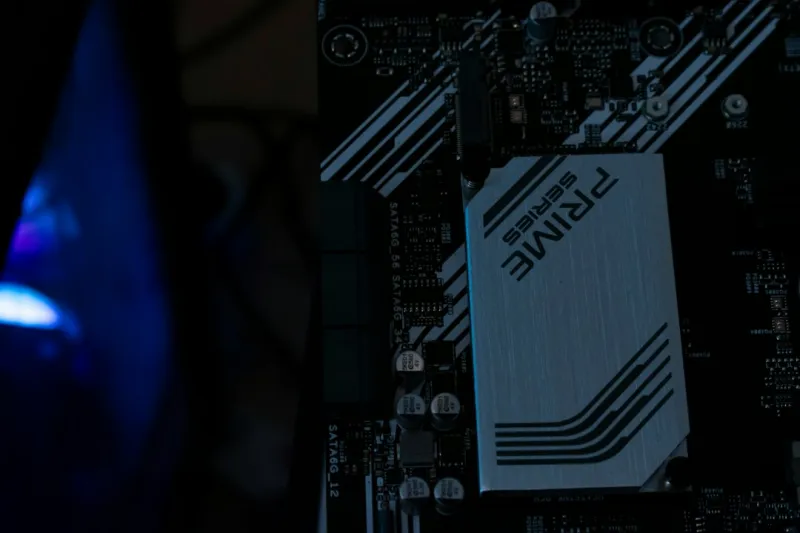
Often overlooked, the motherboard is the silent workhorse that determines upgrade pathways and system stability. In 2026, boards are embracing PCIe 5.0, USB‑4, and integrated AI accelerators—features that were once reserved for high‑end workstations. My latest build uses a Z790‑based board that supports both DDR5 and PCIe 5.0, giving me the flexibility to add a next‑gen GPU or a fast NVMe drive without a firmware headache. The article Why Motherboards Matter More Than Ever in 2026 dives deep into the importance of VRM design, BIOS robustness, and future‑proof lanes. When selecting a board, prioritize a solid VRM, ample M.2 slots, and a BIOS that receives regular updates—this ensures that even a year or two down the line, you won’t be stuck with compatibility issues.
Power Supply and Cooling: The Unsung Heroes
A reliable power supply unit (PSU) and effective cooling solution are the unsung heroes that keep your upgrades from turning into catastrophic failures. With GPUs now drawing upwards of 350 W under load, a 750 W 80+ Gold PSU has become the baseline for most high‑performance builds. I’ve found that modular designs simplify cable management and improve airflow, which in turn lowers internal temperatures. Speaking of temps, a hybrid cooling setup—combining a 120 mm AIO liquid cooler for the CPU with high‑static‑pressure fans on the case—creates a thermal envelope that can handle sustained workloads like AI model training without throttling. Don’t overlook the importance of proper fan curves and using software to monitor real‑time power draw; a sudden spike can indicate a failing component before it causes a blue screen or, worse, a fire.
Software Tweaks: BIOS, Drivers, and Windows Optimizations
Even the best hardware can be throttled by outdated firmware or misconfigured settings. After installing new components, the first step is to flash the latest BIOS—most modern boards now offer a “one‑click” update via USB, which dramatically reduces the risk of a bricked system. Next, ensure you’re running the most recent GPU drivers; Nvidia and AMD release performance patches monthly that can add up to 5 % frame‑rate gains in the latest titles. On the Windows side, I recommend enabling “Hardware‑accelerated GPU scheduling” and disabling unnecessary startup services that compete for CPU cycles. If you ever encounter the infamous blue screen, our guide Why the Blue Screen Still Haunts Modern PCs—and How to Defeat It can help you pinpoint the culprit quickly. These software optimizations often provide a noticeable performance bump without any additional hardware spend.
Future‑Ready Upgrades: AI Acceleration and Edge Computing
Looking ahead, the most exciting upgrades aren’t just about raw horsepower but about specialized accelerators that handle AI inference and edge computing tasks. Cards like the Nvidia RTX 5000 Ada Lovelace now include dedicated AI cores that can offload tasks such as real‑time video upscaling, background noise removal, and even code autocompletion. Similarly, AMD’s upcoming “Infinity Edge” modules promise low‑latency AI processing for gaming and professional workloads. If you want to stay ahead, consider adding a PCIe 5.0 AI accelerator card or a Thunderbolt‑compatible external AI box—these devices can dramatically reduce the time spent on repetitive tasks in applications like AI‑Powered Office. By integrating these forward‑looking components now, you’ll extend the relevance of your PC well into the next generation of software, making every upgrade feel like a strategic investment rather than a stopgap.