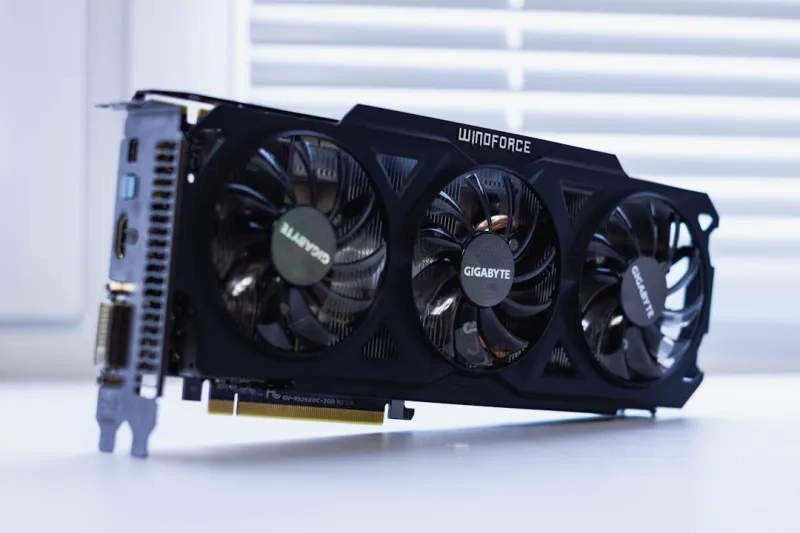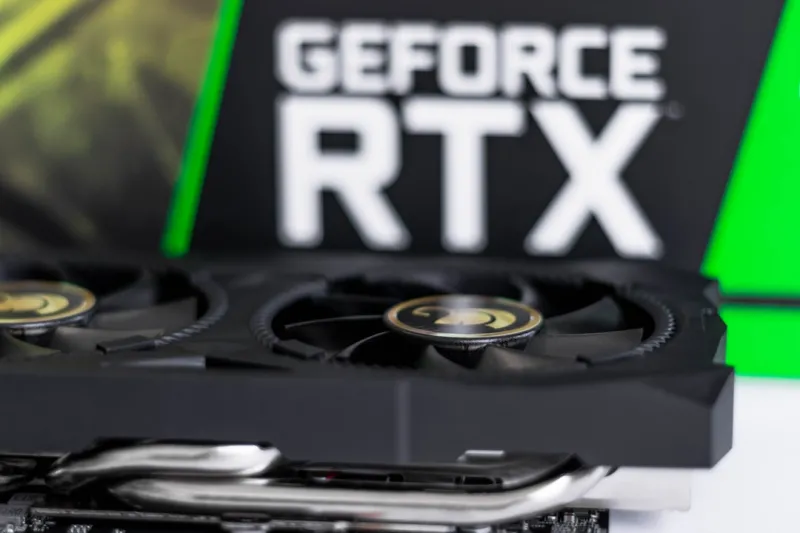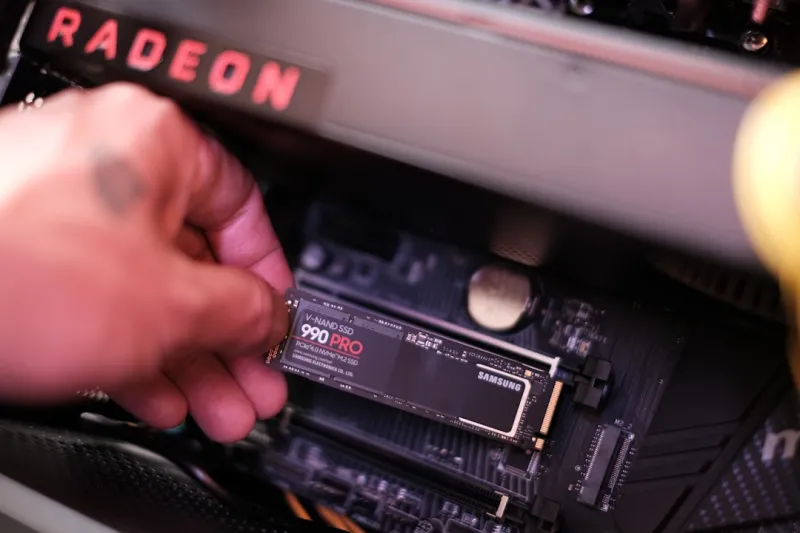
When you power on a rig in 2026 and the screen flickers like a nervous firefly, my first instinct as a longtime PC tinkerer is to suspect the video card. The GPU market has exploded with AI‑accelerated cores, ray‑tracing pipelines, and ever‑higher power envelopes, making them both the crown jewel and the most frequent point of failure in modern builds. Yet many of the dreaded black screens, artifact‑laden frames, or sudden crashes can be traced back to a handful of predictable culprits. In this post, I’ll walk you through my battle‑tested playbook for diagnosing, fixing, and future‑proofing your graphics hardware, all while keeping the tone as conversational as a coffee‑shop chat with a fellow tech‑enthusiast. Whether you’re a freelance video editor, a competitive gamer, or a developer wrestling with AI workloads, the steps below will save you hours of frustration and possibly a few dollars in premature hardware replacements.
Recognizing the Early Warning Signs
The first step in any troubleshooting saga is to recognize the symptoms before they become full‑blown catastrophes. Typical red flags include occasional frame drops during high‑intensity scenes, inexplicable color banding, or the dreaded “GPU has stopped responding and has recovered” Windows message. For me, the subtle cue is a sudden increase in fan noise that isn’t linked to a workload spike—an early indicator that thermal throttling is kicking in. Another common hint is the appearance of driver‑related error codes in the Windows Event Viewer, often flagged as “Display driver stopped responding and has recovered.” If you see the screen freeze for more than a few seconds, especially when launching a demanding title or rendering a 4K video, it’s time to dig deeper. Recognizing these patterns early can prevent data loss, especially when you’re mid‑project on a deadline.
Gathering Diagnostic Data
Before you start swapping parts, collect solid evidence to pinpoint the fault. Open Device Manager and look for any yellow exclamation marks next to your display adapters; this can reveal driver corruption or mismatched hardware IDs. Next, fire up the built‑in Windows Reliability Monitor—it logs critical events like driver crashes and can help you correlate a problem with a recent Windows update. For a more granular view, I recommend using third‑party tools such as GPU‑Z or MSI Afterburner to monitor real‑time clock speeds, voltage, and temperature spikes. If you’re seeing erratic behavior, capture a short video of the artifact or freeze and attach it to a support ticket; visual proof often speeds up the RMA process. For a step‑by‑step guide on gathering this data, check out Diagnose and Fix Video Card Problems, which walks you through the exact tools and logs I rely on.
Driver Management: The Most Common Fix
Believe it or not, the majority of video‑card woes in 2026 stem from software rather than hardware. Nvidia’s and AMD’s driver ecosystems are constantly evolving to support new games, AI workloads, and operating system tweaks. My mantra is “clean install, not just update.” First, use DDU (Display Driver Uninstaller) in safe mode to strip out any remnants of previous drivers—this prevents lingering conflicts. Then, download the latest WHQL‑certified driver directly from the manufacturer’s website, not through Windows Update, which can sometimes serve a stale version. After installation, reboot and run a low‑intensity benchmark like Unigine Heaven to confirm stability. If problems persist, roll back to the previous stable driver version; occasionally, a fresh release may introduce regressions for certain chipsets. Remember to disable any third‑party overlay software—Discord, GeForce Experience, or even some screen‑recording tools—since they can interfere with the driver’s rendering pipeline.
Thermal Management and Physical Checks
Heat is the silent assassin of modern GPUs, especially with the power‑hungry AI cores that dominate today’s silicon. First, inspect the cooler assembly for dust buildup; a thin layer can reduce airflow by up to 30 %. Use a compressed‑air canister to gently blow out the fins and fan blades, and consider swapping the stock fan for a higher‑static‑pressure model if you’re running a custom loop. Next, examine the thermal paste. Many users overlook the fact that the pre‑applied paste degrades after a year of heavy use, leading to temperature spikes in the 80‑90 °C range under load. Reapplying a high‑quality thermal compound can shave several degrees off the peak. Lastly, ensure your case has adequate intake and exhaust pathways; in 2026, many mid‑tower designs prioritize aesthetics over airflow, which can trap hot air around the GPU. For a broader look at why some legacy hardware still matters in a heat‑focused environment, see Hard Drives in 2026.
Power Delivery and BIOS Settings
Even the most robust GPU can sputter if it isn’t receiving clean, sufficient power. Start by confirming that your PSU meets the manufacturer’s recommended wattage—most high‑end cards in 2026 demand 300 W or more, plus headroom for the rest of the system. Use a multimeter or a power‑monitoring plug to verify that the 12 V rail isn’t dipping under load. If you’re on a borderline PSU, consider upgrading to a unit with an 80 Plus Gold or Platinum rating for better efficiency and stability. BIOS settings also play a crucial role; many motherboards now expose PCIe power management options like “ASPML1” or “L1 Sub‑State.” Disabling these can eliminate occasional latency spikes that manifest as stuttering. Additionally, check that the PCIe slot is set to “Gen 4” or “Gen 5” mode as appropriate—forcing a lower generation can bottleneck bandwidth and cause driver timeouts.
Stress‑Testing and Benchmark Validation
Once you’ve addressed drivers, thermals, and power, it’s time to put the GPU through its paces. Tools like 3DMark Time Spy, FurMark, and the newer AI‑benchmark suites stress every core and memory channel simultaneously, revealing hidden defects. Run each test for at least 15 minutes while monitoring temperature, clock throttling, and artifact formation. If you encounter a crash, note the exact point of failure—this data is invaluable when contacting support. For a more nuanced view, use GPU-specific diagnostics like Nvidia’s Nsight Systems or AMD’s Radeon Pro Software to trace shader execution and memory allocation errors. Remember to log the results; a spreadsheet of temperature vs. load can quickly show whether a specific power limit is being hit or if thermal throttling is too aggressive. This systematic approach not only validates your fixes but also builds a performance baseline for future upgrades.
When to RMA or Replace the Card
After exhausting software fixes, thermal tweaks, and power checks, you may still be staring at a stubbornly unstable GPU. At this point, consult the warranty terms—most manufacturers offer a three‑year coverage, but some premium cards extend to five years in 2026. Gather your diagnostic logs, stress‑test results, and a clear description of the issue before opening a ticket; a well‑documented case speeds up the RMA approval. If the card is out of warranty, weigh the cost of a repair (often just a new cooler or a re‑flowed solder) against buying a newer model that supports the latest ray‑tracing and AI features. In my experience, a well‑maintained GPU can serve for five to seven years, but the rapid pace of software demands means you might upgrade sooner for performance gains. Whichever route you choose, keep the original packaging and accessories—they’re essential for a smooth return.
Future‑Proofing Your Build and Closing Thoughts
Looking ahead, video cards will become even more intertwined with AI inference workloads, making power efficiency and thermal design paramount. To stay ahead of the curve, select a motherboard that offers robust VRM cooling and PCIe power delivery, and consider modular power supplies with dedicated GPU rails. Regular maintenance—cleaning dust, reapplying thermal paste every 12‑18 months, and keeping drivers up to date—will extend the life of even the most cutting‑edge silicon. Finally, stay connected with the community; forums, subreddits, and blogs often surface firmware patches before manufacturers release official updates. By treating your GPU as a living component—one that needs care, monitoring, and occasional upgrades—you’ll keep your creative and gaming workflows humming smoothly throughout 2026 and beyond.