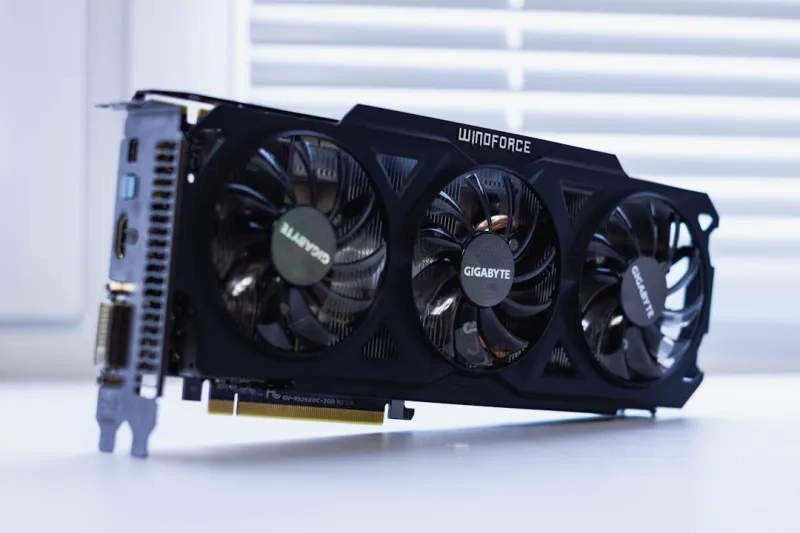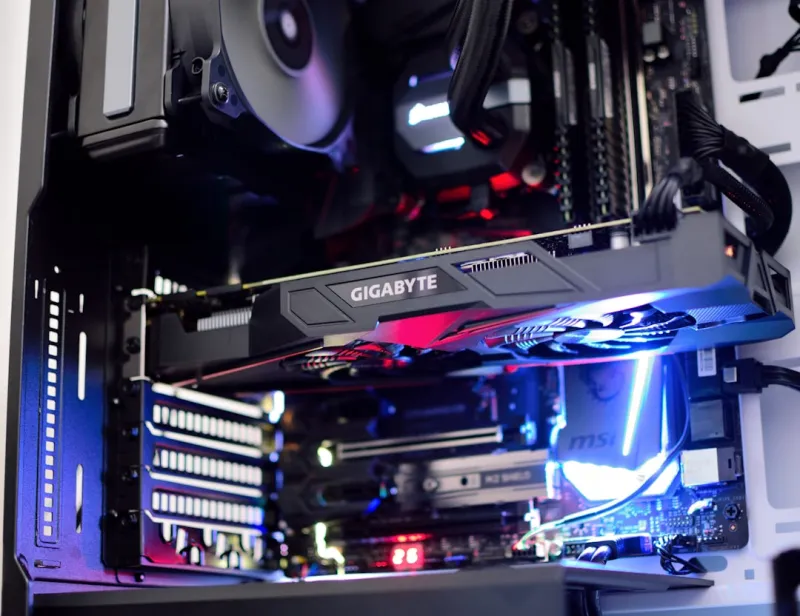
When my gaming rig started stuttering like a busted cassette player in 2026, I knew it was time to roll up my sleeves and treat my GPU like a stubborn patient. Video cards have become the beating heart of everything from high‑refresh gaming to AI‑enhanced video editing, so a hiccup can feel like a full‑blown heart attack. In this post, I’ll walk you through the troubleshooting workflow that’s saved my rigs more times than I can count, blending hard‑won experience with the latest tools that the industry has thrown at us this year. Expect a mix of practical “plug‑and‑play” fixes, deeper diagnostic steps, and a few insider shortcuts that most forums gloss over. By the end, you’ll have a clear roadmap to turn that dreaded black screen or artifact‑filled frame into smooth, buttery performance—without having to shell out for a brand‑new card prematurely.
Spotting the Tell‑tale Signs
The first clue a misbehaving GPU gives you is usually visual. Screen tearing, random artifacts, or sudden drops in frame rate are the most obvious symptoms, but don’t overlook the silent killers: driver crashes, system reboots, and even audible coil whine that ramps up under load. In 2026, modern GPUs also log cryptic error codes to the Windows Event Viewer or the Linux dmesg output—these nuggets can point you straight to a faulty shader unit or a VRAM hiccup. One of my go‑to habits is to keep a simple log of when the issues occur, noting the game or application, the in‑game settings, and any recent system changes. This pattern‑recognition approach often reveals that the problem isn’t random at all, but tied to specific power‑draw spikes or temperature thresholds. When you can correlate a crash with, say, a sudden jump from 70 °C to 85 °C, you’ve already narrowed the field dramatically, saving hours of blind testing.
Digging Deeper with Diagnostic Tools
Once you’ve isolated the symptom, it’s time to let the software do the heavy lifting. Tools like MSI Afterburner, GPU-Z, and the built‑in Windows “Graphics Diagnostics” panel let you monitor clock speeds, power consumption, and memory usage in real time. In my experience, a sudden dip in GPU clock while temperatures stay stable often signals a power delivery issue—perhaps the PCIe slot isn’t getting enough voltage, or the PSU’s rails are sagging under load. I also swear by the Unlocking the Secrets of Video Card Troubleshooting: A 2026 Guide, which walks you through interpreting the error logs that modern drivers generate. Don’t forget to run a stress test with tools like FurMark or 3DMark; these push the card to its limits, exposing latent defects that only appear under sustained pressure. If you see temperature spikes past 90 °C or VRAM error counters ticking up, you’ve got a clear direction for the next fix.
When Basic Fixes Fail
If driver updates and power checks haven’t rescued you, it’s time to go a layer deeper. Start by reseating the card—remove it, inspect the PCIe slot for dust or bent pins, and reinstall with a firm, even push. Next, verify that your BIOS is up to date; motherboard firmware often includes compatibility tweaks for newer GPUs, especially those released in the first half of 2026. A quick glance at the motherboard’s release notes can save you from a nasty conflict that would otherwise masquerade as a faulty card. When I first encountered a mysterious “GPU timeout” error, a BIOS flash resolved it instantly. For those stubborn cases where the card still misbehaves, consider a clean driver stack: uninstall the current driver with DDU (Display Driver Uninstaller), then install the latest stable release from the manufacturer’s website. If you suspect VRAM corruption, run a memory stress test like MemTestG80, which specifically targets GPU memory. And if all else fails, the Why Your GPU Is Acting Up and How to Fix It Fast guide walks you through advanced steps like re‑flashing the VBIOS or even a cautious reflow of the solder joints—a last‑ditch effort before pulling the plug on the hardware.
One often overlooked angle is the relationship between system RAM and the GPU. Modern architectures share memory resources, especially on laptops with integrated graphics, but even discrete cards rely on system RAM for certain buffers and page tables. If your RAM is flaky, the GPU can suffer “out‑of‑memory” errors that look like driver crashes. I’ve chased down a phantom GPU freeze only to discover a single bad DIMM slot that was corrupting data as it streamed to the card. Running a thorough RAM diagnostic—like the one detailed in How to Diagnose and Fix RAM Issues Before They Crash Your PC—can eliminate this hidden culprit. When the memory checks out, you can focus on the GPU itself with confidence, knowing the data pipeline is clean.
Software conflicts can be just as pernicious as hardware faults. In 2026, many users run multiple GPU‑intensive applications side‑by‑side: a game, a streaming encoder, and perhaps an AI‑enhanced photo editor. Each of these can request exclusive control of the GPU, leading to driver deadlocks or resource starvation. A quick way to test this is to boot Windows in Safe Mode with networking, then launch a single application and see if the issue persists. If the problem disappears, you’ve likely got a software clash. Checking the Event Viewer for “DXGI_ERROR_DEVICE_REMOVED” entries can point you to the offending process. Moreover, keep your operating system up to date; the Operating System Revolution article outlines how recent kernel patches improve GPU scheduling and can resolve hidden bugs that manifest as crashes.
When you’ve exhausted driver and software fixes, it may be time to consider hardware‑level interventions. Re‑flowing solder joints is a delicate art, but for a card that’s a few years old and showing intermittent display loss, a controlled re‑flow using a hot‑air station can revive it. If the GPU’s BIOS is corrupted—perhaps due to a failed flash—a rescue flash using a secondary bootloader can restore functionality. I’ve documented the exact steps in a separate tutorial, but the key is to back up the original VBIOS before making any changes. In cases where the GPU continues to misbehave after a BIOS flash, the fault may be a failing capacitor or a broken memory chip, at which point a replacement is the most cost‑effective solution. Remember, though, that a well‑maintained card—cleaned of dust, with fresh thermal paste, and properly powered—can outlive the hype cycles of new releases.
Prevention, as always, beats cure. Regular maintenance—cleaning the heatsink, monitoring temperatures, and updating drivers on a monthly cadence—keeps the GPU in prime condition. I schedule a quarterly “GPU health day” where I run a quick benchmark, check fan curves, and verify that the power connectors are snug. Also, consider using a high‑quality PSU with enough headroom; a 650 W unit might have been sufficient a few years ago, but today’s ray‑tracing‑heavy GPUs can draw well over 300 W under load. Finally, keep a backup of your most stable driver version; if a new driver introduces regressions, you can roll back without a hitch. By treating your graphics card with the same care you’d give a prized sports car—regular oil changes (driver updates), tire checks (thermal monitoring), and occasional tune‑ups (BIOS flashes)—you’ll enjoy smooth performance for years to come.
In the end, troubleshooting a video card is part art, part science. It starts with keen observation, moves through methodical testing, and sometimes ends with a decisive hardware swap. My mantra is “test one variable at a time,” which prevents you from chasing phantom problems and keeps the process efficient. Armed with the right tools, a solid log, and a dash of patience, you can diagnose most GPU woes without splurging on a new piece of silicon. If you ever feel stuck, revisit the guides linked throughout this post—they’re built on the same principles that have kept my rigs humming through countless upgrades. Happy hunting, and may your frames be ever steady.