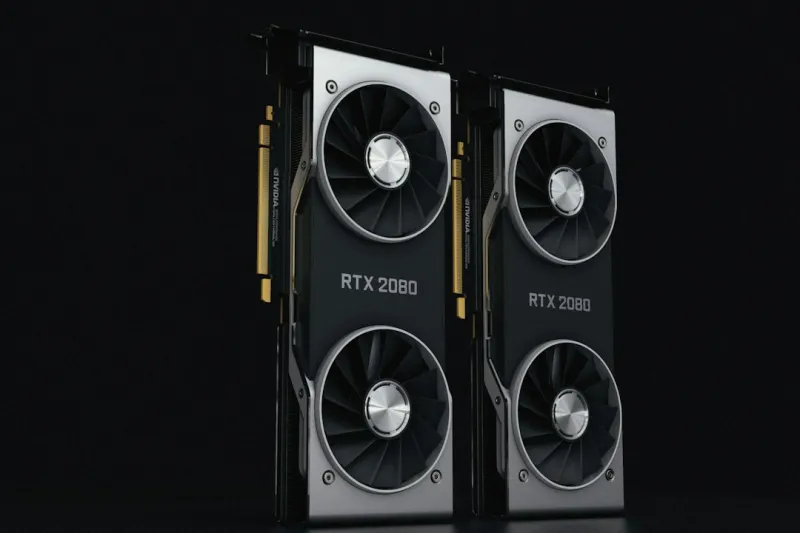
When the pixels start flickering, games stall, or the dreaded “Display driver stopped responding” message pops up, most of us reach for the nearest forum thread or a quick Google search. As someone who has spent countless late‑night hours wrestling with GPUs—from the early days of DDR memory to today’s AI‑accelerated silicon—I’ve learned that effective video‑card troubleshooting is part art, part science, and always a little messy. In 2026, the landscape is more complex than ever, with power‑efficient architectures, ray‑tracing cores, and deep‑learning accelerators all sharing the same silicon real estate. Yet the fundamentals remain surprisingly consistent: identify the symptom, isolate the cause, and apply a targeted fix. This article walks you through each step, sprinkling in personal anecdotes and practical tips that have saved me—and my readers—hours of frustration, all while keeping an eye on the evolving tech that will shape the next wave of graphics performance.
Understanding the Symptom Spectrum
The first mistake many make is treating every crash as a driver issue. In reality, video‑card problems manifest across a spectrum: visual artifacts like texture tearing, performance drops that don’t correlate with CPU usage, unexpected reboots, and even silent failures where the GPU simply won’t be detected. Each symptom points to a different layer of the stack. For instance, artifacting often hints at overheating or VRAM corruption, while sudden reboots can signal power delivery problems or faulty firmware. I always start by asking three questions: What were you doing when the issue occurred? Did anything change in your system configuration? And, crucially, can the problem be reproduced consistently? By documenting the exact circumstances—whether you were rendering a 4K timeline in DaVinci Resolve or pushing 144 Hz frames in a competitive shooter—you create a breadcrumb trail that dramatically narrows the investigative field.
Toolbox Essentials: From Windows to Open‑Source Utilities
Before you dive into the BIOS, grab a few diagnostic tools that have become indispensable in 2026. Windows’ built‑in “Graphics Diagnostic” (accessed via Win+Ctrl+Shift+Alt) captures frame‑by‑frame data, while GPU-Z still offers a real‑time snapshot of clock speeds, memory usage, and temperature. For the more adventurous, Mastering GPU Troubleshooting in 2026: From Symptoms to Solutions provides a deep dive into using vendor‑specific SDKs like NVIDIA Nsight and AMD Radeon™ Pro Software for detailed log extraction. Don’t overlook open‑source alternatives such as GPU-Viewer and PerfHUD, which can reveal hidden throttling events that the OS may mask. The key is to gather objective data before you start swapping parts; a single screenshot of temperature spikes or abnormal power draw can save you from chasing phantom ghosts in the hardware.
Driver Dilemmas: When “Latest” Isn’t “Best”
Driver updates are a double‑edged sword. While they often bring performance boosts for the newest titles, they can also introduce regressions that affect stability on older hardware. My mantra is simple: don’t chase every release. Instead, maintain a baseline driver version known to be stable for your primary workloads. If you encounter a fresh issue after an update, roll back using Device Manager or the driver’s “clean install” option. For a step‑by‑step walkthrough of this process, see Why Your GPU Is Acting Up and How to Fix It Fast. Additionally, keep an eye on the “WHQL Certified” tag—these drivers have passed Microsoft’s compatibility tests and are generally safer for mission‑critical environments. When dealing with multiple GPUs, ensure each card runs the same driver branch to avoid cross‑talk conflicts that can manifest as bizarre frame‑timing anomalies.
Power Delivery and BIOS: The Unsung Heroes
Power issues are surprisingly common, especially with the new 500‑watt‑plus GPUs that dominate the high‑end market in 2026. A sagging PSU can cause the card to downclock, display artifacts, or trigger automatic shutdowns. Start by verifying that your power supply meets the manufacturer’s recommendations, not just in wattage but also in rail distribution and connector quality. Next, dive into the BIOS—both the motherboard’s and the GPU’s. Enabling “Above 4G Decoding” and setting the PCIe slot to “Gen 4” can unlock bandwidth that older firmware caps. Some motherboards also offer “GPU Boost” profiles that let you fine‑tune voltage curves; adjusting these can mitigate unexpected throttling without resorting to external overclocking tools. Always document any BIOS changes and keep a backup of the original settings; a misstep here can render the system unbootable, turning a simple troubleshoot into a full‑blown recovery mission.
Thermal Management: Cleaning, Cooling, and the Art of Silence
Heat remains the nemesis of every GPU, even with the advanced cooling solutions that ship with today’s cards. Dust buildup on fins and fan blades can reduce airflow by up to 30%, leading to temperature spikes that trigger thermal throttling. I recommend a bi‑annual cleaning ritual: power down, disconnect, and use a soft brush and compressed air to clear the heatsink. If you notice persistent high temperatures—say, above 85 °C under load—consider reapplying high‑quality thermal paste. Brands like Thermal Grizzly and Arctic Silver have formulae optimized for the new die‑stacked architectures that feature both GPU cores and AI accelerators. Additionally, evaluate case airflow; a positive pressure environment (more intake than exhaust) helps keep dust out and ensures the GPU’s blower or axial fans receive fresh, cool air. Remember, a cooler GPU not only performs better but also enjoys a longer lifespan.
Advanced Debugging: Logs, Traces, and the Power of AI‑Assisted Analysis
When the obvious fixes fail, it’s time to dig into the logs. Both NVIDIA and AMD provide command‑line utilities—nvidia-smi and amdconfig—that can export detailed telemetry, including memory errors, voltage fluctuations, and ECC correction counts. Capture these logs during a stress test using tools like FurMark or 3DMark Time Spy, then feed the data into an AI‑driven analysis platform. In 2026, services such as AI Computing in 2026 can flag anomalous patterns that would be invisible to the naked eye, suggesting whether the issue is hardware‑level or software‑related. For the DIY crowd, scripts written in Python can parse the CSV output of nvidia-smi, plotting temperature versus clock speed to highlight throttling points. The goal is to turn raw data into a clear narrative that tells you exactly where the failure chain begins.
When Hardware Fails: RMA Strategies and Warranty Navigation
Even after exhaustive troubleshooting, sometimes the GPU is simply defective. Knowing how to navigate the RMA process can save you weeks of downtime. First, gather all diagnostic evidence—screenshots of error codes, logs, temperature graphs, and a timeline of steps you’ve taken. Most manufacturers request this before approving a return, and a well‑documented case speeds up the approval. Check the warranty length; many high‑end cards still carry a three‑year coverage, but some boutique models offer extended terms if you register within 30 days of purchase. When shipping the unit, use anti‑static packaging and include the original accessories to avoid “partial return” penalties. While waiting for a replacement, consider a temporary downgrade to an older GPU or a cloud‑gaming solution to keep productivity flowing.
Future‑Proofing Your Troubleshooting Toolkit
The rapid evolution of GPU technology means today’s best practices may become obsolete tomorrow. One emerging trend in 2026 is the integration of on‑die diagnostics that broadcast health metrics directly to the OS via standardized APIs. Keeping your operating system up to date is crucial, as the Operating System Revolution is delivering native support for these telemetry streams, allowing you to monitor GPU health without third‑party tools. Additionally, the rise of AI‑assisted support bots—trained on millions of support tickets—offers instant, context‑aware guidance that can walk you through complex BIOS tweaks or firmware flashes. By staying abreast of these innovations and regularly revisiting core concepts, you’ll be equipped to troubleshoot not just today’s cards, but the next generation of intelligent graphics processors.
Wrapping Up: From Panic to Proficiency
Video‑card troubleshooting doesn’t have to feel like deciphering an alien language. By methodically cataloging symptoms, leveraging the right diagnostic utilities, and understanding the interplay between drivers, power, and thermals, you can transform a frustrating outage into a learning experience. Remember, the community is a powerful ally—share your findings, consult posts like When Your GPU Misbehaves: A 2026 Troubleshooter’s Playbook, and contribute back when you discover a new fix. In the fast‑moving world of 2026 graphics, staying curious, organized, and proactive is the best defense against the inevitable hiccups that come with cutting‑edge hardware. Happy debugging, and may your frames be ever smooth.