
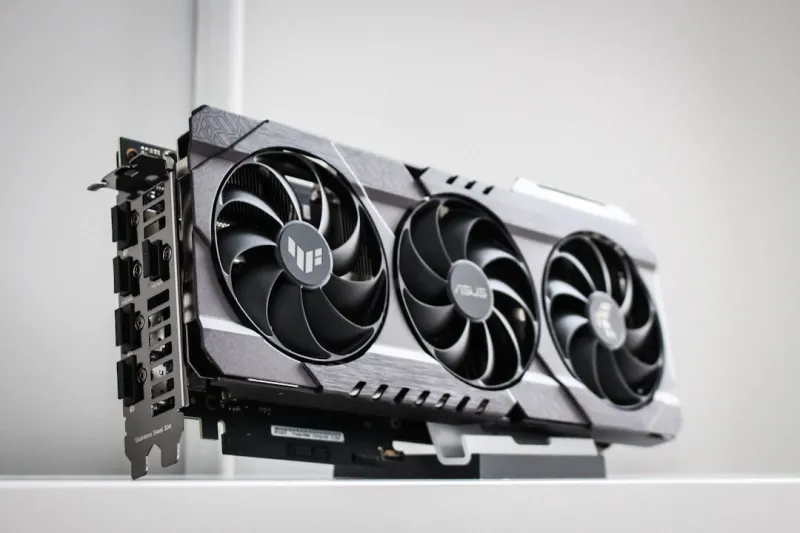
When you’re building a high‑performance rig in 2026, the video card is the crown jewel that turns raw horsepower into visual magic. Yet, even the most premium GPUs can throw curveballs—artifacting, driver crashes, or complete black screens—that leave even seasoned builders scratching their heads. The first step in any successful troubleshoot is to recognize that today’s GPUs are not just graphics processors; they’re hybrid compute engines tightly coupled with AI accelerators, ray‑tracing cores, and deep‑learning super‑samples. This complexity means that a problem that used to be a simple driver mismatch might now be an interplay between firmware, power delivery, and the operating system’s scheduler. In this opening section, I’ll walk you through the mental model I use: isolate hardware, verify software, and then dig into the nuanced layers that modern GPUs add. Understanding this hierarchy saves hours of guesswork and helps you pinpoint whether a failing component is the card itself, the PCIe lane, or an obscure BIOS setting that only shows up under heavy AI workloads.
Diagnosing the Symptoms: What Your GPU Is Trying to Tell You
The most common complaints—screen flicker, unexpected restarts, and “driver crashed” pop‑ups—each map to a distinct set of root causes. Flickering often points to power instability, especially when you’re pushing a card past its factory boost limits with overclocking software. Unexpected restarts can be a sign of thermal throttling; modern GPUs now feature dual‑fan and vapor‑chamber solutions, but a clogged heat sink or degraded thermal paste can still cause temperature spikes. Driver crashes, meanwhile, have become more layered with the advent of AI‑enhanced drivers that load dynamic kernels on the fly. If you see a crash after installing a new AI‑based game, consider rolling back to a stable driver version and checking the When Your GPU Misbehaves: A 2026 Troubleshooter’s Playbook for a step‑by‑step rollback guide. In every case, start by capturing the exact error message, timestamp, and what you were doing—this data is priceless when you later search forums or contact support.
Power Delivery: The Unsung Hero of GPU Stability
Power delivery is the silent backbone that keeps the GPU humming under load. In 2026, many high‑end cards now draw upwards of 450 watts, demanding robust VRM designs on both the motherboard and the GPU itself. Begin by checking your PSU’s wattage rating against the card’s TDP, and verify that you’re using the correct 8‑pin or 12‑pin connectors—mix‑matching can cause voltage drops that manifest as random freezes. Use a multimeter or a dedicated power monitoring tool to watch the 12 V rail during a stress test; if you see dips below 11.8 V, you’re likely looking at an under‑powered system. Also, inspect the PCIe slot for dust or corrosion—poor contact can cause intermittent power loss. Re‑seating the card, cleaning the slot, and ensuring that the power cables are firmly locked in place often resolves the issue without any need for component replacement.
Thermal Management: From Stock Coolers to Custom Loops
Even with the most advanced cooling solutions, heat remains the enemy of performance. Modern GPUs feature sophisticated fan curves that adjust speed based on temperature thresholds set by the manufacturer. However, if you’ve customized these curves for silence, you may inadvertently be allowing temperatures to climb into the 85‑90 °C range, where throttling begins. I recommend using tools like MSI Afterburner or the vendor’s own control panel to monitor real‑time temps while running a benchmark such as 3DMark Time Spy. If you notice temperatures exceeding 80 °C under load, consider reapplying thermal paste, checking for airflow obstructions, or upgrading to a higher‑CFM case fan. For the truly ambitious, a custom water loop can bring GPU temps down to the low 50s, but remember that the loop’s pump must be sized correctly for the added resistance of GPU blocks. Proper thermal management not only prevents crashes but also extends the lifespan of your card’s silicon.
Driver and Firmware Sync: Keeping Software in Step with Hardware
The driver ecosystem in 2026 is a moving target, especially with AI‑accelerated rendering pipelines that receive frequent micro‑updates. It’s tempting to chase the latest driver version for new game optimizations, but stability often lags behind performance gains. My workflow is to maintain two driver branches: a “stable” branch that I lock down for daily use, and a “beta” branch for testing new features on a secondary system. When a problem surfaces, first revert to the stable driver, then check the GPU’s firmware version via the manufacturer’s utility. Firmware updates can fix issues like memory leaks or PCIe negotiation bugs that drivers alone cannot address. If you discover a discrepancy between the firmware and driver release notes, align them by installing the latest firmware from the vendor’s website. This dual‑track approach minimizes surprise crashes and keeps your system’s software stack harmonious.
BIOS Settings and PCIe Configuration: Fine‑Tuning the Interface
Many GPU woes stem from mismatched BIOS settings on the motherboard, especially when you’re running a next‑gen CPU with a high‑speed PCIe 5.0 slot. First, confirm that the slot is operating at the intended lane width—some motherboards default to PCIe 4.0 for compatibility, which can limit bandwidth for the most demanding GPUs. Use the system BIOS or a utility like CPU‑Z to verify the link speed; if it’s running at x4 instead of x16, you may experience stuttering in AI‑heavy titles. Additionally, enable “Above 4G Decoding” and “Resizable BAR” if your GPU supports it—these settings allow the CPU to address more VRAM directly, reducing latency. Be cautious when tweaking voltage offsets in the BIOS; an aggressive setting can cause the GPU to draw more power than the VRM can safely supply, leading to thermal runaway. A balanced BIOS configuration is a subtle but powerful lever for stability.
Testing and Validation: Stress‑Testing Without the Burn
Once you’ve addressed power, thermal, driver, and BIOS variables, the final step is systematic validation. I recommend a tiered stress‑test regimen: start with a lightweight benchmark like Unigine Heaven to confirm basic functionality, then progress to a more demanding suite such as Blender’s GPU render test or an AI inference workload using TensorFlow. For each stage, monitor temperature, power draw, and frame times. If the system holds steady for 30 minutes at each level, you’re likely in the clear. However, be prepared for “hidden” failures that only appear under sustained maximum load—this is where tools like FurMark’s “burn‑in” mode become valuable. Document the results, noting any anomalies, and keep a log of the settings you used. This record will be invaluable if you need to troubleshoot again in the future or when upgrading other components.
When All Else Fails: RMA Strategies and Community Resources
Even after exhaustive troubleshooting, some issues are rooted in a defective silicon die or a manufacturing flaw. Knowing how to navigate the Return Merchandise Authorization (RMA) process can save you weeks of frustration. First, gather all logs from your testing, screenshots of error messages, and a concise timeline of the steps you’ve taken. Manufacturers often require this documentation to approve a replacement. When filing the RMA, reference the specific model and firmware version, and include the serial number—this speeds up verification. Meanwhile, tap into the community: forums dedicated to GPU troubleshooting, subreddits, and the Why Video Card Troubleshooting Is More Critical Than Ever article provide real‑world case studies that can reveal a hidden firmware bug or a known incompatibility with certain motherboards. Leveraging both official support and community wisdom gives you the best chance of a swift resolution.
Future‑Proofing Your Build: Preparing for the Next Wave of GPU Innovation
Looking ahead, the GPU landscape in 2026 is evolving toward even tighter integration with AI workloads and real‑time ray tracing. To future‑proof your system, choose a power supply with headroom—aim for at least 20% above the card’s peak draw—and invest in a case that supports high‑flow airflow or modular water cooling. Keep your motherboard’s BIOS updated, as manufacturers frequently release patches to improve PCIe compatibility with new GPU generations. Finally, adopt a habit of regular driver hygiene: schedule quarterly checks for driver updates, but only install them after reviewing release notes for known issues. By building a disciplined maintenance routine now, you’ll avoid the dreaded “GPU that suddenly stopped working” scenario down the road and keep your rig ready for the next breakthrough in graphics technology.




