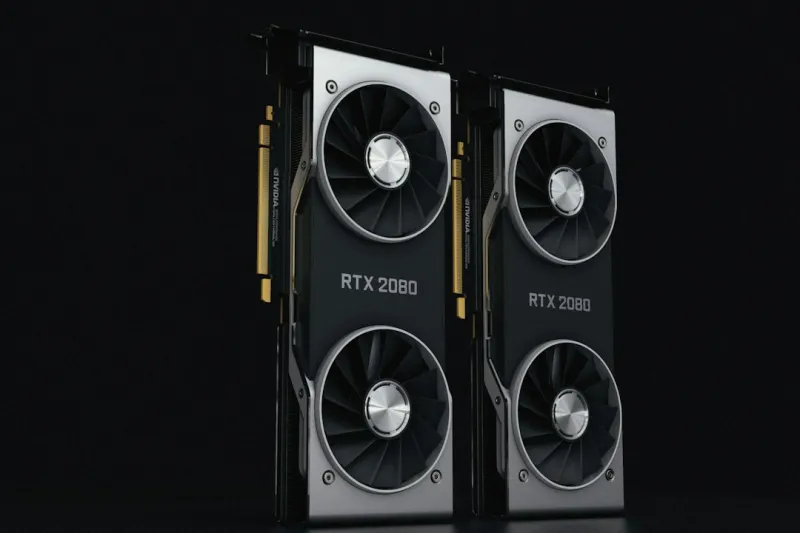
When the frames start stuttering, the screen flickers, or the dreaded “Display driver stopped responding and has recovered” pops up, I know the troubleshooting journey is about to begin. As someone who has spent countless late‑night sessions coaxing GPUs to play nicely with AI‑enhanced games and demanding content‑creation workloads, I’ve learned that video‑card issues are rarely isolated—they’re the symptom of a larger ecosystem that’s shifting fast in 2026. From power‑hungry ray‑tracing beasts to AI‑driven upscaling engines, the modern graphics pipeline is a high‑stakes balancing act. In this post I’ll walk you through the most common culprits, give you step‑by‑step diagnostics, and sprinkle in some forward‑looking tips so your rig stays resilient as the next wave of software hits. If you’ve ever wondered why your GPU keeps crashing, the answer often starts with the basics—so let’s dive in and get you back to buttery‑smooth performance.
Power Delivery: The Unsung Hero of GPU Stability
The first place to look when your graphics card behaves erratically is the power supply. In 2026, even mid‑range GPUs can draw 350 watts or more under load, and a marginally undersized PSU will manifest as random resets or artifacting. Begin by confirming that your PSU’s rating comfortably exceeds the total system draw by at least 20 percent. Check that the PCIe power connectors are fully seated—loose 8‑pin or 12‑pin plugs are a common source of intermittent voltage drops. If you have modular cables, give them a gentle wiggle; a frayed wire can cause just enough fluctuation to trigger driver crashes. Don’t forget to inspect the motherboard’s power phases; newer boards often feature reinforced VRM cooling that can handle the surge when the GPU ramps up for a burst of ray‑tracing. A quick stress test with OCCT or GPU-Z while monitoring the 12‑V rail will reveal if the PSU is the bottleneck before you move on to more complex diagnostics.
Driver Hell: Navigating the Ever‑Evolving Stack
Graphics drivers in 2026 are more than just a conduit between Windows and silicon—they’re an ecosystem of AI‑accelerated features, security patches, and performance tweaks that change with almost every game release. A mismatched driver can cause the dreaded “Display driver stopped responding” error, especially when paired with the latest DirectX 13 updates. My go‑to method is a clean slate: uninstall the current driver with DDS (Display Driver Uninstaller), reboot into safe mode, and then pull the latest WHQL‑certified driver straight from the vendor’s site. If you’re on a Windows 11 build, you’ll also want to double‑check the optional “Graphics Driver” update in Windows Update, as Microsoft now bundles minor security fixes that can affect stability. For a deeper dive on why these issues pop up, see Why Your GPU Keeps Crashing and How to Fix It Fast. Remember, rolling back to a known‑good driver is a powerful fallback when a brand‑new release introduces a regression.
Thermal Management: Keeping the Heat in Check
Overheating remains the most visible sign of a struggling GPU, but the way we manage heat has evolved dramatically. Modern cards now employ AI‑driven fan curves that adapt to workload patterns, but a dusty heatsink or dried‑out thermal paste can still push temperatures into the danger zone. Start by inspecting the shroud for dust buildup; a simple can of compressed air can restore airflow in minutes. If temperatures stay above 85 °C under a sustained 3DMark stress test, it’s time to re‑apply high‑performance thermal paste—silicone‑based compounds are still the norm, but graphene‑infused pads are gaining traction for their superior conductivity. Also, verify that your case’s airflow direction aligns with the GPU’s exhaust; many builders now opt for a front‑intake, top‑exhaust configuration to create a natural convection path. Finally, consider upgrading to a hybrid liquid‑air cooler if you’re pushing the card beyond its stock boost clocks; the added cooling headroom can be the difference between stable 4K gaming and frequent throttling.
BIOS and VBIOS: Firmware Updates That Matter
While most users think of the BIOS as a motherboard concern, the video‑card BIOS (VBIOS) plays a crucial role in stability, especially when you’re overclocking or running custom fan profiles. Manufacturers release VBIOS updates to address memory compatibility, power‑limit tweaks, and new feature support like PCIe 5.0 link training. Before flashing, always back up the existing firmware using tools like GPU-Z’s “Save BIOS” feature. Follow the vendor’s flashing utility step‑by‑step—interrupting the process can brick the card. In 2026, many GPUs now support dual‑boot VBIOS selections, allowing you to switch between a conservative profile for daily use and a performance‑focused profile for gaming sessions. If you’ve recently upgraded your motherboard to one that supports PCIe 6.0, a VBIOS update may be required to fully unlock the bandwidth. Keep an eye on release notes; a subtle change in voltage regulation can resolve random crashes that have you pulling your hair out.
VRAM Integrity: Spotting Memory Errors Early
Faulty VRAM can manifest as texture glitches, sudden driver resets, or even system crashes. Unlike system RAM, VRAM errors are less likely to be caught by Windows Memory Diagnostic, so you need specialized tools. TechPowerUp’s GPU MemTest runs a series of pattern writes and reads across the entire memory space, flagging any inconsistencies. If you notice recurring artifacts in a single area of a game world, run a full VRAM stress test to confirm. Some high‑end cards now offer ECC (Error‑Correcting Code) support, which can automatically correct single‑bit errors—though at a slight performance cost. If your card lacks ECC, consider undervolting the memory slightly; excessive voltage can accelerate degradation over time. And remember, a failing VRAM module often masquerades as a driver issue, so a clean driver reinstall combined with a thorough memory test can save you hours of blind debugging.
PCIe Lane Allocation: Matching Motherboard and GPU Demands
The bandwidth highway between your CPU and GPU is only as wide as the PCIe lanes you allocate, and in 2026, the distinction between PCIe 5.0 and the emerging PCIe 6.0 is more than just a number. If you’ve installed a next‑gen GPU on a board that defaults to a x4 link for the second slot, you’ll experience reduced performance in bandwidth‑heavy scenarios like 8K streaming or AI‑assisted rendering. Check the BIOS for lane configuration—some boards let you manually set the primary GPU slot to x16 mode, while others auto‑negotiate based on installed devices. When building a new system, refer to Choosing the Right Motherboard in 2026 for a checklist of features that ensure your GPU gets the full lane allocation it deserves. Also, be aware of any M.2 NVMe drives that might be sharing lanes with the GPU; disabling those drives in the BIOS during intensive gaming sessions can free up precious bandwidth.
Software Settings: Tuning Games and AI Renderers
Even the most robust hardware can falter if the software stack isn’t tuned correctly. Modern games increasingly rely on AI upscaling technologies like DLSS 3 or AMD’s FSR 3, which shift workload between the GPU and dedicated AI accelerators. If you enable “Maximum Performance” in the NVIDIA Control Panel without adjusting the power limit, you may push the card past its thermal envelope, leading to throttling or crashes. Start by setting the game’s graphics preset to “High” and enable adaptive resolution scaling; this balances visual fidelity with workload. For creative apps that use CUDA or OpenCL, ensure the software is pointed at the correct GPU—multiple GPU setups can cause the driver to route tasks to the wrong card, resulting in unexplained hangs. Finally, keep an eye on background services; in 2026, many AI‑enhanced productivity tools run hidden GPU processes that can compete with your game for resources. A quick glance at Task Manager’s “GPU Engine” column will reveal any sneaky culprits.
Future‑Proofing: Building a Resilient Rig for the Next Wave
The best defense against video‑card woes is proactive planning. When you next upgrade, prioritize a PSU with ample headroom, a motherboard that supports the latest PCIe standard, and a case with superior airflow or liquid‑cooling options. Investing in a GPU with a robust VRM and built‑in AI fan control can save you countless hours of manual tweaking. For those eyeing the next generation of AI‑driven workloads, consider a card that offers dedicated tensor cores and hardware‑accelerated ray‑tracing—features that are becoming baseline in 2026. To see the broader hardware trends that will keep your PC ready for whatever’s next, check out Building a Future‑Ready PC in 2026. By aligning your components with these emerging standards, you’ll not only reduce the frequency of crashes but also extend the lifespan of your rig, giving you more time to enjoy the games, creations, and AI‑enhanced experiences that keep you coming back for more.