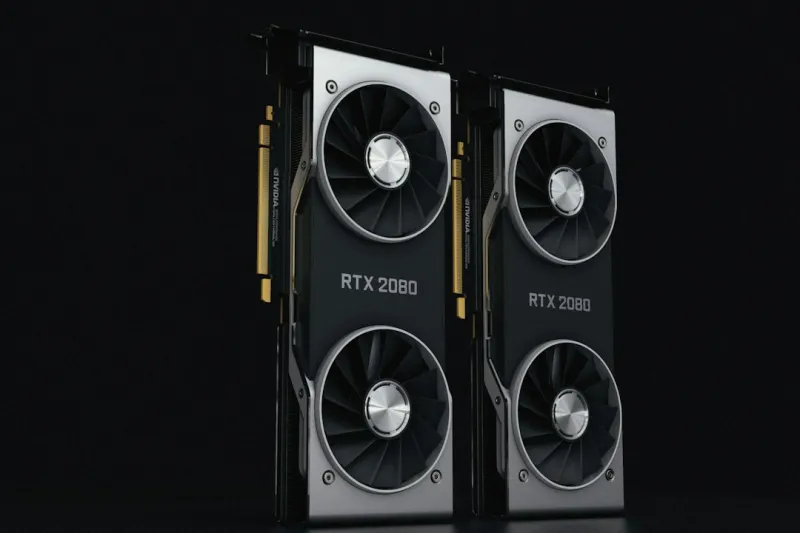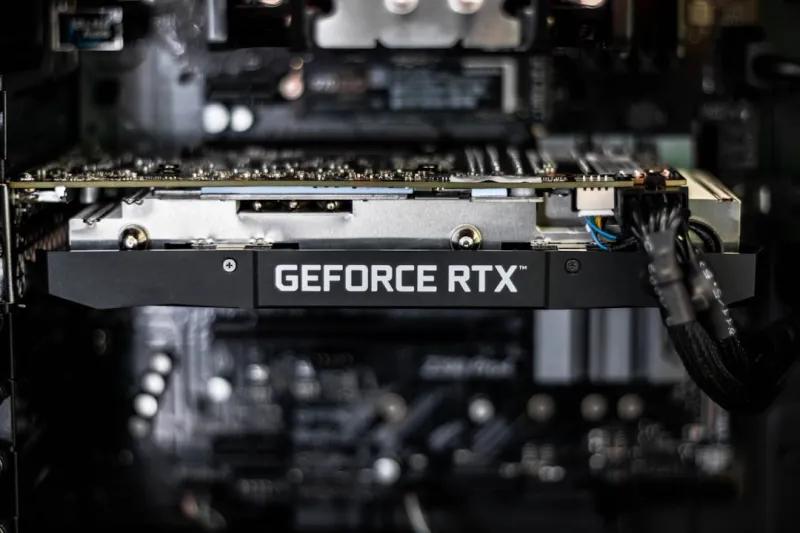
When I first swapped out a decade‑old GTX 960 for a sleek RTX 4090 in early 2026, I expected buttery‑smooth frames and the occasional brag‑worthy benchmark. Instead, I was greeted by random freezes, driver crashes, and a stubborn fan that refused to spin up. That moment reminded me why troubleshooting video cards is more art than science—especially as GPUs become hybrid AI accelerators, power‑hungry beasts, and firmware‑heavy platforms all at once. In this post, I’ll walk you through the most common symptoms I’ve seen on my own rigs and the systematic approach I use to isolate, diagnose, and resolve them. Whether you’re a seasoned builder or a first‑time gamer, the steps below will help you avoid costly RMA cycles and keep your PC humming at its full potential.
Understanding the 2026 GPU Landscape
Modern GPUs in 2026 are no longer just rasterizers; they’re full‑stack compute engines that blend ray tracing, AI inference, and real‑time upscaling into a single silicon die. Architectural complexity means more moving parts—dedicated Tensor cores, dedicated video encode/decode blocks, and even on‑die power management units that can throttle independently of the core clock. This richness offers incredible performance gains, but it also introduces new failure vectors. For example, an overloaded VRAM buffer can trigger driver timeouts, while an over‑zealous power‑limit setting might cause the card to shut down under heavy AI workloads. Knowing what your GPU is designed to do—and where it can trip up—lays the groundwork for any effective troubleshooting session.
Step 1: Clean Slate Drivers
The first thing I do, no matter how “new” the problem appears, is roll back to a clean driver environment. Corrupted driver caches or lingering remnants from previous installations are the most common culprits behind black screens and stuttering. I start by using When Your GPU Starts Acting Up: A 2026 Troubleshooting Playbook as a reference, then run a DDU (Display Driver Uninstaller) in safe mode, delete the C:\NVIDIA and C:\AMD folders, and finally install the latest WHQL‑certified driver directly from the manufacturer’s site. Remember to disable Windows’ automatic driver updates during this window; otherwise, you’ll end up with a fresh set of problems before you’ve even rebooted. Consistent driver hygiene is the single most reliable way to eliminate software‑related GPU issues.
Step 2: Power Delivery Checks
Power hiccups are often invisible until the GPU decides to throttle or, worse, shut down mid‑game. In my own builds, I’ve learned to verify three things: PSU wattage, connector integrity, and voltage stability. A 2026‑class GPU can draw 350 W or more under load, so a 600 W unit is the absolute minimum for a high‑end system. I recommend using a power‑meter plug to monitor real‑time draw; spikes beyond the PSU’s rated capacity usually manifest as sudden crashes or the dreaded “display driver stopped responding.” Next, inspect the 8‑pin and 12‑pin connectors for bent pins or dust—something as simple as a loose latch can cause intermittent power loss. Finally, check the PSU’s 12 V rail voltage on the BIOS or with a multimeter; readings that dip below 11.8 V under load signal a failing power supply that needs replacement.
Step 3: Thermal Management and Fan Curves
Even the most robust cooling solutions can be undermined by poor airflow or outdated fan profiles. In my experience, a GPU that suddenly throttles from 2,400 MHz to 1,600 MHz is usually fighting a thermal battle. Start by cleaning dust from the heatsink fins and ensuring the case has adequate intake and exhaust paths. Next, use the manufacturer’s control panel—or a third‑party utility like MSI Afterburner—to set a custom fan curve that ramps up earlier than the default. A good rule of thumb is to keep the GPU temperature under 78 °C during sustained loads; above that, you’ll see performance dips and, eventually, hardware‑level throttling. If you’ve already optimized airflow and still see temperatures soaring, consider re‑applying thermal paste or upgrading to a larger vapor‑chamber cooler.
Step 4: BIOS/UEFI Settings and PCIe Compatibility
Many GPU glitches trace back to mismatched BIOS settings. In 2026, motherboards support PCIe 5.0, but a GPU may still operate on a PCIe 4.0 lane if the slot is manually set or if the BIOS defaults to a lower mode for compatibility. Open your UEFI firmware and verify that the PCIe slot is running at its maximum supported generation. Additionally, ensure that “Above 4G Decoding” and “Re‑Size BAR” are enabled; these features allow the system to allocate larger memory windows to the GPU, improving performance and stability for high‑capacity cards. If you’re running a custom memory profile (XMP), double‑check that the timings aren’t pushing the memory controller past its limits, which can indirectly affect GPU stability during intensive workloads.
Step 5: Software Conflicts and OS-Level Factors
Operating system updates in 2026 have become AI‑enhanced, meaning they can introduce subtle changes to how they schedule GPU tasks. I’ve seen cases where a recent Windows 11 patch caused the OS to misinterpret the GPU’s power limits, leading to random driver resets. To isolate this, create a system restore point before any major OS update, then monitor the GPU’s behavior after the patch. If problems arise, consider rolling back the update or using the “Compatibility Mode” for the specific game or application. Also, watch out for background AI services—like real‑time video transcription or AI‑powered security suites—that may compete for GPU resources, causing the primary workload to starve.
Step 6: Monitoring Tools and Real‑Time Diagnostics
Effective troubleshooting hinges on real‑time data. I rely on a combo of HWInfo, GPU‑Z, and the built‑in performance overlay of my favorite game engine to track clock speeds, voltage, temperature, and fan RPM. Set up logging for at least ten minutes of a stress test (using tools like Unigine Heaven or 3DMark) so you can spot anomalies—such as sudden voltage drops or clock throttles—that aren’t immediately visible during gameplay. If you notice a pattern where the GPU clock drops right after a specific driver event, you’ve likely found the trigger. Remember to cross‑reference your logs with Windows Event Viewer; GPU driver crashes will leave a clear trace in the System log.
Step 7: When to RMA or Replace
After exhausting software, power, thermal, and firmware avenues, it’s time to consider a hardware fault. Most manufacturers in 2026 offer a three‑year warranty, but the RMA process can be a maze if you haven’t documented your troubleshooting steps. Keep a detailed log of all the tests you performed, screenshots of temperature and voltage spikes, and copies of driver rollbacks. When you contact support, reference these logs; it not only speeds up the approval but also demonstrates that you’ve ruled out user‑error. If the card is still under warranty and you’ve observed consistent failures across multiple games and benchmark suites, push for a replacement rather than a repair—modern GPUs are built for modular component swaps, and a new unit will likely resolve latent silicon issues.
Future‑Proofing Your GPU Setup
Looking ahead, the best way to avoid recurring GPU headaches is to build with future‑ready principles in mind. Pair your graphics card with a high‑efficiency 80+ Gold or Platinum PSU, ensure your case has modular fan mounts for optimal airflow, and choose a motherboard that supports PCIe 5.0 with robust BIOS updates. For those interested in the broader picture, check out Future‑Ready PC Upgrades: Maximizing Performance, Security, and Longevity, which dives deeper into creating a resilient system architecture that can handle the next wave of AI‑driven gaming and content creation workloads. By treating your GPU as a living component—regularly cleaning, updating, and monitoring—you’ll enjoy smoother performance, fewer crashes, and a longer lifespan for your investment.