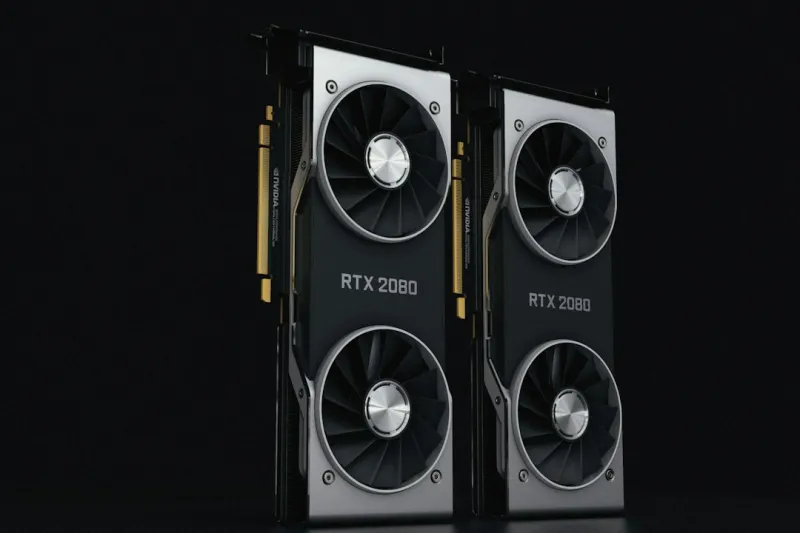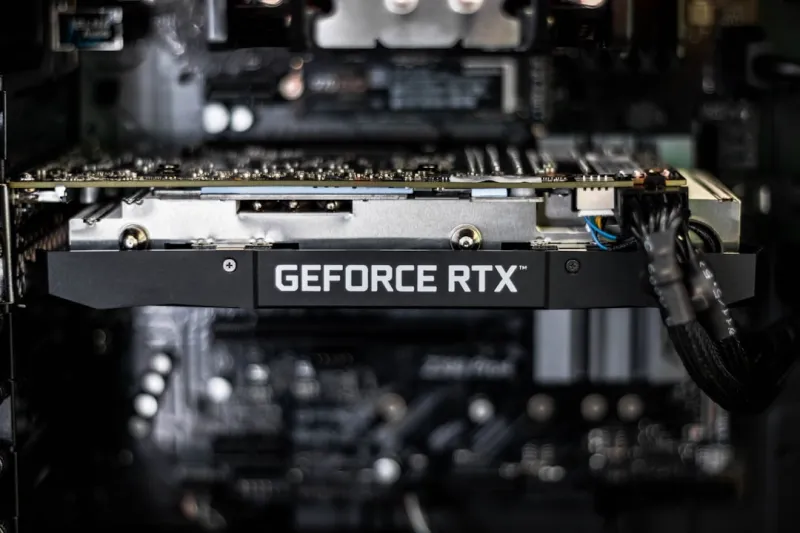
When my RTX 4090 started flickering like a faulty Christmas light in the middle of an intense cyberpunk sprint, I knew it was time for a deep dive. As someone who lives and breathes GPU performance, I’ve learned that the “it just works” era is long gone—2026 demands a proactive, diagnostic mindset. In this post, I’ll walk you through the modern toolbox for video‑card troubleshooting, from firmware quirks to power‑delivery puzzles, while sharing the same gritty, hands‑on approach that got me back in the game after countless sleepless nights. Expect a blend of step‑by‑step procedures, real‑world anecdotes, and a few insider shortcuts that I’ve honed while building rigs for both competitive gamers and AI‑heavy workstation users. Let’s peel back the layers of the graphics stack and get that GPU humming like a finely tuned engine again.
Understanding the New GPU Landscape
The GPU market in 2026 is a kaleidoscope of architecture generations, AI‑accelerated cores, and power‑efficiency regimes that didn’t exist a decade ago. While the core concepts of drivers, BIOS, and thermal management remain, today’s cards also juggle tensor cores, ray‑tracing pipelines, and even on‑board neural‑network inference engines. This complexity means a single symptom—like sudden artifacting or unexpected shutdowns—can stem from a myriad of sources. Before you start swapping hardware, take a moment to map out the card’s ecosystem: the PCIe lane configuration on your motherboard, the PSU’s rail distribution, and the firmware version that the manufacturer released earlier this year. Ignoring any one of these variables can turn a simple fix into a wild goose chase. For a broader view on how motherboards interact with modern GPUs, check out Motherboard Mastery: Trends and Picks That Define 2026, which outlines the PCIe 5.0 nuances that affect bandwidth and stability.
Step 1: Verify Power Delivery and Cabling
The first thing I always check is whether the card is actually getting the power it thinks it needs. Modern high‑end GPUs can pull well over 450 W under load, and a single 8‑pin connector is no longer sufficient. In my own rig, I once discovered a loose 12‑V rail on the PSU that caused intermittent black‑screen moments during long rendering sessions. The fix? Swap to a fully modular PSU with dedicated rails and double‑check that each connector clicks securely. Use a multimeter or a PSU tester to confirm voltage stability—look for less than 5 % variance under load. Also, keep an eye on the “power limit” setting in the GPU’s control panel; many users inadvertently cap performance to curb heat, but that can also mask underlying power‑delivery issues. Once you’ve confirmed solid power, you’ll eliminate a whole class of symptoms that masquerade as driver problems.
Step 2: Clean Up Drivers and Firmware
Drivers are the nervous system of any GPU, and in 2026 they’ve become more layered than ever. You might have a stable base driver, a beta AI‑optimisation pack, and a separate firmware that controls the fan curve. My habit is to perform a clean install using DDU (Display Driver Uninstaller) in Safe Mode, then reinstall the latest WHQL driver from the vendor’s website. Don’t forget to check the card’s BIOS version—manufacturers release micro‑updates that address everything from memory timing bugs to improved compatibility with the newest DirectX 13 features. If you’re unsure whether you’re on the latest firmware, the “GPU-Z” utility will tell you at a glance. For a deeper dive, I recommend reading Troubleshooting Modern Video Cards: A Hands‑On Guide for 2026, which outlines the exact steps to flash a BIOS safely without bricking your hardware.
Step 3: Monitor Temperatures and Clock Stability
Thermal throttling can masquerade as a driver crash, especially when the GPU’s boost algorithm misinterprets temperature spikes. I always start by installing a real‑time monitoring suite—MSI Afterburner or the newer AI‑driven “ThermalGuard Pro” works great. Set up a logging session while you run a stress test like FurMark for ten minutes. Look for three key metrics: average temperature, clock fluctuation, and power draw. If you see the clock dropping dramatically while temperature hovers below 70 °C, the issue is likely a power‑phase or firmware bug rather than overheating. Conversely, sustained temps above 85 °C suggest you need to improve airflow—maybe re‑orient the case fans or replace the stock cooler with a custom water loop. Remember, the newer GPUs also come with an “adaptive fan curve” that can be overridden for quieter operation, but don’t push it too far or you’ll invite thermal chaos.
Step 4: Address Software Conflicts and OS Issues
Even with perfect hardware, software layers can still sabotage your GPU. Windows 11 in 2026 now ships with AI‑enhanced graphics scheduling that can clash with third‑party overlay tools like OBS or ShadowPlay. I’ve seen the dreaded “Display driver stopped responding and has recovered” error pop up when two programs fight for control over the same GPU resources. The remedy is to isolate the culprit: disable all overlays, run a clean boot, and then re‑enable each app one at a time. Additionally, the infamous Blue Screen of Death (BSOD) still haunts many users—see my detailed guide on Why the Blue Screen Still Gives Me Nightmares (And How to Stop It) for insights on how GPU driver crashes can trigger system‑wide failures. Keeping your OS updated with the latest cumulative patches is also crucial; Microsoft’s 2026 updates often include critical fixes for GPU scheduling bugs.
Step 5: Test Across Different Workloads
One of the most overlooked diagnostics is workload variance. A GPU might perform flawlessly in a game but crumble under a compute‑heavy AI inference task. To pinpoint the failure mode, run a suite of tests: a gaming benchmark (like 3DMark Time Spy), a rendering benchmark (Blender’s BMW27), and an AI benchmark (TensorFlow’s ResNet50). Compare the results; if the GPU spikes in usage only during the AI test, you might be hitting a driver issue specific to compute shaders. Conversely, if the gaming benchmark shows frame‑time jitter, it could be a latency problem linked to the PCIe lane allocation. Document each result in a spreadsheet—this systematic approach saves you from chasing phantom ghosts later on.
Step 6: Consider Hardware Replacement or RMA
After exhausting the software and power avenues, you may be left with a hardware defect. Modern GPUs have sophisticated self‑diagnostic LEDs that blink specific patterns to indicate failure modes (e.g., “green‑blink” for VRAM issues, “red‑solid” for power problems). Consult the manufacturer’s service manual to decode these signals. If you’re still under warranty, gather your logs, screenshots, and a clear description of the troubleshooting steps you’ve taken, then submit an RMA request. In my experience, providing a concise timeline—starting with the driver version, firmware revision, and power test results—accelerates the approval process. Remember, a faulty card is not just an inconvenience; it can also compromise the stability of the entire system, especially if you’re using the GPU for AI workloads that demand high reliability.
Future‑Proofing Your GPU Setup
Looking ahead, the best defense against recurring GPU woes is a proactive, future‑proof build strategy. When selecting a new card, prioritize models that support BIOS flashback, have modular power connectors, and offer robust fan control APIs. Pair them with a PSU that exceeds the recommended wattage by at least 20 % to accommodate future overclocking or additional GPUs. Keep an eye on upcoming driver release cycles—most vendors now publish a “roadmap” that outlines when AI‑specific optimisations will land. By staying ahead of firmware updates and aligning your hardware choices with the evolving standards of PCIe 5.1 and DDR6X memory, you’ll reduce the frequency of those dreaded troubleshooting sessions. And if you ever feel overwhelmed, the Comp Doc community has a wealth of resources, including our “PC Upgrade Playbook” that walks you through building a faster, safer, future‑ready rig.
Wrapping Up: A Mindset for Continuous Learning
Ultimately, troubleshooting a video card in 2026 is as much about mindset as it is about tools. Embrace a methodical approach: isolate variables, document findings, and never assume the problem is “just a driver.” The technology is evolving faster than ever, and the lines between hardware, firmware, and AI‑driven software are blurring. By staying informed, keeping your system clean, and leveraging the wealth of community knowledge—like the guides linked throughout this post—you’ll turn each glitch into an opportunity to deepen your expertise. So the next time your screen flickers or your game crashes, you’ll have a clear, battle‑tested plan to bring your GPU back from the brink and keep your rig performing at its peak.