
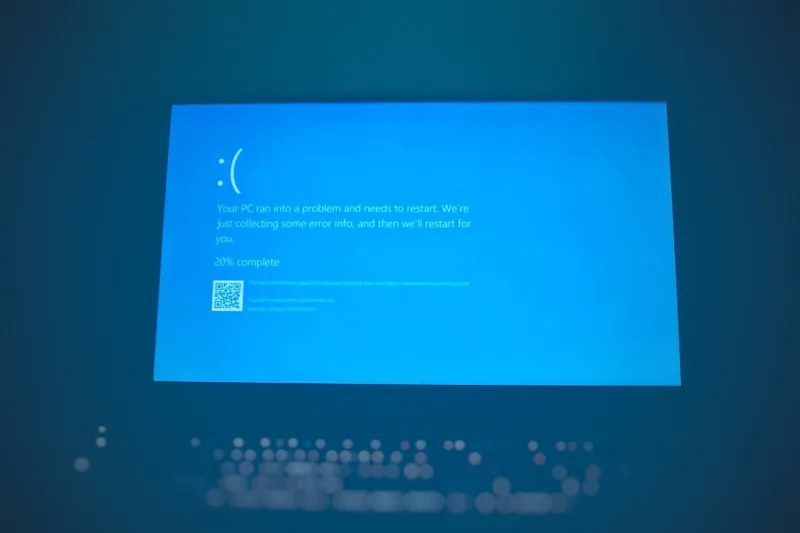
When my workstation hit the infamous blue screen this spring, the panic felt oddly exhilarating. As a self‑described “power‑user”, I love a good tech mystery, but the BSOD (Blue Screen of Death) is a reminder that even the most tuned rigs have hidden weak spots. In 2026, hardware cycles are faster, driver ecosystems more complex, and operating‑system updates arrive almost weekly. That means the culprit can be a stale driver, a misbehaving piece of firmware, or a subtle memory leak that only shows up under a specific workload. I dove into the crash dump, cross‑referenced the error codes, and set up a systematic troubleshooting plan that any power‑user can replicate—no matter if you’re gaming, developing, or just rendering videos for the weekend.
Common Triggers That Push Windows Into a Blue Halo
The first step is to recognize the most frequent offenders. In my experience, faulty or outdated drivers top the list, especially for graphics cards and network adapters that receive frequent firmware patches. Windows 2026’s cumulative updates also introduce new kernel components, and if a device driver hasn’t been signed for the latest API, the system may halt to protect itself. Hardware issues—like a loose DIMM, overheating CPU, or a failing SSD—can generate the dreaded STOP codes, and they’re often masked by seemingly benign symptoms such as random freezes or delayed boot times. Software conflicts, particularly aggressive third‑party utilities that inject code into the OS (think VPNs, monitoring tools, or overclocking suites), can corrupt kernel memory and force an immediate crash. Understanding these patterns helps you prioritize which logs to check first and which components to isolate when the blue screen appears.
Diagnosing the Problem: From Safe Mode to Event Viewer
When the screen turns electric‑blue, the first thing I do is pull the machine into Safe Mode. This stripped‑down environment loads only the essential drivers, allowing a quick test: if the system runs clean, you’ve likely got a driver or software layer to blame. Next, I open the Event Viewer and filter for “Critical” entries under the “System” log; the error details usually reference a particular driver file (e.g., nvlddmkm.sys) or a memory address. Running a memory test with Windows Memory Diagnostic or MemTest86 can rule out RAM errors, while chkdsk and the built‑in SSD health tools confirm that storage isn’t the weak link. For a deeper dive, I enable the full memory dump option—this creates a comprehensive snapshot that tools like WinDbg can parse to pinpoint the exact kernel routine that failed. These steps form a repeatable checklist that saves hours of guesswork and keeps you from resorting to a fresh reinstall after every crash.
When Drivers Are the Enemy: Upgrading Smartly
Drivers are the digital glue holding hardware to the operating system, and a bad glue can pull the whole structure down. Rather than chasing the latest generic driver from a vendor’s website, I recommend a strategic upgrade plan. The The Smart Way to Upgrade Your PC in 2026: A Power‑User’s Playbook outlines a methodical approach: catalog your hardware, verify compatibility matrices, and stage driver updates in a controlled environment before rolling them out system‑wide. This reduces the risk of a new driver triggering a BSOD after an otherwise smooth update. I also keep a rollback point for each driver version, so if a new release introduces instability, I can revert with a single click. Remember, sometimes the “latest” isn’t the “best” for your specific configuration, especially when you’re juggling multiple high‑performance GPUs or specialized peripherals that depend on legacy code paths.
Hardware Health: Memory, Storage, and the GPU
Even the most diligent driver management won’t rescue a system with a physically deteriorating component. A common source of blue screens is faulty RAM—tiny timing errors can corrupt critical data structures in the kernel. I like to run a full RAM stress test after any driver overhaul; a single failed pass is enough to replace the module. SSDs, too, have a finite write‑cycle lifespan, and a failing controller can produce corrupted sectors that the OS misinterprets as memory errors. The Diagnosing and Fixing Common Video Card Problems in 2026 guide is a great companion when you suspect the GPU. It walks you through verifying BIOS settings, reseating the card, and checking thermal pads—issues that often masquerade as a generic STOP error. Keeping a clean power supply and proper airflow also mitigates voltage spikes that can trip safety mechanisms and generate a blue screen.
Windows Tweaks for the Power‑User
Beyond hardware, the operating system itself offers hidden levers to improve stability. The Unlock the Full Potential of Windows for Power Users article delves into advanced settings like disabling driver verifier once you’ve confirmed a driver is stable, or fine‑tuning the paging file to prevent memory pressure under heavy workloads. I also recommend enabling Core Dump Auto-Analysis scripts that parse the dump file instantly and email you the top suspects—this turns a reactive process into a proactive alert system. Finally, consider setting aggressive driver signing policies in Group Policy; it forces unsigned drivers to be rejected at install time, shielding the kernel from potentially malicious code.
Prevention Is Better Than a Blue Screen
Proactive maintenance beats reactive fixes any day. Regularly scheduled system restore points—especially before major Windows feature updates—give you a safety net if a new build triggers a crash. The “Why 2026 Updates Are the Power‑User’s Secret Weapon” series emphasizes treating updates as an opportunity to audit your hardware health, rather than a nuisance. I pair each update with a quick health check: run a disk integrity scan, verify driver signatures, and confirm that all critical services are running. Also, keep an isolated partition for recovery tools; a bootable Windows PE environment can rescue a system that refuses to start after a catastrophic BSOD, letting you repair the boot record or roll back a problematic driver without losing data.
Automation and Advanced Diagnostics for the Elite User
For those who love to script, automating crash‑dump analysis can shave hours off the troubleshooting timeline. I use PowerShell to monitor the Event Viewer for new crash logs, trigger a WinDbg analysis, and then push the findings to a Slack channel for the team. Combining this with the insights from the The Power‑User’s Playbook for Staying Ahead in Modern Software Development, you can integrate continuous integration pipelines that flag code paths causing kernel panics during stress tests. This level of automation not only catches issues before they reach a production environment but also builds a knowledge base of recurring patterns, making future blue‑screen events easier to resolve.
Wrapping Up: Turn the Blue Screen Into a Learning Opportunity
The blue screen is no longer the end of the line; it’s a data‑rich signal that, when decoded, can make your workstation stronger and smarter. By combining systematic diagnostics, smart driver upgrades, hardware health checks, and automated analysis, you transform a frustrating crash into a catalyst for deeper system mastery. If you’ve survived a recent BSOD, share the details in the comments—let’s build a community knowledge pool that helps every power‑user keep their rigs running at peak performance. And, of course, stay tuned for more deep‑dive guides that turn tech headaches into triumphs.




