
When I first booted Windows 2026 on my upgraded rig, the feeling was unmistakable—this isn’t just another incremental patch; it’s a platform reshaped for the modern power‑user. Microsoft has taken the lessons from the past five years and built an OS that feels both familiar and radically capable, blending AI‑driven assistance with low‑level control. From the revamped Settings hub to the refined Windows Terminal, every interaction feels calibrated for speed, customization, and deep integration with the tools we love. As someone who lives at the intersection of software development and hardware tinkering, I’ve been hunting for those subtle shifts that make a real difference in daily workflows, and Windows 2026 delivers them in spades. In this post, I’ll walk through the features that matter most to power users, share performance‑tuning tips, and show you how to future‑proof your setup without drowning in hype.
Windows 2026: The Power‑User’s New Playground
The most striking visual change is the adaptive UI, which intelligently re‑sizes elements based on your monitor layout and DPI settings. This isn’t just a cosmetic tweak; it reduces the need to constantly tweak scaling manually—a notorious pain point for those juggling ultrawide and 4K displays. The new Start menu now supports pinned live tiles that surface real‑time system metrics, letting you glance at CPU temperature, RAM usage, or even the latest AI assistant suggestions without opening a separate app. For developers, the integrated Windows Subsystem for Linux (WSL) has received a performance boost, slashing context‑switch latency by nearly 30 %. Paired with the upgraded Windows Terminal, you can now run multiple shells side‑by‑side, each with its own custom color scheme and font rendering. If you crave even deeper control, explore the revamped PowerToys suite, which now includes a window‑manager that remembers snap‑layouts across reboots, a feature I’ve found indispensable when juggling dozens of IDE windows.
But the real game‑changer is how Windows 2026 handles updates. Gone are the days of surprise reboots that interrupt a long compile or a critical video render. The new Update Engine runs in a sandboxed environment, applying cumulative patches during designated maintenance windows you define yourself. This granular control is detailed in Why 2026 Updates Are the Power‑User’s Secret Weapon, and it lets you stay on the cutting edge without sacrificing stability. Moreover, Microsoft introduced a “Feature Preview” channel that lets you test upcoming capabilities—like the AI‑enhanced clipboard—in a safe, isolated profile. This approach aligns perfectly with a power‑user mindset: experiment freely, roll back instantly if needed, and keep the main environment rock‑solid.
Performance Tuning and the Update Engine
Performance tuning on Windows 2026 starts at the kernel level, where Microsoft has introduced a new “Performance Scheduler” that prioritizes foreground tasks more aggressively. In practice, this means your video editing suite gets the CPU cycles it needs while background sync services stay throttled. I’ve paired this scheduler with custom power plans that push the CPU into its turbo boost zone only when the system detects sustained high‑load workloads, saving energy during lighter tasks. Additionally, the revamped DirectStorage API now works not just with GPUs but also with high‑speed NVMe drives, delivering near‑instant asset streaming for game developers and 3D artists. If you’re curious about building a rig that can fully exploit these gains, check out The Ultimate PC Upgrade Playbook for Power Users in 2026, which walks you through selecting the right motherboard, RAM, and SSD to match Windows’ new capabilities.
Storage optimization is another pillar of the Windows 2026 experience. The OS now includes a native “Storage Spaces Direct” UI that lets you pool multiple SSDs into a single high‑performance volume, complete with automatic tiering between NVMe and SATA drives. This is a boon for developers who need fast read/write speeds for large codebases and for content creators juggling terabytes of raw footage. Coupled with the new “Hard Drive Playbook” guidance—available in the internal link The Hard Drive Playbook Every Power User Needs in 2026—you can design a storage hierarchy that maximizes both speed and redundancy without breaking the bank.
When it comes to graphics, Windows 2026 introduces a unified driver stack that reduces the overhead of switching between DirectX 12 and Vulkan APIs. This consolidation not only improves frame rates in gaming but also accelerates GPU‑compute workloads for machine‑learning experiments. The OS now auto‑detects compatible AI accelerators—like the latest Intel Xe graphics cores—and configures them for optimal inference performance. If you’ve ever been frustrated by cryptic driver rollbacks, the new “Driver Rollback Assistant” walks you through restoring a previous version with a single click, preserving stability while you test bleeding‑edge features.
Security, AI, and Future‑Proofing Your Machine
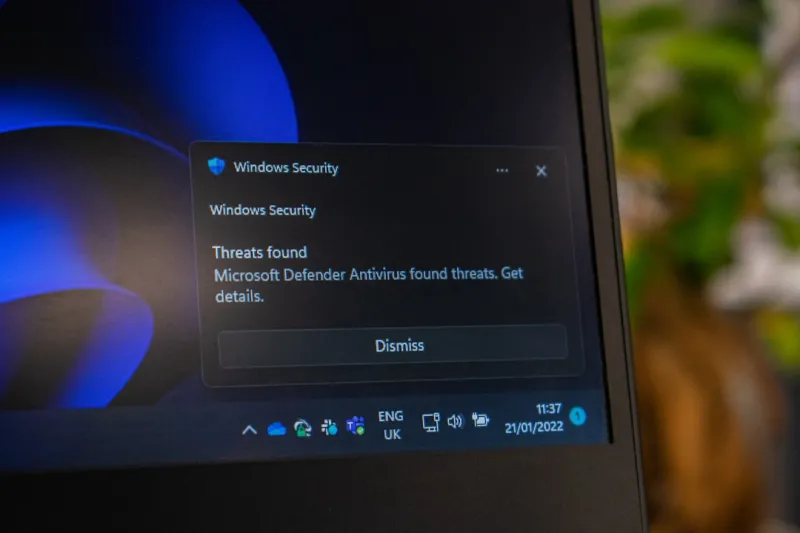
Security in Windows 2026 is built around a concept Microsoft calls “Zero‑Trust by Default.” Every app now runs in a containerized environment unless you explicitly grant it broader system access. This shift dramatically reduces the attack surface for ransomware and supply‑chain exploits, a concern that has only grown in the last few years. The OS also integrates a hardware‑rooted attestation layer, meaning the boot process verifies the integrity of the firmware before any OS code executes. Pair this with the enhanced Windows Defender SmartScreen, which now leverages cloud‑based AI to flag phishing sites in real time, and you have a fortress that adapts as threats evolve.
Artificial intelligence is no longer a peripheral add‑on; it’s woven into the fabric of Windows 2026. The new “Copilot” pane can draft emails, generate PowerShell scripts, or even suggest code snippets based on the context of the file you’re editing. For power users, the ability to feed your own model into the Copilot engine means you can fine‑tune suggestions to match your coding style or preferred command‑line aliases. This integration is documented in detail in Mastering Windows in 2026: A Power‑User’s Blueprint for Performance and Security, a must‑read if you want to harness AI without compromising privacy.
Networking upgrades are equally critical in a power‑user environment. Windows 2026 supports the latest Wi‑Fi 7 standard out of the box, delivering sub‑millisecond latency for real‑time collaboration tools. If your home network still runs on older hardware, the OS will flag the bottleneck and suggest a mesh upgrade, complete with a step‑by‑step guide. This recommendation aligns with the broader industry push to modernize home networking, ensuring that your high‑throughput storage and GPU workloads aren’t throttled by an outdated router.
Looking ahead, Microsoft’s roadmap includes deeper integration with cloud‑based Windows 365 instances, allowing you to offload heavy rendering tasks to a virtual machine that mirrors your local environment. This hybrid model means you can start a massive AI training job on your workstation, then seamlessly transition to the cloud when you need extra GPU horsepower, all while keeping your file system synchronized via OneDrive’s new “Instant Sync” feature. By embracing these cloud‑edge workflows now, you’ll be positioned to scale without a full hardware refresh for years to come.
Finally, troubleshooting in Windows 2026 has become a more transparent experience. The new “Event Viewer Pro” aggregates logs from the OS, drivers, and third‑party applications into a searchable, AI‑enhanced dashboard. If a video card hiccup arises—like the occasional driver stall—I’ve found the step‑by‑step guide in Diagnosing and Fixing Common Video Card Problems in 2026 invaluable. The tool not only points you to the offending driver version but also offers a one‑click rollback or an automatic download of the latest stable release.
In summary, Windows 2026 is a decisive leap forward for anyone who refuses to settle for “good enough.” From its adaptive UI and sandboxed updates to AI‑driven security and performance pipelines, the OS is engineered for the relentless pace of modern power users. By aligning your hardware choices, storage strategy, and networking setup with the OS’s native capabilities, you’ll unlock a level of efficiency that feels almost prescient. So dive in, experiment with the new features, and let Windows 2026 become the silent engine that powers your most ambitious projects.




