When I first started tinkering with Windows back in the early 2000s, the OS felt like a wild frontier—full of quirks, hidden shortcuts, and a community that spoke a language all its own. Fast‑forward to 2026, and that frontier has been transformed into a polished metropolis powered by AI, cloud sync, and an ecosystem that silently learns from every keystroke. As a longtime power user, I’ve watched Windows evolve from a clunky workhorse into a responsive, intelligent partner that anticipates my workflow before I even think about it. Yet, despite all the glitz, the core of the experience still hinges on the fundamentals: timely updates, efficient configuration, and a willingness to explore beyond the default settings. In this post, I’ll walk you through the nuanced changes that matter most to seasoned users, share the shortcuts that keep my daily routine humming, and explain why a few deliberate tweaks can turn a good PC into an exceptional one.
Why Windows Updates Are the Secret Sauce of Performance
Most casual users treat Windows updates like an inconvenient chore, but for power users they’re the engine that keeps the system humming at peak efficiency. In 2026, Microsoft has shifted from annual feature drops to a continuous delivery model, meaning critical patches, driver optimizations, and AI‑driven performance tweaks arrive almost daily. This relentless cadence not only patches security holes but also fine‑tunes the scheduler, memory manager, and power‑plan algorithms that directly affect latency‑sensitive tasks like video rendering or real‑time coding. If you skip these updates, you’re essentially running on stale code while your competitors reap the benefits of the latest optimizations. To understand the broader impact, check out Why Windows Updates Are the Unsung Heroes of PC Performance, which breaks down how each patch can shave milliseconds off load times and keep your hardware running cooler.
Unlock Windows Power: Pro Tips You Can’t Afford to Miss
Beyond updates, the real magic lies in the hidden settings that Microsoft keeps under wraps for the average consumer. From adjusting the Power Throttling thresholds for background apps to fine‑tuning the Virtual Memory pagefile size based on your workload, these tweaks can yield dramatic gains. For example, enabling the “High Performance” power plan on a laptop with a dedicated GPU forces the system to keep the GPU clocked higher, eliminating stutter in graphics‑intensive applications. Another gem is the “Storage Sense” feature, which can be configured to automatically purge temporary files older than 30 days—saving you precious SSD space without manual intervention. Dive deeper into these advanced configurations by exploring Unlock Windows Power: Tips Every Pro Should Know, where I walk through step‑by‑step how to access the hidden Group Policy editor and harness PowerShell scripts for batch tweaks.
AI‑Assisted Performance Tuning: The New Normal
Artificial intelligence is no longer a buzzword reserved for data centers; it’s now embedded directly into the Windows kernel. The latest AI scheduler monitors your usage patterns, learning when you typically launch resource‑heavy apps like Photoshop or Visual Studio, and pre‑emptively allocates CPU cores and RAM to minimize cold‑start delays. This adaptive behavior works best when the system has a clean baseline—meaning unnecessary startup programs are disabled, and background telemetry is trimmed. Pair this with a solid-state drive that supports the NVMe 2.0 protocol, and you’ll notice a tangible boost in both boot speed and application launch times. Additionally, Windows now offers an “AI Power Mode” that intelligently toggles between performance and battery saving based on your current activity, ensuring you get the best of both worlds without manual intervention.
Security in a Zero‑Trust World
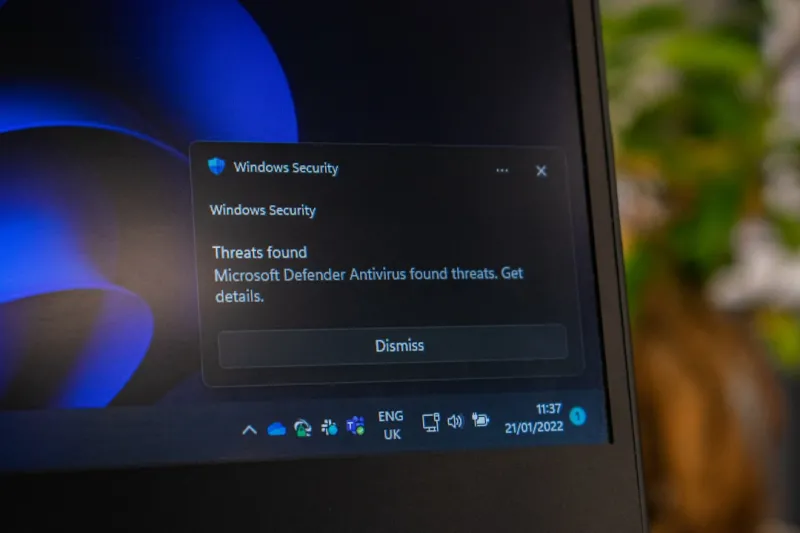
Security in 2026 is all about zero‑trust—assuming every component could be compromised and verifying each interaction. Windows Defender has evolved into a multi‑layered defense system that combines real‑time malware scanning, hardware‑based isolation via VBS (Virtualization‑Based Security), and cloud‑backed reputation services. For power users who run custom scripts or develop in sandboxed environments, enabling “Core Isolation” and “Memory Integrity” is non‑negotiable. These features lock critical system processes in a secure container, preventing malicious code from tampering with the kernel. Moreover, the integration of Windows Hello with FIDO2 security keys adds a hardware‑level authentication factor that’s virtually impossible to spoof. By staying current with the latest security patches and leveraging these built‑in defenses, you protect not only your data but also the integrity of the entire workflow.
Smart Upgrade Strategies for a Future‑Proof PC
Even the most finely tuned Windows installation will hit a wall if the underlying hardware can’t keep pace. The key is to adopt a modular upgrade path that aligns with emerging standards without breaking your existing ecosystem. Start by assessing your current bottlenecks: is your workload memory‑bound, storage‑bound, or CPU‑bound? If you find yourself swapping heavily during large dataset manipulations, a RAM upgrade to 64 GB or beyond—preferably DDR5 with a 5600 MHz frequency—will provide a noticeable lift. For storage, transition to an NVMe SSD with at least 2 TB capacity to accommodate AI models and large media files. Finally, consider a motherboard that supports PCIe 5.0, ensuring future GPU and SSD upgrades remain viable. For a detailed roadmap, see Smart PC Upgrade Strategies for Power Users, where I outline cost‑effective component choices and compatibility checks.
Diagnosing the Blue Screen: A Pro’s Checklist
Despite all the safeguards, the infamous Blue Screen of Death (BSOD) can still rear its head, especially after driver updates or hardware changes. The first step is to capture the Stop Code, which provides a clue about the underlying issue—whether it’s a memory fault, driver conflict, or kernel panic. Tools like WinDbg or the built‑in “Event Viewer” can decode these codes, pointing you toward the exact driver or module at fault. In many cases, a recent Windows update may have introduced an incompatibility with older hardware; rolling back the offending driver or applying a specific patch often resolves the issue. Remember to keep your system’s firmware updated, as outdated BIOS versions can cause timing mismatches that manifest as BSODs. A systematic approach—checking recent changes, updating drivers, and reviewing logs—will usually pinpoint the culprit before it escalates.
Future Outlook: Windows as an Integrated AI Hub
Looking ahead, Windows is positioning itself as the central hub for AI‑driven workflows, seamlessly bridging local compute with cloud services like Azure OpenAI. Expect tighter integration of AI assistants that can suggest optimizations in real time—think auto‑tuning your Power Plan when you launch a game, or recommending background task pauses during a long render. This convergence will blur the line between operating system and intelligent coworker, allowing you to focus more on creation and less on configuration. As the platform continues to mature, staying proactive—by embracing updates, leveraging power‑user tips, and maintaining a forward‑thinking hardware roadmap—will ensure you’re not just keeping up, but leading the pack in the Windows ecosystem.
Final Thoughts: Make Windows Work for You
In the end, mastering Windows in 2026 is less about chasing every new feature and more about establishing a solid foundation of updates, performance tweaks, and security best practices. By treating your PC as a living system—one that requires regular maintenance, smart upgrades, and a dash of curiosity—you’ll unlock a level of reliability and speed that most users never experience. So, keep those updates flowing, experiment with the power settings, and stay ahead of the hardware curve. Your workflow will thank you, and you’ll find yourself navigating the digital world with the confidence of a true power user.