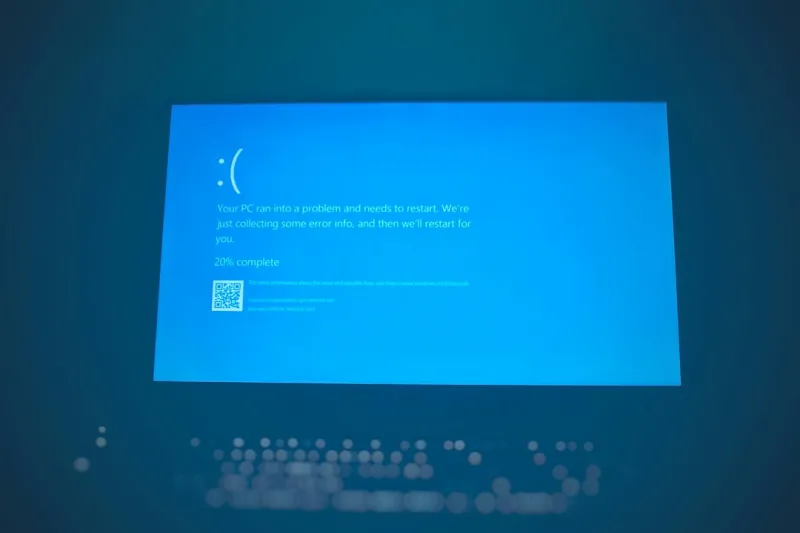

When I first stared at a bright cobalt slab invading my screen, my heart did a brief, involuntary skip. It wasn’t just a glitch; it felt like a digital warning flare, a neon beacon screaming “something’s wrong!” Over the past decade of tinkering with motherboards, overclocking CPUs, and chasing the perfect GPU temperature curve, I’ve learned that a blue screen is rarely a random act of chaos. It’s a symptom, a diagnostic breadcrumb left by Windows to tell us which subsystem threw in the towel. In 2026, the hardware ecosystem is more complex than ever, yet the core principles of stability remain rooted in the same fundamentals: driver integrity, memory health, and timely updates. In this post, I’ll peel back the layers of the notorious BSOD, walk you through my proven triage workflow, and share a few insider shortcuts that keep my rigs humming without the dreaded azure interruption.
Understanding the Root Causes: Beyond the Surface
The first step in taming the blue screen monster is to recognize that it’s not a monolithic event but a collection of error codes that point to specific failure points. A STOP error can stem from anything—corrupt system files, mismatched drivers, faulty RAM, or even a power supply flirting with its limits. In my own lab, I keep a small notebook labeled “BSOD Log” where I jot down the hexadecimal codes and the circumstances surrounding each crash. This habit helped me spot a pattern last winter: my RTX 4090 would blue‑screen whenever I pushed the boost clock past 2500 MHz under heavy ray‑tracing loads. The culprit? An outdated firmware that hadn’t been patched in months. By cross‑referencing the error with the “Why the Blue Screen Happens and How to Keep It at Bay” guide, I confirmed a driver‑firmware mismatch and resolved it with a simple BIOS flash. The takeaway? Treat each blue screen as a clue, not a curse.
Driver Hygiene: The Unsung Hero of Stability
Drivers are the translators between Windows and your hardware, and a mistranslation can send the system into a panic. In the age of AI‑accelerated workloads, manufacturers release updates at a breakneck pace. While it’s tempting to chase the newest version for that extra performance boost, I’ve learned to be selective. My rule of thumb: install a driver only after it’s been on the market for at least two weeks and has garnered positive community feedback. This approach reduces the risk of “beta‑ish” bugs that often trigger blue screens. For those who want a deeper dive, the article Critical PC Updates Every Power User Must Know offers a step‑by‑step checklist to automate safe driver rollouts while keeping a rollback plan ready. Remember, a stable driver ecosystem is the foundation of a blue‑screen‑free experience.
Memory Matters: Testing RAM Before It Triggers Panic
Faulty RAM is the silent assassin of many BSODs. In my early days, I’d blame the GPU for crashes that were actually caused by a single bad memory stick. The key to eliminating memory‑related blues is regular testing with tools like MemTest86. I schedule a full‑suite test monthly, and after any major hardware change, I run a quick 2‑hour pass. If errors appear, I swap modules one by one to isolate the offender. It’s also worth noting that newer DDR5 kits sometimes have tighter voltage tolerances; if you’re overclocking, a modest increase in DRAM voltage can stave off intermittent failures. The article Why Your RAM Keeps Crashing and How to Fix It breaks down voltage tweaking and timing adjustments for power users seeking that extra stability margin.
Power Delivery and Thermal Headroom: Keeping the System Cool
Even the most robust components will misbehave if they’re starved of clean power or forced to run hot. I’ve seen high‑end CPUs throttle to the point of triggering a STOP error because the power supply couldn’t keep up during a sudden load spike. My recommendation is to overspec your PSU by at least 20 % of your system’s peak draw and to use a unit with a good 80 PLUS Gold rating for efficiency. Thermal management is equally critical. Install high‑quality fans, apply fresh thermal paste, and consider a hybrid cooling loop for top‑tier CPUs and GPUs. In 2026, many new motherboards feature built‑in thermal sensors that can shut down the system before damage occurs; however, they can also generate false positives if not calibrated. By regularly cleaning dust filters and monitoring temperatures with tools like HWInfo, you’ll catch overheating trends before they manifest as blue screens.
Software Safeguards: Leveraging Windows Features
Windows 11 has evolved into a surprisingly resilient platform when configured correctly. One of my favorite under‑utilized features is “Driver Verifier,” which stress‑tests drivers in a controlled environment, exposing hidden bugs that could later cause a BSOD. I run it during off‑hours for a few hours after major driver installations. Additionally, the “Automatic Repair” option can sometimes resolve corrupt system files without manual intervention. Enable “Windows Update” as a secret weapon; Microsoft’s cumulative updates often include patches for obscure kernel bugs that trigger blue screens under specific conditions. For a deeper exploration, see the piece Why Windows Updates Should Be Your Secret Weapon, which outlines how to balance aggressive patching with stability.
Diagnosing with Dump Files: Turning Data into Action
Every blue screen generates a memory dump file that, when analyzed, reveals the exact driver or module at fault. In my workflow, I keep a dedicated “Dumps” folder on an external SSD, and I use the free WinDbg tool to parse the files. The “!analyze -v” command often points directly to the offending driver, complete with a stack trace. If you’re not comfortable with command‑line tools, there are user‑friendly utilities like BlueScreenView that highlight the most recent crash and list the suspect files. Once identified, cross‑reference the driver name with the manufacturer’s support site and the community forums; you’ll frequently discover a known issue with a simple fix, such as a specific hotfix or a recommended BIOS setting tweak. This systematic approach transforms a terrifying blue flash into a manageable troubleshooting session.
Preventative Maintenance: Building a Routine That Works
Consistency beats occasional deep‑dives every time. I’ve instituted a weekly “system health hour” where I check for pending driver updates, run a quick MemTest86 pass, and verify that my backup snapshots are intact. This habit not only catches potential issues early but also gives me peace of mind, knowing that my data is safe should a catastrophic blue screen ever occur. I also keep a small script that logs system uptime, temperature spikes, and any recent driver installations into a CSV file. Over time, this data becomes a powerful predictor of instability, allowing me to pre‑emptively replace a component before it fails. Think of it as the preventive care routine you’d give a car—regular oil changes, tire rotations, and you’ll avoid the breakdown on the highway.
When All Else Fails: Knowing When to Replace
Sometimes, despite meticulous care, hardware reaches the end of its reliable life. Capacitor bulging on a motherboard, a GPU that consistently hits thermal throttling even after cleaning, or an aging SSD that begins to develop bad blocks can all manifest as sporadic blue screens. In these cases, the cost‑benefit analysis leans toward replacement rather than endless tinkering. I keep a “retirement list” of components that have exceeded three years of intensive use, especially if they’re past the manufacturer’s warranty window. Upgrading to newer architectures not only reduces the likelihood of BSODs but also opens the door to performance gains and new features like hardware‑accelerated AI workloads, which are becoming mainstream in 2026. For guidance on planning upgrades without breaking the bank, refer to Smart PC Upgrade Strategies for Power Users.
Final Thoughts: Embrace the Blue, Don’t Fear It
At the end of the day, a blue screen is Windows’s way of waving a red flag, urging you to investigate. By adopting a disciplined approach—keeping drivers clean, testing memory, ensuring solid power and cooling, leveraging built‑in Windows safeguards, and maintaining detailed logs—you can turn what once felt like a catastrophic event into a routine checkpoint. My own journey from panic‑filled reboot loops to confident, data‑driven diagnostics has taught me that every BSOD is an opportunity to deepen your understanding of the system you love. So the next time you see that iconic blue hue, remember: you have the tools, the knowledge, and the community support to decode it and keep your machine running smoothly for years to come.