Why Windows Updates Matter More Than Ever
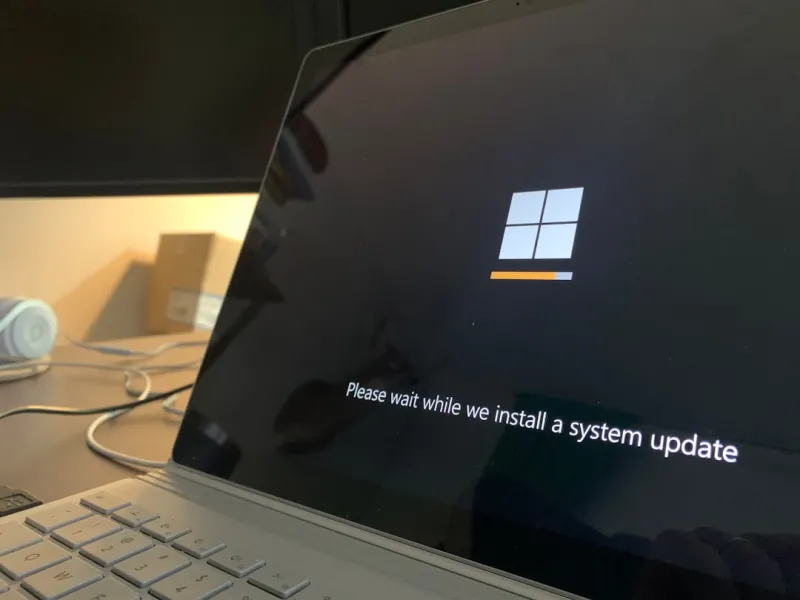
When I first started tinkering with PCs back in the early days of Windows, updates felt like a polite nudge—something you could ignore until the next reboot. Fast‑forward to 2026, and that gentle reminder has morphed into a critical lifeline for every device on the network. Microsoft’s shift to a “continuous delivery” model means that security patches, driver refreshes, and feature roll‑outs arrive almost weekly. As someone who lives on the edge of both consumer and enterprise environments, I’ve seen firsthand how a missed update can turn a perfectly healthy workstation into a vulnerable target overnight. The stakes are higher now, with ransomware groups leveraging zero‑day exploits faster than ever. That’s why I treat each Windows Update not as a chore, but as a strategic move in my daily tech playbook—protecting data, maintaining performance, and keeping my workflow seamless.
The New Rhythm: Feature vs. Quality Updates
Microsoft has neatly divided updates into two distinct families: Feature Updates, which introduce new UI elements, productivity tools, and occasionally a fresh take on the Start menu; and Quality Updates, which focus on bug fixes, security patches, and driver improvements. In 2026, the cadence for Quality Updates has settled into a predictable “Patch Tuesday” rhythm, while Feature Updates now appear roughly twice a year. This rhythm allows power users like me to plan ahead—testing new features in a sandbox before they touch my primary machine. It also means that the dreaded “update fatigue” can be mitigated by aligning my maintenance windows with the release schedule. I’ve learned to keep a detailed changelog, noting which updates impact critical software, especially when I’m running legacy apps that still rely on older DLLs. This disciplined approach saves me from the surprise of a broken workflow after a major rollout.
The Security Imperative in a Hyper‑Connected World
Every day in 2026, billions of devices ping the internet, exchange data, and run code that could be weaponized. The modern threat landscape is no longer limited to traditional viruses; we’re battling AI‑driven phishing, fileless malware, and supply‑chain attacks that can slip through even the most robust firewalls. Windows Updates act as the first line of defense against these evolving threats. Each security patch is essentially a tiny shield, patching vulnerabilities before they’re weaponized. I’ve seen organizations where a single missed patch opened the door to a ransomware outbreak that crippled entire departments. By staying on top of the update cycle, I not only protect my own workstation but also uphold the integrity of the networks I manage. It’s a responsibility that feels heavier now, but the payoff—peace of mind and uninterrupted productivity—is worth every minute spent reviewing the release notes.
Common Frustrations and How to Tame Them
Let’s face it: Windows Updates can be a headache. Unexpected restarts, driver conflicts, and the dreaded “Update failed” message have haunted many of us. Over the years I’ve turned these frustrations into a checklist. First, I configure Active Hours to align with my work schedule, ensuring that Windows won’t force a reboot in the middle of a critical presentation. Second, I enable the “Pause updates” option during high‑stakes projects, but never exceed the 35‑day limit to stay compliant. Third, I keep a backup of essential drivers—especially for custom-built rigs—so I can quickly roll back if a new driver misbehaves. By treating updates as a predictable part of system maintenance rather than an unexpected surprise, the process becomes less disruptive. And when I need deeper insights, I turn to resources like Unlock the Windows Tips Power Users Swear By for advanced troubleshooting tricks that keep my machines humming.
Strategic Tips for Managing Updates Like a Pro
For those who want to take control, there are several strategies that have proven effective in my experience. Leveraging Windows Server Update Services (WSUS) or Microsoft Endpoint Configuration Manager lets you test updates in a controlled environment before rolling them out fleet‑wide. On a single‑PC basis, the “Group Policy Editor” offers granular control—allowing you to defer Feature Updates for up to 365 days while still receiving essential security patches. I also recommend using the “Windows Update History” log to track which patches caused regressions, then create a custom “Do Not Install” list for known troublemakers. Finally, keep an eye on the “Optional Updates” section; many driver updates and hardware improvements sit there, waiting for manual approval. By proactively curating what gets installed, you avoid the surprise of a broken peripheral and keep your system performance at its peak.
Driver Updates and Hardware Compatibility: A Balancing Act
One of the most delicate aspects of Windows Updates is how they interact with hardware drivers, especially on custom builds that feature cutting‑edge components. In 2026, manufacturers are releasing firmware and driver updates at a breakneck pace to keep up with new standards like PCIe 5.0 and DDR5 6000. When Windows rolls out a generic driver, it can sometimes clash with vendor‑specific optimizations, leading to instability or reduced performance. I’ve learned to monitor the Motherboard Trends Shaping the Future of PC Building blog for insights on which chipsets are most update‑friendly, and then manually download the latest drivers from the OEM’s site when necessary. This approach ensures that my high‑end workstations get the best possible support without sacrificing the security benefits of the OS’s update engine. It’s a bit of extra legwork, but the payoff—stable, high‑performance hardware—is well worth it.
When a Blue Screen Hits After an Update
Even with the best preparation, a rogue update can sometimes trigger the infamous Blue Screen of Death. I’ve faced this more than once, and each time the key has been rapid diagnosis. The first step is to note the STOP code displayed; it often points directly to the offending driver or system file. Next, I use the built‑in “Windows Memory Diagnostic” and “sfc /scannow” commands to rule out hardware issues and corrupted system files. If the problem persists, I dive into the Why the Blue Screen Happens and How to Tame It guide for a step‑by‑step approach to isolating the culprit—whether it’s a recent graphics driver, a third‑party security tool, or an incompatibility introduced by a Feature Update. Rolling back the offending driver via Device Manager or using System Restore to a pre‑update checkpoint often resolves the issue. The lesson? Treat each Blue Screen as a data point, not a dead end, and you’ll restore stability faster than you think.
The Future of Windows Updates: AI‑Driven and Cloud‑First
Looking ahead, Microsoft is betting on AI to make updates smarter and less intrusive. By analyzing telemetry from millions of devices, the update engine can predict which patches are likely to cause conflicts on specific hardware configurations and proactively adjust the rollout. Cloud‑based “Delivery Optimization” already speeds up distribution by sourcing parts of the update from nearby peers, and the next iteration promises even tighter integration with Azure’s edge services. In 2026, we’re also seeing “Feature Toggles” that allow users to enable new capabilities on the fly, without a full system reboot. This means I can test a new Snap Layout feature in a virtual session before committing it to my daily workflow. These advances aim to reduce downtime, improve compatibility, and keep the update experience as seamless as possible—something every power user, including myself, eagerly anticipates.
Wrapping Up: Make Updates Work for You
At the end of the day, Windows Updates are not just a mandatory chore; they’re a strategic tool in the modern tech arsenal. By understanding the cadence, leveraging the right management tools, and staying informed through resources like the articles linked above, you can turn potential disruptions into opportunities for optimization. I encourage you to experiment with the settings that suit your workflow, keep an eye on hardware driver releases, and never underestimate the power of a well‑documented rollback plan. If you found this deep dive useful, check out more of my insights on system maintenance and security across the Comp Doc Computers blog. Remember, staying ahead of the update curve keeps your PC fast, secure, and ready for whatever the next wave of technology throws at us.