
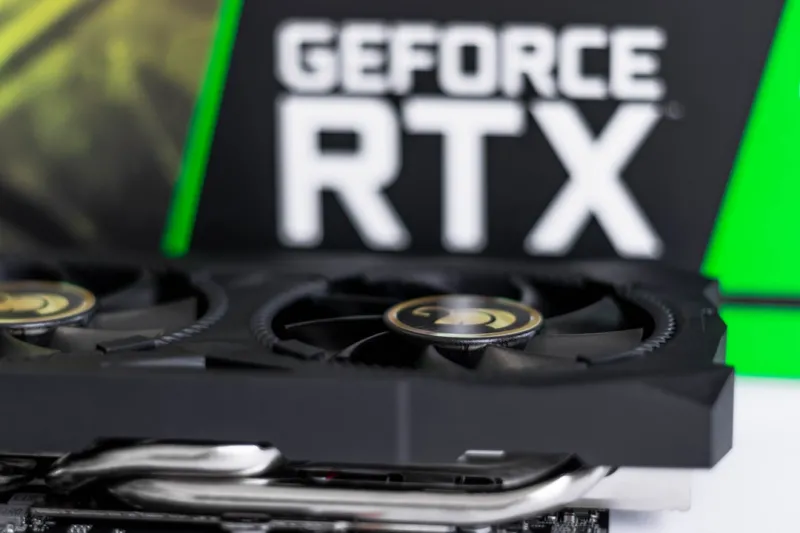
When I first powered up my 2026 rig and saw the screen flicker like a neon sign at a downtown rave, I knew my video card was staging a protest. As a longtime power‑user, I’ve learned that graphics adapters are the most temperamental component in any high‑performance build, especially when you’re pushing 4K, ray‑traced workloads or AI‑accelerated rendering. In this post, I’ll walk you through the exact diagnostic steps I take, from the most obvious visual clues to the deep‑dive firmware checks that even seasoned techies sometimes skip. You’ll discover why a seemingly innocuous Windows update can cripple your GPU, how to isolate power delivery problems without opening your case, and which tools give you crystal‑clear telemetry on clock speeds, memory bandwidth, and temperature spikes. By the end, you’ll be equipped with a power‑user’s playbook that transforms a stubborn graphics failure into a systematic, repeatable troubleshooting routine.
Spotting the Symptoms Before You Panic
The first rule of GPU rescue is to catalog every abnormal behavior before you start pulling cables. Common red flags include sudden stuttering during gameplay, random screen tearing that isn’t fixed by V‑Sync, or the dreaded “driver crashed” error that Windows throws up like a digital SOS. Pay attention to whether the issue is consistent across all applications or isolated to a specific engine—this can point to driver‑level incompatibilities versus hardware fatigue. If you notice artifacting—those strange geometric patterns that look like a digital glitch art piece—your card may be overheating or suffering from VRAM errors. Keep a log of the exact timestamps, the software you were using, and any recent system changes; this data becomes invaluable when you later cross‑reference with crash logs or the Windows Event Viewer. In my own experience, a simple pattern of artifacting after a long rendering session turned out to be a clogged fan, which I caught early thanks to meticulous note‑taking.
Driver Dilemmas: The Double‑Edged Sword
Modern GPUs live and die by their drivers, and 2026 has brought an avalanche of feature updates—from DLSS 3.5 to real‑time ray‑tracing optimizations for AI workloads. While staying current is essential, it also means the occasional regression. My go‑to strategy is a three‑step approach: first, create a system restore point, then download the latest WHQL‑certified driver directly from the manufacturer’s site, and finally, perform a clean install using DDU (Display Driver Uninstaller) in Safe Mode. This wipes any lingering fragments that could cause conflicts. If the newest driver introduces new issues, roll back to the previous stable version—Windows makes this easy via the Device Manager’s “Roll Back Driver” button. For those who like a more granular view, I recommend checking the Why Your Video Card Keeps Stalling and How to Fix It guide, which breaks down how to use the built‑in Windows “Graphics Settings” panel to force high‑performance GPU usage for demanding apps.
Power Delivery and BIOS Tweaks
Even the most robust graphics card can choke if it doesn’t receive clean, consistent power. In 2026, many motherboards ship with dynamic power‑phase management that can inadvertently under‑power a high‑end GPU during peak loads. Start by checking the PCIe slot’s power allocation in the BIOS/UEFI—look for settings like “PCIe Link Speed” and ensure they’re set to “Gen 5 x16” for optimal bandwidth. Next, verify that the auxiliary PCIe power connectors (the 6‑pin and 8‑pin cables) are firmly seated; a loose connection can cause voltage sag, leading to frame drops or sudden shutdowns. If you’re running a multi‑GPU setup, make sure each card has its own dedicated power rails to avoid cross‑talk. I’ve found that enabling “Spread Spectrum” can sometimes reduce electromagnetic interference that subtly degrades performance, though the trade‑off is a slight increase in power draw. For deeper insight, the Mastering Video Card Troubleshooting: A Power‑User’s Playbook article details how to benchmark power delivery using HWInfo’s sensor suite.
Thermal Management: Keep It Cool, Keep It Quiet
Heat is the silent assassin of GPU health. Modern cards feature advanced cooling solutions—dual‑fan, liquid‑cool, even vapor‑chamber designs—but they all share a common enemy: dust. A clogged heatsink reduces airflow, causing the GPU to throttle or, in worst cases, trigger thermal shutdowns. My routine maintenance schedule involves a quarterly disassembly: remove the rear fan shroud, use a low‑torque brush to clear dust from the fins, and re‑apply a high‑quality thermal paste if the card is over three years old. Monitoring software like MSI Afterburner lets you set custom fan curves that ramp up cooling before temperatures cross the 80 °C threshold, a sweet spot for most 2026 GPUs. Additionally, consider case airflow: positive pressure (more intake than exhaust) prevents dust infiltration, while strategically placed vent strips can channel cool air directly over the GPU. Remember, a well‑ventilated case not only protects your graphics card but also prolongs the lifespan of your SSDs and RAM.
Firmware and Motherboard Compatibility
Even if the driver is pristine, outdated GPU firmware can cause mysterious crashes, especially when paired with the newest motherboards that support PCIe 5.0 and DDR5 memory. Most manufacturers release firmware updates through their companion utilities—NVIDIA’s GeForce Experience or AMD’s Radeon Software. Schedule a firmware check at least twice a year, aligning it with your system’s major updates. In parallel, ensure your BIOS is current; many 2026 boards include microcode patches that resolve subtle compatibility glitches with certain GPU architectures. When you flash a BIOS, always back up the existing version and follow the manufacturer’s instructions to a tee—one misstep can render a motherboard unbootable. If you suspect a firmware mismatch, the “Device Manager → Details → Hardware Ids” path can help you confirm the exact GPU revision you’re running, which you can then cross‑reference with the vendor’s release notes.
Software Conflicts and Background Processes
Modern PCs are multitasking beasts, but that multitasking can sometimes turn into a tug‑of‑war over GPU resources. Background applications like video encoders, crypto miners, or even web browsers with WebGL acceleration can steal cycles from the primary workload, causing stutters or “stalled” frames. Use Windows Task Manager’s “GPU Engine” column to identify which processes are consuming the most graphics memory and compute power. In my own setup, I discovered that a hidden Windows update service was periodically scanning for driver signatures, momentarily throttling my rendering pipeline. Disabling nonessential startup items, or better yet, creating a dedicated “gaming” user profile with minimal background services, can dramatically improve stability. For power users who need granular control, the Essential PC Upgrades Every Power User Needs in 2026 guide offers a checklist of software utilities that help you isolate and prioritize GPU usage.
Deep‑Dive Diagnostics: Logs, Benchmarks, and Third‑Party Tools
If you’ve walked through the obvious checks and the problem persists, it’s time to bring out the heavy artillery: diagnostic logs and benchmark suites. Start with Windows Event Viewer, filtering for “Display” or “GPU” sources to catch error codes like “DXGI_ERROR_DEVICE_REMOVED.” Next, run a synthetic stress test using tools such as 3DMark Time Spy or Unigine Heaven, noting at which point (temperature, clock speed, or frame time) the card falters. Pair this with GPU‑specific monitors like GPU‑Z or HWInfo, which expose real‑time telemetry on voltage, fan RPM, and memory error correction codes (ECC). Look for patterns—if the voltage spikes just before a crash, you might have a power‑phase issue; if memory errors rise, consider a faulty VRAM chip. Capturing screenshots of these metrics and comparing them against the manufacturer’s spec sheet can help you build a case if you need to invoke RMA warranty services.
Future‑Proofing: Building Resilience Into Your GPU Workflow
Even the most diligent troubleshooting routine can’t stop the inevitable march of technology, but you can design your system to absorb shocks gracefully. In 2026, the trend is toward modular GPU designs that allow for easy upgrades of cooling modules, VRAM, or even compute cores. When you plan your next build, prioritize a motherboard with robust PCIe power delivery, a chassis with ample expansion slots, and a power supply that exceeds the recommended wattage by at least 20 %. Investing in a high‑quality PSU with an 80 PLUS Platinum rating not only ensures clean power but also reduces the likelihood of voltage dips that can corrupt GPU operation. Finally, keep a regular maintenance calendar, stay current with driver and firmware releases, and maintain a repository of logs and benchmarks so you can quickly spot deviations. By treating your graphics card as a living component—one that needs feeding, cleaning, and occasional software vaccinations—you’ll keep it performing at its peak for years to come.




