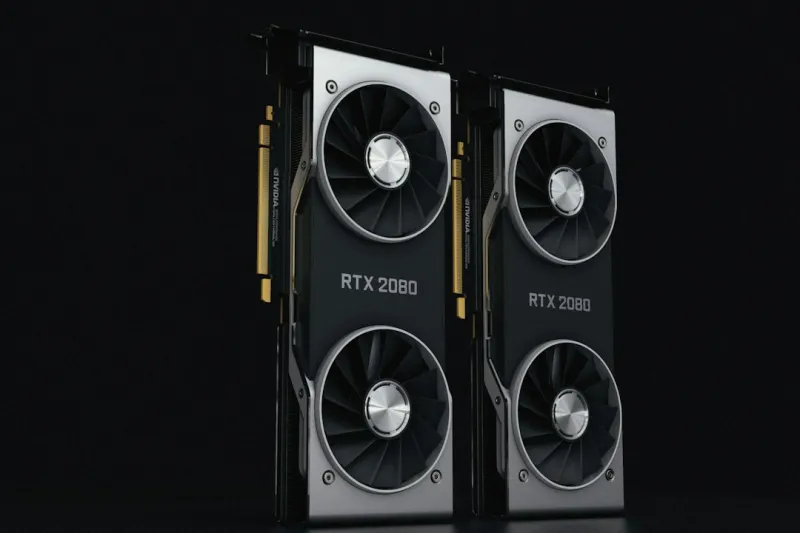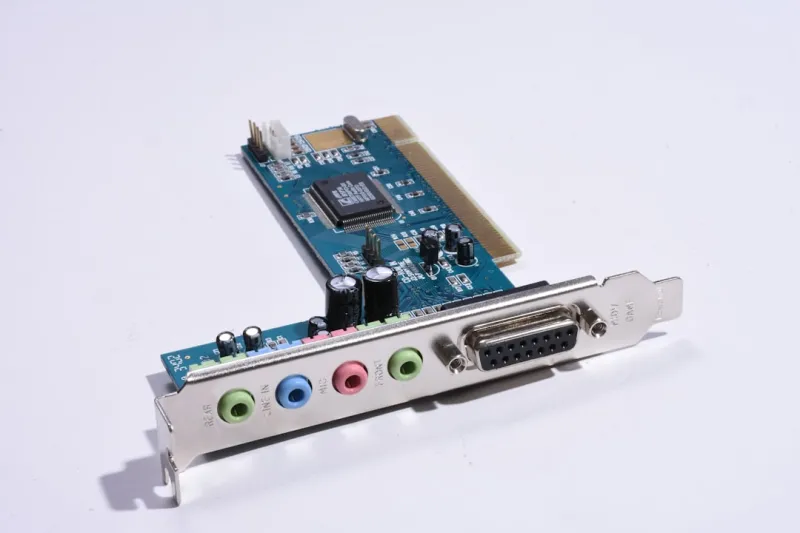
When my workstation’s display starts acting like a nervous teenager—random flickers, sudden blackouts, or that dreaded “Display driver stopped responding” dialog—I know the GPU is screaming for help. As a power‑user who lives on the edge of graphics‑intensive workloads, I’ve learned that video card issues aren’t just a nuisance; they can cripple productivity, stall creative pipelines, and even corrupt data if left unchecked. In 2026, with ray‑tracing, AI‑accelerated rendering, and high‑refresh‑rate monitors becoming the norm, understanding the anatomy of a modern video card is non‑negotiable. This guide walks you through the systematic approach I use—combining hardware intuition, software sleuthing, and a dash of patience—to transform a misbehaving GPU back into a reliable workhorse.
Spotting the Tell‑Tale Symptoms
The first step in any troubleshooting mission is recognizing the warning signs. Common manifestations include shimmering textures, color banding, unexpected driver crashes, and performance throttling during demanding tasks. I pay close attention to when the issue appears: is it after a Windows update, during a heavy CUDA workload, or when the system temperature spikes? Logging these conditions helps isolate whether the problem is software‑driven or hardware‑related. For instance, a sudden surge of driver crashes after a major OS patch often points to incompatibility, whereas persistent artifacting during low‑load scenarios typically signals a failing VRAM module. By cataloging symptoms, you create a diagnostic map that guides the next steps, saving time and preventing guesswork.
Verifying Physical Connections
Before diving into driver logs, I always double‑check the physical side of things. Loose PCIe power connectors, dust‑clogged fans, or a mis‑seated card can masquerade as complex software bugs. Power down the rig, ground yourself to avoid static discharge, and remove the GPU. Inspect the PCIe slot for bent pins, clean any dust buildup with compressed air, and reseat the card firmly. Reconnect the 6‑ or 8‑pin power cables, ensuring they click into place. A quick visual audit often resolves issues that would otherwise trigger endless software troubleshooting loops. Remember, a solid mechanical connection is the foundation upon which all subsequent diagnostics depend.
Driver Diagnostics and Smart Rollbacks
Drivers are the lingua franca between the OS and the GPU, and a miscommunication can cripple performance. In 2026, driver packages have grown in complexity, bundling AI‑based optimization layers and game‑specific profiles. I start by using DDU (Display Driver Uninstaller) to completely strip the existing driver, then reinstall the latest stable release from the manufacturer’s site. If the problem began after a recent driver update, I employ the “rollback” feature in Device Manager or download a known‑good previous version. Tools like Windows Event Viewer also reveal error codes that hint at driver conflicts. For power users juggling multiple GPUs, I recommend maintaining a local repository of driver versions to expedite rollbacks without hunting online.
Power Delivery and Thermal Management
Even the most robust GPU can falter if it’s starved of power or overheated. I monitor power draw using utilities such as GPU-Z or HWInfo, checking that the card’s consumption stays within the PSU’s rated capacity, typically with a 20% headroom. Voltage fluctuations, especially on older power supplies, can cause intermittent crashes that mimic hardware failure. On the thermal front, I verify that the GPU’s cooling solution—whether a blower, open‑air, or liquid loop—is functioning optimally. Clean fan blades, replace thermal paste after a few years, and ensure adequate case airflow. Setting custom fan curves via MSI Afterburner or the vendor’s control panel can preempt throttling during intensive workloads.
Leveraging Built‑In Benchmarks and Stress Tests
To differentiate between sporadic glitches and systemic flaws, I run targeted stress tests. Tools like FurMark, 3DMark, and Blender’s benchmark suite push the GPU to its limits, revealing instability under sustained load. I observe temperature curves, clock speeds, and artifact generation in real time. A clean pass indicates the hardware can handle peak demand, steering the investigation back toward drivers or software conflicts. Conversely, a failure during stress testing often confirms a hardware defect, prompting RMA or replacement. Documenting test results creates a reproducible record that can be valuable when discussing the issue with vendor support.
Cross‑Testing with a Known‑Good GPU
If the diagnostics above haven’t pinpointed the culprit, I swap the suspect GPU with a known‑good unit. This “swap test” isolates the motherboard, PSU, and drivers from the GPU itself. If the replacement card runs flawlessly, the original GPU is likely defective. If the problem persists, the root cause may lie elsewhere—perhaps a corrupted BIOS, faulty PCIe lane, or even a subtle OS-level issue. This method saves time and money by avoiding unnecessary RMA submissions, and it reinforces the importance of maintaining a backup GPU for critical workflows.
Firmware, BIOS, and System Updates
Modern GPUs rely on firmware (VBIOS) to manage power states, memory timings, and security features. An outdated VBIOS can conflict with newer drivers or Windows patches. I check the manufacturer’s website for firmware updates and apply them using the provided flashing utility, always backing up the original firmware first. Likewise, motherboard BIOS updates sometimes improve PCIe compatibility or resolve obscure bugs that affect GPU performance. In 2026, many power users keep a close eye on these releases; you can stay informed by following the Critical Tech Updates Power Users Can’t Afford to Miss post, which curates the most impactful firmware and BIOS releases each quarter.
Software Conflicts and Operating System Considerations
Beyond drivers, third‑party software can interfere with GPU operation. Overlay programs, screen recorders, and even certain antivirus suites inject hooks that destabilize the graphics stack. I perform a clean boot—disabling non‑essential startup services—to see if the issue vanishes. If it does, I re‑enable services one by one to isolate the offender. For Windows power users, the “Power Plan” settings also matter; the “High Performance” plan disables power‑saving features that can cause sudden clock drops. Additionally, keeping the OS patched is vital; however, some Windows updates have historically broken GPU compatibility, so I review the Upgrade Strategies That Power Users Swear By in 2026 guide before applying major updates.
Final Checklist and Future‑Proofing Your GPU
After walking through the diagnostic maze, I like to run a final checklist: confirm physical seating, verify power connections, ensure drivers are cleanly installed, monitor temperatures under load, and test with stress tools. If the GPU passes all stages, I back up the configuration and document the troubleshooting steps for future reference. Looking ahead, I advise power users to consider GPUs with robust VRAM, scalable driver support, and modular cooling solutions that can adapt to evolving workloads. Pairing a resilient GPU with a forward‑thinking system—outlined in The Ultimate Guide to Building a Future‑Ready PC in 2026—ensures you won’t be back in the troubleshooting trenches tomorrow.