When most people think about storage in 2026, the first thing that pops into their mind is the flash‑driven hype around NVMe SSDs. As a power‑user who spends countless hours fine‑tuning performance, I’ve learned that the real magic often happens when you blend the speed of SSDs with the sheer capacity and cost‑efficiency of traditional hard drives. Hard drives still rule for massive, affordable storage, especially when you need terabytes of space for media libraries, virtual machine images, or large data sets that don’t require the micro‑second latency of an SSD. In this article, I’ll walk you through why you should keep a high‑capacity HDD in your arsenal, how to choose the right model for today’s workloads, and the best ways to integrate it seamlessly with modern PC builds. By the end, you’ll see that a well‑planned hybrid storage strategy can boost productivity, cut costs, and future‑proof your rig for the next wave of software demands.
Why Hard Drives Remain Competitive in a Flash‑Centric World
Even though NVMe drives can reach read speeds of 7,000 MB/s, the price per gigabyte for a 4‑TB HDD still hovers around a fraction of the cost of a comparable SSD. For power‑users who archive 4K video, 8K raw footage, or massive game libraries, the economics simply don’t add up if you rely solely on SSDs. Moreover, hard drives have benefitted from a quiet evolution in reliability; modern 7200 RPM models now feature technologies like fluid dynamic bearings and dual‑actuator designs that dramatically improve both longevity and sustained write performance. This is especially relevant when you’re running continuous backups or serving as a media server for a home lab. The lower heat output and minimal power draw of a well‑chosen HDD also help keep your overall system temperature in check, an often‑overlooked advantage for dense builds that already push the thermal envelope with high‑end GPUs and CPUs.
Selecting the Ideal Capacity and Form Factor
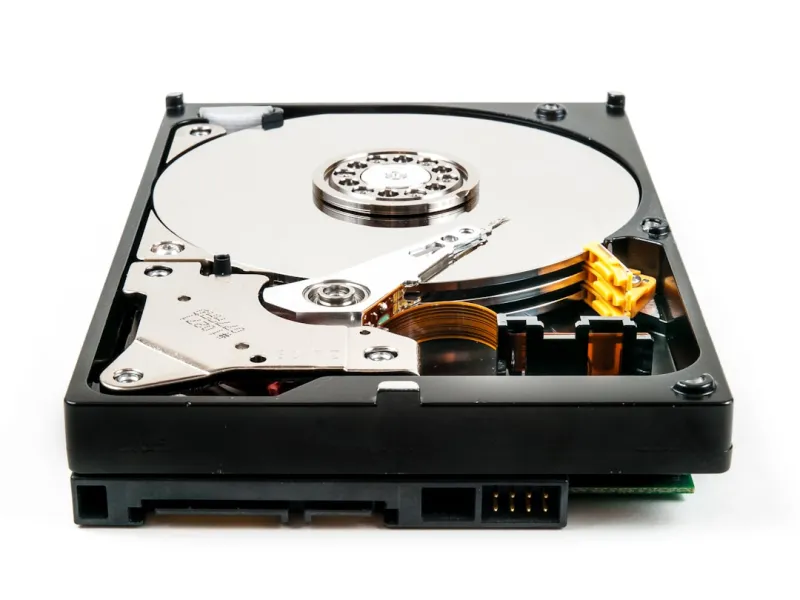
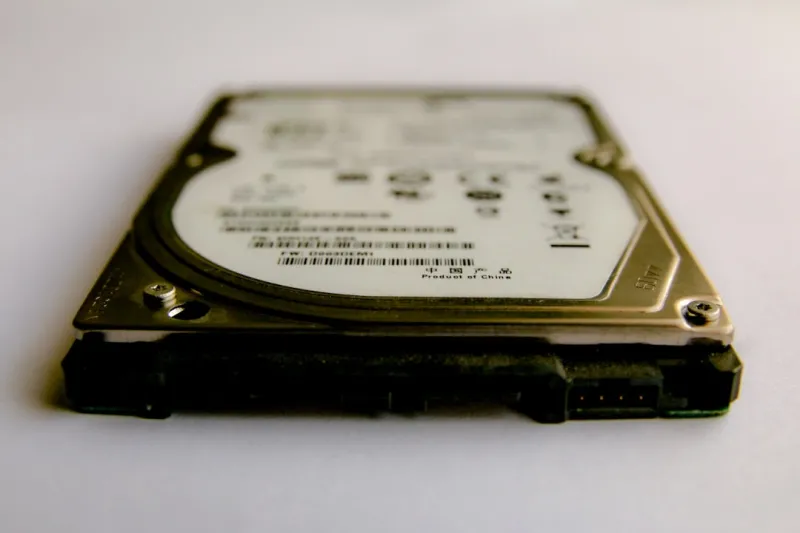
Choosing the right hard drive isn’t just about grabbing the biggest capacity you can find. As a power‑user, you need to consider the form factor that matches your chassis and the interface that maximizes throughput. Most desktop towers still support 3.5‑inch bays, which remain the sweet spot for high‑capacity drives because they can accommodate larger platters and more robust motor designs. If you’re building a compact workstation, however, 2.5‑inch drives can still deliver respectable performance when paired with a SATA III connection, offering up to 210 MB/s sequential speeds—perfect for secondary storage or archival use. Pay attention to the drive’s cache size as well; a 256 MB cache on a modern HDD can smooth out random read/write spikes, making it more suitable for mixed‑use scenarios where you occasionally pull files directly off the drive rather than always staging them through an SSD cache.
Integrating HDDs with NVMe SSDs for a Hybrid Architecture
The most efficient storage setups in 2026 blend SSD speed with HDD capacity. I typically place my operating system, applications, and frequently accessed games on a 2 TB NVMe drive, while dedicating a 10‑TB or larger HDD to bulk storage. To make the transition seamless, use a storage tiering software or Windows Storage Spaces that automatically migrates infrequently used files to the HDD, freeing up SSD space without manual intervention. For Linux enthusiasts, tools like LVM and btrfs’s “SSD cache” feature allow you to set up a fast cache on your SSD that mirrors writes to the HDD, providing near‑SSD performance for write‑heavy workloads while keeping the bulk data on the slower, cheaper drive. This hybrid approach also reduces wear on the SSD, extending its lifespan—an essential consideration when you’re constantly writing large video files or compiling massive codebases.
Performance Tips: Maximizing HDD Throughput
Hard drives have historically suffered from bottlenecks caused by the SATA III interface, which caps at 6 Gb/s (≈600 MB/s). While this is still well above the sustained throughput of most HDDs, you can still squeeze extra performance out of your drive with a few tweaks. First, enable write caching in the OS, but pair it with a reliable UPS to protect against data loss during power failures—a concern highlighted in our Why Your PC Keeps Crashing to Blue: A Power‑User’s Guide to Taming the BSOD guide. Second, keep the drive defragmented; modern Windows defrag tools now recognize SSD‑cache scenarios and can intelligently reorganize data to improve sequential read speeds. Finally, consider using a dedicated SATA controller card with its own power delivery if you’re populating multiple drives; this reduces the strain on the motherboard’s SATA ports and can lead to more stable, consistent performance under heavy load.
Reliability and Data Protection Strategies
No matter how robust a hard drive is, the best defense against data loss is redundancy. In 2026, the most popular strategy among power‑users is a combination of RAID‑1 mirroring for critical data and off‑site cloud backups for disaster recovery. While RAID won’t protect you from catastrophic events like fire or theft, it does shield you from individual drive failures—a scenario that becomes statistically more likely as you fill up multiple multi‑terabyte disks. Pair this with the encryption practices outlined in Encrypt Like a Power User: Practical Strategies for 2026 to ensure that even if a drive falls into the wrong hands, your data remains unintelligible. Regular health checks using SMART diagnostics and tools like CrystalDiskInfo can give you early warnings of impending failures, allowing you to replace a drive before it goes completely dark.
Choosing the Right Brand and Model for Power‑User Demands
When I shop for a hard drive, I focus on three key criteria: reliability ratings from independent testing labs, warranty length, and the presence of enterprise‑grade features such as vibration tolerance and TLER (Time‑Limited Error Recovery). Brands like Western Digital’s “Gold” series, Seagate’s “IronWolf Pro” line, and Toshiba’s “Enterprise” models consistently rank high in these categories. For a desktop workstation that will run 24/7, the IronWolf Pro’s 5‑year warranty and built‑in RV (Rotational Vibration) sensors are a compelling choice, especially when you stack multiple drives in a tightly packed bay. If you’re looking for the absolute best price‑to‑performance ratio, the WD Gold offers a solid balance of endurance and cost, making it suitable for large media archives that don’t see constant read/write churn.
The Future of Hard Drives: Are They Going Extinct?
Speculation abounds that HDDs will become obsolete as storage densities on SSDs continue to climb. However, the physics of magnetic storage still allow for exponential capacity growth at a fraction of the cost of NAND flash. In the next few years, we’re likely to see 20‑TB and even 30‑TB 3.5‑inch drives hitting the consumer market, driven by data‑intensive applications like AI model training, 8K video production, and large‑scale simulation workloads. Until those capacities become mainstream and affordable, hard drives will remain the workhorse for any power‑user who needs massive storage without breaking the bank. Keeping a well‑curated HDD fleet not only makes economic sense but also provides a fallback option for scenarios where SSDs might be throttled due to thermal constraints or endurance limits.
Practical Deployment: Real‑World Use Cases from My Lab
In my own 2026 PC upgrade, I followed the guidelines from Mastering the 2026 PC Upgrade: A Power‑User’s Playbook and allocated a 4‑TB NVMe drive for the OS and my most demanding applications. Alongside that, I installed a 12‑TB Seagate IronWolf Pro in a dedicated NAS‑grade bay, using it as a central repository for all my 4K video projects, game mods, and Docker container images. The NAS runs a lightweight Linux distro with ZFS, providing snapshots and checksums for added data integrity. By offloading the bulk of my storage to the HDD, I’ve kept the SSD’s write cycles low, extending its useful life while still enjoying blazing‑fast boot times and application launches. This hybrid setup has cut my monthly electricity bill by a noticeable margin, thanks to the lower power draw of the HDD compared to running multiple SSDs at full throttle.
Conclusion: Embrace the Hybrid Model for Maximum Efficiency
In the ever‑evolving landscape of PC hardware, the temptation to chase the latest flash storage tech can lead to inflated budgets and underutilized capacity. By strategically incorporating hard drives into your storage hierarchy, you gain the best of both worlds: the raw speed of SSDs when you need it and the massive, affordable space of HDDs for everything else. This balanced approach aligns perfectly with the power‑user mindset that prioritizes performance, reliability, and cost‑effectiveness. So, as you plan your next build or upgrade, remember to allocate a dedicated hard drive slot, choose a reputable model, and configure intelligent tiering or caching. Your data will be safer, your system more responsive, and your wallet considerably happier.