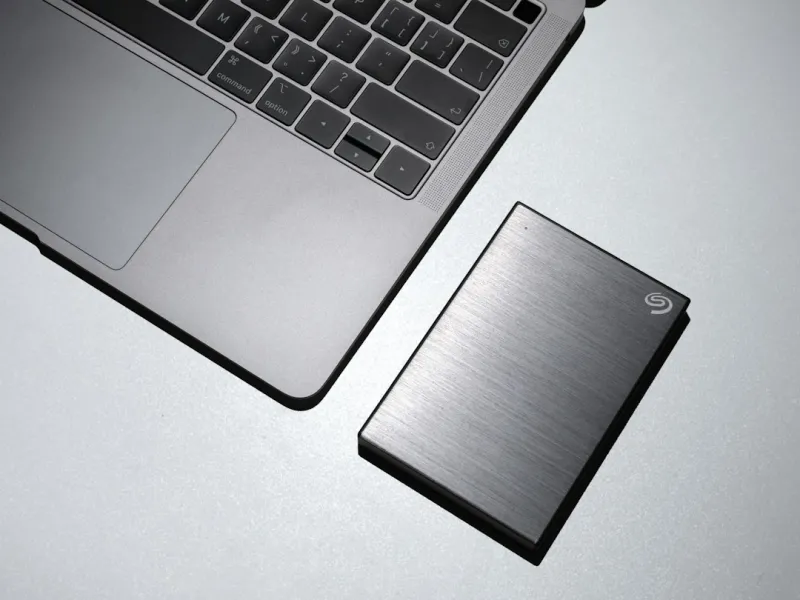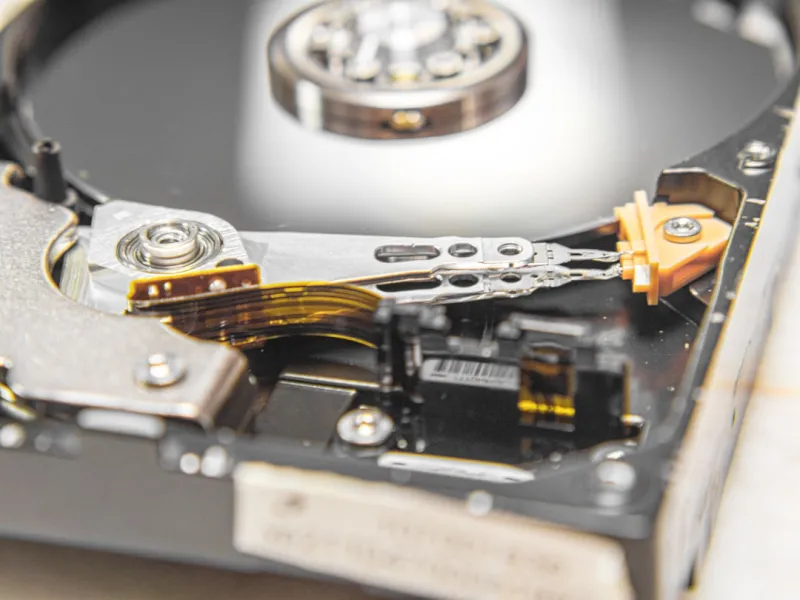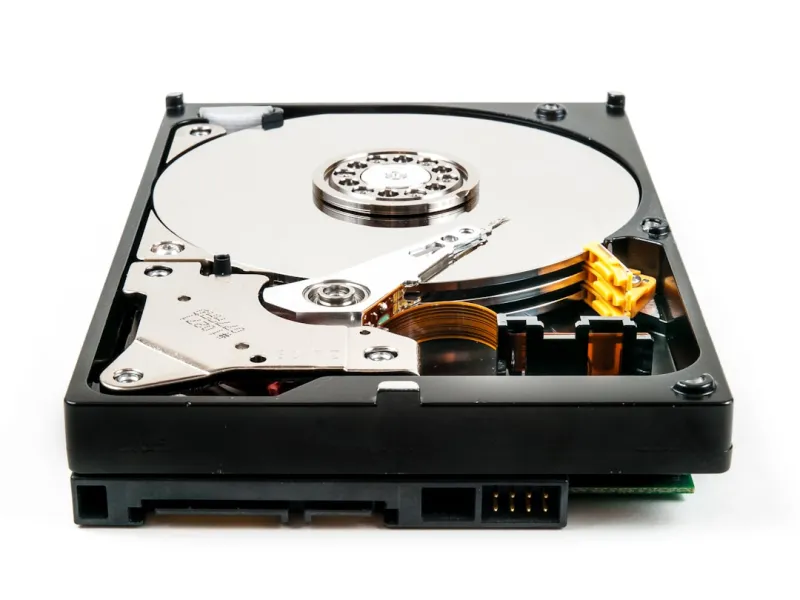
When I first cracked open my 2021 workstation, the hard drive was just a silent workhorse—nothing flashy, just a reliable repository for code, media, and the occasional massive data dump. Fast‑forward to 2026, and the landscape has transformed into a high‑speed battlefield where every microsecond counts. Power users like us don’t just store files; we stream 8K video, compile terabytes of code, and run virtualized environments that demand instantaneous I/O. The hard drive you pick can be the difference between a seamless workflow and a frustrating bottleneck that stalls productivity. In this deep dive, I’ll walk you through the nuances of modern storage, from raw hardware specs to the subtle art of firmware tuning, all while sharing the tactics that keep my rigs humming at peak performance.
How Storage Technology Evolved Into a Multi‑Layered Ecosystem
In the early 2020s, SSDs began to dominate the consumer market, but today we’re seeing a convergence of technologies that blur the lines between traditional HDDs, SATA SSDs, and the ultra‑fast NVMe drives that plug directly into PCIe 5.0 slots. The bandwidth of a PCIe 5.0 x4 lane now tops 16 GB/s, dwarfing the 6 GB/s ceiling of PCIe 4.0, and manufacturers are already teasing PCIe 6.0 prototypes for late‑2026 releases. Meanwhile, HDDs haven’t vanished; they’ve found a niche in bulk archival storage where cost per gigabyte still matters. The real magic happens when you blend these layers—using an NVMe drive for OS and active projects, a SATA SSD for secondary apps, and a high‑capacity 14 TB HDD for long‑term archives. This tiered approach maximizes both speed and storage efficiency, a strategy I’ve refined over years of troubleshooting and performance tweaking.
Selecting the Right Drive: Capacity, Endurance, and Real‑World Speed
Choosing a drive isn’t just about reading the spec sheet; you need to align capacity, endurance (TBW), and sustained sequential and random IOPS with your workload. For instance, a 2 TB NVMe with a 1,200 TBW rating is perfect for daily developers who constantly write large binaries, while a 4 TB model with a 3,000 TBW rating serves data scientists who ingest massive datasets. Random read/write latency is often the hidden culprit that drags down IDE performance, so prioritize drives that tout sub‑50 µs latency under mixed workloads. If you’re still on a SATA SSD, look for models that support the latest NVMe‑over‑SATA bridge technologies, which can shave off crucial milliseconds. For archival HDDs, focus on rotational speed (7200 RPM vs 5400 RPM) and cache size—larger caches can dramatically improve sequential transfer rates. Need a deeper dive? Check out Hard Drive Strategies Every Power‑User Needs for a comprehensive checklist.
Firmware, TRIM, and the Art of Sustaining SSD Longevity
One of the most overlooked aspects of hard drive performance is firmware health. Modern SSDs rely on sophisticated wear‑leveling algorithms that can be disrupted by outdated firmware, leading to sudden performance drops or premature wear. Always verify you’re running the latest firmware from the manufacturer’s portal and enable the TRIM command in your OS—Windows 11 and most Linux distros handle this automatically, but a quick fsutil behavior query disabledeletenotify check can confirm it’s active. Additionally, consider leveraging vendor‑specific utilities that provide over‑provisioning options; allocating an extra 10% of space can improve write amplification and extend drive lifespan. For NVMe drives, the NVMe Power Management feature lets you fine‑tune power states, reducing thermal throttling during intensive workloads. A disciplined firmware update schedule, combined with proper TRIM usage, ensures your SSD delivers consistent speeds year after year.
Partitioning and File System Choices for Maximum Throughput
The file system you choose can either unlock your drive’s potential or throttle it. NTFS remains the default for Windows 11, but for high‑performance scenarios, ReFS (Resilient File System) offers built-in integrity checks and faster snapshot capabilities, especially when paired with Storage Spaces Direct. On macOS, APFS’s copy‑on‑write design reduces fragmentation, while Linux power users often gravitate toward XFS or Btrfs for their superior handling of large files and snapshots. When partitioning, align partitions on 1 MiB boundaries to avoid misaligned I/O that can degrade performance on both SSDs and HDDs. Also, consider separating the OS, applications, and data onto distinct partitions or volumes; this isolates heavy write operations from the OS, reducing latency spikes during compile‑heavy sessions. Proper partition alignment and file system selection are small steps that yield big performance gains.
Layered Caching: Harnessing RAM, Intel Optane, and Tiered Storage
Cache is the secret sauce that turns a good drive into a great one. Modern CPUs come with multi‑level caches, but you can extend this concept with system RAM and dedicated cache modules like Intel Optane. By configuring a RAM disk for temporary build files or using Optane as a write‑back cache for your primary NVMe, you effectively create a “speed buffer” that absorbs bursty I/O. Windows 11’s Storage Spaces now supports tiered storage, automatically moving hot data to the fastest tier and relegating cold data to slower HDDs. For Linux enthusiasts, the btrfs “ssd_spread” mount option distributes writes across the SSD to improve longevity. Implementing a layered caching strategy can cut perceived load times by up to 40%, especially in data‑intensive environments where read/write bursts are common.
Real‑World Performance Testing: Tools, Benchmarks, and the Power‑User Mindset
Benchmarks are only as good as the methodology behind them. I rely on a mix of synthetic and real‑world tools: CrystalDiskMark for raw sequential rates, AS SSD Benchmark for mixed I/O, and the open‑source fio suite for customizable workloads that mimic compilation, video rendering, and database queries. When testing, always clear the drive’s cache before each run and run multiple iterations to account for thermal throttling. Capture SMART data before and after each test to see how the drive reacts under sustained stress. For a deeper dive into performance tuning, refer to Mastering Hard Drive Performance for the Modern Power‑User, which walks through a step‑by‑step testing regimen that reveals hidden bottlenecks you might otherwise miss.
Maintenance Routines: Monitoring Health, SMART, and Defragmentation
Even the fastest drives need regular check‑ups. Use tools like CrystalDiskInfo or the built‑in Windows “fsutil” to monitor SMART attributes such as Reallocated Sector Count, Wear Leveling Count, and Temperature. Set up alerts that warn you before a drive reaches its TBW threshold. For HDDs, schedule periodic defragmentation—Windows’ “Optimize Drives” utility does this intelligently, but third‑party tools can offer more granular control. SSDs, on the other hand, should never be defragmented; instead, ensure the OS runs regular TRIM operations. Additionally, keep an eye on firmware updates, as manufacturers often release patches that address performance regressions or security vulnerabilities. A disciplined maintenance schedule can add years to a drive’s usable life while keeping performance consistent.
Future‑Proofing Your Storage: Anticipating 2026 Tech Shifts
The storage arena is on the brink of another leap, with PCIe 6.0 promising up to 64 GB/s per lane and emerging CXL (Compute Express Link) standards that blur the line between memory and storage. While these technologies are still in early adoption, planning for them now can save you costly upgrades later. Consider motherboards that support both PCIe 5.0 and upcoming PCIe 6.0 slots, and opt for drives that are firmware‑upgradable to newer NVMe specifications. Moreover, the rise of AI‑driven storage management tools will automate tiering decisions, freeing you to focus on core tasks. To stay ahead of the curve, dive into Critical 2026 Tech Shifts Every Power‑User Needs to Master—it outlines the trends that will shape how we store, retrieve, and secure data in the coming years.
Wrapping Up: Your Hard Drive Playbook for 2026 and Beyond
Hard drives are no longer just passive containers; they’re dynamic components that dictate the rhythm of a power‑user’s workflow. By selecting the right mix of NVMe, SATA, and HDD, keeping firmware current, aligning partitions, leveraging layered caching, and rigorously testing performance, you’ll transform your rig into a high‑velocity machine that can tackle any task the modern tech landscape throws at it. Remember, the best storage strategy is a living document—review it quarterly, adjust for new workloads, and stay curious about emerging standards. With the tactics outlined here, you’ll not only meet the demands of 2026 but also future‑proof your setup for the next wave of innovation. Happy optimizing!