When I first unboxed a 4 TB 7200 RPM hard drive back in 2022, it felt like I was holding a small data fortress in my hands. Fast‑forward to 2026, and the storage landscape has shifted so dramatically that many power‑users treat hard drives like interchangeable cogs in a finely tuned machine. My own rigs now run a hybrid orchestra of NVMe flash, SATA SSDs, and high‑capacity HDDs, each playing a distinct role. The key, however, remains the same: understand the strengths and limits of each medium before you let it dictate your workflow. In this post I’ll peel back the hype, share the hard‑earned lessons from years of tinkering, and give you a roadmap for building a storage subsystem that can keep pace with the ever‑growing appetite for data, whether you’re editing 8 K footage or compiling massive codebases.
SSD vs. HDD: Where the Rubber Meets the Road
The first decision most power‑users face is whether to lean heavily on solid‑state drives or keep a reliable platter‑based backup in the mix. In 2026, a 2 TB NVMe SSD can be purchased for under $120, delivering sub‑millisecond latency that makes even the most demanding development tools feel instantaneous. Yet, the raw speed advantage comes at a cost: capacity per dollar is still higher on the traditional spinning disk. A 10 TB SATA HDD now sits comfortably around $180, offering a sweet spot for archival media, raw footage, and large‑scale databases. The sweet spot for many is a tiered approach: primary OS and applications on a fast NVMe, project files on a SATA SSD, and long‑term archives on a high‑capacity HDD. This hierarchy not only maximizes performance but also extends the life of your flash storage by off‑loading write‑heavy tasks to the more forgiving magnetic media.
Form Factor Matters: SATA, M.2, and External Options
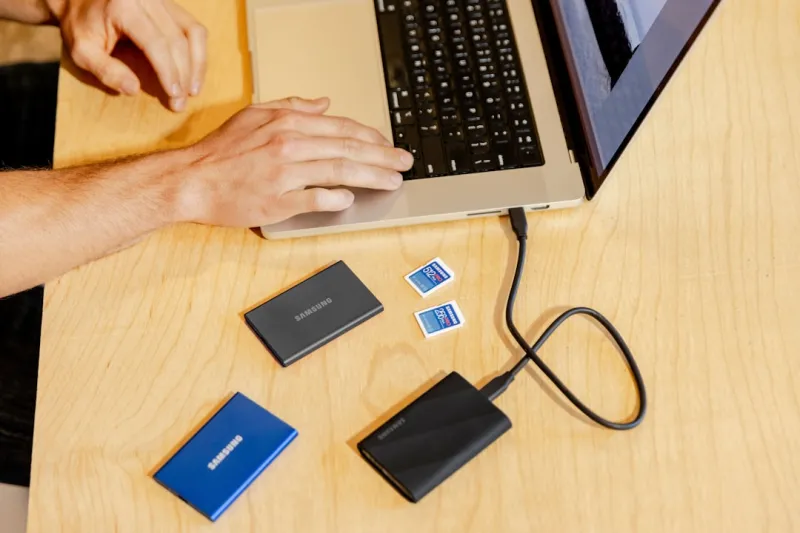
Choosing the right form factor can feel like navigating a maze of acronyms, especially when modern motherboards boast a dozen M.2 slots alongside traditional SATA ports. My go‑to configuration in 2026 is a dual‑M.2 setup: a 1 TB PCIe 4.0 NVMe for the OS and a 2 TB PCIe 5.0 drive dedicated to active projects. The extra bandwidth of PCIe 5.0 is no longer a novelty; it translates into noticeable gains when moving multi‑gigabyte datasets across drives. For external storage, Thunderbolt 4 enclosures now support up to 40 Gbps, making a 12 TB external HDD a viable option for on‑the‑go backups without sacrificing speed. Remember to match your enclosure’s interface to the drive’s native speed—pair a SATA‑III HDD with a USB 3.2 Gen 2x2 dock, and you’ll avoid the dreaded bottleneck that turns a “fast” external drive into a snail.
Longevity, TBW, and SMART: Reading the Health of Your Disks
Even the most robust drives will eventually whisper their demise via SMART attributes. In my experience, paying attention to total bytes written (TBW) and the “Reallocated Sector Count” can save you weeks of downtime. Modern HDDs in 2026 ship with enhanced error‑correcting algorithms that prolong useful life, but the principle remains: monitor, backup, replace. I run a lightweight PowerShell script daily that pulls SMART data from each drive and logs any deviations beyond manufacturer‑specified thresholds. When the script flags a rising reallocation count on a 10 TB archive drive, I clone it to a fresh unit before any data loss occurs. This proactive approach, combined with regular firmware updates—often overlooked—helps squeeze every extra year of service out of an otherwise aging platter.
Power‑User Workflow: RAID, Caching, and Tiered Storage
For those who demand both speed and redundancy, RAID remains a viable strategy, especially with the advent of hardware‑accelerated RAID controllers that off‑load parity calculations from the CPU. I run a RAID 1 mirror on my primary 2 TB SATA SSD to guard against sudden failures, while a RAID 0 stripe of two 4 TB HDDs handles bulk video rendering workloads. The trick is to avoid “RAID for the sake of RAID.” Instead, think of RAID as a tool to meet specific goals: performance, redundancy, or both. Coupling RAID with a dedicated SSD cache—often referred to as “Intel Smart Response Technology” in older parlance—creates a hybrid environment where frequently accessed blocks sit in flash, dramatically reducing latency for repetitive tasks. The result is a fluid experience that feels like you’re working on a single, monolithic drive, even though the data lives across multiple physical disks.
OS Integration: Tuning Windows 11 for Hard‑Drive Harmony
Windows 11 in 2026 offers a suite of storage‑centric settings that can make or break your drive performance. Enabling the new “Storage Spaces Direct” feature allows you to pool SSDs and HDDs into a single logical volume, automatically tiering hot data to the fastest media. I also recommend disabling the default “Superfetch” service on systems where you already have a well‑tuned cache hierarchy; it can cause unnecessary write amplification on SSDs and HDDs alike. For a deeper dive into Windows‑specific tweaks, check out my Turbocharge Your Windows 11 guide, which walks you through the exact registry edits and power‑plan tweaks that keep your drives humming without overheating.
Backup Strategies: The 3‑2‑1 Rule Reimagined
Even the most vigilant power‑user can’t afford a single point of failure, which is why I adhere strictly to a modernized 3‑2‑1 backup rule: three copies of your data, on two different media, with one off‑site. In practice, that translates to an internal 10 TB HDD for daily snapshots, a 4 TB external SSD for weekly full backups, and a cloud bucket for quarterly archival. The key nuance in 2026 is leveraging incremental snapshots via Windows 11’s built‑in “File History” or third‑party tools like Macrium Reflect, which dramatically reduce the storage overhead of frequent backups. By rotating the external SSD monthly, you also mitigate wear on any single flash device while ensuring that your off‑site copy remains fresh enough to meet recovery time objectives (RTO) in case of a catastrophic hardware event.
Future‑Proofing: Emerging Technologies on the Horizon
While today’s HDDs dominate the high‑capacity arena, several emerging technologies promise to shift the paradigm in the next few years. Quad‑Level Cell (QLC) NAND has finally reached a point where endurance is acceptable for cold‑storage workloads, and ZNS (Zoned‑Namespace) drives are beginning to appear in enterprise‑grade HDDs, offering improved sequential write performance by reducing internal seek overhead. Moreover, AI‑driven storage controllers are starting to predict access patterns and pre‑emptively move data to the optimal tier, a feature that will likely filter down to consumer‑grade motherboards by 2027. Keeping an eye on these trends now—by reading the latest whitepapers and firmware release notes—will ensure that your build remains relevant as the storage ecosystem evolves.
Security: Encryption and Hardware‑Based Protection
Data at rest is a prime target for ransomware, and in 2026 the best defense starts at the hardware level. Most modern 2.5‑inch and 3.5‑inch HDDs now ship with built‑in Self‑Encrypting Drive (SED) capabilities, which integrate seamlessly with Windows BitLocker. I enable BitLocker on every internal drive, setting a TPM‑backed key to avoid password fatigue while still ensuring that a stolen drive is useless without the proper credentials. For external media, I rely on hardware‑encrypted USB enclosures that require a PIN before the drive spins up, adding a physical layer of protection. Pairing encryption with the regular SMART monitoring discussed earlier creates a robust security posture that defends against both physical theft and logical compromise.
Putting It All Together: Your Next Power‑User Build
By now you’ve seen how a thoughtful blend of SSDs, HDDs, RAID configurations, and OS tuning can transform a modest workstation into a powerhouse capable of handling 2026’s data demands. If you’re ready to dive deeper into the specifics of building a balanced system, my Hard Drive Strategies Every Power‑User Needs article breaks down exact model recommendations, budgeting tips, and step‑by‑step installation guides. Remember, the goal isn’t to chase the newest spec for its own sake, but to craft a storage architecture that aligns with your workflow, budget, and long‑term reliability goals. Keep your drives monitored, your backups current, and your OS finely tuned, and you’ll stay ahead of the curve—no blue screen, no data loss, just pure performance.