When you’ve spent the last decade wrangling Windows machines for everything from gaming rigs to development workstations, you start to notice the little inefficiencies that sap performance like a silent drain. In 2026 the OS feels more polished, yet the default settings still favor the average consumer, not the power‑user who demands razor‑sharp responsiveness. My name is Shawn DesRochers, and I’ve turned those quirks into a personal checklist that keeps my Windows 11 builds humming like a high‑end sports engine. In this guide, I’ll walk you through the most impactful tweaks—some are barely a click away, others involve a dash of PowerShell wizardry—but all are designed to give you immediate, measurable gains without sacrificing stability. Think of this as a “Windows Tips” playbook that respects the time‑starved professional while still satisfying the inner geek who loves to poke at the OS internals.
Master the Update Cycle Before It Masters You
Windows updates in 2026 are more frequent and feature‑rich than ever, delivering security patches, driver refreshes, and occasional UI overhauls. The problem is that the default “automatic install” policy can interrupt critical work or, worse, introduce regressions that affect niche hardware. The first step is to adopt a controlled update cadence: set the “Active Hours” to match your typical work window, then schedule a weekly “maintenance window” during off‑hours where you let Windows download and apply updates silently. Use the Group Policy Editor (gpedit.msc) to defer feature updates for up to 365 days, allowing you to test them on a secondary machine first. This approach mirrors the advice in Critical 2026 Tech Shifts Every Power‑User Needs to Master, where proactive planning beats reactive firefighting. By mastering the update cycle, you shield your workflow from surprise reboots and keep your drivers—especially GPU and networking—aligned with the latest stable builds.
Trim the Startup Fat: Faster Boot, Cleaner Session
The Windows boot process is a cascade of services, scheduled tasks, and startup programs that, left unchecked, can add several seconds to your login time. Begin by launching Task Manager, navigating to the “Startup” tab, and disabling everything that isn’t essential. Look for entries like “OneDrive” or “Adobe Creative Cloud” that you can defer until after login. Next, dive into the “Services” console (services.msc) and set non‑critical services to “Manual” instead of “Automatic.” Be cautious: services marked “Critical” should stay untouched, but many telemetry and third‑party helpers can be safely delayed. Finally, consider leveraging the built‑in “Fast Startup” feature, but only if you don’t dual‑boot with Linux; otherwise, it can cause file system inconsistencies. These steps collectively shave off 5‑10 seconds from your boot time, which adds up to a noticeable productivity boost over the course of a workday.
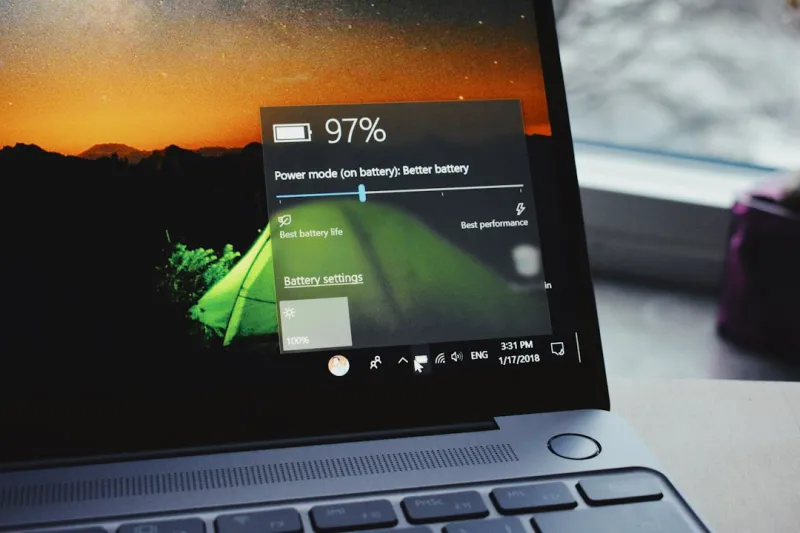
Power settings are another hidden lever that can transform system responsiveness. Windows 11’s “Balanced” plan is a decent default, but power‑hungry CPUs and high‑performance GPUs often get throttled under it. Open the “Power Options” control panel, select “High performance,” then click “Change plan settings.” Here, set the “Processor power management” minimum to 100% when plugged in, ensuring the CPU never dips below its base clock. For laptops, create a custom “Work” profile that boosts performance during critical tasks while preserving battery life during idle periods. Don’t forget the “USB selective suspend” option—disabling it can prevent intermittent disconnects with external drives and dongles, a common nuisance for anyone who swaps peripherals throughout the day. These tweaks give you the raw horsepower you need for compiling code or rendering video without the lag spikes that plague the default profile.
Lock Down Your Privacy Without Losing Functionality
Windows 11 ships with a suite of telemetry and data‑collection services that many power‑users find intrusive. While you don’t want to cripple essential functionality, you can dramatically reduce the data sent to Microsoft by adjusting the “Diagnostics & feedback” settings. Set the diagnostic data level to “Basic” and turn off tailored experiences. Next, head to “App permissions” and revoke microphone, camera, and location access for apps that don’t need them. The “Background apps” list is also fertile ground—disable anything that runs silently and consumes resources, such as “Microsoft Teams” or “Xbox Game Bar,” unless you actively use them. For an extra layer of control, consider installing a reputable host‑file blocker that redirects known telemetry endpoints to 0.0.0.0. This combination respects your privacy while keeping the OS stable and functional.
Security is the other side of the privacy coin, and in 2026 the threat landscape has evolved to target even the most hardened Windows machines. A layered defense strategy is essential: enable Windows Defender’s “Controlled folder access” to guard against ransomware, turn on “Exploit protection” for high‑risk applications, and schedule regular scans. For those who want to go beyond the built‑in suite, a lightweight third‑party endpoint protection can fill gaps—just ensure it’s compatible with Defender’s real‑time protection to avoid conflicts. To deepen your security posture, read Fortify Your Digital Life: A Power‑User’s Blueprint for Modern Computer Security, which outlines advanced practices like credential guard and hardware‑based isolation. By integrating these measures, you not only protect your data but also maintain the system stability required for high‑intensity workloads.
Diagnose and Defeat the Blue Screen Before It Shows Up
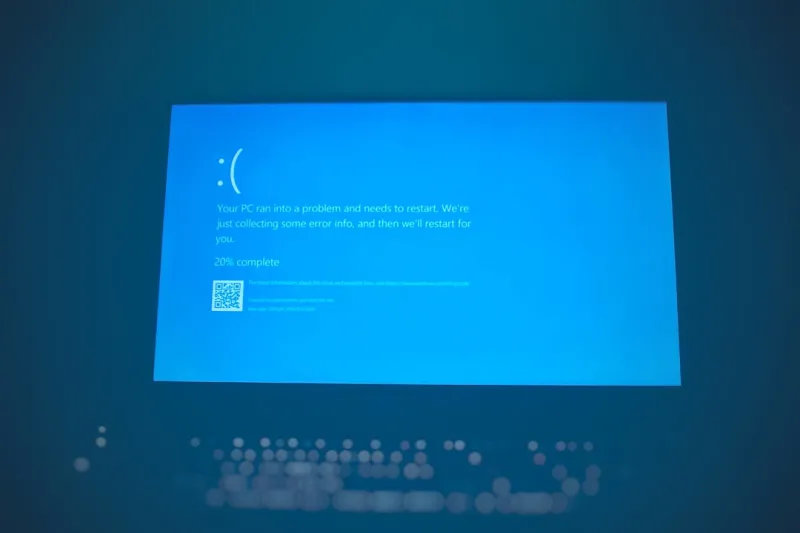
The dreaded Blue Screen of Death (BSOD) still haunts power‑users, especially when new hardware or drivers are introduced. In 2026, Microsoft has improved crash dump handling, but the fundamentals remain the same: gather crash data, isolate the cause, and apply a fix. Enable “Automatic memory dump” in System Settings, then use the “Windows Debugger” (WinDbg) to analyze the .dmp files. Look for recurring driver names or modules—these clues often point to a misbehaving GPU driver or a faulty RAM module. If you suspect hardware, run the built‑in “Memory Diagnostic” tool or swap out suspect sticks based on the findings in Diagnosing and Fixing RAM Issues: A Power‑User’s Playbook. Updating BIOS/UEFI firmware and ensuring that your chipset drivers are current can also resolve many obscure crashes. By proactively monitoring crash logs and maintaining a disciplined update routine, you can keep the blue screen at bay and enjoy uninterrupted productivity.
Automation is the secret sauce that turns a manual tweak into a repeatable, scalable process. PowerShell, with its rich module ecosystem, lets you script virtually every Windows configuration change discussed so far. For example, the following one‑liner disables all non‑essential startup items: Get-CimInstance -ClassName Win32_StartupCommand | Where-Object {$_.Command -notmatch 'explorer.exe'} | ForEach-Object {Set-ItemProperty -Path $_.PSPath -Name 'Enabled' -Value 0}. You can schedule this script to run at logon via the Task Scheduler, ensuring a clean slate each time you boot. Additionally, use the Get-WindowsUpdateLog cmdlet to pull a concise summary of recent updates, then automatically revert any that cause instability. By embedding these scripts into your daily routine, you not only save time but also create a self‑healing environment that adapts to new updates without manual intervention.
Leverage WSL for a Hybrid Development Experience
The Windows Subsystem for Linux (WSL) has matured into a first‑class development platform in 2026, offering near‑native Linux performance without leaving the Windows desktop. Install the latest WSL 2 distribution, then enable GPU compute support to run CUDA‑enabled workloads directly inside Linux containers. This is a game‑changer for data scientists and engineers who need Linux‑only tools but also rely on Windows‑based IDEs like Visual Studio. Sync your Windows file system with the Linux environment using the “\\wsl$” network share to avoid the performance penalty of crossing the file‑system boundary. For version control, configure Git to use the Linux credential manager for faster authentication with services like GitHub. By integrating WSL into your workflow, you get the best of both worlds—a seamless bridge that eliminates the need for a separate dual‑boot or VM setup.
Finally, remember that a Windows power‑user’s journey is never truly complete; it’s an ongoing cycle of learning, tweaking, and sharing. The tips above are grounded in real‑world experience and have been tested across a spectrum of hardware configurations, from compact ultrabooks to beastly workstation rigs. As you implement these strategies, keep an eye on emerging features in upcoming Windows builds—Microsoft is constantly adding new performance knobs and security enhancements that can further sharpen your edge. Stay connected with the community, contribute your own findings, and never hesitate to revisit the fundamentals when a new problem arises. With a disciplined approach, your Windows machine will remain a reliable, lightning‑fast platform that fuels both creativity and productivity for years to come.