When I first tore open a desktop back in the early 2010s, the humming of a 7200 RPM hard drive was the soundtrack of my tinkering sessions. Fast‑forward to 2026, and the landscape is peppered with NVMe flash modules that sprint at gigabytes per second, yet the humble spinning disk still has a seat at the power‑user’s table. In this deep dive, I’ll walk you through why hard drives remain a strategic piece of the puzzle, how to select the right model for your workload, and the maintenance habits that keep them humming reliably for years. Expect a blend of hard‑earned anecdotes, data‑driven recommendations, and actionable steps that fit neatly into the broader power‑user playbook you already trust.
Why Hard Drives Still Matter in an SSD‑Dominated Era
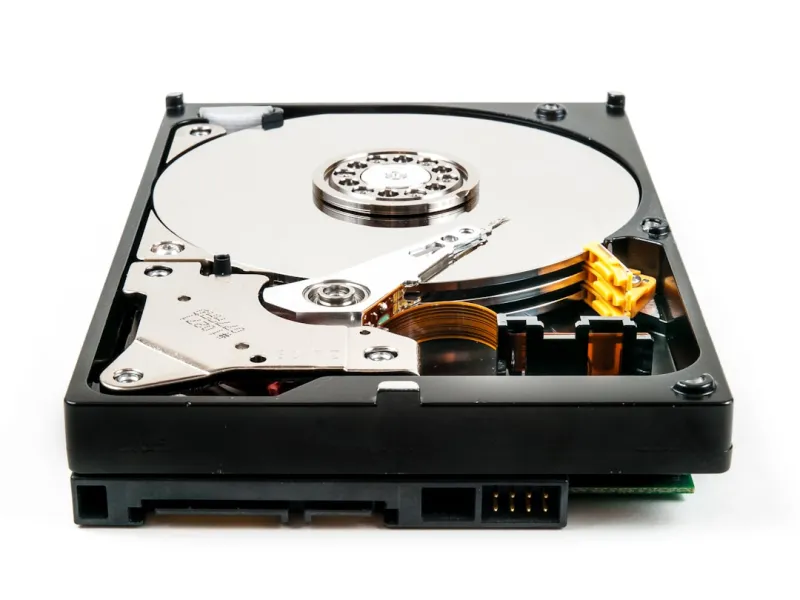
SSD prices have fallen dramatically, but the cost‑per‑gigabyte for a high‑capacity HDD still undercuts any flash solution when you’re staring at terabytes of media, backups, or archival data. The economics become especially compelling for users who run large‑scale video editing rigs, host game libraries, or maintain multiple virtual machine snapshots. Moreover, modern HDDs have closed the performance gap for sequential workloads thanks to technologies like shingled magnetic recording (SMR) and helium‑filled platters. While an SSD still wins in random I/O latency, a well‑chosen 10 TB 7200 RPM drive can deliver sustained write speeds that feel “instant” for bulk transfers—making it a pragmatic companion to your primary OS drive.
Form Factor and Interface: Matching the Drive to the System
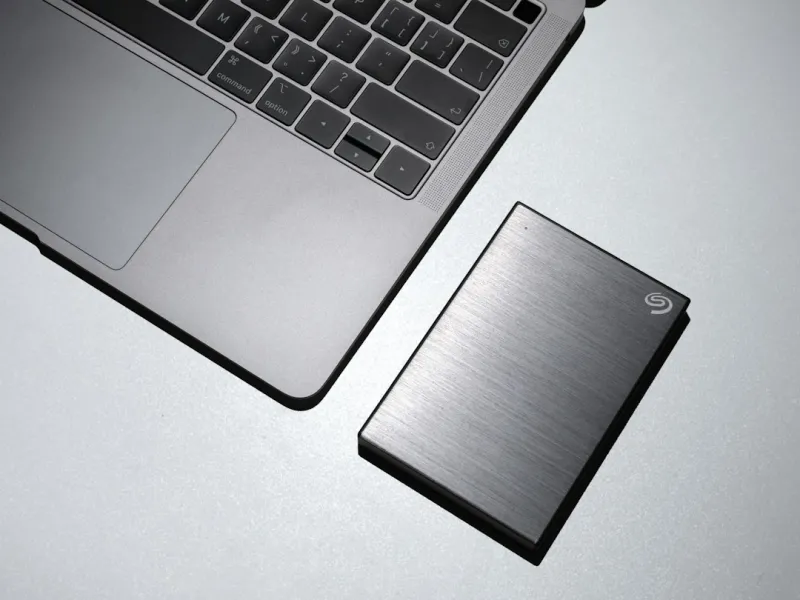
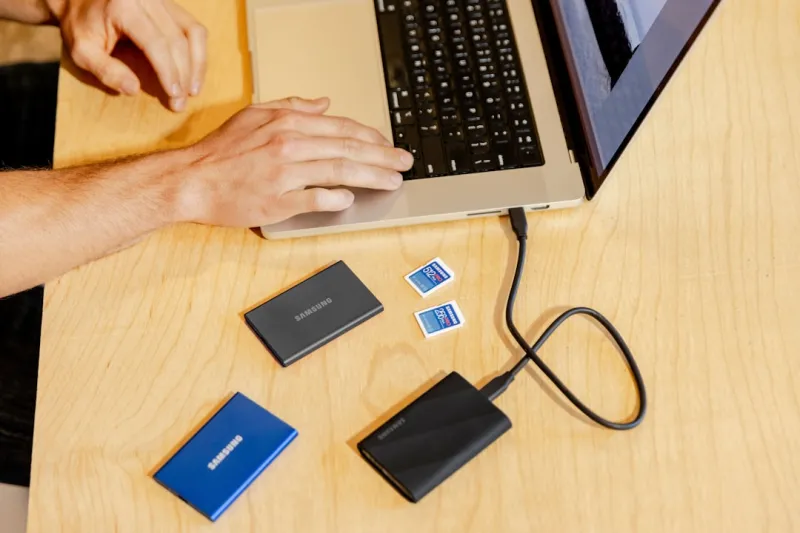
Desktop towers today often support both 3.5‑inch and 2.5‑inch bays, while compact cases lean heavily on the smaller form factor. The choice isn’t just about space; it dictates the interface you’ll use. SATA III remains the universal baseline, delivering up to 6 Gb/s, but newer “SATA Express” adapters can bridge the gap to PCIe lanes for hybrid SSD/HDD combos. If your motherboard boasts dedicated SATA‑M.2 ports, you can even mount a 2.5‑inch HDD in an M.2 slot with a simple adapter, preserving cable management. For external storage, USB 3.2 Gen 2x2 or Thunderbolt 4 enclosures unleash the full bandwidth of modern drives, letting you move multi‑terabyte backups without choking on the interface.
Speed Considerations: SATA, NVMe, and the Rise of Hybrid Solutions
While HDDs can’t match the raw speed of NVMe SSDs, they’ve evolved. Many 2026 models support a 256‑MB cache powered by DRAM, which smooths random reads and writes. Pairing a fast SSD for OS and applications with a high‑capacity HDD for bulk storage creates a “tiered” storage architecture that feels seamless to the end user. I often reference Hard Drive Strategies for Power Users: Balancing Speed, Capacity, and Longevity when explaining this synergy; the article outlines how to configure Windows 12’s Storage Spaces to treat the two tiers as a single logical volume while still preserving the speed‑capacity balance you crave.
Capacity Planning: Future‑Proofing Your Data Reservoir
When I’m designing a workstation for 4K video work, I start by estimating raw footage size: a minute of uncompressed 4K at 60 fps can easily consume 150 GB. Multiply that by a typical project length and you quickly need 10 TB or more. Rather than buying a single massive drive, I split the capacity across two 8 TB units in a RAID 1 mirror for redundancy, or a RAID 0 stripe if performance outweighs safety. This modular approach also aligns with the “future‑proof” mindset: as newer, higher‑density platters hit the market, you can swap one drive without overhauling the entire storage subsystem.
Longevity and Endurance: What the Specs Really Mean
Hard drives are mechanical, so wear is inevitable, but not all wear is equal. Look for MTBF (Mean Time Between Failures) ratings in the millions of hours and annualized failure rates (AFR) below 0.5 %. Modern drives also feature S.M.A.R.T. monitoring that alerts you to deteriorating read/write heads or spindle imbalances. I habitually set up a scheduled task in Windows 12 to dump S.M.A.R.T. logs into a central monitoring dashboard—an easy habit that catches a failing drive before data loss strikes. The key is to treat your HDD as a living component: regular health checks and temperature monitoring (keep it under 45 °C) dramatically extend its useful life.
Security and Encryption: Safeguarding Gigabytes of Sensitive Data
Data at rest is a prime target for modern malware, especially ransomware that encrypts everything on a compromised drive. Fortunately, many 2026 HDDs ship with built‑in hardware encryption (Opal 2.0) that integrates with BitLocker or the native Windows 12 encryption stack. Enabling full‑disk encryption adds a negligible performance penalty on spinning media, but it provides a critical layer of defense. Pair this with the guidelines from The Power‑User’s Playbook for Defeating Modern Malware, and you’ll have a multi‑front shield that protects both the OS drive and your massive data vaults.
Integrating Hard Drives into a Future‑Proof Build
If you’re constructing a next‑generation rig, consider the broader architecture: power supply headroom, cooling, and motherboard lane allocation all influence drive choice. In the Building a Future‑Proof PC in 2026: The Power‑User’s Blueprint, I map out a workflow that slots a high‑performance SSD into the primary M.2 slot, a 10 TB HDD into a dedicated SATA‑III rail with active cooling, and leaves spare PCIe lanes for future expansion—perhaps an NVMe RAID array for AI workloads. This layout ensures that as storage technologies evolve, you can add or replace drives without rewiring the entire chassis, preserving both performance and investment.
Maintenance Practices: Keeping Your Drive Healthy Over Time
Maintenance isn’t just a one‑time setup; it’s an ongoing ritual. Defragmentation, once a staple for HDD performance, is now largely automated by Windows 12’s “Optimize Drives” utility, which runs during low‑usage windows. However, I still recommend a quarterly manual defrag for drives that host large, static media libraries. Additionally, keep firmware up to date—manufacturers release patches that improve error handling and power management. A simple PowerShell script can pull the latest firmware version from the vendor’s API and alert you if a newer build exists, ensuring your drive runs on the most stable codebase available.
Balancing Cost, Performance, and Reliability: The Final Verdict
At the end of the day, the “best” hard drive is the one that fits your workflow, budget, and longevity goals. For most power users, a hybrid approach—fast NVMe for the OS and applications, complemented by a large, reliable 7200 RPM HDD for bulk storage—delivers the sweet spot of speed, capacity, and cost‑effectiveness. Pair this with diligent health monitoring, encryption, and a well‑planned chassis layout, and you’ll have a storage solution that not only meets today’s demands but also scales gracefully into the next wave of computing challenges. Happy building, and may your platters spin forever smooth.