When I first cracked open a 4‑TB hard drive back in the early 2020s, I thought I’d finally solved the storage problem that haunted every power user: “Enough space for everything, forever.” Fast forward to 2026, and the landscape has reshaped itself in ways that even the most seasoned enthusiasts could barely predict. The sheer density of NAND flash, the plummeting cost per gigabyte of SATA SSDs, and the rise of PCIe 5.0 NVMe drives have all forced us to rethink the role of traditional spinning disks. Yet, despite the hype, HDDs remain a cornerstone in many workflows—whether you’re archiving raw 8K footage, maintaining massive game libraries, or simply looking for a reliable, low‑cost cold‑storage solution. In this deep dive, I’ll walk you through the trends, trade‑offs, and practical strategies that let you leverage hard drives without compromising on speed, safety, or future‑proofing.
Why Hard Drives Still Matter in a Flash‑Driven World
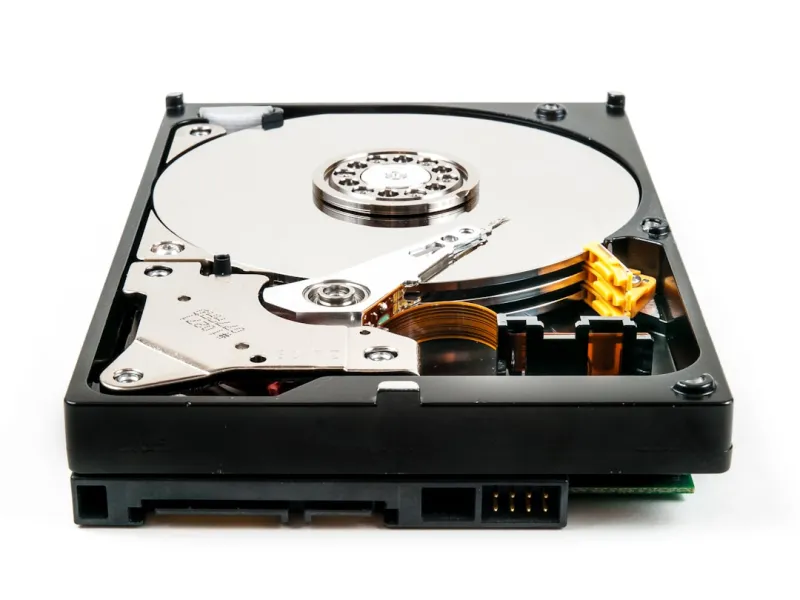
Let’s face it: SSDs dominate the conversation when it comes to performance. Their sub‑millisecond latency and soaring sequential read/write speeds make them the undisputed champion for boot drives and active project files. But the economics of storage tell a different story for bulk data. A 10‑TB SATA SSD in 2026 still carries a premium price tag—often three to four times that of a comparable 10‑TB HDD. For power users who regularly handle terabytes of media, scientific datasets, or massive virtual machine snapshots, the cost differential is decisive. Moreover, HDDs offer a level of data permanence that some archival standards still prefer; their magnetic domains, when properly stored, can survive decades without power. In my own rig, I’ve partitioned the SSD for OS and daily apps, while the HDDs act as silent vaults for everything that isn’t accessed daily. That hybrid approach balances the instant gratification of flash with the budget‑friendly capacity of spin‑disk.
The Evolution of SSD Technology: From QLC to PCIe 6.0
While HDDs hold their ground in bulk storage, SSD tech has not stood still. QLC (Quad‑Level Cell) NAND, once dismissed for its limited write endurance, has matured thanks to sophisticated wear‑leveling algorithms and over‑provisioning. Today’s QLC drives can comfortably handle the read‑heavy workloads typical of media libraries, making them a viable middle ground between cost and speed. On the performance front, PCIe 5.0 NVMe SSDs have become mainstream, delivering read speeds north of 14 GB/s and write speeds approaching 13 GB/s. Early adopters are already eyeing PCIe 6.0, which promises to double that throughput, although mainstream adoption may still be a couple of years out. For power users, the key takeaway is to match the storage tier to the task: use cutting‑edge NVMe for active workloads, QLC for read‑mostly archives, and HDDs for cold storage where latency is a non‑issue.
Reliability Metrics: TBW, MTBF, and Real‑World Longevity
One of the biggest myths about hard drives is that they’re inherently unreliable. In reality, modern HDDs boast impressive Mean Time Between Failures (MTBF) ratings—often exceeding 2 million hours. However, the real-world failure rate is better gauged by SMART health metrics and the drive’s workload profile. Unlike SSDs, which are rated by Terabytes Written (TBW), HDDs are more sensitive to vibration, temperature spikes, and prolonged spin‑up cycles. I’ve found that maintaining a cool, vibration‑free environment (think rubber‑mounted bays and 30 °C ambient temps) dramatically extends drive life. Additionally, regular backups and RAID‑1 mirroring can mitigate the impact of a sudden mechanical failure. For archival storage, consider using drives with a reputation for longevity—Western Digital Gold or Seagate Exos series, for instance—paired with periodic health checks using tools like CrystalDiskInfo.
Encrypting the Magnetic: Security Strategies for Spinning Disks
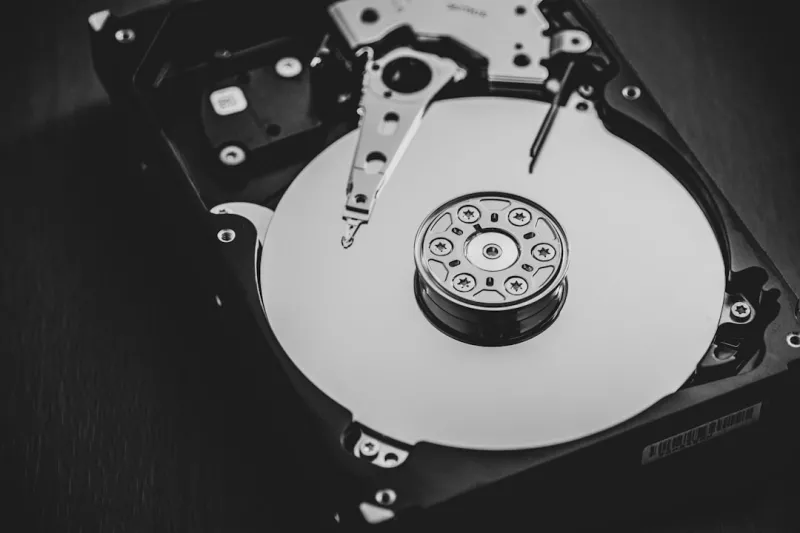
Data security isn’t just the domain of SSDs; hard drives can be just as protected when you apply the right strategies. Self‑Encrypting Drives (SEDs) embed AES‑256 encryption at the hardware level, ensuring that data remains unreadable without proper authentication. Pairing an SED with a solid passphrase and enabling BitLocker or Linux LUKS adds an extra layer of defense. In my own setup, I’ve integrated unbreakable security strategies by enforcing full‑disk encryption across all internal drives, including HDDs, and coupling that with a TPM‑backed key storage. The result is a fortress where even a stolen drive yields no usable data. Remember, encryption can slightly affect performance, but the trade‑off is negligible for bulk storage where throughput isn’t the primary concern.
Seamless Migration: Moving Data Between HDDs and SSDs
Transitioning from an HDD‑centric workflow to a hybrid or SSD‑first architecture can feel daunting, but the process is smoother than you think. Tools like Clonezilla, Macrium Reflect, and the built‑in Windows System Image feature allow you to clone your existing OS partition to a new NVMe drive without reinstalling software. For data migration, I recommend a staged approach: first, copy critical project files to the SSD, verify integrity, then offload older, less frequently accessed data back onto the HDDs. This method ensures you maintain a working environment throughout the transition. If you need a comprehensive guide, my Operating System Mastery for Power Users in 2026 article walks you through the exact steps, complete with command‑line snippets for Linux power users and PowerShell scripts for Windows aficionados.
Future‑Proofing Your Storage Architecture
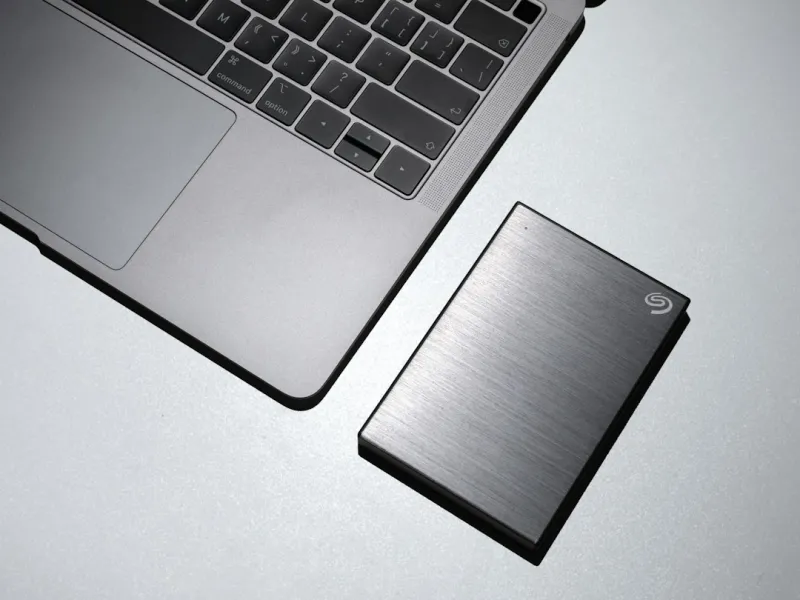
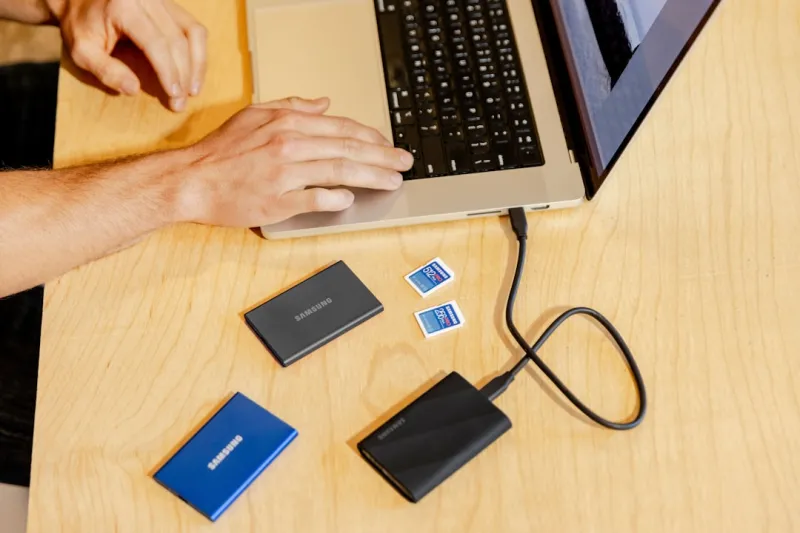
Looking ahead, the smartest power users design their rigs with modularity in mind. That means choosing a motherboard with ample M.2 slots, SATA ports, and even U.2 connectors for enterprise‑grade SSDs. In my latest build, I allocated a dedicated M.2 2280 slot for a PCIe 5.0 NVMe drive, reserved two SATA ports for 4‑TB HDDs, and left a spare U.2 lane for potential upgrades. The Power‑User Hardware Guide emphasizes that this flexibility pays dividends when newer standards arrive—simply plug in a faster drive without overhauling the entire system. Additionally, consider external enclosures with Thunderbolt 4 or USB4 interfaces; they provide blazing‑fast access to HDDs when you need to move large datasets between workstations.
Network‑Attached Storage: Extending HDD Capacity Across the Home
When a single machine’s internal bays become insufficient, a Network‑Attached Storage (NAS) solution is the natural next step. Modern NAS units support both HDDs and SSDs, allowing you to create tiered storage pools where hot data lives on SSD cache and cold archives reside on spinning disks. In my setup, a 12‑bay NAS houses a mix of 12‑TB Seagate IronWolf drives for bulk storage and a pair of 2‑TB NVMe SSDs for cache. This configuration delivers near‑instantaneous access to frequently used files while preserving the low cost per terabyte of HDDs for the rest. If you’re curious about setting up a robust network for power‑user workloads, my forthcoming guide on building a 2026‑Ready Home Network will cover everything from link aggregation to VLAN‑segmented storage traffic.
Energy Efficiency and Environmental Impact
Hard drives have often been critiqued for their power draw, especially when stacked in large arrays. However, advances in motor design and firmware have trimmed idle consumption to under 5 W per drive, while active read/write operations hover around 7‑9 W. By configuring drives to spin down during periods of inactivity—using tools like hdparm on Linux or Power Options on Windows—you can shave off a noticeable fraction of your overall electricity bill. Moreover, selecting drives with a lower environmental impact rating (e.g., drives manufactured with recycled materials) aligns with the broader sustainability goals many power users now prioritize. Pairing efficient drives with a smart power‑management strategy not only reduces your carbon footprint but also lessens heat output, which in turn prolongs hardware lifespan.
Actionable Checklist: Optimizing Your Hard Drive Strategy in 2026
To wrap up, here’s a concise checklist you can apply right now:
- Identify data categories: active, semi‑active, and archival.
- Allocate SSD (NVMe) for active workloads; use QLC SSDs for read‑heavy libraries.
- Reserve high‑capacity HDDs for archival; choose drives with strong MTBF and warranty.
- Enable full‑disk encryption on all internal drives, especially HDDs.
- Implement regular SMART health monitoring and schedule backups.
- Design your motherboard layout with spare M.2/U.2 slots for future upgrades.
- Consider a tiered NAS with SSD cache for networked access.
- Configure spin‑down and power‑saving features to cut energy use.
By following these steps, you’ll harness the best of both worlds—blazing performance where it counts, and massive, affordable storage where latency is less critical. As storage technologies continue to evolve, staying adaptable and informed will keep your workflow smooth, secure, and ready for whatever data‑intensive challenges 2026 throws your way.