When the office printer coughs, sputters, and finally spits out a half‑finished page, it feels like the universe is conspiring against your deadline. I’m Shawn DesRochers, and after years of coaxing everything from laser beasts to ink‑jet workhorses into submission, I’ve learned that the difference between a smooth‑sailing print job and a daily drama is a handful of disciplined habits. In 2026, printers are smarter, faster, and more network‑integrated than ever, but they’re still vulnerable to the same old sins: dried ink, misfed paper, and outdated firmware. This post dives deep into the practical, low‑tech tricks that keep your printer humming, while also touching on the high‑tech updates that power users can’t afford to ignore. Think of it as a hybrid of hands‑on maintenance and strategic foresight—exactly the blend you need to stay ahead of those dreaded “paper jam” alerts and keep your ink budget under control.
Why Printer Health Matters More Than Ever
In the age of remote work and hybrid offices, a reliable printer isn’t a luxury; it’s a linchpin for contracts, marketing collateral, and even quick client‑facing proofs. When a printer falters, you’re not just losing paper—you’re losing momentum, credibility, and precious time that could be spent on revenue‑generating tasks. Moreover, modern printers are interconnected with corporate networks, meaning a single jam can ripple into security alerts or cause unintended bandwidth spikes. Maintaining printer health therefore protects both your workflow efficiency and your organization’s cyber‑hygiene. By treating your printer like a critical peripheral—on par with your SSD or GPU—you’ll reduce surprise downtime and extend the lifespan of costly consumables. The payoff is immediate: fewer “out of ink” interruptions, smoother batch prints, and a quieter office environment that lets you focus on the work that truly matters.
Everyday Maintenance Hacks for Ink Flow and Paper Paths
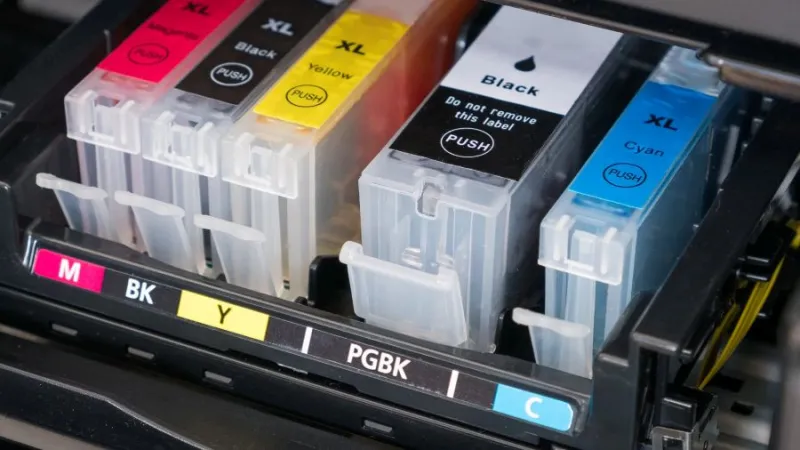
The most common culprits behind poor print quality are dried ink and clogged print heads. A quick, weekly ritual can prevent these issues from snowballing. Start by running the printer’s built‑in cleaning cycle—most manufacturers hide this behind a menu option that you can trigger without a full cartridge replacement. After the cycle, manually wipe the print head with a lint‑free cloth lightly dampened with distilled water; this removes residual pigments that the software routine can’t reach. For ink‑jet users, consider storing cartridges in a cool, dry place when not in use, and avoid exposing them to direct sunlight, which accelerates evaporation. When it comes to paper, always use the correct tray and ensure the paper guides are snug. Misaligned guides cause the paper to feed at odd angles, leading to jams that damage rollers. A simple tip: fan the paper stack before loading it to reduce static cling, which is a silent printer‑killer especially in low‑humidity office climates.
Paper handling isn’t just about preventing jams; it’s also about preserving print fidelity. Use the manufacturer‑recommended paper weight and finish for each print mode—glossy photo paper for high‑resolution images, and a heavier bond for legal documents. Mixing paper types in the same tray can confuse the sensor and trigger “paper type mismatch” errors. If you must switch between media frequently, keep a separate tray for each type to avoid cross‑contamination of dust and fibers. Lastly, inspect the rollers periodically; a thin layer of silicone spray can revitalize worn surfaces, but be careful not to oversaturate. A well‑lubricated roller set reduces friction, which not only prevents jams but also minimizes wear on the paper feed mechanism, extending the printer’s operational life.
Staying Ahead with Firmware, Drivers, and Network Security
Even the most meticulous cleaning routine can be undone by outdated firmware. Manufacturers regularly release patches that improve ink flow algorithms, refine paper detection, and close security loopholes that could be exploited by malicious actors. In 2026, it’s a best practice to schedule a monthly check for firmware updates via the printer’s web interface or dedicated management software. Pair this with driver updates on each workstation to ensure optimal communication between the OS and the printer. If you’re on Windows, don’t overlook the hidden power of system updates—yes, the very same Windows updates that keep your OS stable also include printer driver bundles that can resolve obscure incompatibilities. Ignoring these updates is akin to skipping oil changes on a car; the engine may run for a while, but the long‑term damage accumulates silently.
Networked printers add a layer of convenience—but also a layer of risk. A printer that sits on the same VLAN as your finance department can become an attack vector if left unprotected. Follow the principles outlined in Master Modern Networks by segmenting printers onto a dedicated subnet, enforcing strong administrator passwords, and disabling unused protocols like FTP or Telnet. Regularly audit the printer’s web console for unknown users, and enable encrypted communication (HTTPS) whenever possible. By treating the printer as a networked endpoint, you not only safeguard sensitive documents but also prevent rogue traffic from clogging your internal bandwidth, which can otherwise manifest as delayed print jobs and erratic performance.
Proven Troubleshooting Steps (With a Link to the Ultimate Guide)
When a jam does occur despite your best efforts, a systematic approach saves you from guesswork and unnecessary part replacements. First, power down the printer and disconnect it from the network to avoid electrical spikes. Open all accessible panels and gently remove any torn paper fragments—never use forceful tools that could scratch the rollers. Next, run the printer’s diagnostic utility; most modern devices generate a detailed error log that points to the exact component at fault. If the log cites “ink starvation,” revisit your cartridge seating and run another cleaning cycle. For persistent issues, consult the comprehensive resource Master Your Printer, which walks you through advanced techniques like deep‑cleaning the ink delivery system and recalibrating the paper sensor. Following a structured checklist reduces downtime and prevents you from ordering replacement parts prematurely—a common cost trap for busy offices.
Another often‑overlooked troubleshooting shortcut is to reset the printer’s internal memory. Many models retain cached settings that can become corrupted after firmware upgrades. A simple factory reset, followed by a fresh configuration of network settings and print preferences, can clear out these hidden glitches. Remember to back up any custom profiles before resetting; you’ll thank yourself when you avoid re‑creating complex print queues from scratch. Finally, keep a log of recurring errors—date, time, and symptoms. Over time, patterns emerge that can pinpoint a failing component, such as a worn feed roller that needs replacement before it fully breaks, saving you both time and money in the long run.
Future‑Proofing Your Print Workflow with AI and Smart Consumables
The printer landscape is evolving rapidly, with AI‑driven predictive maintenance and smart consumables entering the mainstream. Modern devices can now analyze usage patterns to alert you when a cartridge is about to run dry or when a roller is approaching the end of its service life. Integrating these insights with your IT ticketing system allows for proactive ordering of ink and parts, turning what used to be a reactive scramble into a seamless supply chain. For power users, leveraging the AI computing revolution means you can automate routine print jobs through scripts that adapt output quality based on the document type—high‑resolution for marketing brochures, draft mode for internal memos—saving both toner and time. As 2026 brings more edge‑computing capabilities to peripherals, expect printers that can self‑diagnose, self‑optimize, and even securely wipe confidential documents before disposal, aligning perfectly with modern data‑privacy mandates.
Embracing these advances doesn’t require a complete hardware overhaul. Start by enabling any built‑in analytics dashboards and connecting the printer to your existing monitoring tools via SNMP or REST APIs. This integration provides real‑time alerts that can be routed to Slack or Teams, ensuring that the right person receives a notification the moment a jam is detected or ink runs low. Additionally, explore third‑party consumables that embed RFID tags; these can communicate cartridge health directly to the printer, further reducing the guesswork around replacement cycles. By marrying traditional maintenance practices with emerging AI features, you’ll achieve a print environment that’s both resilient and intelligently responsive—a true competitive advantage for any modern office.