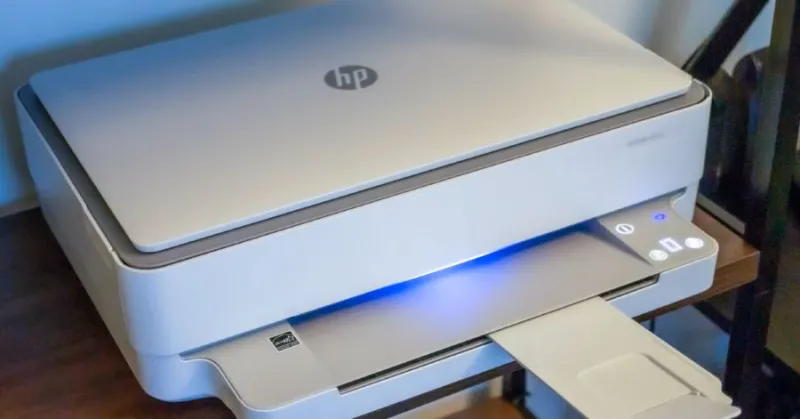
When I first set up my home office in 2022, I thought the printer was the easy part of the tech stack. Fast forward to 2026, and I’ve learned that a printer is a fickle beast that demands the same kind of love and attention we give our laptops and smartphones. In this post I’m pulling back the curtain on the day‑to‑day rituals that keep ink flowing smoothly, paper jams at bay, and those dreaded “offline” messages from disappearing like a bad dream. Whether you’re a freelance graphic designer cranking out high‑resolution proofs, a small‑business owner printing invoices, or a remote worker juggling PDFs and contracts, these printer tips will save you time, money, and a whole lot of frustration. I’ll share my personal workflow, the little‑known hacks I swear by, and a few strategic choices that have turned my printer from a temperamental sidekick into a reliable workhorse.
First things first: regular print head cleaning isn’t just a one‑off chore—it’s a maintenance habit that pays dividends. I schedule a quick cleaning cycle every two weeks, using the printer’s built‑in utility rather than third‑party chemicals that can corrode delicate nozzles. If your model supports a “deep clean” option, reserve it for when you notice streaks or faded colors, not as a routine. I also keep a lint‑free microfiber cloth and a small amount of distilled water handy; a gentle wipe of the cartridge contacts can prevent the dreaded “no ink” error that often masquerades as a hardware failure. Remember, the print head is the heart of your printer, and like any heart, it thrives on consistent, gentle care rather than occasional, aggressive interventions.
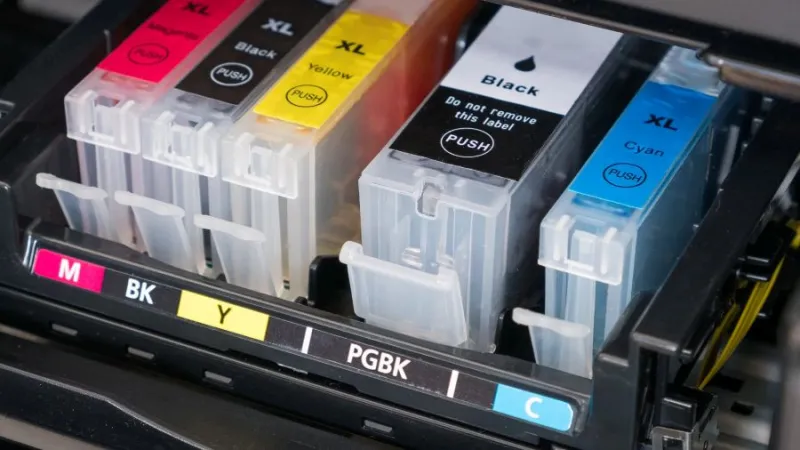
Cartridge selection is another arena where many users make costly missteps. While the allure of cheap compatible inks is strong, I’ve found that high‑yield OEM cartridges often provide better value over time, especially when you factor in fewer replacements and superior color fidelity. My go‑to resource for this debate is the article OEM vs Compatible Ink Cartridges: Why OEM Ink May Be Worth the Extra Cost, which breaks down the long‑term cost analysis in plain English. If you’re printing marketing materials where brand colors must stay true, stick with OEM; for bulk drafts and internal documents, a reputable compatible brand can be a smart, budget‑friendly choice. The key is to avoid the cheapest options that can clog your print head and force you into expensive clean‑up cycles.
Network connectivity is where printers often betray us with the infamous “offline” status, even when they’re physically powered on. My experience taught me to double‑check the printer’s IP address and ensure it’s reserved in the router’s DHCP table—a simple step that prevents the printer from roaming to a new address after a reboot. If you’re still seeing the dreaded message, dive into the guide Why Your Printer Says Offline When It Isn’t. It walks you through verifying the correct protocol (RAW vs. IPP), disabling power‑saving modes that can drop the network interface, and even tweaking the firewall to allow printer traffic. Once the network handshake is solid, you’ll notice a dramatic drop in “printer not found” alerts and a smoother workflow when printing from multiple devices.
Driver updates are the silent heroes that keep your printer speaking the same language as your operating system. I treat driver management like I do my antivirus—regularly checking the manufacturer’s website or using their auto‑update utility. In 2026, many printers ship with cloud‑based drivers that auto‑refresh, but legacy models still rely on manual installs. A recent Windows 11 update introduced a new print spooler architecture, and without the latest driver, you can end up with ghost prints or paper‑feed errors. Keep a backup of your driver installer on an external drive, and when you roll out a major OS upgrade across the office, test the printer on a single machine first to catch any incompatibilities before they affect the whole team.
Paper handling is more nuanced than most people realize. The first rule of thumb: always store paper in a cool, dry place to avoid humidity‑induced curl, which leads to jams and uneven feeding. I use a simple resealable plastic bag with a desiccant packet inside the tray to maintain optimal moisture levels. When loading paper, fan the stack lightly—this separates sheets and reduces static cling that can cause double‑feeds. If you print on specialty media like cardstock or glossy photo paper, adjust the printer settings to match the weight and finish; otherwise you’ll see smudging or incomplete ink transfer. And never overfill the tray—most manufacturers recommend filling no more than three‑quarters full to give the rollers enough room to grip each sheet properly.
Eco‑friendly printing isn’t just a buzzword; it’s a practical approach that reduces waste and cuts costs. I’ve switched to duplex (double‑sided) printing as the default on all documents, which slashes paper usage by nearly half. Most modern printers support automatic duplexing, but if yours doesn’t, consider a manual duplex method: print odd pages, flip the stack, and print evens. Additionally, enable “draft” mode for internal drafts where high resolution isn’t critical—it uses less ink and speeds up the print job. For those concerned about cartridge waste, look into refill kits that meet OEM standards, or participate in recycling programs offered by the manufacturer. The environmental payoff is significant, and you’ll notice a lighter load on your office budget over time.
Looking ahead, the printer landscape is evolving toward seamless cloud integration and AI‑driven print optimization. Services like Google Cloud Print’s successor allow you to send jobs from any device without ever installing a driver, while AI algorithms can predict the optimal ink density for each page, reducing waste. If you’re a power user, consider a printer that supports “Print from Anywhere” APIs, enabling secure printing from a smartphone while you’re on the go. This trend dovetails nicely with broader network considerations—check out Master Modern Networks: Speed, Security, and Future‑Proofing for a deeper dive on securing those cloud‑connected peripherals.
To wrap things up, here’s my personal checklist that I run through every quarter: 1) Clean the print head and inspect cartridges; 2) Verify IP address reservation and network settings; 3) Update drivers and firmware; 4) Audit paper storage and tray fill levels; 5) Switch default settings to duplex and draft where appropriate; 6) Review cartridge usage reports to decide on OEM vs. compatible purchases; 7) Test cloud printing workflows; and 8) Document any recurring errors in a simple spreadsheet for trend analysis. By treating your printer as a living component of your tech ecosystem, you’ll avoid costly downtime and keep your workflow humming. Remember, a well‑maintained printer is a silent partner that lets you focus on the creative or strategic work that truly moves the needle.