
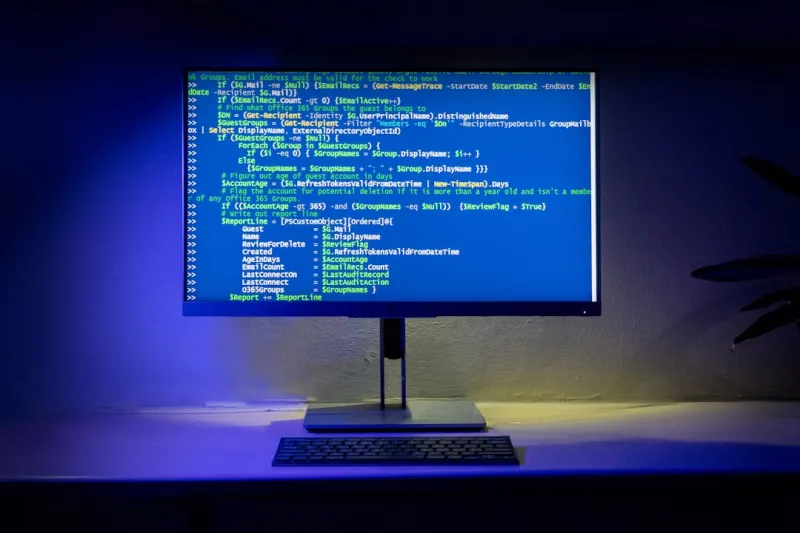
Why the Blue Screen Still Gets My Heart Racing
Ever since I first booted a Windows machine in the early 2000s, the infamous Blue Screen of Death (BSOD) has been a silent but ever‑present specter in my workflow. In 2026, you’d think the nightmare would be relegated to history, yet I still find myself jolted awake at 2 a.m. by a sudden cascade of cyan text. My perspective as a power‑user—someone who constantly pushes hardware limits, tinkers with custom kernels, and automates every possible workflow—means I’m constantly flirting with the edge where software meets silicon. When the screen goes blue, it’s not just an annoyance; it’s a diagnostic goldmine, a story the system is trying to tell about what just went wrong. Over the years I’ve learned to read those cryptic STOP codes like a seasoned detective, turning panic into a systematic troubleshooting session. This article is a deep dive into why the BSOD persists, how modern tools can demystify it, and what every power‑user can do today to keep those dreaded cyan walls at bay.
The AI‑Driven Kernel Revolution and Its Unintended Side‑Effects
2026 has ushered in AI‑enhanced kernels that dynamically allocate resources, predict workload spikes, and even self‑patch minor bugs on the fly. While these advances make Windows feel smoother than ever, they also add layers of complexity that traditional debugging tools weren’t built to parse. The AI engine constantly rewrites low‑level scheduling tables, and a single misstep in a third‑party driver can cascade into a system‑wide fault that the kernel flags as a fatal error. In my own rigs, I’ve seen the AI scheduler misclassify a new GPU driver’s memory management routine, resulting in a STOP code that points to “SYSTEM_THREAD_EXCEPTION_NOT_HANDLED.” The irony is palpable: the very intelligence we’ve built to prevent crashes sometimes creates novel failure paths. Understanding how these AI components interact with legacy drivers is essential, and it’s why I constantly cross‑reference insights from Operating Systems in 2026: How Power Users Can Harness AI‑Driven Kernels, Security, and Hybrid Cloud
Common Triggers: From Rogue Drivers to Firmware Gremlins
Even with AI at the helm, the age‑old culprits—driver incompatibilities, faulty firmware, and rogue background services—still dominate BSOD statistics. In my experience, the most frequent offender is a mismatched graphics driver that refuses to play nice with the latest DirectX 13.5 runtime, especially after a BIOS flash that altered memory timings. Another sneaky adversary is a legacy network adapter driver that wasn’t updated for the new Secure Boot policies, causing the kernel to halt with a “CRITICAL_STRUCTURE_CORRUPTION” error. Even seemingly innocuous utilities like low‑level temperature monitors can trigger a blue screen if they attempt to write to protected kernel memory. The modern twist is that many of these components now communicate via AI‑driven telemetry, meaning a single corrupted data packet can ripple across the system, prompting the OS to protect itself by crashing. Identifying the exact trigger often requires a methodical isolation of each layer—hardware, firmware, driver, and service.
New Diagnostic Arsenal: AI‑Powered Crash Analysis in Windows 2026
Microsoft’s latest Windows release packs a suite of AI‑enhanced diagnostics that turn a cryptic dump file into a readable narrative. The revamped Event Viewer now highlights “Anomaly Scores” next to each crash entry, flagging the most likely root cause based on millions of anonymized crash reports. Coupled with the built‑in WinDbg AI assistant, you can simply drop a memory dump and receive a step‑by‑step remediation plan, complete with suggested driver versions and registry tweaks. For power‑users who love command‑line precision, the new Get-BSODInsights
Quick‑Fix Playbook: The First‑Responder Checklist
When the blue screen flashes, the first thing you should do is stay calm and capture the STOP code. Most modern systems automatically copy this information to the clipboard, but a quick glance at the lower‑left corner will also reveal the error name and parameters. From there, I run my three‑step “Rapid Recovery” routine: 1) Update critical drivers
sfc /scannowDISM /Online /Cleanup‑Image /RestoreHealthchkdsk /f /rwinverGet-BSODInsightsReading Between the Lines: Decoding Memory Dumps with WinDbg
For those who crave granular insight, the .dmp file left behind by a BSOD is a treasure trove of system state at the moment of failure. Opening the dump in WinDbg, I first enable the AI‑assistant with .effmach x64
!analyze -v!firmwareThe Power‑User Mindset: Taming the Beast Before It Strikes
Adopting a power‑user mentality means you’re not just reacting to crashes—you’re preventing them. One habit I swear by is maintaining a “Driver Baseline” file, a JSON document that logs every driver version, its signing certificate, and the date installed. Before any major hardware upgrade, I compare the new driver set against this baseline using a simple PowerShell diff script, flagging any deviations that could introduce instability. Additionally, I keep the Windows Driver Verifier disabled for day‑to‑day use, enabling it only during scheduled stress‑test windows to catch latent driver bugs without compromising daily productivity. I also leverage the “Boot Configuration Data” (BCD) editor to add custom boot‑options like noexecute=optin
nxWhy the Blue Screen Still Haunts Power Users—and How to Tame ItPreventative Maintenance: Firmware, Temperature, and AI Monitoring
In 2026, the line between hardware health and software stability has blurred. Modern motherboards now ship with AI‑enabled health monitors that predict component failure based on thermal cycles, voltage fluctuations, and usage patterns. I’ve integrated these telemetry streams into my home‑lab dashboard, setting alerts for any temperature spikes beyond 85 °C on the CPU or GPU. Regular firmware updates are equally crucial; a single BIOS tweak can resolve obscure memory timing issues that previously manifested as “MEMORY_MANAGEMENT” BSODs. I schedule a quarterly “Firmware Refresh Day,” during which I use the vendor’s flashing utility to apply the latest UEFI version and then run a full suite of stress tests—Prime95 for CPU, FurMark for GPU, and MemTest86 for RAM. By combining AI‑driven health insights with disciplined firmware hygiene, the system’s propensity to hit the blue screen drops dramatically, keeping your workflow smooth and interruption‑free.
When All Else Fails: Leveraging Community Knowledge and Expert Articles
Sometimes, even the most thorough diagnostics won’t pinpoint the culprit. That’s when community resources become invaluable. I frequently turn to specialized forums, where power‑users share the exact STOP codes and their resolutions. Articles like Why Your PC Keeps Crashing to a Blue Screen (And How to Stop It)
Looking Ahead: The Future of Blue Screens in a Power‑User World
As we push the boundaries of what a PC can do—integrating real‑time AI workloads, massive multi‑GPU arrays, and ultra‑low‑latency networking—the potential for rare, complex crashes remains. However, the tools at our disposal have never been more sophisticated. By embracing AI‑augmented diagnostics, maintaining rigorous firmware and driver hygiene, and fostering a community‑driven knowledge base, we can keep the blue screen from becoming a career‑limiting obstacle. For those eager to squeeze every ounce of performance out of Windows, I recommend diving into Unlocking the Full Power of Windows for Modern Power Users




