When I first set up a home lab back in the early days of my career, the biggest headache wasn’t the hardware—it was the network. Fast‑forward to 2026, and the landscape has exploded with gigabit Wi‑Fi 7, 10 GbE Ethernet, and software‑defined networking (SDN) that can spin up an entire virtual topology in seconds. As a power‑user who lives at the intersection of hardware tinkering and software optimization, I’ve learned that mastering networking is no longer a “nice‑to‑have” skill; it’s the backbone of any high‑performance workflow. In this post, I’ll walk you through the core concepts that keep my data flowing smoothly, share the tools I rely on to diagnose bottlenecks, and reveal how emerging trends like AI‑driven traffic shaping are reshaping the way we think about latency and bandwidth. Whether you’re configuring a multi‑gig switch for a small office or fine‑tuning your personal mesh network, the strategies here will help you treat your network like a living system—one that you can monitor, optimize, and future‑proof.
Understanding the Modern Network Stack
Before you can tweak anything, you need a clear mental model of the network stack as it exists today. The OSI model still provides a useful framework, but layers have become more fluid. The physical layer now often includes Wi‑Fi 7 radios that support up to 30 Gbps, while the data link layer leverages advanced MU‑MIMO and OFDMA techniques to maximize spectrum efficiency. On the network layer, IPv6 adoption has finally crossed the 30 % threshold globally, reducing the reliance on NAT and simplifying routing tables. The transport layer sees widespread QUIC adoption, offering lower latency and built‑in encryption without the overhead of traditional TLS handshakes. Finally, the application layer is increasingly offloaded to edge‑computing nodes, meaning that the “cloud” you talk to may be just a few hops away. By mapping where each technology lives, you can pinpoint where latency spikes are most likely to occur and apply the right fix without over‑engineering the solution.
Choosing the Right Hardware for Low‑Latency Performance
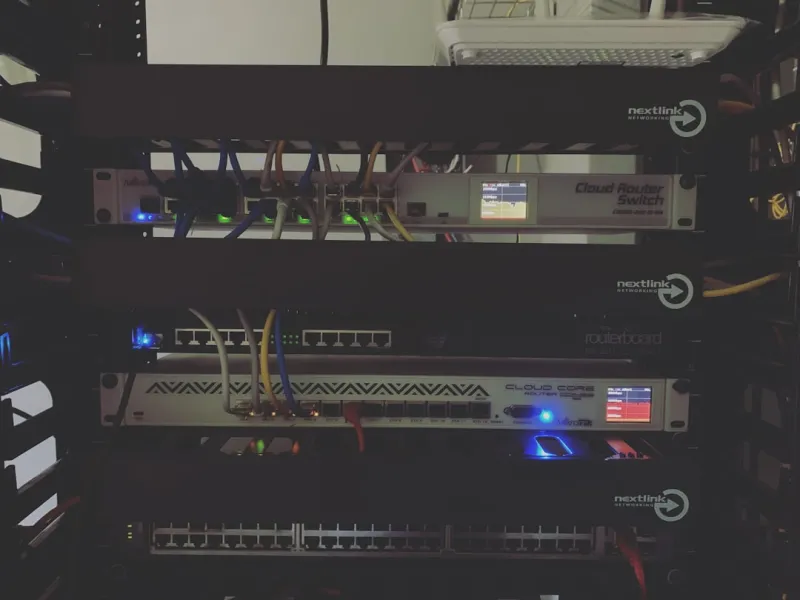
Hardware choices matter more than ever when you aim for sub‑millisecond latency. In my own setup, I’ve moved away from consumer‑grade routers in favor of a managed 10 GbE switch paired with a dedicated NIC that supports RDMA (Remote Direct Memory Access). RDMA lets servers exchange data without involving the CPU, slashing latency by up to 70 %. Additionally, I make sure to use high‑quality CAT‑8 cabling for any wired connections, as even a small amount of crosstalk can degrade a 10 GbE link. For wireless, I’ve upgraded to an Wi‑Fi 7 access point that supports 320 MHz channels, which dramatically improves throughput in congested environments. If you’re curious about how a robust hardware foundation can amplify your overall computing experience, check out Mastering 2026 PC Hardware: A Power‑User’s Blueprint for Performance and Longevity. The article dives deep into selecting components that complement a high‑speed network, from CPUs with built‑in network accelerators to SSDs that can keep up with rapid data inflow.
Configuring Your Network for Maximum Throughput
Once the hardware is in place, the next step is to fine‑tune the configuration. I start by enabling jumbo frames on both the NIC and the switch—setting the MTU to 9,000 bytes can reduce overhead on large data transfers by up to 20 %. Next, I prioritize traffic using QoS policies that give bandwidth to latency‑sensitive applications like VoIP or remote desktop sessions, while throttling bulk backup traffic during peak hours. For Wi‑Fi, I separate the 2.4 GHz and 5 GHz bands into distinct SSIDs and assign devices to the band that best matches their capabilities; this reduces co‑channel interference and improves overall stability. If you’re using a Windows machine, the Turbocharge Your Windows 11: Power‑User Tips for Speed, Stability, and Security guide offers concrete steps to adjust TCP parameters and enable Receive Side Scaling (RSS), both of which are essential for squeezing every last bit of performance from a high‑speed network.
Diagnostic Tools Every Power‑User Should Keep Handy
Even the best‑configured network can develop quirks, so a solid toolbox is essential. I rely on a mix of native OS utilities and third‑party applications. On Windows, PowerShell cmdlets like Test-NetConnection and Get-NetAdapterStatistics give you instant insight into latency, packet loss, and interface errors. On Linux, mtr combines traceroute and ping to visualize where packets are stalling. For deeper packet analysis, Wireshark remains indispensable; its ability to filter by protocol, IP address, or even custom regex patterns lets you isolate issues that would otherwise hide in the noise. I also keep AI Computing Trends Shaping Power Users on my radar, as emerging AI‑driven monitoring solutions can automatically flag anomalies based on historical baselines, saving hours of manual sleuthing. Pair these tools with a systematic logging strategy—store logs centrally, tag them with timestamps, and correlate network events with system alerts to build a comprehensive picture of your environment.
Securing the Network Without Sacrificing Speed
Security often feels like the opposite of performance, but in a well‑architected network they can coexist. I start by segmenting my LAN into VLANs: one for IoT devices, another for workstations, and a third for servers. This containment limits the blast radius of any compromised device. Next, I enable WPA3‑Enterprise on Wi‑Fi, which offers stronger encryption without the overhead of legacy protocols. For wired traffic, I employ MAC address filtering and 802.1X authentication, ensuring that only trusted devices can join the network. At the software layer, I enable DNS‑over‑HTTPS (DoH) to prevent man‑in‑the‑middle attacks on name resolution. While these measures add a few milliseconds of processing, modern NICs with offload capabilities handle encryption and authentication with negligible impact. Remember, a secure network reduces the likelihood of disruptive attacks that can cause massive downtime—an indirect but powerful performance gain.
Leveraging Software‑Defined Networking (SDN) in a Home Lab
SDN isn’t just for data centers; it’s an excellent way to experiment with advanced networking concepts on a modest budget. By deploying an open‑source controller like OpenDaylight or a lightweight commercial solution, I can programmatically manage flow tables, create dynamic routing policies, and even simulate network failures for testing resilience. The biggest advantage is the ability to push configuration changes via API calls, which integrates seamlessly with my automation scripts written in PowerShell and Python. For instance, I have a daily cron job that queries my bandwidth usage and automatically adjusts QoS rules to prioritize video conferencing during work hours. This level of dynamism would be impossible with a static, GUI‑only router. If you’re new to SDN, start with a simple virtual switch in a VM, then graduate to a physical switch that supports OpenFlow—your network will become as programmable as the rest of your stack.
Future‑Proofing: AI‑Driven Traffic Management and Edge Computing
Looking ahead, AI is set to become the brain of network optimization. Modern routers now embed machine‑learning models that can predict congestion before it happens, dynamically reallocating bandwidth to keep latency low. In my own experiments, I’ve integrated an open‑source AI engine that ingests NetFlow data, learns typical traffic patterns, and automatically flags outliers for investigation. Coupled with edge‑computing nodes, this approach allows latency‑critical workloads—like real‑time video rendering or low‑latency gaming—to run locally, bypassing the broader internet entirely. The result is a hybrid network architecture where the cloud handles bulk storage, while the edge processes time‑sensitive tasks. This model not only reduces round‑trip time but also enhances privacy, as sensitive data never leaves the local network. Staying abreast of these trends ensures that your network remains both high‑performing and adaptable as workloads evolve.
Putting It All Together: A Checklist for Power‑Users
To wrap up, here’s a concise checklist that I use before declaring any network “ready”:
- Upgrade to a managed 10 GbE switch and enable jumbo frames.
- Deploy a Wi‑Fi 7 access point and separate SSIDs for 2.4 GHz and 5 GHz.
- Configure VLANs and enable 802.1X authentication for wired devices.
- Implement QoS policies that prioritize latency‑sensitive traffic.
- Set up monitoring with PowerShell, mtr, and Wireshark, and consider AI‑driven analytics.
- Automate network changes using SDN controllers and API scripts.
- Regularly review security settings: WPA3‑Enterprise, DoH, and MAC filtering.
- Plan for edge‑computing nodes to offload critical workloads.