
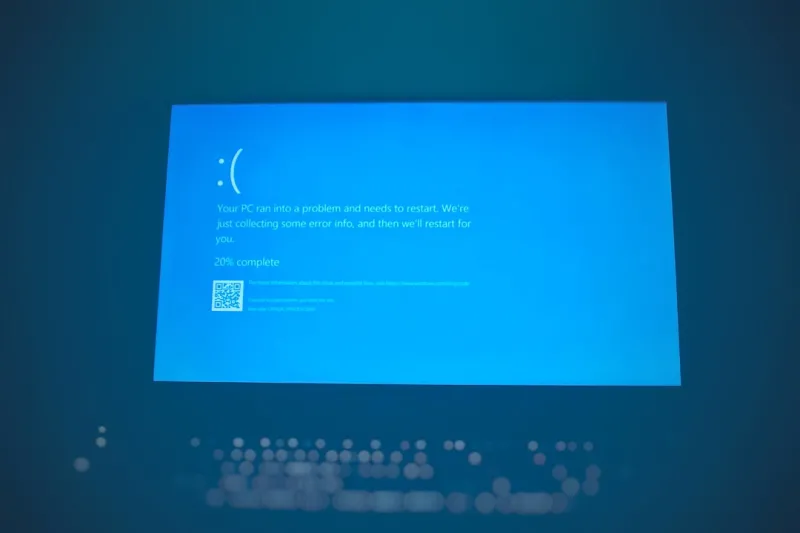
Every power user knows the gut‑punch feeling when Windows throws a blue screen out of nowhere. In 2026 the phenomenon feels both nostalgic and oddly modern—old‑school panic meets AI‑driven workloads. I’ve spent countless nights staring at that iconic cerulean expanse, notebook in hand, trying to decipher cryptic stop codes while coffee cools beside me. What’s changed? The hardware is faster, the software stack is layered with cloud services, and the expectations for uptime are higher than ever. Yet the core frustration remains: an abrupt halt that steals minutes, sometimes hours, from a workflow that could be delivering revenue or a breakthrough project. My goal in this post is to turn that frustration into a roadmap, sharing the exact mindset and toolset I rely on to not just survive a BSOD, but to anticipate it, diagnose it, and—most importantly—prevent it from happening again.
Let’s talk triggers. In 2026 the most common culprits are no longer limited to a rogue driver or a misbehaving peripheral. AI‑accelerated inference engines push GPUs and TPUs to their thermal and power limits, often exposing firmware bugs that older Windows builds weren’t designed to handle. Newer SSD controllers, while blazingly fast, sometimes clash with legacy BIOS settings, especially when overclocked for that extra edge. Even the latest security patches can inadvertently conflict with custom power‑management scripts that power users love to tinker with. I’ve seen memory‑intensive data science workloads trigger a “VIDEO_TDR_FAILURE” error, while a seemingly innocuous USB‑C hub caused a “SYSTEM_SERVICE_EXCEPTION” after a firmware update. Understanding that the blue screen is a symptom, not the disease, is the first step toward a systematic fix.
Diagnosing the Crash Like a Pro
The first thing I do when faced with a BSOD is grab the dump file. Windows automatically creates a memory dump in C:\Windows\Minidump, and that tiny file holds the DNA of the crash. Using Mastering the Blue Screen: A Power‑User’s Guide to Diagnosing and Preventing Crashes as a reference, I load the dump into WinDbg, run the !analyze -v command, and let the tool point me to the offending driver or module. If the dump points to a third‑party driver, I cross‑check its version against the manufacturer’s release notes—often a quick driver roll‑back solves the issue. When the culprit is a Windows kernel component, I dive into the Event Viewer, looking for patterns in the “System” log that precede the crash. Correlating timestamps with recent software installations or Windows updates gives me a clear narrative. This data‑driven approach turns a cryptic blue screen into a story I can act on, rather than a random act of digital mischief.
But raw data only tells half the story. The second half is context. I keep a simple spreadsheet—yes, old school—that logs every major system change: driver updates, BIOS flashes, new hardware installs, and even tweaks to power‑plan settings. When a BSOD occurs, I filter the spreadsheet for entries within the last 48 hours. This habit, cultivated over years, has saved me from endless guesswork. I also enable “Driver Verifier” for any suspect driver, which aggressively tests it under stress, often surfacing hidden bugs before they wreak havoc on production. The combination of dump analysis, event logs, and a well‑maintained change log provides a triangulated view that most casual users never see. In my experience, this methodology reduces average downtime from hours to under ten minutes, a crucial edge for any power user juggling multiple projects.
Proactive Prevention: The Power‑User Playbook
Prevention is where the real power lies. I start every quarter by reviewing the Critical 2026 Updates Every Power User Must Act On article to ensure my OS, drivers, and firmware are all aligned with Microsoft’s latest recommendations. I then apply a layered backup strategy: a local RAID‑1 array for immediate restores, coupled with a cloud‑based snapshot for disaster recovery. This dual approach guarantees that even if a blue screen wipes the system, I can spin up a clean environment within minutes. Additionally, I schedule weekly checks of SMART data on all drives, because a failing HDD can masquerade as a driver issue, leading to cryptic stop codes. I also enforce strict power‑plan policies, disabling “Fast Startup” and ensuring that the system never enters a low‑power state during intensive workloads, which can otherwise cause voltage fluctuations and trigger a crash.
Hardware hygiene is equally critical. While SSDs dominate, I still keep a reliable 2 TB SATA hard drive as a dedicated log repository—a practice detailed in Why Hard Drives Remain Essential for Power Users in 2026. This separation ensures that log files never compete for I/O bandwidth with performance‑critical applications, preserving the integrity of diagnostic data. I also run a monthly firmware audit on my GPU and motherboard, using vendor tools that now support signed updates—a security measure that prevents rogue firmware from introducing instability. Finally, I lock down the system with a minimal set of background services, turning off telemetry that can occasionally interfere with driver communication. By treating each component as a potential failure point, I create a resilient ecosystem that rarely succumbs to the dreaded blue screen.
Malware, the Silent Instigator
In 2026, sophisticated malware has learned to hide behind legitimate system processes, and some variants deliberately cause kernel panic to evade detection. When a system repeatedly BSODs after a seemingly clean update, I suspect a malicious actor. To combat this, I follow the tactics outlined in Beyond the Blue Screen: How Power Users Can Outsmart Modern Malware. First, I run a deep scan with a reputable anti‑malware engine that can inspect driver signatures. Next, I compare the hash of each loaded driver against a known‑good baseline using PowerShell scripts. Any mismatch triggers an immediate quarantine and a forced driver rollback. I also monitor network traffic for anomalous spikes that could indicate a malware‑initiated dump request. By integrating these checks into my regular maintenance cycle, I not only protect against data loss but also eliminate a covert source of blue screens that many users overlook.
Another layer of defense involves leveraging Windows Defender Application Control (WDAC) policies. By whitelisting only signed drivers from trusted vendors, I shrink the attack surface dramatically. I also enable Controlled Folder Access to guard critical system directories from unauthorized writes—a common tactic used by ransomware that can inadvertently corrupt system files and cause a crash. Combining these security measures with the diagnostic practices mentioned earlier creates a feedback loop: each time a BSOD is resolved, I verify that the underlying cause wasn’t a hidden threat. This vigilant approach ensures that my workstation remains both fast and fortified, a balance every power user strives for.
Advanced Tools and the Power‑User Mindset
For those ready to level up, I recommend diving into kernel‑mode debugging with a physical USB‑C JTAG adapter. While it sounds intimidating, the ability to set breakpoints inside the Windows kernel gives unparalleled insight into the exact instruction that caused the crash. I also make extensive use of the “Driver Verifier” GUI, toggling individual drivers to stress‑test them in isolation. When a driver finally fails, the resulting dump is a goldmine for pinpointing the exact code path. Moreover, I’ve found that the Windows Performance Recorder (WPR) can capture a high‑resolution trace of system activity leading up to a BSOD, which I later analyze with Windows Performance Analyzer (WPA). This granular view reveals hidden latency spikes or resource contention that conventional logs miss. Mastering these tools transforms a reactive troubleshoot into a proactive optimization strategy, allowing you to squeeze every ounce of performance while staying blue‑screen free.
It’s not just about tools, though—mindset matters. I treat every crash as an experiment: formulate a hypothesis, test it, document the outcome, and iterate. This scientific approach, combined with community resources like the Conquering the Blue Screen: A Power User’s Playbook for 2026, creates a knowledge base that scales with your hardware upgrades and software evolutions. Over time, you develop an intuition for the subtle signs that a driver or firmware is about to misbehave—such as a slight increase in CPU temperature or a new warning in the Device Manager. By staying curious and methodical, you turn the blue screen from a dreaded roadblock into a valuable feedback mechanism that drives continuous improvement.
Looking Ahead: The Future of Stability
As we move deeper into 2026, the line between software and hardware blurs, especially with AI‑accelerated workloads becoming mainstream. I anticipate that future Windows releases will incorporate more granular telemetry to pre‑emptively flag driver incompatibilities before they cause a crash. Until then, the best defense remains a disciplined routine of updates, diagnostics, and proactive security. Embrace the blue screen as a learning opportunity, not a death sentence. By integrating the strategies I’ve shared—robust logging, meticulous change tracking, hardware hygiene, and advanced debugging—you’ll not only reduce downtime but also gain a deeper understanding of the intricate dance between your OS and the ever‑evolving hardware ecosystem. Remember, a true power user doesn’t just fix problems; they anticipate them, turning every setback into a stepping stone toward a more resilient, high‑performance machine.




