Why 2026 Is a Turning Point for Power‑User Hardware
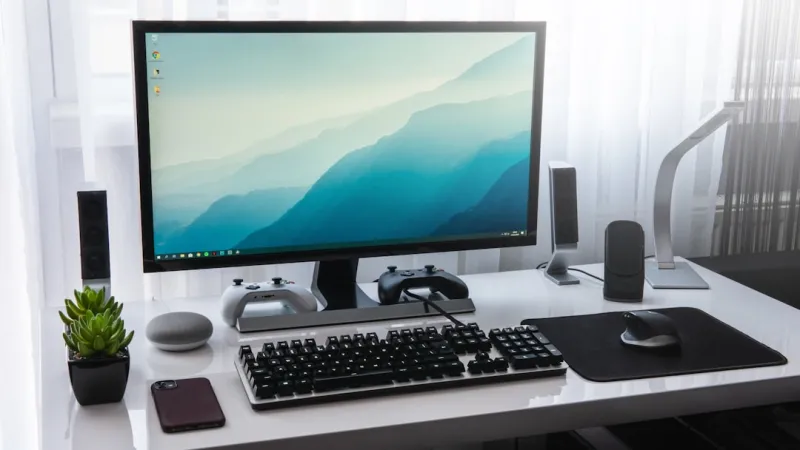
When I first built my dream workstation a decade ago, I imagined a machine that could crunch numbers, render frames, and survive a night of heavy gaming without breaking a sweat. Fast forward to 2026, and the landscape has shifted dramatically—thanks to breakthroughs in silicon design, memory architecture, and AI‑driven workloads. Power users today aren’t just running traditional applications; they’re feeding massive data sets into neural nets, simulating quantum‑level physics, and streaming 8K video across multiple monitors. This new reality forces us to rethink every component, from the CPU socket to the last SATA connector. In my experience, the sweet spot lies in balancing raw horsepower with intelligent efficiency, ensuring that the rig stays relevant for at least five years. In the sections that follow, I’ll walk you through the hardware decisions that have kept my own builds ahead of the curve, highlighting where you can save money, avoid common pitfalls, and future‑proof your investment.
The CPU Evolution: Hybrid Cores and Performance per Watt
The heart of any power‑user workstation in 2026 is no longer a monolithic core count; it’s a hybrid architecture that blends performance cores with efficiency cores. Manufacturers have refined this model to the point where a single socket can deliver the equivalent of two separate CPUs while drawing less power than a traditional high‑end chip from five years ago. For me, the deciding factor has been the performance per watt metric—especially when I’m running AI inference jobs overnight. The latest generation offers up to 30% better multi‑threaded performance while staying within a 250 W TDP envelope, meaning my cooling loop stays quiet and my electricity bill stays reasonable. When you pair these CPUs with a motherboard that supports PCIe 5.0 and DDR5‑5600 memory, you unlock a level of bandwidth that makes even the most demanding data pipelines feel fluid.
GPU Choices: From Ray Tracing to AI Acceleration
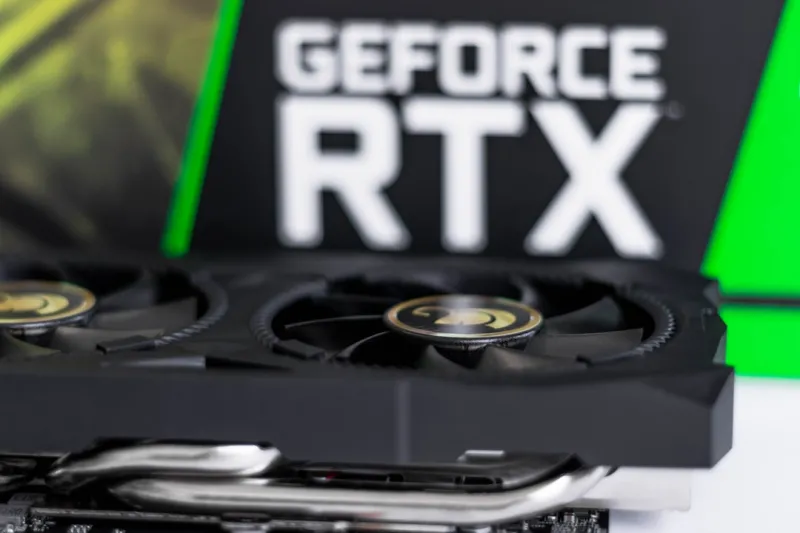
Graphics cards have become the Swiss army knives of modern workstations, handling everything from real‑time ray tracing to tensor calculations for AI models. In 2026, the lines between “GPU for gaming” and “GPU for compute” have blurred, giving us cards that excel at both. I’ve migrated to a dual‑slot beast that packs dedicated AI cores alongside traditional rasterization units, allowing me to train small‑scale models without offloading to a remote cluster. The key advantage is reduced latency; data never leaves the PCIe bus, which is now running at 32 GT/s thanks to PCIe 5.0. This synergy between the GPU and the CPU’s hybrid cores creates a feedback loop where each can offload tasks to the other, dramatically cutting render times and speeding up simulation workloads. If you’re still on an older GPU, you’ll notice a stark difference in both frame rates and AI inference speeds.
Choosing the Right Motherboard for Longevity
The motherboard is the unsung hero that determines whether your rig can truly adapt to future upgrades. I always start by mapping out the expansion slots, power phases, and BIOS support before I even touch a CPU. A solid choice is a board that offers at least eight DDR5 DIMM slots, dual PCIe 5.0 x16 slots, and robust VRM cooling—features that are essential for sustained performance under load. For a deep dive into the selection process, check out Choosing the Perfect Motherboard for a Future‑Proof Power‑User Workstation. In my own builds, I’ve favored boards with Wi‑Fi 7 and 2.5 GbE networking baked in, eliminating the need for separate adapters and keeping cable clutter to a minimum. The firmware updates have become more frequent, too, meaning you can receive security patches and feature enhancements long after the product launch, a crucial factor for anyone who treats their workstation as a long‑term investment.
Memory Matters: DDR5, DDR6, and the Latency Trade‑off
Memory technology has finally caught up with the demands of AI and high‑resolution media processing. DDR5 is now the baseline, offering speeds up to 6400 MT/s, but the real game‑changer is DDR6, which pushes the envelope past 9000 MT/s with tighter timings. The challenge for power users is balancing capacity and latency; a 128 GB DDR5 kit may provide ample space for large datasets, but DDR6’s lower latency can shave seconds off complex simulations. In my experience, pairing a high‑frequency kit with a motherboard that supports XMP 3 profiles ensures you’re getting the advertised performance without manual tweaking. Remember to enable the memory’s gear‑down mode if you’re running mixed workloads—this can improve stability when the system is under sustained heavy load, such as continuous video encoding or real‑time AI inference.
Storage Strategies: SSDs, NVMe, and the Enduring Role of HDDs
When it comes to storage, the debate isn’t SSD versus HDD anymore; it’s about how you orchestrate both to serve distinct purposes. NVMe 2.0 drives now saturate the PCIe 5.0 lanes, delivering read speeds beyond 14 GB/s—perfect for loading massive 8K video assets or feeding AI models directly from disk. However, I still keep a 4 TB 7200 RPM HDD in my rack for archival footage and backup snapshots. The reason is simple: hard drives offer a cost‑effective way to store terabytes of data without the wear‑leveling concerns of flash. If you need a deeper discussion on why hard drives still matter, see Why Hard Drives Still Matter for Power‑User Workstations. By segmenting your storage—fast NVMe for active projects, SATA SSDs for secondary apps, and HDDs for archives—you get the best of performance, reliability, and price.
Cooling Solutions: Liquid Loops and Smart Thermal Management
Thermal performance is the silent determinant of longevity and stability. In 2026, custom liquid cooling loops have become more modular, allowing you to cool the CPU, GPU, and even the VRMs with a single reservoir. I’ve migrated to a full‑cover water block for my GPU, which has reduced hotspot temperatures by up to 20 °C under sustained load. Coupled with smart fan curves controlled via a motherboard’s BIOS, the system can stay whisper‑quiet during light tasks and ramp up only when needed. Additionally, the rise of AI‑driven fan controllers means the system can predict thermal spikes and pre‑emptively increase flow, preventing thermal throttling before it happens. If you’re still using stock air coolers, you’ll notice higher idle temperatures and reduced boost clocks—something you definitely want to avoid in a power‑user environment.
Power Delivery: Efficient PSUs and Future‑Proof Headroom
Choosing the right power supply is more than just matching wattage; it’s about efficiency, modularity, and headroom for future upgrades. I recommend a fully modular 1000 W unit with an 80 PLUS Titanium rating—this ensures that even when you add a second high‑end GPU or a handful of NVMe drives, the PSU operates at peak efficiency, minimizing heat and electricity waste. The newer models also feature integrated monitoring chips that feed data back to the motherboard, allowing you to set alerts for voltage deviations or temperature spikes. A stable power environment is crucial when running AI workloads that can draw sustained high currents. Remember, a quality PSU can extend the life of every component in the system, acting as the first line of defense against power‑related failures.
Future‑Proof Upgrade Paths: Planning for the Next Five Years
One of the biggest mistakes power users make is building a system that meets today’s needs but becomes obsolete tomorrow. To avoid that, I design my rigs with upgrade lanes in mind: spare PCIe slots for additional accelerators, extra DIMM slots for memory expansion, and a chassis that can accommodate larger radiators or additional storage bays. For a detailed roadmap, check out Future‑Proof PC Upgrades: A Power‑User’s Blueprint for 2026. By reserving these resources now, you can add a next‑generation AI card or a new storage tier without a full rebuild. Also, keep an eye on BIOS updates that unlock support for newer CPUs on the same socket—a trend that has become more common as manufacturers extend the lifespan of their platforms.
Actionable Checklist: Building a Resilient 2026 Workstation
To wrap things up, here’s my quick‑hit checklist for anyone looking to assemble a robust power‑user workstation this year. First, pick a hybrid‑core CPU paired with a motherboard that supports PCIe 5.0, DDR5/DDR6, and has ample VRM cooling. Second, choose a GPU that offers both ray tracing and AI tensor cores. Third, allocate at least 128 GB of high‑speed DDR5 or DDR6 memory, with room for future expansion. Fourth, implement a tiered storage strategy: a flagship NVMe 2.0 drive for active projects, a SATA SSD for secondary apps, and a high‑capacity HDD for archives. Fifth, invest in a custom liquid cooling loop with AI‑driven fan control. Sixth, select a fully modular 80 PLUS Titanium PSU with at least 1000 W capacity. Finally, leave spare expansion slots and ensure BIOS updates are part of your maintenance routine. Follow these steps, and you’ll have a workstation that not only conquers today’s workloads but also stands ready for the innovations of tomorrow.