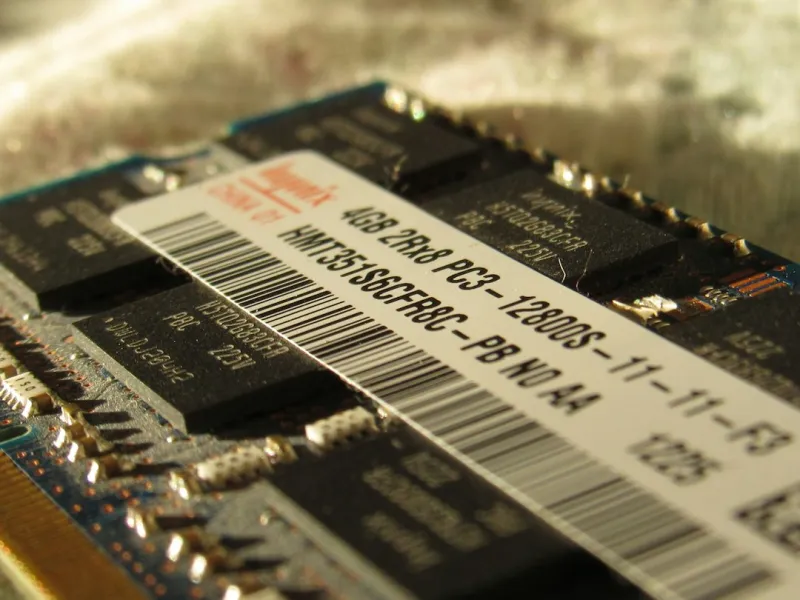
When a computer that usually sails smoothly starts tossing random freezes, blue screens, or inexplicable restarts, the first suspect is often the RAM. In 2026, power users are squeezing more cores, larger datasets, and AI‑enhanced workloads into ever‑smaller silicon footprints, and memory has become the bottleneck that quietly sabotages productivity. I’ve spent countless evenings chasing phantom glitches that turned out to be a single faulty DIMM, and the lesson is simple: RAM isn’t just a passive store of data; it’s an active participant in every computation. Ignoring its health is like driving a sports car with a cracked tire—you’ll feel the tremor long before the crash. This post walks you through the mental checklist and hands‑on tactics I rely on, turning what feels like a nightmare into a systematic, power‑user‑friendly playbook. Whether you’re a developer juggling containers, a content creator rendering 8K footage, or a gamer pushing frame rates beyond 240 fps, a solid RAM foundation is non‑negotiable.
Understanding the Symptoms of Faulty Memory
First, let’s demystify the warning signs. A sudden BSOD with error codes like “MEMORY_MANAGEMENT” or “IRQL_NOT_LESS_OR_EQUAL” isn’t just a Windows quirk; it’s a direct cry from the hardware layer. Random application crashes, especially in memory‑intensive software like video editors or virtual machines, often point to corrupted data streams caused by errant cells. Even subtle performance degradation—longer load times, stuttering in otherwise smooth games—can be the early tremor of a dying module. As a power user, you’ll notice patterns: does the issue appear after a heavy compile, during a large AI inference, or randomly after a system idle? Tracking these moments helps isolate whether the problem is a transient software leak or a deeper hardware fault. For a comprehensive diagnostic roadmap, I recommend checking out How to Diagnose and Fix RAM Problems Like a Power‑User, which breaks down the process step by step and gives you the confidence to differentiate between software and hardware culprits.
Running Low‑Level Memory Tests
The gold standard for confirming RAM health is a thorough memory test outside the OS. Bootable tools like MemTest86 run millions of read/write cycles, hammering each address to surface latent errors that Windows’ built‑in diagnostics often miss. I always start with a full eight‑pass run; if you see errors before the first pass, you’re dealing with a severe defect. For a quick in‑OS check, Windows Memory Diagnostic is handy, but remember it only scans a subset of patterns. When running MemTest86, watch for the “Pass” column—any non‑zero error count, no matter how small, should be treated as a red flag. Pair this with a visual inspection: remove the DIMM, clean the contacts with a lint‑free cloth, and reseat it to rule out poor contact. If errors persist across multiple passes, it’s time to swap modules or test each stick individually to pinpoint the faulty unit. This disciplined approach eliminates guesswork and saves you from chasing phantom software bugs for days.
BIOS Settings, XMP Profiles, and Timings
Even perfectly healthy modules can behave erratically when BIOS settings are misaligned. Modern motherboards default to conservative timings, but power users often enable XMP (Extreme Memory Profile) to unlock advertised speeds. While XMP can boost performance, it also pushes the memory controller closer to its limits, exposing marginal defects that remain hidden at stock frequencies. I recommend verifying that the BIOS reports the correct frequency, voltage, and timings matching your RAM’s specifications. If you’re overclocking, step up frequencies incrementally and rerun MemTest86 after each change. A subtle voltage tweak—raising from 1.20 V to 1.25 V—can sometimes stabilize a borderline module, but it also increases heat, so monitor temperatures with HWInfo or similar tools. For deeper insight into upgrade paths, see Upgrade Strategies That Power Users Swear By in 2026, which outlines when to stick with stock settings versus when a disciplined overclock can be worth the risk.
Physical Inspection and Compatibility Checks
Hardware hygiene is often overlooked in the rush to install the latest GPU or SSD. Dust accumulation on the DIMM slots can create intermittent contacts, especially in cramped builds with limited airflow. I make it a habit to power down, unplug, and use compressed air to blow out any debris before reseating RAM. While you’re at it, double‑check that the modules are fully engaged; a common mistake is leaving a stick slightly askew, which can cause intermittent errors under load. Compatibility is another hidden factor—mixing DDR4 and DDR5 is a non‑starter, but even within the same generation, mismatched ranks or latency profiles can lead to instability. Consult your motherboard’s QVL (Qualified Vendor List) and ensure each stick’s SPD (Serial Presence Detect) data aligns with the board’s expectations. In the era of future‑ready builds, paying attention to these tactile details prevents a cascade of avoidable headaches later on.
When to Replace: DDR4 vs DDR5 and Capacity Planning
Deciding whether to replace or repair hinges on both immediate symptoms and long‑term goals. DDR5 modules, now mainstream in 2026, offer higher bandwidth and lower power draw, but they also demand tighter timing tolerances. If you’re still on DDR4 and experiencing frequent errors, moving to DDR5 can be a strategic upgrade, especially for AI workloads that thrive on memory throughput. Capacity planning is equally critical—most modern workflows benefit from at least 32 GB, while heavy virtualization or large language model inference can comfortably sit on 64 GB or more. However, buying the maximum capacity without confirming stability can backfire; I’ve seen users fill all slots with 16 GB sticks, only to encounter stability issues due to insufficient power delivery. For a holistic view of building a future‑ready system, refer to The Ultimate Guide to Building a Future‑Ready PC in 2026, which walks you through balancing capacity, speed, and platform compatibility.
Software‑Side Memory Management and Updates
Even flawless hardware can be sabotaged by software leaks and outdated firmware. Modern operating systems, including Windows 11, are riddled with background services that may not release memory efficiently, leading to “out‑of‑memory” warnings despite ample physical RAM. Tools like Process Explorer let you trace which processes consume the most resident memory over time. Moreover, BIOS updates often include microcode patches that improve memory controller stability—ignoring these can leave you vulnerable to intermittent errors. I keep a close eye on the Critical Tech Updates Power Users Can’t Afford to Miss feed, ensuring my platform’s firmware and drivers stay current. Pair this vigilance with regular system clean‑ups: disable unnecessary startup services, clear pagefile fragmentation, and consider enabling the “Memory Integrity” feature in Windows Security, which adds an extra layer of protection against malicious memory manipulation.
Advanced Troubleshooting: ECC, Overclocking, and Monitoring
For the most demanding power users, stepping beyond standard consumer RAM into ECC (Error‑Correcting Code) territory can provide peace of mind. ECC modules detect and correct single‑bit errors on the fly, an invaluable feature for scientific computing or long‑running server tasks. However, ECC adds latency and requires motherboard support, so weigh the trade‑off against your performance goals. Overclocking, while enticing, amplifies the risk of subtle timing violations that may only manifest under sustained stress. If you choose to push frequencies, use real‑time monitoring tools like HWInfo to track DRAM voltage, temperature, and error counters. A sudden spike in DRAM temperature above 85 °C is a clear sign you’re flirting with instability. By combining these advanced diagnostics with the earlier foundational steps, you create a multi‑layered safety net that catches issues before they cascade into data loss or downtime.
Proactive Maintenance and the Power‑User Mindset
The final piece of the puzzle is adopting a proactive maintenance routine. Schedule quarterly memory tests, especially after major system updates or when adding new hardware. Keep a log of error counts, temperatures, and any BIOS changes; this historical data becomes invaluable when diagnosing intermittent issues later. Remember, RAM health is not a set‑and‑forget component—it evolves with firmware updates, thermal cycles, and the increasing demands of newer software. By treating memory as a living part of your ecosystem, you align with the power‑user mindset that I champion: anticipate, verify, and iterate. Armed with the strategies outlined above, you’ll spend less time troubleshooting and more time harnessing the full power of your machine, whether you’re training AI models, editing massive video projects, or simply enjoying a buttery‑smooth gaming experience.