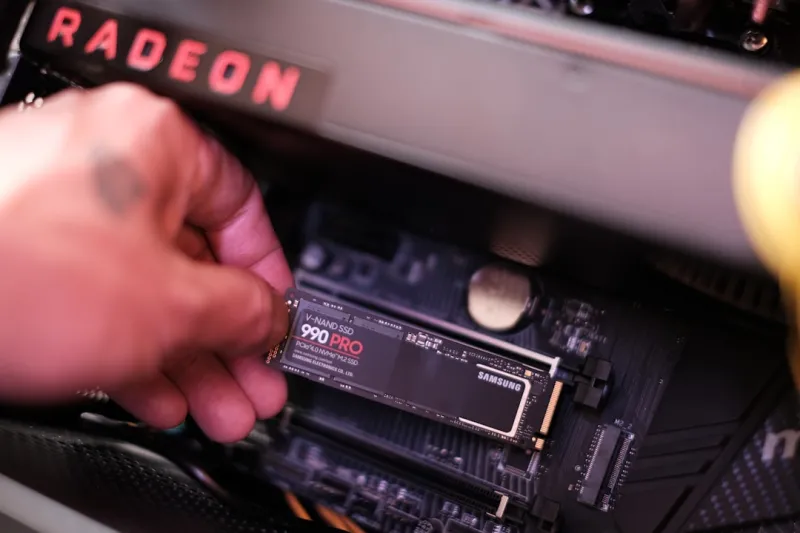
When I first started building PCs back in the early 2010s, RAM felt like a mysterious “speed booster” that I could toss in for a quick performance bump. Fast‑forward to 2026, and the reality is far more nuanced: modern AI‑driven applications, real‑time video synthesis, and massive language models all lean heavily on memory bandwidth and latency. That’s why troubleshooting RAM has become a cornerstone of any serious PC maintenance routine. In my years of tinkering, I’ve learned that the subtle flicker of a lagging AI workflow or an inexplicable freeze can often be traced back to a single stick of memory acting up. Understanding the symptoms, the tools, and the underlying hardware architecture is essential—not just for the casual gamer, but for anyone relying on their machine for heavy‑duty content creation or AI research.
First, let’s talk symptoms. A failing module doesn’t always announce itself with a dramatic blue screen; sometimes it whispers. You might notice random application crashes, especially under memory‑intensive loads like rendering a 4K video or training a small neural net. In Windows, the dreaded “IRQL_NOT_LESS_OR_EQUAL” error often points straight to a RAM issue, while Linux users may see “kernel oops” messages in dmesg. Even the simplest “System has rebooted unexpectedly” can be a memory culprit. I always start by correlating the timing of the crash with what was running at the moment—if it aligns with a large dataset load or a multitasking binge, you’ve got a prime suspect.
Before you dive into software diagnostics, give the hardware a once‑over. Open the case (make sure you’re grounded!) and inspect the memory modules for dust, bent pins, or any signs of physical damage. A common oversight is a module that’s not fully seated; the gold contacts need a solid click in the slot. If you have multiple sticks, try reseating them one at a time, swapping slots to rule out a faulty DIMM slot on the motherboard. While you’re there, double‑check that you’re using the correct channel configuration—dual‑channel or quad‑channel setups must follow the motherboard’s recommended slot order. A quick visual audit often saves hours of wasted software troubleshooting.
Now for the software side. The industry staple is MemTest86+, a boot‑able utility that rigorously writes and reads patterns across your memory. In 2026, the tool has been supercharged with AI‑driven error‑prediction algorithms that flag subtle timing anomalies before they become full‑blown failures. Run at least three full passes; if you see any “FAIL” rows, note the address and swap that module out for a test run. Complement this with Windows Memory Diagnostic for a quick in‑OS check, but don’t rely on it alone. If you’re looking for a broader performance context, check out Unlock AI‑Powered Performance: Smart PC Upgrades for Peak Performance, which walks through how AI can help you interpret diagnostic data more intelligently.
Firmware updates are another hidden lever. Modern BIOS/UEFI firmware now incorporates AI modules that dynamically adjust memory timings based on workload patterns. If you’re running an older BIOS version, you could be missing out on stability improvements that specifically address high‑frequency DDR5 modules. Visit your motherboard manufacturer’s site—especially if you own a model highlighted in the Motherboards in 2026: The AI‑Driven Core of Modern PC Builds article—to grab the latest firmware. When you flash the BIOS, enable any “Memory Optimizer” or “AI‑Assisted Timing” options, but always keep a backup of the previous version in case you need to roll back.
Speaking of timings, the XMP (Extreme Memory Profile) settings deserve careful attention. While XMP can push your modules to advertised speeds with tighter CAS latency, the AI‑aware memory controller in many 2026 chipsets may automatically overclock beyond the XMP rating, sometimes destabilizing the system under heavy AI workloads. My rule of thumb: enable XMP, run a quick MemTest86+ pass, and if you see errors, manually tweak the frequency down by 100 MHz or increase the voltage in 0.025 V increments. Keep an eye on the system’s thermal headroom; high memory speeds generate more heat, and inadequate cooling can masquerade as “bad RAM”.
Don’t overlook virtual memory. Even the fastest DDR5 sticks can be bottlenecked if your pagefile is set too low, especially when AI applications spill over into swap space. In Windows 11, the default “system managed” setting usually works, but for power users I recommend allocating a fixed pagefile size equal to 1.5× your physical RAM, placed on a fast NVMe SSD. This ensures that when RAM is fully utilized, the system can gracefully offload less‑critical data without dragging down performance. On Linux, tweaking the “swappiness” parameter to a lower value (e.g., 10) can keep the OS from aggressively swapping out active memory pages.
When it’s time to replace, choose wisely. DDR5 is still the mainstream choice in 2026, but emerging DDR6 modules promise up to 30% higher bandwidth—a boon for AI model inference. However, DDR6 requires a compatible motherboard and often a newer CPU generation. Assess your workload: if you’re consistently running multi‑GPU training sessions, the extra bandwidth may be worth the investment; for typical office or gaming use, a high‑capacity DDR5 kit (32 GB or 64 GB) with low latency (CL30‑32) is more than sufficient. Remember to match the module speed to what your CPU’s memory controller can reliably handle; over‑ambitious kits can cause instability despite the “XMP” label.
Preventive maintenance is the unsung hero of RAM longevity. Modern monitoring tools, like the AI‑integrated “MemWatch” utility, can alert you to rising error rates or temperature spikes before they cause crashes. Set up notifications for any ECC‑like correction events (even on non‑ECC consumer modules, some systems log single‑bit corrections). Keep your system’s airflow optimal—install dust filters and schedule a quarterly cleaning. If you notice a gradual increase in error counts, it’s often a sign that the module is aging and should be swapped out preemptively.
Wrapping up, the key to mastering RAM troubleshooting in this AI‑driven era is a blend of disciplined hardware checks, AI‑enhanced diagnostic tools, and an awareness of how modern software leans on memory. By staying proactive—updating firmware, fine‑tuning XMP profiles, and monitoring error logs—you’ll keep your machine humming even under the most demanding AI workloads. For a deeper dive into systematic RAM diagnosis, check out Mastering RAM Troubleshooting in an AI‑Driven PC Era, which expands on many of the techniques discussed here.