When my workstation starts hiccuping like an old cassette player, my first instinct is to blame the RAM. In 2026, memory isn’t just a passive pool of bits; it’s the high‑speed highway that AI‑driven apps race across every day. I’ve spent countless nights pulling modules out, sniffing for static, and watching the dreaded “Your PC needs to restart” message flash before my eyes. The good news? Most RAM‑related nightmares have a pattern, and once you learn the rhythm, you can diagnose, fix, or upgrade with the confidence of a seasoned builder. In this guide, I’ll walk you through the symptoms, tools, and best‑practice strategies that have saved my builds from turning into paperweights, all while keeping an eye on how AI is reshaping memory requirements.
Spotting the Tell‑Tale Signs of Bad RAM
Before you open the case, look for the classic red flags: random blue screens, unexplained reboots, and applications that crash without warning. In my experience, the most reliable indicator is a sudden spike in memory latency that coincides with heavy AI workloads—think large language model inference or real‑time video upscaling. If you notice that Photoshop freezes right after a batch render, or your game stutters during a scene with dozens of AI‑controlled NPCs, it’s time to suspect the RAM. Even subtle issues, like slower file transfers or laggy multitasking, can hint at failing modules. Keep a log of when the glitches occur; patterns often emerge that point straight to the memory subsystem.
Running Windows’ Built‑In Memory Diagnostic
Windows 2026 has upgraded its native memory test with AI‑assisted pattern recognition, making it easier to spot intermittent faults. To launch it, type “Windows Memory Diagnostic” in the search bar, choose “Restart now and check for problems,” and let the system reboot. The AI layer analyzes error codes in real time, offering more precise diagnostics than the old vanilla version. Once the test completes, you’ll receive a report that highlights which sticks failed and, surprisingly, even suggests whether the issue stems from timing mismatches or voltage irregularities. I always pair this with the system event log to cross‑reference any “Memory Management” errors, which can give you a fuller picture before you physically touch the hardware.
Deep‑Dive with Third‑Party Tools: MemTest86 and Beyond
For a thorough interrogation, I reach for MemTest86, the gold standard for RAM stress testing. The latest 2026 release includes an AI‑driven algorithm that adapts the test patterns based on your module’s specifications, ensuring maximum coverage without over‑taxing the CPU. Create a bootable USB, select “Extended Test,” and let it run for at least three passes—ideally overnight. If the tool flags errors, note the exact address and the type of fault; this data is invaluable when you contact the manufacturer for an RMA. Some users also swear by HCI MemTest, which runs multiple threads in parallel and can quickly expose timing issues on dual‑channel configurations. In my troubleshooting arsenal, these tools are the equivalent of a forensic lab, turning vague symptoms into actionable evidence.
Physical Inspection: The Hands‑On Approach
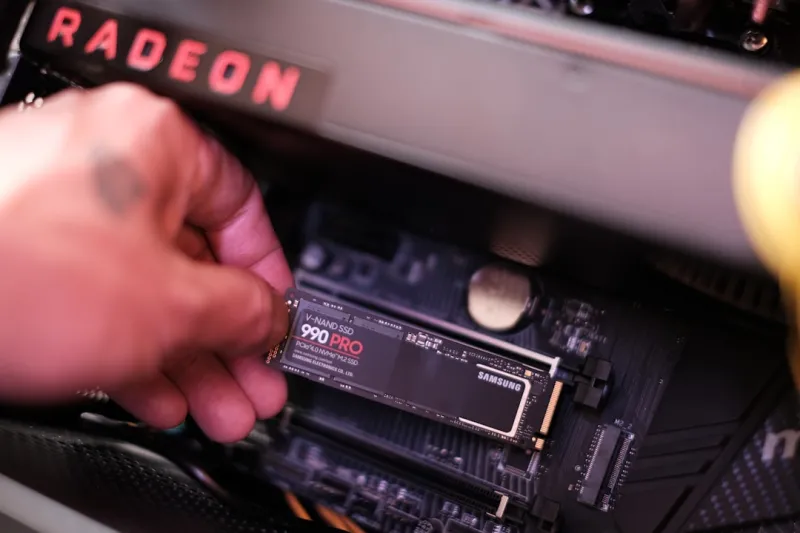
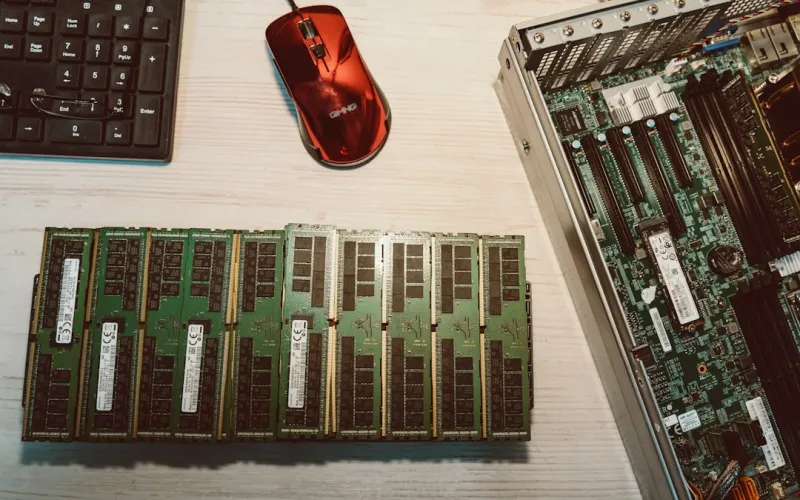
Even the most sophisticated diagnostics can’t replace a tactile check. Power down, unplug, and ground yourself before you pry open the case. Look for dust accumulation on the DIMM slots—tiny particles can cause poor contact and intermittent failures. Gently reseat each module, making sure the latches click into place. While you’re there, inspect the gold contacts for oxidation or scratches; a quick wipe with a lint‑free cloth and isopropyl alcohol can restore conductivity. I’ve rescued more than one system where a single loose stick was masquerading as a motherboard issue. Don’t forget to verify that the modules are installed in the correct channel configuration; most boards require a staggered layout for optimal dual‑channel performance.
Compatibility in the Age of AI‑Driven Hardware
Modern CPUs and AI accelerators demand memory that can keep up with massive data flows. That’s why I always cross‑reference my RAM choices with the recommendations in Future‑Proof Your PC: AI‑Powered Upgrade Strategies. Look for DDR5‑6000 or higher frequencies, low CAS latency, and support for Intel’s or AMD’s latest memory‑controller architectures. In 2026, many motherboards also feature on‑board AI tuners that automatically adjust timings based on workload, but this only works if the DIMMs are on the board’s qualified list. Mismatched capacities—like pairing a 16 GB stick with a 32 GB stick—can trigger sub‑optimal channel bonding, leading to the very stutters you’re trying to eliminate. Always verify the QVL (Qualified Vendor List) before buying, and remember that more isn’t always better; balanced, high‑quality modules trump sheer size.
BIOS/UEFI Tweaks: XMP Profiles and Voltage Settings
Once the hardware passes visual inspection, dive into the BIOS. Most 2026 motherboards ship with AI‑enabled memory optimization that can auto‑configure XMP (Extreme Memory Profile) settings, but the defaults are sometimes conservative. I recommend enabling the XMP profile manually and then fine‑tuning the DRAM voltage—usually a modest 1.35 V for DDR5—but keep an eye on temperature readings. Over‑volting can lead to premature wear, while under‑volting may cause stability issues under AI workloads. Some boards also offer a “Memory Stress Test” option that runs a quick loop during boot, giving you an early warning before the OS loads. Save a profile with your preferred settings, and if you ever upgrade your CPU or GPU, revisit these values; AI‑centric tasks can shift the sweet spot for latency versus bandwidth.
AI Workloads and Their Insatiable Appetite for RAM
In my day-to‑day, I’m juggling AI model inference, video transcoding, and a handful of virtual machines. Each of these tasks leans heavily on RAM, not just for raw storage but for rapid data shuffling across cores. When you run an AI‑enhanced Photoshop filter, the application may allocate hundreds of megabytes in a single frame, and if your system can’t keep up, you’ll see those dreaded stalls. This is where memory channels and capacity planning become critical. A dual‑channel 32 GB kit can handle most creative workloads, but for intensive AI pipelines—like training a small transformer model—you’ll quickly hit the ceiling. In such scenarios, consider moving to a quad‑channel configuration or adding high‑speed LRDIMM modules if your board supports them. Remember, the goal isn’t just more RAM; it’s the right kind of RAM that can serve the AI engines without bottlenecking.
Upgrade vs. Replace: Making the Right Call
When diagnostics point to a faulty module, the decision to swap a single stick or overhaul the entire memory subsystem hinges on cost, performance goals, and future‑proofing. If you’re still on a DDR4 platform, it’s often cheaper in the long run to jump to DDR5, especially when you consider the AI‑centric roadmap outlined in The AI‑Driven Revolution Shaping Computer Hardware Today. However, if you have a high‑end DDR5 setup and only one stick is misbehaving, an RMA is usually the fastest fix. Keep receipts and warranty information handy—most manufacturers offer a 2‑year “no‑questions‑asked” replacement, and some even extend this for AI‑focused products. Upgrading is also an excellent opportunity to rebalance your memory configuration for optimal channel usage.
Proactive Maintenance Checklist for a Healthy Memory Subsystem
To keep your RAM humming along, adopt a routine that’s as disciplined as a software sprint. First, schedule a quarterly run of the built‑in Windows Memory Diagnostic or MemTest86 for a quick sanity check. Second, clean the DIMM slots and contacts annually to prevent dust buildup. Third, monitor real‑time memory usage with tools like Task Manager’s “Performance” tab or third‑party AI‑aware monitors that flag unusually high latency spikes. Fourth, revisit BIOS settings after any major driver or OS update, as AI algorithms can shift optimal timings. Finally, keep an eye on firmware releases from both the motherboard and memory manufacturers; a simple BIOS flash can resolve obscure compatibility issues that surface with new AI workloads. By treating memory health as a first‑class citizen, you’ll avoid the dreaded “random crash” nightmare and keep your PC ready for whatever AI‑driven challenge comes next.