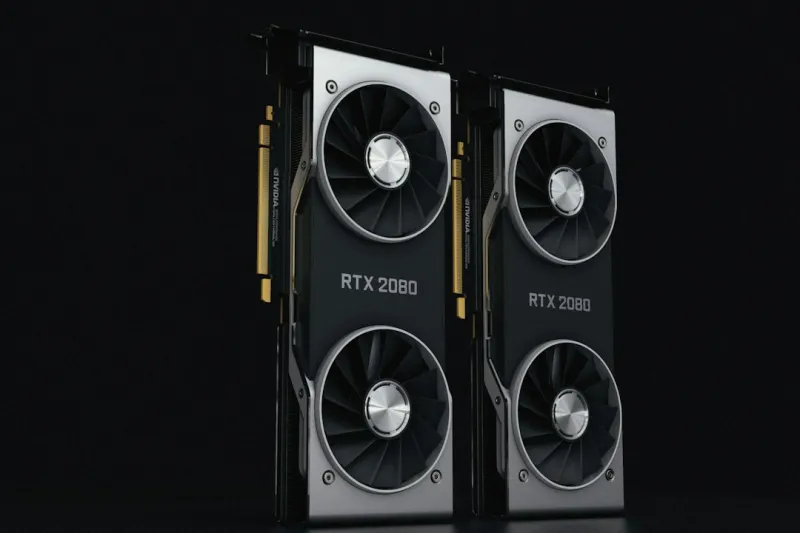
When I first cracked open a custom‑built rig back in the early 2020s, the video card felt like a mysterious black box—powerful yet temperamental. Fast‑forward to 2026, and while GPU architectures have become more sophisticated, the core troubleshooting principles remain surprisingly familiar. In my daily grind as a hardware tinkerer, I’ve learned that a systematic approach saves hours of head‑scratching and prevents costly hardware swaps. Start by isolating the symptom: is the artifact visual (screen flicker, artifacting, black frames) or is it system‑wide (crashes, freezes, boot loops)? From there, map the symptom to the likely culprit—driver mis‑match, thermal throttling, power delivery, or a failing VRAM bank. Knowing the “why” behind each symptom lets you apply the right fix without resorting to a blind reinstall of everything. In this guide, I’ll walk you through the most common video‑card woes of 2026, blending my hands‑on experience with the latest diagnostic tools, so you can get your GPU humming again without a trip to the repair shop.
Gathering the Right Data Before You Dive In
The first rule of any successful repair is data collection, and modern GPUs give us a treasure trove of telemetry. Utilities like GPU‑Info, MSI Afterburner, and the built‑in Windows Performance Analyzer can surface temperature curves, clock speeds, voltage fluctuations, and memory error counts in real‑time. When you suspect a problem, capture a short log of these metrics during the issue’s occurrence. Pay special attention to any sudden spikes in temperature above 85 °C or voltage drops below the recommended 0.95 V for your card’s boost clock. Equally important is noting the driver version; a recent update may have introduced regressions, while an older version could lack optimizations for the latest games. If you’re using a dual‑GPU setup, isolate each card by disabling the other in Device Manager—this eliminates cross‑talk as a false positive. For a deeper dive, I often reference the Troubleshooting Modern Video Cards: A Hands‑On Guide for 2026 article, which outlines the exact steps to pull and interpret these logs.
Driver Drama: The Most Common Culprit
Even in 2026, drivers remain the most fickle piece of software in the GPU ecosystem. A fresh driver roll‑out can inadvertently break compatibility with older titles or with certain motherboard BIOS versions. My go‑to strategy is a three‑step “driver reset”: first, uninstall the current driver using DDU (Display Driver Uninstaller) in safe mode to purge lingering files; second, reinstall the latest stable driver from the manufacturer’s website; third, if the issue persists, roll back to the previous “golden” version that you know works with your primary workloads. It’s also wise to disable automatic driver updates in Windows Update, as they can silently replace a stable driver with a buggy beta. When you’re dealing with a professional workstation that relies on CUDA or OpenCL, verify that the driver’s compute components are correctly installed—missing libraries can manifest as random application crashes that masquerade as GPU failure. For a concise checklist, see the companion piece How to Diagnose and Fix Common Video Card Problems, which walks you through each driver‑related scenario.
Thermal Management: Keeping Your GPU Cool Under Fire
Heat is the silent assassin of modern GPUs, especially when you push 4K gaming or AI workloads that keep the silicon humming at full throttle. In my experience, the most overlooked factor is airflow balance within the case. Even a high‑end card can overheat if the intake fan is clogged with dust or if the exhaust path is obstructed by cable bundles. I recommend a quarterly cleaning ritual: power down, remove the GPU, and gently vacuum the heatsink fins while using a soft brush to dislodge stubborn dust. After reinstallation, apply a high‑quality thermal paste—newer formulations like carbon‑based compounds can shave off a degree or two. Additionally, consider tweaking the fan curve using software to ramp up cooling earlier, keeping temperatures under the 80 °C threshold during sustained loads. If your case supports it, adding a dedicated GPU exhaust fan or upgrading to a larger radiator (in the case of liquid‑cooled GPUs) can make a dramatic difference. Remember, a cooler GPU not only performs better but also extends the lifespan of the memory and power delivery components.
Power Delivery: When the PSU Becomes the Bottleneck
Power supply units have often been the unsung heroes—or villains—of GPU reliability. Modern high‑performance cards can draw 300 W or more, especially when overclocked. If you notice sudden system reboots, black screens, or the GPU failing to reach its boost clock, a weak or aging PSU is likely at fault. Start by checking the wattage rating and ensuring it meets the manufacturer’s recommended minimum—most 2026 flagship cards call for at least a 750 W unit with an 80 Plus Gold efficiency rating. Use a power meter or the built‑in PSU monitoring tools in the BIOS to verify that the voltage rails stay within ±5 % of the target under load. If you’re using modular cables, double‑check that each connector is fully seated; a loose 8‑pin PCIe power connector can cause intermittent voltage drops that trigger crashes. When in doubt, swap in a known‑good PSU to isolate the issue. This step often uncovers hidden problems that would otherwise be blamed on the GPU itself.
Memory Errors: Spotting the Silent Failures
VRAM corruption can be particularly insidious because it may only appear under specific memory‑intensive scenarios, such as texture‑heavy games or large neural‑network inference tasks. Symptoms range from shimmering textures and missing details to full‑screen freezes that resolve after a reboot. Modern GPUs expose ECC (Error‑Correcting Code) counters in their diagnostics, but most consumer cards lack ECC support, so you must rely on indirect methods. One practical approach is to run a memory stress test like “MemTestGFX” while monitoring for artifact patterns. If artifacts appear consistently at the same frame or location, you’re likely dealing with a faulty memory chip. In such cases, the only remedy is a RMA—there’s no firmware fix for hardware memory degradation. However, before you ship it back, try lowering the memory clock by 5–10 % in the overclocking software; this can sometimes mask marginal failures and buy you time while waiting for a replacement.
Software Conflicts and OS Interactions
Even the cleanest hardware can be sabotaged by software conflicts. In 2026, many users run a mix of native Windows 11 builds, Linux distributions, and even virtualized environments for game streaming. The GPU driver stack interacts differently with each OS, and mismatched libraries can cause crashes that look like hardware faults. For Windows users, ensure that the latest cumulative update is installed—Microsoft’s patches often address subtle GPU scheduler bugs. Linux enthusiasts should verify that the kernel version aligns with the driver’s “DKMS” module; an outdated kernel can lead to “GPU hangs” during Vulkan or OpenGL rendering. Additionally, background applications like screen recorders, overlay tools, and AI‑enhanced upscalers may inject themselves into the rendering pipeline, creating instability. My personal tip is to create a clean user profile or boot into safe mode with networking to test the GPU in an environment stripped of third‑party extensions. If the issue disappears, you’ve pinpointed a software clash that can be resolved by updating or disabling the offending program.
When to Upgrade: Balancing Cost and Performance
Sometimes the most pragmatic solution is to acknowledge that the GPU has simply outlived its useful life for your workload. In 2026, the performance delta between a high‑end 2024 card and a brand‑new 2026 model can be as much as 30 % in ray‑tracing and AI‑accelerated tasks. However, an upgrade isn’t just about raw horsepower; it’s also about ecosystem compatibility. Newer cards support PCIe 5.0, HDMI 2.1a, and DisplayPort 2.1, unlocking higher refresh rates and bandwidth for 8K monitors. If you’ve already tackled driver, thermal, power, and memory checks without success, it may be time to consider the Unlock the Power of Your PC: Strategic Upgrades for 2026 guide to evaluate the cost‑benefit ratio of a new GPU versus a full system refresh. Remember, a well‑chosen upgrade can also future‑proof your rig for upcoming software that leans heavily on AI‑driven rendering pipelines, ensuring you stay ahead of the curve without constant tinkering.