
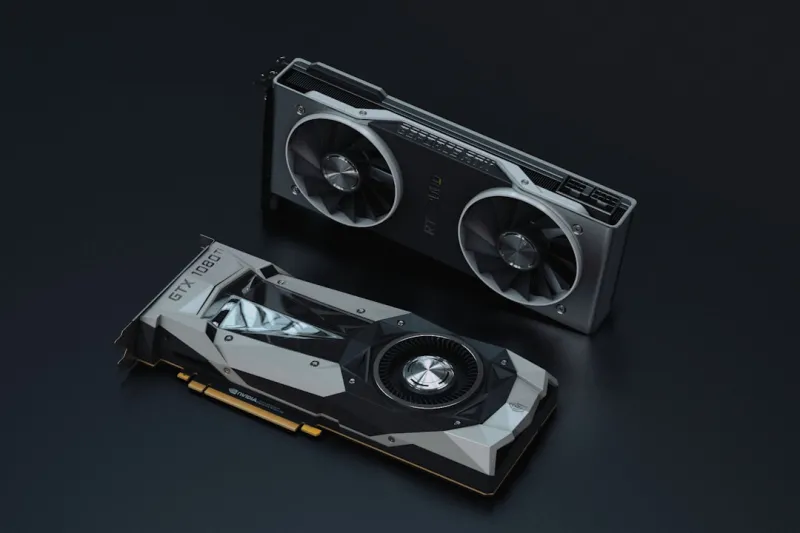
When I first powered up my rig in early 2026, I expected the same buttery‑smooth performance that has become the hallmark of modern GPUs. Instead, I was met with a stubborn black screen and a series of beeps that sounded like a broken drum machine. It’s a scene that’s all too familiar for anyone who spends as much time tweaking graphics cards as I do. The surge of AI‑accelerated workloads, the rise of self‑optimizing hardware, and the relentless push for higher frame rates have turned video cards into both the heart and the Achilles’ heel of today’s PCs. In this post, I’m pulling back the curtain on the most common failures I’ve seen in 2026, sharing the step‑by‑step methods that saved my own builds, and giving you a roadmap to diagnose, repair, or wisely replace a misbehaving GPU before it wrecks your workflow.
Before you start tearing apart your motherboard, the first thing to verify is that your card is actually receiving the power it needs. Modern GPUs draw anywhere from 150 W to over 500 W, and the power connectors have become more finicky with the addition of 12‑pin and 16‑pin standards. I always begin by unplugging the PC, reseating the 8‑pin and 12‑pin connectors, and confirming that the PSU’s rail distribution matches the card’s specifications. Next, I dive into the BIOS—yes, the motherboard BIOS, not the GPU’s firmware. Many new boards now feature “GPU Power Boost” options that can throttle or even cut power if they detect a mismatch. Disabling any aggressive power‑saving profiles and ensuring the PCIe slot runs at full x16 speed can instantly resolve what looks like a dead‑card scenario. A quick visual inspection for burnt pins or loose screws never hurts either.
Assuming the card powers up, the next battlefield is the driver stack. In 2026, driver ecosystems have been infused with AI‑driven optimization layers that automatically tweak shader compilation, memory allocation, and even power curves on the fly. While this sounds like a dream, it can also introduce new classes of instability—especially after a major Windows update. I’ve found that a clean install, using the “Custom” option to purge previous driver remnants, is the safest route. When you need to roll back, the “Roll Back Driver” feature in Device Manager is your friend, but only if you’ve kept a stable version handy. For those who love to live on the edge, the Windows 2026 Unleashed: How AI Is Redefining the OS Experience article details how the OS’s AI layer interacts with GPU drivers, and why sometimes you must temporarily disable the OS‑level optimizer to isolate the issue.
Thermal management is another silent killer that often flies under the radar. The latest RTX‑X series cards sport a hybrid cooling solution—combining vapor chambers with liquid‑metal interfaces. Yet, if you’ve neglected to replace the thermal paste after a few years, or if dust has built up around the fan shroud, you’ll start seeing temperature spikes that trigger throttling or even sudden shutdowns. I recommend using a high‑performance thermal paste like the carbon‑nanotube blend that’s been trending in 2026, and setting a custom fan curve in MSI Afterburner that ramps to 100 % at 80 °C. Don’t forget to monitor the VRAM temperature; overheating VRAM can cause artifacting that masquerades as a driver bug. When in doubt, run a stress test with AI Computing in 2026: The Era of Self‑Optimizing Hardware and watch the thermal graphs for any anomalies.
Artifacting—those strange colored blocks, flashing pixels, or “rainbow” streaks—are often the most alarming symptom. While they can be caused by a failing GPU core, they’re also frequently linked to memory corruption. In my experience, faulty GDDR6X modules will manifest as random glitches during texture‑heavy scenes. A quick sanity check is to run a memory test on the system RAM using tools like MemTest86; if your RAM is acting up, it can spill over to the GPU’s memory bus. For deeper insight, check out the Why Your RAM Keeps Crashing and How to Stop It in 2026 guide, which explains how modern high‑speed RAM interacts with the GPU’s memory controller and why a mismatch can produce visual artifacts.
Multi‑monitor setups have become the norm for creators and gamers alike, but they also introduce a tangled web of compatibility quirks. If one monitor flickers while the others stay steady, the issue may lie in the DisplayPort MST hub or a mismatched refresh rate setting. I always start by disabling all but the primary display, then re‑enabling each one sequentially while watching the driver’s event logs. Windows 2026’s AI‑driven display manager can automatically “optimize” settings, but it sometimes chooses the wrong scaling mode, leading to blurry text or stretched images. Manually setting the resolution and scaling factor in the Nvidia Control Panel (or AMD Radeon Settings) often restores clarity. Remember, HDMI 2.1 cables are now the standard for 4K@144 Hz, and older cables can cause intermittent signal loss that looks like a GPU failure.
Overclocking has reached new heights in 2026, thanks to the emergence of self‑optimizing hardware that can dynamically adjust clock speeds based on workload. However, pushing the limits without understanding the card’s built‑in safety nets can backfire spectacularly. I recommend starting with a modest +50 MHz boost on the core and a +100 MHz increase on the memory, then running a benchmark suite like 3DMark Time Spy to verify stability. If you notice any frame‑time spikes or driver crashes, dial back the overclock and enable “Maximum Boost Clock” mode, which lets the GPU decide the safest frequency on its own. The self‑optimizing algorithms are powerful, but they still need a sane baseline to work from—think of it as giving a seasoned chef a quality set of ingredients rather than letting them improvise with expired stock.
When you suspect a hardware fault, the built‑in Windows Diagnostics can be surprisingly useful. Open the “Device Manager”, right‑click your GPU, and select “Properties → Details → Hardware Ids” to verify the exact model number. Then, use the “Test” button under the “Driver” tab to trigger a quick sanity check. For deeper analysis, third‑party tools like GPU‑Z provide real‑time readouts of clock speeds, voltage, and temperature. Capture a screenshot of the metrics while reproducing the issue, and you’ll often see a pattern—such as a sudden voltage drop—that points directly to a failing power delivery component on the card. Documenting these numbers is essential if you need to file an RMA request, as manufacturers now require precise telemetry to approve a warranty claim.
If all else fails and you’ve exhausted software fixes, it’s time to consider the RMA route. Most major GPU vendors in 2026 have extended their warranty periods to three years, and they’ve streamlined the return process with prepaid shipping labels and online status trackers. Before you pack the card, make sure to back up any custom BIOS profiles you’ve flashed—some manufacturers will void the warranty if they detect a modified BIOS. Include the diagnostic logs you collected, a clear description of the symptoms, and a brief timeline of troubleshooting steps. A well‑documented request not only speeds up the replacement but also helps the engineering team identify systemic issues that could affect future silicon revisions.
In summary, troubleshooting a video card in 2026 is a blend of old‑school detective work and modern AI‑enhanced diagnostics. From power checks and BIOS tweaks to driver management, thermal profiling, and leveraging self‑optimizing hardware, each layer offers clues that can save you time and money. By following the systematic approach outlined above—starting with the basics, escalating to advanced tools, and finally deciding on an RMA—you’ll keep your rig humming at peak performance and avoid the dreaded “black screen of doom.” Remember, the GPU is a living component that thrives on proper care, clean airflow, and thoughtful overclocking. Treat it well, and it will reward you with countless frames of flawless visuals.




