
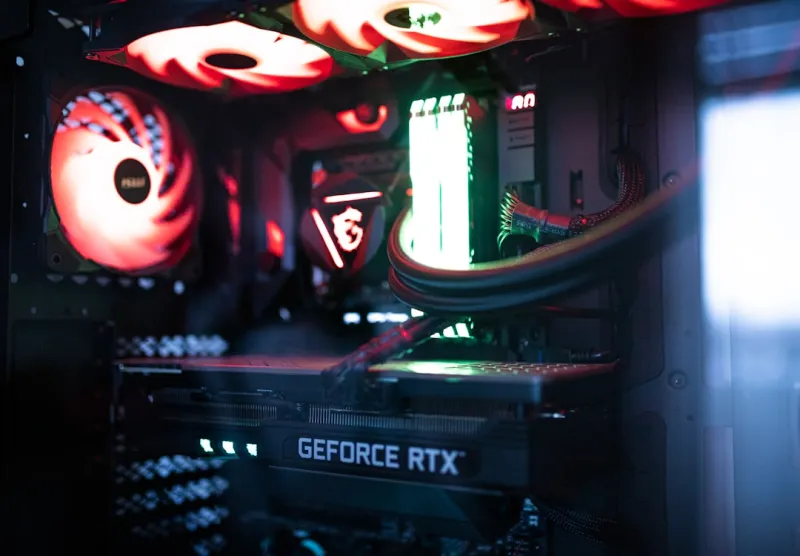
When a graphics card decides to act up, it feels personal—like the GPU is sending you a direct message that “I’m tired of this system” and it’s my job to decode the cryptic signal. In 2026, we’re juggling ray‑traced titles, AI‑accelerated workloads, and ultra‑high‑refresh monitors, so a hiccup in the video pipeline can cripple productivity and pleasure in equal measure. I’ve spent the last decade chasing down everything from phantom driver crashes to mysterious artifact storms, and I’ve learned that a methodical, power‑user mindset makes the difference between a quick fix and a full‑blown hardware replacement. In this guide I’ll walk you through the most common symptoms, the diagnostic tools that actually work, and the preventive steps that keep your GPU humming for years. Think of it as a troubleshooting playbook that blends hands‑on tinkering with the strategic foresight you’d find in a war‑room briefing. Strap in, fire up your favorite monitoring suite, and let’s get that card back to delivering the frames you paid for.
Recognizing the Tell‑Tale Signs of GPU Distress
The first step is learning to read the symptoms like a seasoned mechanic reads engine knock. Typical red flags include sudden frame‑rate drops, random screen tearing, driver timeouts, or that dreaded “Display driver stopped responding and has recovered” message that pops up at the worst possible moment. More subtle clues can hide in the logs: repeated DPC latency warnings, unexplained spikes in VRAM usage, or even a quiet system that suddenly powers down under load. I’ve seen users chalk up artifacting to “just a bad game” when in reality it’s a sign of overheating or a failing memory chip. Don’t ignore the little things—a flickering cursor, a muted audio channel, or a sudden shift to low‑resolution rendering can all be early warning signs that the GPU is fighting an internal battle. By cataloguing these patterns you can narrow the cause down to driver, hardware, or system‑level issues before you start swapping components blindfolded.
Equipping Yourself with the Right Diagnostic Arsenal
Modern troubleshooting is all about data, and luckily 2026 offers a suite of robust tools that put you in the driver’s seat. Start with GPU-Z and HWInfo to capture real‑time clock speeds, temperature curves, and power draw. If you suspect a driver fault, the Windows Event Viewer (or its Linux equivalent, journald) will log the exact error codes, making it easier to cross‑reference with known bugs. For deeper dives, DXDiag and PerfHUD can reveal hidden DirectX issues, while the open‑source Vulkan Validation Layers help you spot API misbehaviors that only appear under intense rendering loads. I always run a baseline benchmark—like Future‑Proof Your PC’s recommended stress test—to establish a performance envelope, then compare post‑troubleshooting results. Logging every metric, no matter how insignificant it seems, creates a forensic trail that saves countless hours when you need to prove a hardware fault to a warranty service.
When Drivers Turn Into a Minefield
Driver management is a perpetual cat‑and‑mouse game, especially now that GPU vendors push weekly releases to support real‑time ray tracing, AI upscaling, and DLSS‑style technologies. The temptation to chase every new version can backfire; a fresh driver may introduce regressions that affect older titles or niche workloads. My rule of thumb: stick to the “stable” branch for daily use and only switch to the “beta” channel when you need a specific feature or a fix for a critical bug. Before installing, always create a system restore point and keep a copy of the previous driver package—Windows’ Device Manager lets you roll back with a few clicks. In multi‑GPU setups, mismatched driver versions can cause synchronization nightmares, so ensure every card runs the same version. If you encounter a sudden crash after a driver update, the Windows Reliability Monitor will often point you to a specific .inf file that caused the issue, letting you revert with surgical precision.
Power Delivery and Thermal Management: The Unsung Heroes
Even the most robust silicon can’t function if it isn’t fed clean power or kept cool. A common oversight is assuming the PSU rating is sufficient; in reality, high‑end GPUs can draw upwards of 350 watts under sustained AI workloads, and the transient spikes during boost can exceed the PSU’s continuous rating by a noticeable margin. Use a power‑meter like a Kill‑A‑Watt to verify actual draw and compare it to your PSU’s specifications. On the thermal side, make sure the GPU’s fan curve is calibrated for your case airflow—too aggressive a curve can cause audible whining, while too lax a curve leads to throttling. Dust buildup on the heatsink fins or degraded thermal paste can raise core temperatures by 15 °C, eroding performance and shortening the chip’s lifespan. A quick visual inspection, followed by a proper cleaning and a fresh layer of high‑quality thermal compound, often resolves what seemed like a mysterious performance dip.
BIOS/UEFI Settings and Firmware Updates: The Low‑Level Fixes
Many power users overlook the role of BIOS and firmware in GPU stability. A recent UEFI update can unlock higher PCIe lane speeds, adjust power limits, or even fix compatibility issues with newer motherboards. Before you flash anything, back up your current BIOS using tools like AFU or the motherboard vendor’s utilities. When updating GPU firmware, follow the vendor’s exact instructions—interrupting the process can brick the card. In addition, check the “Above 4G Decoding” and “Resizable BAR” settings in your BIOS; enabling these can improve bandwidth utilization but sometimes introduces instability with older drivers. If you’re running a custom overclock, consider resetting the GPU to its factory clock speeds in the BIOS to rule out firmware‑level conflicts. These low‑level adjustments often go unnoticed but can be the key to unlocking a stable, high‑performance environment, especially when paired with the right driver version.
Stress Testing and the Intersection with System Memory
Once you’ve addressed drivers, power, and thermals, it’s time for a controlled stress test to verify stability. Tools like FurMark, Unigine Heaven, and the newer OCCT GPU benchmark push the GPU to its limits while logging temperature, clock throttling, and error rates. Run each test for at least 30 minutes, watching for artifact patterns or sudden crashes. If you encounter intermittent failures, don’t assume the GPU is at fault; faulty system RAM can corrupt the data stream, leading to visual glitches that masquerade as GPU issues. My go‑to reference for diagnosing such cross‑component problems is Troubleshooting Memory Issues, which outlines how to isolate memory errors with tools like MemTest86+. By confirming that the RAM passes its own stress regimen, you can confidently attribute any remaining artifacts to the GPU itself.
AI‑Accelerated Workloads: New Challenges for the Modern GPU
2026 has ushered in a wave of AI‑enhanced gaming and professional applications that rely heavily on tensor cores and dedicated AI pipelines. While these features unlock incredible performance gains, they also introduce a fresh set of compatibility headaches. Certain AI frameworks require specific driver extensions, and mismatched CUDA or OpenCL versions can cause silent hangs or incorrect inference results. If you’re using AI upscaling tools like DLSS‑3 or Nvidia Reflex, verify that the application’s SDK version aligns with your driver’s supported API level. In cases where AI workloads crash the system, try disabling hardware‑accelerated AI in the driver settings as a diagnostic step; if stability returns, you know the issue lies in the AI stack rather than the core GPU. For power users who routinely juggle gaming and AI tasks, maintaining a separate, clean driver environment for each workload can prevent cross‑contamination, ensuring both worlds run at peak efficiency.
Preventive Maintenance and Future‑Proofing Your GPU
The best defense against GPU grief is a proactive maintenance routine paired with a forward‑looking upgrade strategy. Schedule quarterly clean‑ups: dust out the case, re‑apply thermal paste every two years, and verify that fan curves still match your performance goals. Keep an eye on the manufacturer’s roadmap—new generations often bring improved power efficiency and support for emerging APIs, but they also retire older PCIe slots or change connector standards. By consulting resources like Future‑Proof Your PC, you can plan upgrades that maximize compatibility and minimize bottlenecks. Finally, document every change you make—driver versions, BIOS tweaks, and test results—in a personal knowledge base. This habit not only speeds up future troubleshooting but also creates a living record of your system’s evolution, turning each resolved issue into a data point that reinforces your expertise as a power‑user.




