
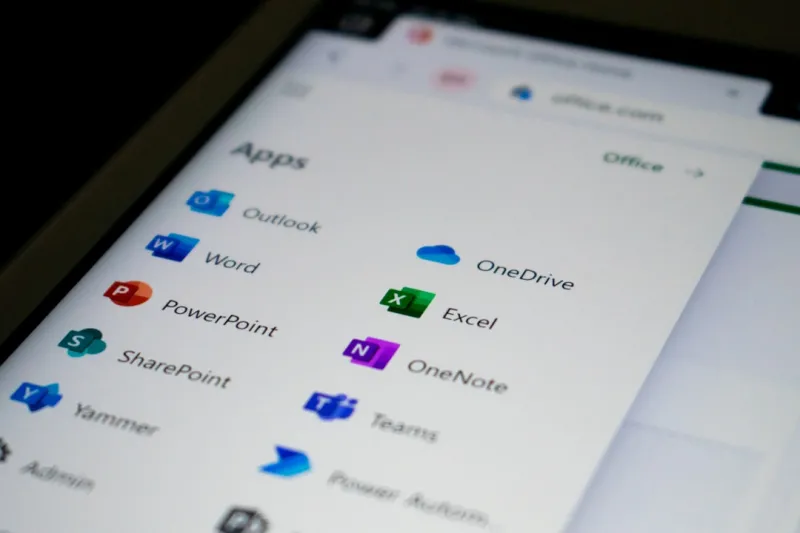
When I first opened Word in the early 2000s, I never imagined the day I’d be drafting proposals with an AI co‑pilot that could rewrite entire sections on command. Fast‑forward to 2026, and Microsoft Office has become a living, breathing ecosystem that feels more like a collaborative teammate than a static suite of apps. The integration of generative AI across Word, Excel, PowerPoint, and Teams means the line between content creation and intelligent assistance is practically invisible. What’s truly exciting is how these tools adapt to the power‑user workflow: they learn your preferred phrasing, anticipate data‑driven insights, and even suggest design tweaks that match your brand’s visual language—all while maintaining the tight security standards we demand in a world where AI‑generated content is scrutinized for authenticity. As someone who lives at the intersection of tech and productivity, I’ve learned to leverage these capabilities to shave hours off routine tasks, freeing me to focus on strategy and creative problem‑solving. In this post, I’ll walk through the most impactful Office features you should be mastering right now, and how to harness them without falling into the common traps that many users still encounter.
AI‑Powered Writing Assistance: Beyond Simple Autocomplete
Microsoft’s Copilot for Word has evolved far beyond the autocomplete suggestions of a decade ago. It now offers contextual rewrites, tone adjustments, and even citation generation that pulls from the latest research databases—all in real time. The key to getting the most out of this feature is to treat it as a collaborative partner rather than a replacement for your own voice. Start by drafting a rough outline, then ask Copilot to expand sections, provide alternative phrasings, or inject data‑driven arguments. I’ve found that prompting with specific instructions—like “rewrite this paragraph in a more persuasive tone for C‑level executives” or “add a bullet list summarizing these financial results”—produces results that feel genuinely personalized. Remember to review each suggestion for accuracy; the AI can occasionally hallucinate data, especially when dealing with niche industry statistics. By combining your expertise with Copilot’s speed, you can produce polished documents in a fraction of the time, while still retaining full editorial control.
Excel’s New Data Types and Real‑Time Insights
Excel in 2026 is no longer just a grid of cells; it’s a dynamic analytics engine that can pull live data from cloud sources, recognize complex data types, and surface predictive trends instantly. One of my favorite upgrades is the “Smart Data Types” feature, which lets you transform plain text entries—like a list of company names—into rich entities that automatically populate related fields such as revenue, employee count, and market cap. Pair this with the AI‑driven “Analyze Data” pane, and you have a one‑click solution for generating charts, pivot tables, and even natural‑language summaries of your findings. For power users, the real magic lies in the new “Formula Suggestions” that predict the next logical calculation based on your workflow, reducing the need to memorize obscure functions. I often integrate these capabilities with Power Query to automate data cleansing, then let Copilot suggest the most effective visualization for board presentations. The result is a streamlined pipeline from raw data to actionable insight, all within the familiar Excel environment.
PowerPoint’s Design Intelligence: From Slides to Stories
Creating compelling presentations used to be a labor‑intensive process, especially when you needed to align branding, storytelling, and data visualization. Today, PowerPoint’s Design Intelligence, powered by generative AI, can transform a simple bullet list into a full‑fledged slide deck with professional layouts, custom graphics, and even animated transitions that match your corporate style guide. The secret to maximizing this tool is to feed it with clear, structured content—think concise headlines, key data points, and a brief narrative outline. From there, ask Copilot to “create a visual story that emphasizes growth trends over the past three years,” and watch as it assembles charts, icons, and speaker notes automatically. I also leverage the new “Live Presenter Coach,” which provides real‑time feedback on pacing, filler words, and audience engagement cues during rehearsals. This AI‑driven rehearsal mode has saved me countless hours of practice and boosted confidence when presenting to senior leadership. By embracing these design aids, you can focus on refining your message rather than wrestling with formatting.
Collaboration in Teams: Seamless Office Integration
Teams has become the central hub for collaboration, and Microsoft has tightly woven Office apps into its fabric. In 2026, the ability to co‑author documents directly within a Teams channel—without ever leaving the chat interface—means decisions happen faster and version control stays transparent. One feature I rely on is “Contextual Docs,” where a shared Word or Excel file appears as a pinned tab that updates in real time as teammates comment or edit. Coupled with AI‑generated meeting minutes, you can instantly generate action items and assign tasks to the appropriate members, all with a single click. Moreover, the integration of “Secure Guest Access” ensures that external partners can contribute securely, preserving compliance with corporate policies. To keep the workflow efficient, I set up automated workflows using Power Automate that route completed documents for approval and archive them in SharePoint with appropriate metadata. This end‑to‑end ecosystem eliminates the friction of switching between apps and guarantees that every piece of information remains linked and searchable across the organization.
Security and Compliance: Guarding AI‑Generated Content
With great power comes great responsibility, and the rise of AI‑generated content raises new security concerns. Microsoft has responded by embedding advanced detection tools directly into Office, flagging content that may contain sensitive data or potential misinformation. In my daily routine, I enable “Data Loss Prevention” policies that automatically scan documents for personally identifiable information (PII) before they’re shared externally. Additionally, the AI “Fact‑Check” feature cross‑references claims against verified sources, alerting you to possible inaccuracies—an essential safeguard for compliance‑heavy industries like finance and healthcare. I also appreciate the granular permission settings that let you control who can view, edit, or even suggest changes to a document, ensuring that only authorized personnel can influence critical files. By combining these built‑in safeguards with your organization’s broader security posture, you can confidently adopt AI tools without compromising data integrity or regulatory compliance.
Optimizing Performance: Hardware and Network Considerations
Even the most sophisticated Office suite can feel sluggish if your underlying hardware or network isn’t up to the task. In 2026, the AI components of Office leverage cloud‑based processing, but the local experience still depends on CPU speed, SSD performance, and network latency. I recently upgraded my workstation following the guidelines in Unlock Maximum Power: A 2026 Guide to PC Upgrades for Power Users, which emphasized a high‑core‑count processor and a PCIe 4.0 NVMe drive to reduce load times for large Excel models. On the network side, ensuring you have a stable gigabit connection with QoS settings that prioritize Office 365 traffic can dramatically improve real‑time co‑authoring responsiveness. For remote teams, I recommend configuring a modern VPN solution that supports split‑tunneling, allowing Office traffic to bypass congested routes. By aligning your hardware and network infrastructure with Microsoft’s performance recommendations, you’ll experience smoother AI interactions, faster document rendering, and overall higher productivity.
Future Outlook: The Next Wave of Office Innovation
Looking ahead, Microsoft is betting heavily on deeper AI integration, multimodal collaboration, and even more granular personalization within Office. Upcoming features hinted at during the latest Ignite conference include “Voice‑First Editing” in Word, where you can dictate revisions and see them appear instantly, and “Dynamic Data Refresh” in Excel that auto‑updates models as source APIs evolve. I’m particularly excited about the prospect of “Cross‑App Knowledge Graphs,” which will allow insights discovered in one Office app to surface contextually in another—imagine an Excel trend prompting a PowerPoint slide recommendation without manual input. As power users, staying ahead of these innovations means continuously refining our workflows, embracing new AI capabilities, and maintaining a vigilant security mindset. By blending the human touch with intelligent automation, we’ll not only keep pace with the rapid evolution of Microsoft Office but also set new standards for efficiency and creativity in the modern workplace.




