
Ever since I first booted Windows 12 on my 2026 workstation, I’ve felt like I’m piloting a sleek, high‑performance jet instead of a clunky commuter car. The moment the new lock screen greets you with an ultra‑responsive, AI‑driven canvas, it’s clear that Microsoft is speaking directly to power users who demand both speed and elegance. In my years of tinkering with every Windows release, I’ve learned that the sweet spot between stability and cutting‑edge features is rare—but Windows 12 finally lands there. In this deep dive, I’ll walk you through the OS’s most compelling upgrades, show you how to lock down your system against today’s sophisticated threats, and reveal the hidden shortcuts that will keep you ahead of the curve in 2026 and beyond.
Architectural Overhaul: The Core That Powers Your Workflow
Windows 12 isn’t just a surface refresh; it’s built on a re‑engineered kernel that leverages the latest low‑latency scheduling and hybrid‑core awareness. This means the OS can intelligently allocate tasks across performance and efficiency cores, delivering a buttery‑smooth experience even when you’re juggling heavy IDEs, virtual machines, and 4K video streams. The new Dynamic Resource Manager monitors your workload in real time, scaling memory allocation and I/O priority without a hitch. For power users, this translates to faster compile times, near‑instant app launches, and a noticeable reduction in background “coughs” that used to plague older builds. Coupled with a streamlined driver model, Windows 12 reduces the friction that typically arises when you upgrade hardware, letting you focus on creation rather than configuration.
Productivity Features That Feel Like Superpowers
One of my favorite enhancements is the revamped Snap Layouts 2.0, which now supports up to six zones on a single screen and integrates directly with the new Multi‑Desktop Manager. You can assign apps to specific zones via a simple drag‑and‑drop, and Windows remembers those placements across sessions—perfect for developers who need their debugger, code editor, and terminal always side by side. The refreshed Widgets pane isn’t just a news ticker; it’s a fully interactive, AI‑curated dashboard that surfaces build status, system health, and even personalized code snippets. Voice integration has also taken a leap forward, allowing you to launch scripts, query system logs, or toggle performance profiles hands‑free—an invaluable tool when your hands are already buried in cables and keyboards.
Fortified Security for an Era of Sophisticated Malware
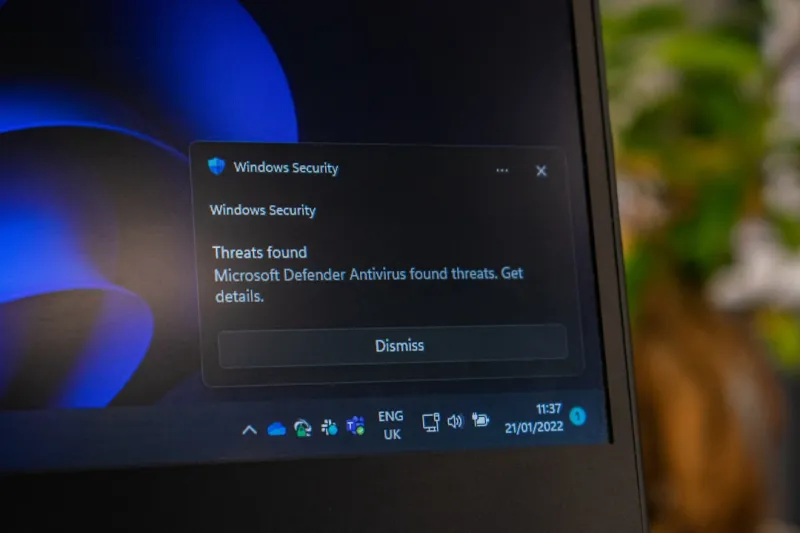
Modern malware has evolved into a stealthy, AI‑driven menace, and Windows 12 meets it head‑on with a suite of defensive upgrades. The new Hyper‑Guard runtime monitors process behavior at the instruction level, blocking anomalous code before it can execute. Coupled with hardware‑based isolation via TPM 2.2, your credentials stay locked away from even the most tenacious attackers. For those who want a deeper dive, I highly recommend checking out the Power‑User’s Playbook for Defeating Modern Malware, which walks you through hardening your system with custom policies and threat‑intelligence feeds. By combining Windows 12’s built‑in safeguards with a disciplined security playbook, you’ll achieve an almost unbreakable posture that lets you focus on productivity rather than patch‑chasing.
AI Computing: The New Engine Behind Everyday Tasks
What truly sets Windows 12 apart is its deep integration of AI at the OS level. The built‑in Copilot assistant can now analyze your workflow patterns and proactively suggest actions—like pre‑loading the next set of files you’ll need or adjusting power settings for a demanding rendering session. This isn’t the generic chatbot you’ve seen before; it’s an on‑device, privacy‑first model that learns from your local usage. If you’re curious about how this AI wave is reshaping the power‑user toolkit, take a look at How AI Computing is Redefining the Power‑User Playbook. You’ll discover practical tips for harnessing AI‑driven scripting, automating routine maintenance, and even generating code snippets on the fly—all without ever leaving your desktop.
Keeping Your GPU Happy in the Age of Real‑Time Ray Tracing
Graphics performance remains a critical piece of the power‑user puzzle, especially with Windows 12’s emphasis on real‑time ray tracing and AI‑accelerated rendering. If you’ve ever been frustrated by driver rollbacks or unexpected stutters, the new Unified Driver Hub simplifies the process: it auto‑detects the optimal driver branch for your GPU, validates signatures, and schedules silent background updates. For troubleshooting specific hiccups, the guide Why Your Video Card Is Acting Up and How to Fix It Fast offers step‑by‑step diagnostics that can save you hours of downtime. By staying on top of driver health and leveraging Windows 12’s GPU scheduler, you’ll extract every ounce of performance from your RTX 5090 or future‑generation AMD card.
Scripting, Automation, and the Rise of PowerShell 8
PowerShell has received a major overhaul in Windows 12, emerging as PowerShell 8 with native AI code‑completion and a revamped module ecosystem. The new Invoke‑AI cmdlet can analyze log files, suggest remediation steps, and even generate custom functions based on natural‑language prompts. This makes automating repetitive admin tasks feel like a conversation with your OS. Additionally, the integrated Terminal now supports multi‑pane sessions with synchronized scrolling, allowing you to monitor build logs, run Docker containers, and execute remote SSH commands in a single window. If you’re looking to elevate your scripting game, start by converting legacy batch files into PowerShell modules and take advantage of the built‑in AI assistance to fine‑tune performance.
Future‑Proof Networking: A Home Lab That Grows With You
Windows 12’s networking stack has been re‑engineered for low‑latency, high‑throughput environments, which is a boon for anyone running a home lab or remote development environment. Features like Adaptive QoS automatically prioritize traffic from IDEs, VPNs, and streaming services, ensuring you never miss a packet during a critical test run. To protect this growing ecosystem, I recommend the guide Future‑Proof Your Home Network, which outlines how to segment your network with VLANs, deploy a zero‑trust firewall, and leverage Windows 12’s built‑in DNS over HTTPS for encrypted name resolution. By treating your home network as an extension of your workstation, you create a resilient, scalable foundation that can handle everything from AI model training to 8K media streaming.
Hardware Compatibility: Building a Future‑Proof PC in 2026
Even with the most polished OS, hardware mismatches can still hold you back. Windows 12’s expanded support for DDR5‑6000 and PCIe 5.0 devices means you can now pair your system with the latest storage and GPU technologies without sacrificing stability. When planning a build, consult the Building a Future‑Proof PC in 2026: The Power‑User’s Blueprint to select components that not only meet today’s demands but also leave headroom for tomorrow’s AI workloads and VR experiences. Pay special attention to the motherboard’s firmware upgrade path and ensure your power supply can handle the increased transient loads that high‑performance GPUs demand. A well‑balanced rig, paired with Windows 12’s adaptive resource management, will deliver consistent performance for years to come.
Wrapping Up: Make Windows 12 Your Personal Power‑User Engine
In the end, Windows 12 feels less like an operating system and more like a living, learning partner that adapts to how you work. By embracing its AI‑driven features, leveraging the hardened security suite, and aligning your hardware and network to the OS’s strengths, you’ll unlock a level of efficiency that feels almost magical. I encourage you to dive into the linked resources, experiment with the new scripting capabilities, and share your own discoveries with the community. Remember, the true power of Windows 12 lies not just in the code Microsoft writes, but in how you, the power user, choose to sculpt it into the ultimate productivity engine.




