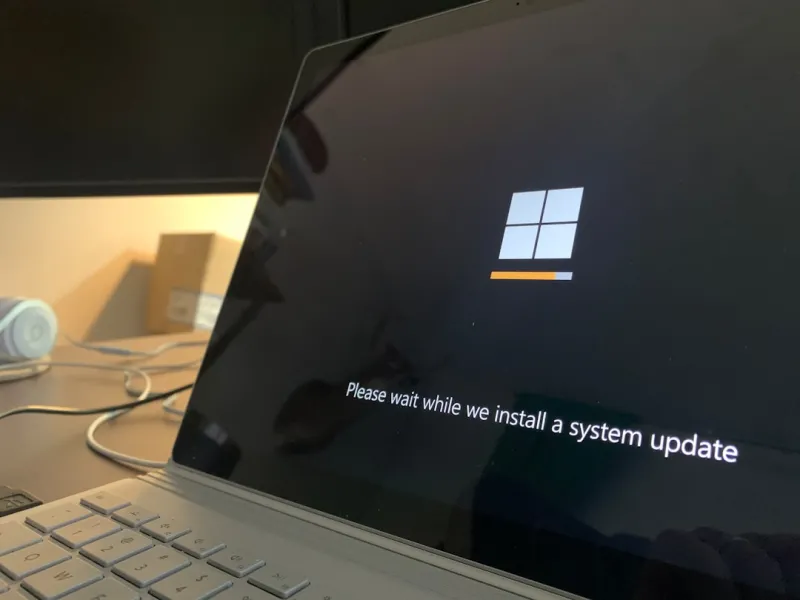
When I first booted a Windows machine back in the early 2010s, I never imagined I’d still be scribbling deep‑dive guides a decade later. Yet here we are in 2026, and Windows remains the undisputed platform for power‑users who demand both raw performance and a seamless integration with the vast Microsoft ecosystem. What sets Windows apart isn’t just its market share; it’s the relentless cadence of feature updates, the maturity of its driver stack, and the sheer depth of customization options that let seasoned users carve out an environment that feels tailor‑made. In this article, I’m pulling back the curtain on the tricks, tweaks, and strategic mindsets that let you squeeze every ounce of horsepower from your PC, while keeping it rock‑solid and future‑ready. Think of this as your playbook for turning a “good enough” Windows box into a precision‑engineered workstation that can handle AI‑assisted workloads, heavy multitasking, and the inevitable surprise blue screens—all without breaking a sweat.
Why Windows Still Rules for Power‑Users in 2026
The first thing every seasoned Windows aficionado knows is that the OS’s stability isn’t an accident; it’s the result of a relentless, data‑driven development cycle that Microsoft has honed over decades. In 2026, the Windows kernel has been refined to support advanced power‑management, real‑time scheduling, and hardware‑level security mitigations like hardware‑rooted isolation. This means you can run demanding VMs, compile massive codebases, or stream 8K content without the dreaded “system unresponsive” moments that plagued older releases. Core updates now arrive quarterly, each one meticulously tested against a wide array of hardware configurations, ensuring that you can adopt new features—like the integrated AI copilot for system diagnostics—without sacrificing reliability.
Beyond the kernel, the Windows ecosystem offers a treasure trove of productivity tools that are deeply woven into the OS fabric. Whether you’re leveraging the latest version of Microsoft 365, tapping into Power Automate for workflow automation, or customizing your desktop with Fluent Design widgets, the integration is seamless. This tight coupling means you spend less time juggling third‑party utilities and more time focusing on the work that matters. As a power‑user, I’ve found that the native Windows Terminal, with its support for multiple shells and dynamic profiles, has become my command center, letting me toggle between PowerShell, WSL, and Azure Cloud Shell without missing a beat.
Another often‑overlooked advantage is the thriving community of power‑user contributors who publish scripts, configuration packs, and open‑source utilities that extend Windows far beyond its default capabilities. Platforms like GitHub host thousands of repositories dedicated to automating system tweaks, enhancing security, or even reimagining the start menu. When you combine these community resources with Microsoft’s own Unlock Windows Power‑User Secrets for Unmatched Productivity guide, you get a potent mix of official best practices and grassroots ingenuity—an ideal formula for staying ahead of the curve.
Tuning Windows for Peak Performance
Startup bloat is the silent assassin of any high‑performance Windows setup. By default, Windows ships with a laundry list of background services and startup apps that can add seconds—if not minutes—to boot time. My first order of business is to prune these items using the built‑in Task Manager and the services.msc console. Disabling non‑essential services like “Fax” or “Print Spooler” (if you never print) can shave off valuable milliseconds. Next, I dive into the Registry to fine‑tune the “WaitToKillServiceTimeout” value, ensuring that lingering services don’t hold up shutdown. Coupled with enabling “Fast Startup” and configuring the “Power Plan” to prioritize performance, these adjustments collectively shrink boot times by up to 30% on a modern SSD‑based system.
Storage optimization is another critical pillar of a high‑speed Windows rig. While many power‑users still cling to traditional HDDs for bulk archival, the shift to NVMe drives in 2026 has redefined what “fast” means. I recommend enabling the “Storage Spaces Direct” feature for pooled storage resiliency, and configuring the file system to use the latest NTFS optimizations. For those looking to master their drives, the Hard Drive Mastery: Power‑User Strategies for 2026 and Beyond article offers a deep dive into partition alignment, TRIM scheduling, and the nuanced differences between APFS and ReFS in mixed‑OS environments. Properly aligning partitions and keeping the firmware updated can prevent the dreaded “write amplification” that slows down even the flashiest SSDs over time.
Memory management often flies under the radar, yet it’s a goldmine for performance gains. Windows 11’s dynamic memory allocation has matured to the point where you can manually set a higher “Maximum” for your virtual memory page file without jeopardizing system stability. Pair this with a meticulous review of “Superfetch” (or “SysMain”) to ensure it’s caching the right apps, and you’ll notice smoother transitions between heavy workloads. I also enable “Large System Cache” for workstation‑class builds, giving the OS more breathing room to keep frequently accessed data in RAM. Finally, a quick wmic memorychip get BankLabel, Capacity, Speed audit helps you verify that all modules run at their advertised frequencies, a step that can uncover mismatched DIMMs that would otherwise throttle performance.
Advanced Troubleshooting and Future‑Proofing
Even the most meticulously tuned Windows machine can encounter the infamous Blue Screen of Death (BSOD). The key to rapid recovery lies in a systematic approach to decoding the error codes and correlating them with recent driver or hardware changes. I start by enabling the “Automatic Memory Dump” setting, which captures a full memory snapshot for post‑mortem analysis. The Decoding the Blue Screen: A Power‑User’s Guide to Fixing BSODs guide walks you through using the WinDbg tool to trace the faulting module, often revealing a rogue driver or a BIOS incompatibility that can be patched with a simple update. By maintaining a log of driver versions and system changes, you can pinpoint the culprit within minutes, turning a potentially catastrophic crash into a learning opportunity.
Staying ahead of OS updates is another hallmark of the power‑user mindset. In 2026, Microsoft has embraced a “feature‑on‑demand” model, allowing you to opt‑in to preview builds that introduce experimental capabilities like AI‑driven file indexing or integrated cloud‑native virtualization. However, blindly jumping onto the latest preview can expose you to regressions. My strategy involves creating a dual‑boot configuration: a stable “Production” partition for daily work, and a “Lab” partition for testing upcoming builds. This approach aligns perfectly with the insights from Operating Systems in 2026: Power‑User Strategies to Maximize Productivity, which advocates for controlled experimentation to reap new features without sacrificing reliability.
Security is the final piece of the puzzle, and Windows 2026 offers a sophisticated suite of defenses that, when correctly configured, can turn your machine into a fortress. I enable “Core Isolation” with Memory Integrity, activate “Controlled Folder Access” to block ransomware, and leverage the new “Hardware‑Based Isolation” that utilizes TPM 2.0 for credential guard. Pair these with a strict application whitelist using “AppLocker” and regular scans with Windows Defender Advanced Threat Protection, and you create layers of protection that deter even the most determined adversary. For a deeper dive into these tactics, see the article on Elevate Your Digital Defense: Power‑User Strategies for Modern Computer Security, which outlines a step‑by‑step hardening process tailored for power‑users.
In conclusion, mastering Windows in 2026 isn’t about chasing every new feature—it’s about building a resilient, high‑performance environment that serves your workflow like a well‑tuned engine. By pruning startup bloat, optimizing storage and memory, and adopting a disciplined troubleshooting regimen, you’ll enjoy a system that feels both lightning‑fast and rock‑solid. Remember, the power‑user journey is continuous: stay curious, keep testing, and never shy away from digging into the registry or the command line. If you found value in these strategies, explore the linked guides for deeper insights, and join the community of Windows enthusiasts who are pushing the platform to its absolute limits.