
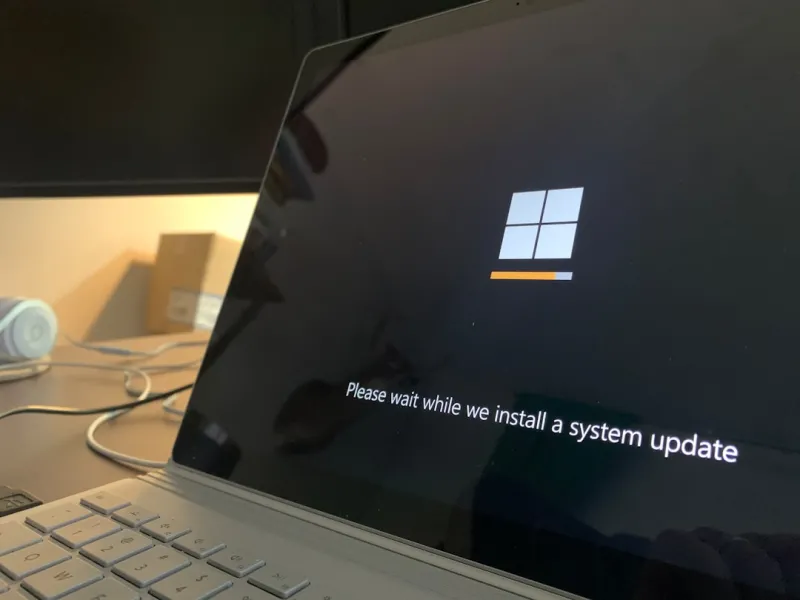
When I first booted Windows on a brand‑new laptop back in 2026, the experience felt both familiar and startlingly fresh. Microsoft has layered AI‑driven assistance, tighter integration with Azure services, and a revamped security model that makes the OS feel like a living, learning companion rather than a static platform. For power users, this shift translates into a toolbox that anticipates routine tasks—automatically suggesting scripts, pre‑emptively patching vulnerabilities, and even adjusting performance profiles based on real‑time workload analysis. Yet, beneath the sleek veneer lies a complex ecosystem where every update can ripple through drivers, registry settings, and legacy software. Understanding these dynamics is essential for anyone who refuses to settle for “just another Windows install.” In this post, I’ll walk you through the most impactful changes, share strategies to keep your system humming, and reveal how to turn Windows’ built‑in diagnostics into a proactive ally. Let’s dive into the nuances that make Windows 2026 a playground for the technically curious.
AI‑Enhanced Performance Management
One of the headline features of Windows 2026 is the AI‑augmented Performance Manager, a subsystem that monitors CPU, GPU, and memory usage across all active processes. It learns your typical usage patterns—whether you’re editing 8K video, running multiple virtual machines, or gaming on ultra settings—and dynamically reallocates resources without you lifting a finger. This isn’t just a nice visual overlay; it rewrites the scheduling priorities in the kernel, allowing foreground apps to claim more cycles during peak demand while throttling background services that aren’t mission‑critical. For power users, the key is to understand how to fine‑tune these AI suggestions. The Settings > System > Performance page now includes a “Manual Override” toggle, letting you set custom thresholds or lock certain applications into high‑performance mode. Pair this with the built‑in Resource Monitor to verify that your AI decisions align with real‑world needs, and you’ll avoid the dreaded “I thought I’d get a boost, but my frame rate dipped” scenario.
Security by Design: Zero‑Trust Foundations
Microsoft’s security roadmap has taken a decisive leap toward a zero‑trust architecture, and Windows 2026 embodies that philosophy at the OS level. Every executable is now subject to a “trust score” generated by Microsoft Defender SmartScreen, which cross‑references cloud‑based threat intel before granting execution rights. Coupled with the new “Hardware‑Rooted Attestation” feature, the OS validates the integrity of your CPU and firmware before boot, dramatically reducing the attack surface for firmware‑level malware. As a power user, you can leverage the “Advanced Threat Protection” console to customize policies, whitelist essential development tools, and receive real‑time alerts on anomalous behavior. Don’t forget to enable “Controlled Folder Access” for your most sensitive directories—this blocks unauthorized apps from sneaking in and encrypting files, a common ransomware vector. By embracing these built‑in defenses, you create a resilient baseline that lets you focus on productivity rather than constant vigilance.
Seamless Cloud Integration
Windows 2026 deepens its relationship with Azure, making cloud resources feel like a native extension of your desktop. The new “Azure Sync Hub” synchronizes settings, files, and even local development environments across any Windows device signed into your Microsoft account. Imagine editing a PowerShell script on a laptop, then instantly picking up where you left off on a desktop with identical environment variables and module versions. This is powered by the “Azure Files Direct” service, which mounts a cloud‑backed file system with sub‑millisecond latency for most workloads. For power users who juggle multiple machines, this eliminates the need for third‑party sync tools and reduces version‑control friction. Additionally, the integrated “Windows Subsystem for Linux (WSL) 2.0” now supports direct Azure Container Instances, letting you spin up Linux containers that run in the cloud but feel local—perfect for testing code in isolated environments without sacrificing performance.
Optimizing Legacy Compatibility
While Windows pushes forward with AI and cloud, many power users still rely on legacy applications that were written for Windows 7 or 8. The Compatibility Layer in 2026 has been overhauled to include a “Legacy Mode” profile that can be applied per‑application. This mode preserves older DLL behaviors, disables certain security mitigations that would break legacy code, and emulates a classic UI scaling factor. To activate it, right‑click the executable, choose Properties → Compatibility, and select “Run with Legacy Mode.” This approach is a lifesaver for engineers maintaining older test rigs or for gamers who still enjoy titles that haven’t been patched for modern APIs. Remember, though, that Legacy Mode can expose you to known vulnerabilities; always pair it with a robust sandbox solution like Windows Sandbox or a virtual machine to isolate potential risks.
Power‑User Tools for Rapid Diagnostics
When something goes wrong—say you encounter the dreaded blue screen—Windows 2026 equips you with faster, more informative diagnostics. The new “Event Trace Explorer” consolidates crash logs, driver failures, and memory dumps into a searchable dashboard. You can filter by process name, driver version, or even the specific error code, dramatically reducing the time spent digging through cryptic .evtx files. For a deeper dive, the integrated “Kernel Debugger” can now attach to a live system without requiring a separate boot media, making on‑the‑fly troubleshooting a reality. If you’re interested in a broader perspective, check out Blue Screen as a Tool, which explores how seasoned users turn these events into learning opportunities rather than setbacks.
Automation with PowerShell and WinUI 3
PowerShell 7.5, bundled with Windows 2026, introduces native support for WinUI 3 components, allowing you to craft sleek graphical front‑ends for scripts that once ran strictly in the console. This opens the door to building custom dashboards that pull data from the Performance Manager, Security Center, and Azure Sync Hub—all in real time. For instance, you could create a one‑click utility that toggles your system between “Work” and “Play” profiles, adjusting power plans, network priorities, and even disabling telemetry services when you need maximum privacy. The new Script Gallery in the Microsoft Store curates community‑tested scripts, making it easier to discover automation ideas that fit your workflow. By integrating UI elements, you not only enhance usability but also lay the groundwork for future cross‑platform tools that can run on both Windows and Linux via WSL.
Staying Ahead of the Update Curve
Microsoft’s “Patch Tuesday” has evolved into a continuous delivery model, pushing cumulative updates as soon as they’re validated. While this reduces exposure to critical vulnerabilities, it can also introduce unexpected driver conflicts or regressions. To stay ahead, enable the “Deferred Update Channel” for non‑critical components, and use the new “Update Impact Analyzer” to preview changes before they’re applied. This tool simulates the update in a sandbox environment, flagging potential issues with third‑party drivers or software. For a broader view of what’s essential this year, see Critical 2026 Tech Updates. Pair this foresight with a reliable system image created via the built‑in “System Reset Plus” utility, and you’ll have a safety net that lets you roll back with a single click should anything go awry.
Future‑Proofing Your Windows Ecosystem
Looking beyond 2026, the direction of Windows suggests tighter convergence with ARM hardware, increased reliance on cloud‑native services, and an expanding role for AI in everyday tasks. To future‑proof your setup, consider investing in a motherboard that supports both x86 and ARM‑compatible modules, and keep an eye on the “Hybrid Compute” initiative that aims to blend CPU and GPU workloads seamlessly. Regularly audit your installed applications for redundancy, and adopt containerization where possible to isolate workloads from OS changes. Finally, cultivate a habit of reading the Windows Insider blogs and participating in the developer community—early exposure to upcoming features will give you a competitive edge. By treating Windows not just as an OS but as an evolving platform, you’ll maintain the agility required to leverage new capabilities as soon as they arrive.




